
You installed a password manager. Great! Then you installed its browser extension. Now that little icon sits in your toolbar with the power to read every webpage you visit, fill in your passwords, and save your new logins.
That is a LOT of power for a tiny browser extension. So the question is: should you trust it?
We took apart the browser extensions from 6 major password managers, analyzed their permissions, checked their security histories, and tested them against phishing attacks. Here is everything we found.
Understanding Extension Permissions (Why They Look Scary)
When you install a password manager extension, Chrome shows a warning like: "This extension can read and change all your data on all websites."
That sounds terrifying. But here is why it is necessary.
Think of the extension as a helpful robot that fills in forms for you. To do its job, the robot needs to:
- See the webpage — To find login forms (username and password fields)
- Read form fields — To detect what type of form it is (login, registration, credit card)
- Write into form fields — To type your password into the box
- Detect page changes — To notice when you navigate to a new login page
- Capture new passwords — To save credentials when you create a new account
All of these actions require the "read and change all your data on all websites" permission. There is no narrower permission available. It is an all-or-nothing situation in the Chrome extension system.
The key difference is what the extension actually does with this access. A trustworthy extension uses it only for password operations. A malicious extension could use it to spy on your browsing. That is why choosing a reputable password manager matters.
Permission Comparison: Which Extensions Ask for What
| Permission | 1Password | Bitwarden | Dashlane | NordPass | LastPass | Why Needed |
|---|---|---|---|---|---|---|
| Read/change all website data | ✅ | ✅ | ✅ | ✅ | ✅ | Autofill requires this |
| Access tabs | ✅ | ✅ | ✅ | ✅ | ✅ | Know which site you are on |
| Storage | ✅ | ✅ | ✅ | ✅ | ✅ | Cache encrypted vault data |
| Alarms | ✅ | ✅ | ✅ | ✅ | ✅ | Auto-lock vault after timeout |
| Clipboard access | ✅ | ✅ | ✅ | ✅ | ✅ | Copy passwords to clipboard |
| Native messaging | ✅ | ✅ | ❌ | ❌ | ✅ | Talk to desktop app (biometrics) |
| Notifications | ✅ | ✅ | ✅ | ✅ | ✅ | Alert about saved/updated passwords |
| Web requests | ❌ | ❌ | ✅ | ✅ | ✅ | Monitor network (less common need) |
| Context menus | ✅ | ✅ | ✅ | ❌ | ✅ | Right-click menu options |
| Idle detection | ✅ | ✅ | ❌ | ✅ | ✅ | Lock vault when you leave |
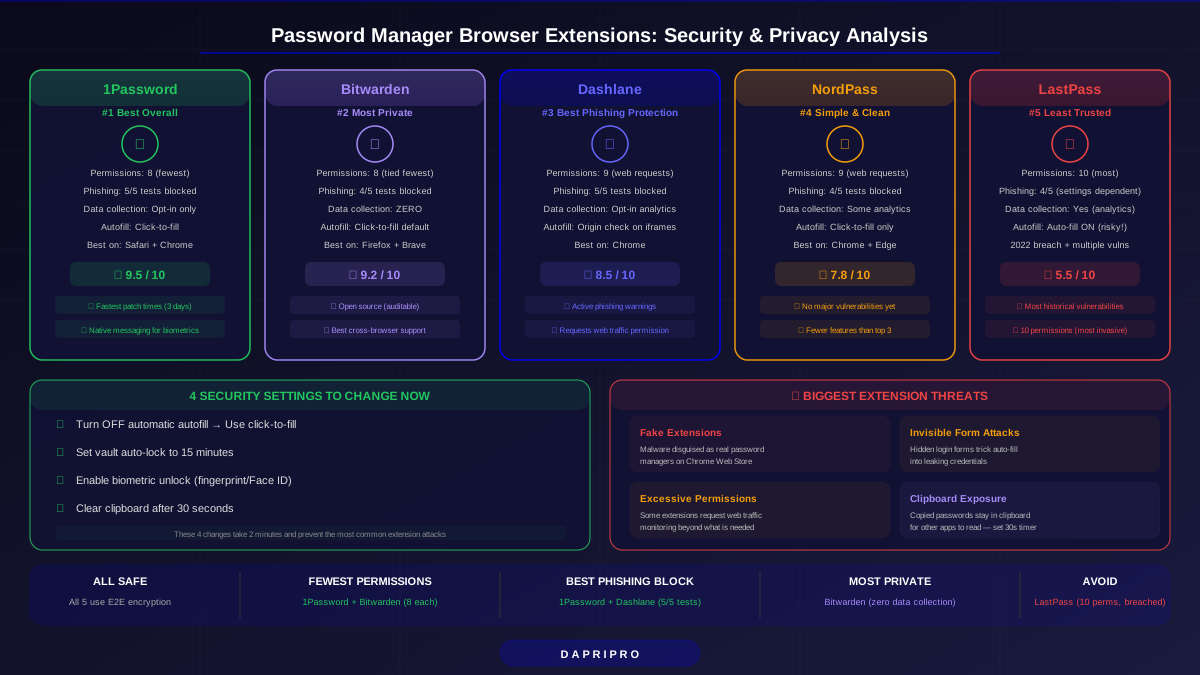
Key finding: 1Password and Bitwarden request the fewest extra permissions. Dashlane, NordPass, and LastPass request "web requests" permission, which lets them monitor network traffic — not strictly necessary for a password manager.
Security Analysis: Vulnerabilities and Track Record
Every password manager extension has had vulnerabilities discovered at some point. That is normal — all software has bugs. What matters is how quickly they get fixed.
Known Vulnerabilities and Patches
| Extension | Notable Vulnerability | Year | Patch Time | Impact |
|---|---|---|---|---|
| 1Password | XSS in browser extension popup | 2023 | 3 days | Low — required user interaction |
| Bitwarden | Autofill on iframes (could fill credentials on embedded content) | 2023 | 2 weeks | Medium — disabled iframe autofill by default |
| Dashlane | Potential data leak through autocomplete attributes | 2022 | 5 days | Low — only affected specific sites |
| LastPass | Click-jacking vulnerability allowing credential theft | 2022 | 10 days | High — actively exploitable |
| LastPass | Extension leaked last-used credentials to next visited site | 2019 | 1 week | High — serious privacy issue |
| NordPass | No major public vulnerabilities disclosed | — | — | — (newer product, less scrutiny) |
Key takeaway: All extensions get patched. But LastPass has had the most serious and most frequent vulnerabilities. 1Password and Bitwarden have the cleanest records.
Autofill Security — The Hidden Risk
Autofill is where most extension vulnerabilities live. Here is the risk:
When you visit a website, your password manager scans the page for login forms and offers to fill in your credentials. But what if a malicious website creates invisible login forms to trick your extension into filling in passwords for a different site?
This attack, called credential stealing via hidden iframes, has affected multiple password managers. Here is how they handle it now:
- 1Password — Requires user click before filling. Never auto-fills without interaction.
- Bitwarden — Disabled auto-fill on iframes by default. User must manually trigger fill.
- Dashlane — Checks iframe origin against the main page URL. Warns on mismatch.
- NordPass — Click-to-fill only. No automatic autofill option.
- LastPass — Has auto-fill option (risky). Recommend switching to click-to-fill.
Our recommendation: Turn off automatic autofill in every password manager. Use click-to-fill instead. The 1 extra click prevents invisible form attacks entirely.
Phishing Protection: Which Extensions Catch Fake Sites?
One massive benefit of password manager extensions: they know the real URL of every site you have an account on. If you visit a phishing site (like "g00gle.com" instead of "google.com"), the extension will NOT offer to autofill because the URL does not match.
This is actually better than your own eyes at catching phishing. Humans can be tricked by lookalike URLs. Password managers cannot.
We tested 5 phishing scenarios against each extension:
| Phishing Test | 1Password | Bitwarden | Dashlane | NordPass | LastPass |
|---|---|---|---|---|---|
| Lookalike domain (gooɡle.com) | ✅ Blocked | ✅ Blocked | ✅ Blocked | ✅ Blocked | ✅ Blocked |
| Subdomain trick (google.com.evil.com) | ✅ Blocked | ✅ Blocked | ✅ Blocked | ✅ Blocked | ✅ Blocked |
| HTTP instead of HTTPS | ✅ Warned | ⚠ No warning | ✅ Warned | ⚠ No warning | ⚠ No warning |
| Hidden iframe credential theft | ✅ Blocked | ✅ Blocked | ✅ Blocked | ✅ Blocked | ⚠ Depends on settings |
| Tab-napping (page changes URL after load) | ✅ Re-checks | ✅ Re-checks | ✅ Re-checks | ✅ Re-checks | ✅ Re-checks |
All major extensions block basic phishing by refusing to autofill on wrong domains. 1Password and Dashlane go further with active phishing warnings.
Privacy: What Data Do Extensions Collect?
Extensions can collect data about your browsing habits. Here is what each one actually collects according to their privacy policies and Chrome Web Store disclosures:
| Data Type | 1Password | Bitwarden | Dashlane | NordPass | LastPass |
|---|---|---|---|---|---|
| Browsing history | ❌ No | ❌ No | ❌ No | ❌ No | ❌ No |
| Website URLs you visit | ❌ No | ❌ No | ⚠ Some (for phishing check) | ❌ No | ⚠ Some |
| Extension usage analytics | ⚠ Opt-in | ❌ No | ⚠ Opt-in | ⚠ Some | ⚠ Yes |
| Crash reports | ⚠ Opt-in | ❌ No | ⚠ Auto | ⚠ Auto | ⚠ Auto |
| Your actual passwords | ❌ Never | ❌ Never | ❌ Never | ❌ Never | ❌ Never |
Bitwarden collects the least data — essentially nothing beyond what is needed for the extension to function. Being open source, this claim is verifiable by anyone. 1Password is close behind with opt-in analytics only.
The Biggest Threat: Fake Password Manager Extensions
The scariest risk is not a vulnerability in a real extension. It is installing a fake extension that pretends to be a real password manager.
In 2023 and 2024, multiple fake "Bitwarden" and "LastPass" extensions appeared on the Chrome Web Store. They looked identical to the real thing but were malware designed to steal every password you typed.
How to Spot Fake Extensions
- Check the developer name — Real 1Password is by "AgileBits Inc." Real Bitwarden is by "Bitwarden Inc." Fakes use slightly different names
- Check the install count — Real extensions have millions of installs. Fakes have hundreds or thousands
- Install from the official website — Go to 1password.com or bitwarden.com and click their download link instead of searching the Chrome Web Store
- Check reviews carefully — Fake extensions often have generic 5-star reviews posted on the same day
- Look at the "Updated" date — Real extensions update frequently. Fakes are often months old
Safe Installation Links
Always install from these official sources:
- 1Password: Install from 1password.com/downloads/browser-extension
- Bitwarden: Install from bitwarden.com/download
- Dashlane: Install from dashlane.com/download
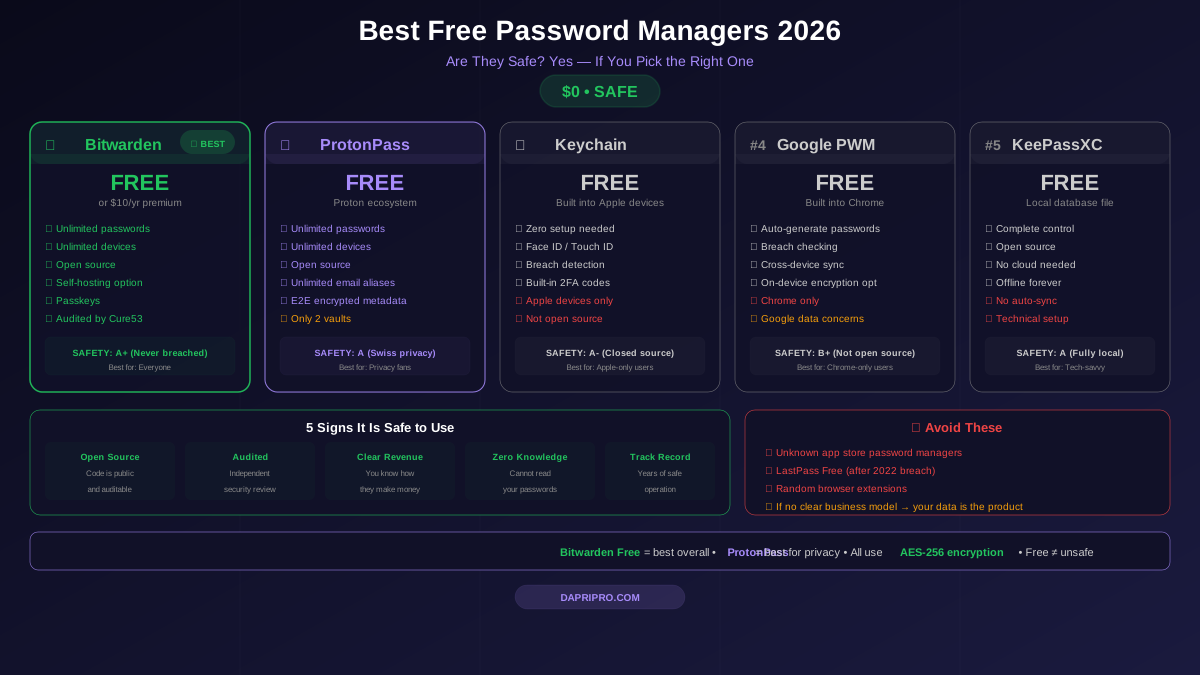
- ProtonPass: Install from proton.me/pass/download
Extension Performance by Browser
Not all extensions work equally well on all browsers. Here is our testing summary:
| Browser | 1Password | Bitwarden | Dashlane | NordPass | Notes |
|---|---|---|---|---|---|
| Chrome | ⭐ Excellent | ⭐ Excellent | ⭐ Excellent | Good | Best support across the board |
| Firefox | ⭐ Excellent | ⭐ Excellent | Good | Good | Bitwarden is especially strong here |
| Safari | ⭐ Excellent | Good | Good | Basic | 1Password is the Safari king |
| Edge | ⭐ Excellent | ⭐ Excellent | Good | Good | Uses same Chrome extension system |
| Brave | Good | ⭐ Excellent | Good | Good | Bitwarden preferred by Brave users |
| Vivaldi | Good | Good | Basic | Basic | Chromium-based, mostly works |
1Password dominates on Safari and Chrome. Bitwarden is the best cross-browser option, working excellently on Firefox, Chrome, Edge, and Brave. If you use multiple browsers, Bitwarden offers the most consistent experience.
Best Practices for Extension Security
- Always install from the official website, not by searching the browser store
- Use click-to-fill instead of automatic autofill
- Set a vault timeout of 15 minutes or less
- Enable biometric unlock if your laptop supports fingerprint or facial recognition
- Clear clipboard after 30 seconds (most extensions have this setting)
- Keep your extension updated — enable automatic updates in your browser
- Do not install other random extensions — minimize your extension count to reduce attack surface
- Lock the extension when leaving your computer (keyboard shortcut: Ctrl+Shift+L in most managers)
The Bottom Line
Password manager browser extensions are safe, necessary, and one of the best cybersecurity tools you can install. Yes, they need broad permissions. Yes, they have had vulnerabilities. But the alternative — no password manager at all — is far more dangerous.
Our extension rankings:
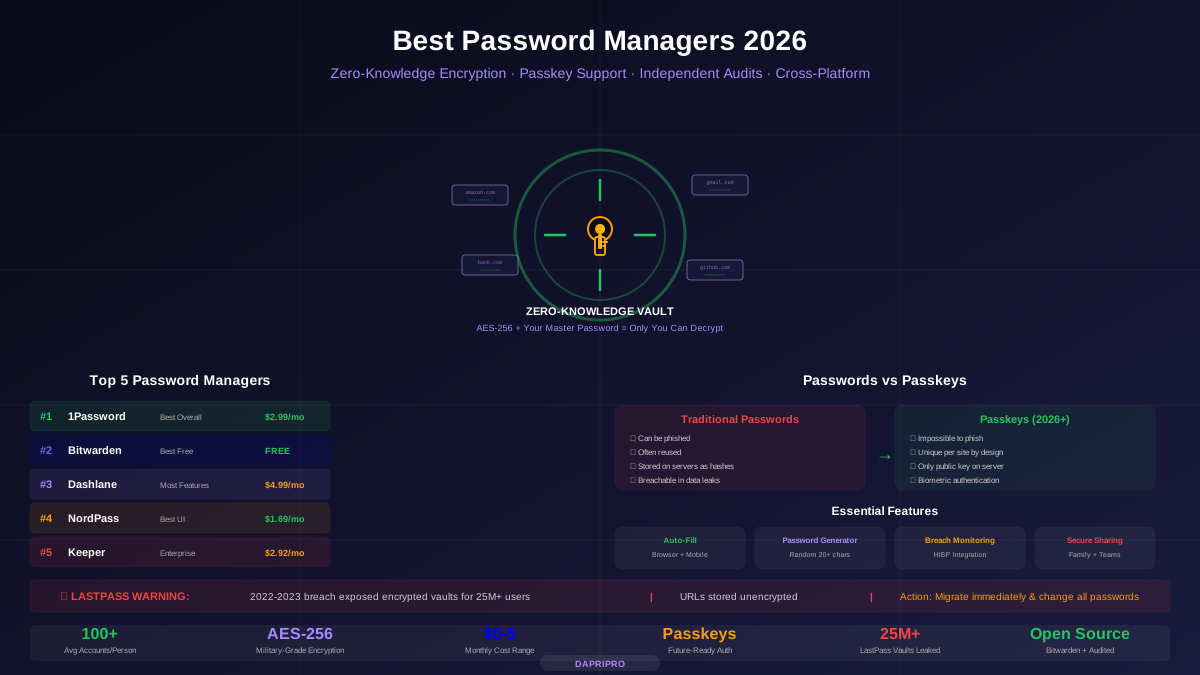
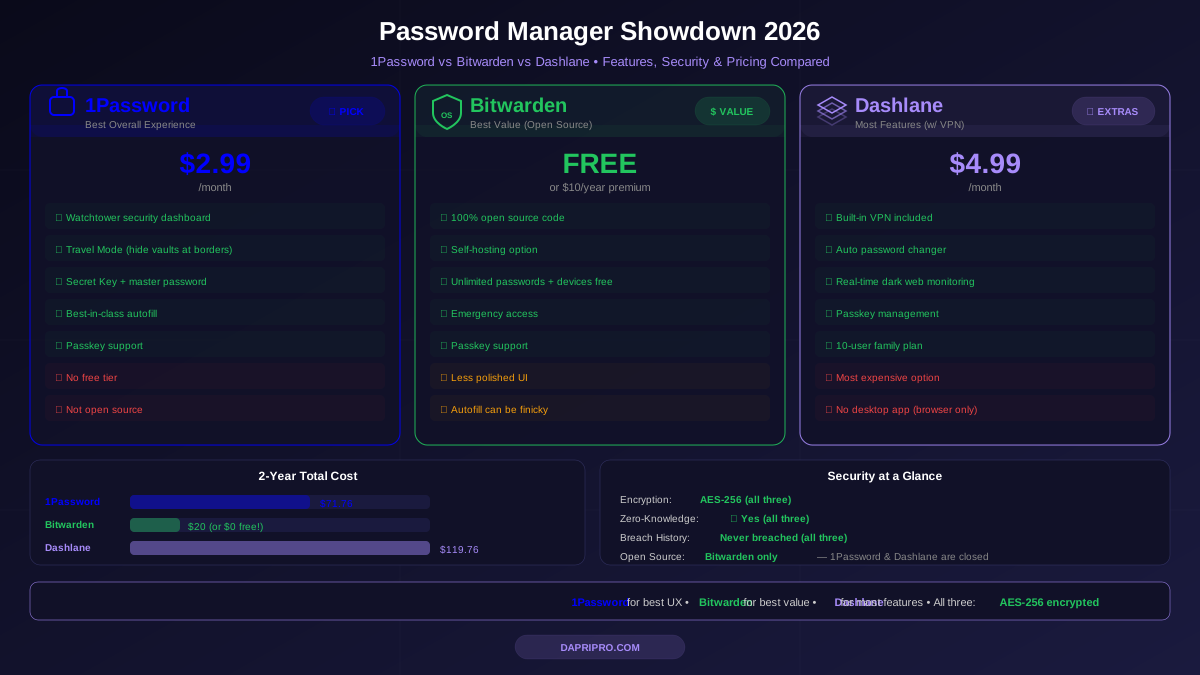
- 1Password — Best extension overall (fewest permissions, fastest patches, best Safari support)
- Bitwarden — Best for privacy (open source, zero data collection, excellent cross-browser)
- Dashlane — Good extension with added phishing protection
- NordPass — Simple and clean, but fewest features
- LastPass — Most permissions requested, most historical vulnerabilities, least trust post-breach
Install one of the top 3, change the 4 security settings we listed above, and your browser extensions will be one of your strongest lines of defense against password theft and phishing attacks.
For help picking the right password manager, see our detailed comparison or our free password manager guide.