
![How to Test Your Antivirus: EICAR and Real-World Protection Checks [2026 Guide]](/images/sections/security-tools-reviews/antivirus-software/how-to-test-your-antivirus-eicar-and-real-world-protection-checks.svg)
You installed an antivirus. You feel protected. But here is a scary question: how do you know it is actually working?
Most people never test their antivirus. They just trust that the icon in the taskbar means everything is fine. But antivirus software can fail silently — real-time protection gets turned off by a Windows update, a subscription expires without notification, or an exclusion rule accidentally blocks scanning in important folders.
This guide shows you exactly how to test your antivirus safely, without downloading actual malware.
The EICAR Test File: Your First Test
The EICAR test file is a 68-character text string that every antivirus product in the world should detect. It was created by the European Institute for Computer Antivirus Research specifically for this purpose.
The string looks like this:
X5O!P%@AP[4\PZX54(P^)7CC)7}$EICAR-STANDARD-ANTIVIRUS-TEST-FILE!$H+H*This string is 100% harmless. It cannot damage your computer. It is just text. But every real antivirus treats it as malware and blocks it.
How to test with EICAR:
- Step 1: Go to eicar.org/download-anti-malware-testfile
- Step 2: Download the EICAR test file (they offer 4 versions: .com, .txt, .zip, and double-zipped)
- Step 3: Watch what happens
Your antivirus should react in one of these ways:
| What Happened | What It Means | Action Needed |
|---|---|---|
| Browser blocked the download | Your browser protection is working | ✅ Good — also test by saving the file directly |
| File was quarantined immediately | Real-time protection caught it | ✅ Great — strongest protection level |
| Alert popped up during download | On-access scanning detected it | ✅ Good — verify it was also removed |
| File downloaded with no alert | Real-time protection may be OFF | ❌ Check your antivirus settings immediately |
| Manual scan found it | Scheduled scanning works, real-time does not | ⚠️ Turn on real-time protection |
| Nothing detected at all | Your antivirus is not working | ❌ Reinstall or replace your antivirus |
Test all 4 EICAR variants:
The official EICAR site offers four download options, and you should test all of them:
- eicar.com — the plain test file. Tests basic file scanning.
- eicar.com.txt — same content with .txt extension. Tests if your AV scans all file types, not just executables.
- eicar_com.zip — the test file inside a ZIP archive. Tests if your AV scans inside compressed files.
- eicarcom2.zip — a ZIP inside a ZIP (double-zipped). Tests deep archive scanning. Many free antivirus products fail this test.
AMTSO: Beyond EICAR
EICAR only tests signature-based detection — whether your antivirus recognizes a known pattern. But modern threats use techniques that bypass signatures. That is where AMTSO comes in.
AMTSO (Anti-Malware Testing Standards Organization) provides free online tests at amtso.org that check more advanced protection features:
| AMTSO Test | What It Tests | Why It Matters |
|---|---|---|
| Cloud Lookup Detection | Whether your AV checks suspicious files against cloud databases | Cloud lookups catch brand-new threats that local signatures miss |
| PUA (Potentially Unwanted App) | Whether your AV blocks bundled software and adware | PUAs are the #1 unwanted software type. Many free AVs skip these |
| Phishing Page | Whether your browser protection blocks known phishing URLs | Phishing is responsible for 90%+ of data breaches |
| Drive-By Download | Whether your AV stops malicious automatic downloads | Tests browser integration and download scanning |
| Compressed Malware | Whether your AV scans inside archives | Attackers hide malware in ZIP, RAR, and 7z files |
Real-World Manual Checks
Beyond EICAR and AMTSO, perform these manual checks to make sure your security is solid:
Check 1: Is real-time protection ON?
Open your antivirus dashboard. Look for a green checkmark or "Protected" status. If you see yellow or red warnings, something is wrong. On Windows, also check Settings → Privacy & Security → Windows Security to make sure Microsoft Defender or your third-party AV shows "Active."
Check 2: Are your virus definitions up to date?
Your antivirus should update virus definitions at least once per day. Check the "Last Updated" date in your antivirus dashboard. If the definitions are more than 3 days old, your protection against new threats is severely weakened.
Check 3: Are important folders excluded?
Go to your antivirus settings and check the exclusion list. Gamers and developers sometimes add folders like Downloads, Desktop, or entire drives to the exclusion list for performance. This creates massive security holes.
Check 4: Is your subscription still active?
Many antivirus products continue showing the icon in your taskbar even after your subscription expires. Some silently reduce protection to basic scanning only. Check your account status within the antivirus app or on the vendor website.
Check 5: Test browser protection separately
Browser protection and file protection are different systems. Visit the AMTSO phishing test page in each browser you use (Chrome, Firefox, Edge) to verify each one is protected. Some antivirus browser extensions only install in one browser.
Your Antivirus Testing Schedule
Set up a regular testing routine to make sure your protection never silently fails:
| When | What to Test | How |
|---|---|---|
| Monthly | EICAR download test | Download all 4 EICAR variants from eicar.org |
| Monthly | Real-time protection status | Check antivirus dashboard for green/active status |
| After OS updates | Full EICAR + AMTSO suite | Major OS updates can break antivirus integration |
| After AV updates | Quick EICAR test | Verify the update did not disable features |
| Quarterly | Full AMTSO feature checks | Test cloud, phishing, PUA, and archive scanning |
| Quarterly | Check exclusion list | Make sure no important folders are accidentally excluded |
| Annually | Review AV-TEST lab results | Check if your product still scores well at av-test.org |
5 Common Reasons Your Antivirus Silently Fails
- Windows Update disabled it. Major Windows feature updates occasionally turn off third-party antivirus. Windows sometimes "helpfully" switches you to Microsoft Defender without telling you.
- Expired subscription running in "basic mode." Products like Norton and McAfee keep showing the icon but reduce protection to minimal scanning when your subscription expires.
- Gaming mode left on permanently. Gaming mode suppresses notifications and may reduce or pause real-time scanning. If you enabled it manually, it may not turn off automatically.
- Conflicting security software. Running two antivirus products simultaneously can cause both to malfunction. They may block each other from accessing files, resulting in zero protection.
- Exclusion list grew too large. Every time something gets falsely flagged, people add it to the exclusion list. Over time, entire folders and drives end up excluded, leaving major gaps in scanning coverage.
Conclusion
Your antivirus is only as good as your verification. The EICAR test takes 30 seconds, AMTSO checks take 5 minutes, and manual verification adds another 5 minutes. That is 10 minutes per month to confirm your computer is actually protected.
Start by downloading the EICAR test file right now. If your antivirus catches it, great — move on to the AMTSO tests. If it does not catch it, you have a serious problem to fix today.
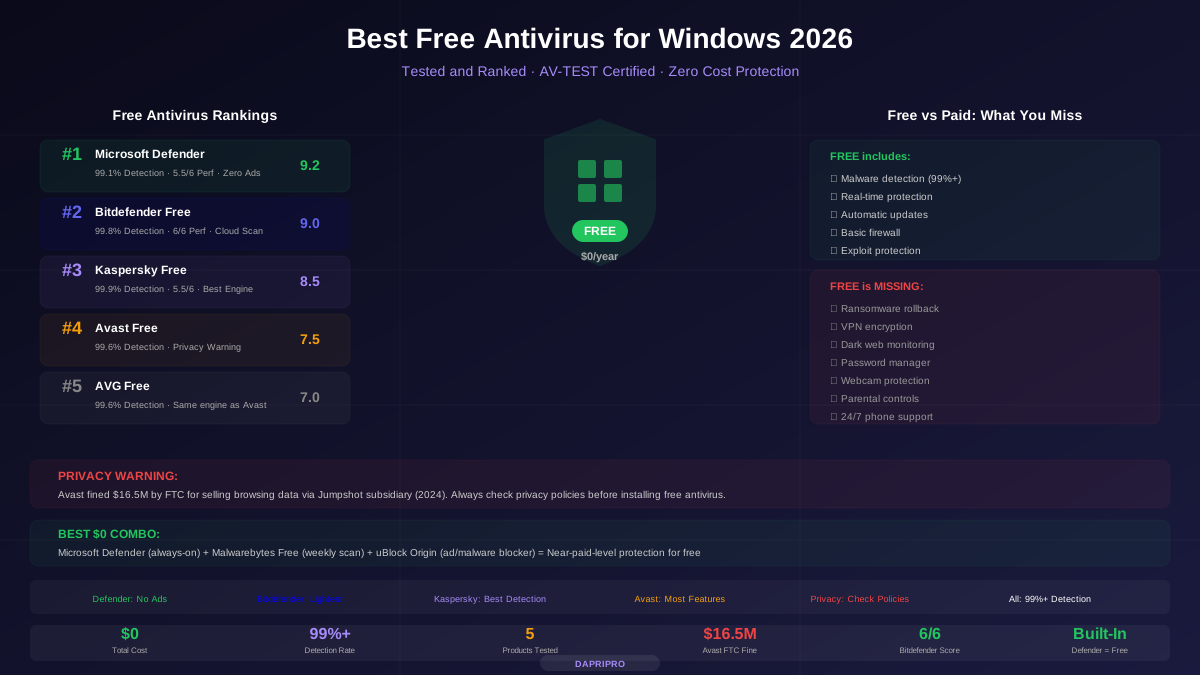
For help choosing a reliable antivirus, check our complete antivirus comparison guide or our best free antivirus guide.
![Norton vs McAfee vs Bitdefender: Head-to-Head Antivirus Comparison [2026]](/images/sections/security-tools-reviews/antivirus-software/norton-vs-mcafee-vs-bitdefender-head-to-head-antivirus-comparison.svg)