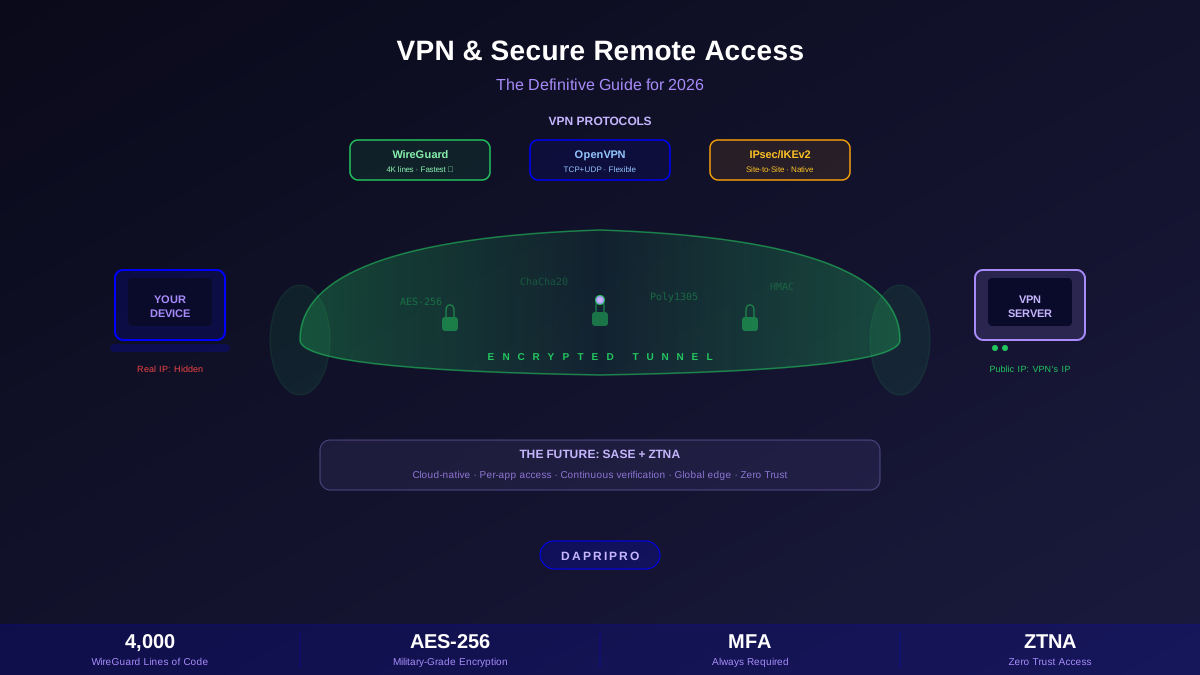

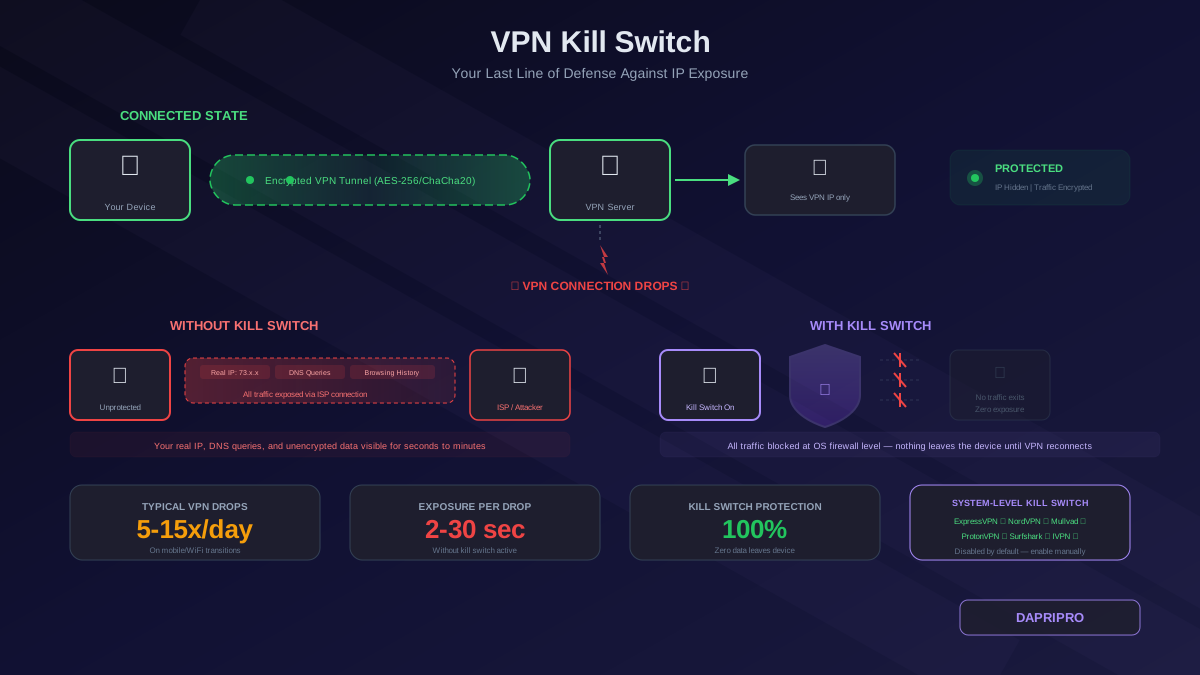
You paid for a VPN to protect your privacy. You connected it every time you opened your laptop. You assumed your traffic was encrypted and your IP address was hidden. But every time your WiFi dropped for two seconds — walking between rooms, switching networks at a coffee shop, or waking your laptop from sleep — your VPN tunnel broke and your device sent traffic through your naked ISP connection. Your real IP address was exposed. Your DNS queries went to your ISP's servers in plaintext. And you had no idea it happened.
This is the problem a VPN kill switch solves. It is a mechanism that blocks all internet traffic the moment your VPN connection drops, and keeps it blocked until the encrypted tunnel is re-established. It is the difference between a VPN that protects you most of the time and one that protects you all of the time.
What Is a VPN Kill Switch?
A VPN kill switch is a feature that monitors the state of your VPN tunnel in real time and immediately halts all network traffic if the tunnel goes down. Instead of allowing your device to fall back to an unprotected connection (which is the default behavior on every operating system), the kill switch blocks outbound traffic until the VPN reconnects.
The concept is simple, but the implementation details matter significantly. There are two fundamentally different approaches:
Application-Level Kill Switch
The VPN application monitors its own connection state. When it detects a drop, it attempts to block traffic by modifying application-level network settings. This approach has a critical weakness: if the VPN application itself crashes (out of memory, kernel panic, unhandled exception), the kill switch also ceases to function because it was running inside the same process that just died. Your traffic reverts to unprotected immediately.
System-Level Kill Switch (Network Lock)
The VPN application modifies the operating system's firewall rules to block all traffic that does not pass through the VPN tunnel interface. This is fundamentally more reliable because the firewall rules persist at the OS kernel level even if the VPN application crashes, is force-quit, or encounters an error. The only traffic allowed is traffic destined for the VPN server itself (to maintain the connection) and traffic through the VPN tunnel interface (tun0 on Linux/macOS, TAP adapter on Windows).
Why a Kill Switch Actually Matters
VPN Connections Drop More Often Than You Think
Most people assume their VPN stays connected continuously. In reality, VPN tunnels break frequently:
- WiFi transitions: Moving between rooms or access points causes brief disconnections that break the tunnel. Your phone switching from WiFi to cellular is another common trigger
- Sleep and wake cycles: When your laptop goes to sleep, the VPN tunnel times out. When it wakes, network connectivity resumes before the VPN client has a chance to re-establish the tunnel — creating a window of unprotected traffic
- Network instability: Congested public WiFi, flaky hotel internet, and cellular dead zones all cause packet loss that can kill a VPN tunnel
- Server-side issues: VPN servers get overloaded, undergo maintenance, or experience outages. Your client gets disconnected without warning
- ISP interference: Some ISPs actively throttle or disrupt VPN protocols, causing intermittent disconnections
What Gets Exposed During a Drop
During the seconds between a VPN tunnel breaking and either the kill switch activating or the tunnel reconnecting, your device sends traffic over the unprotected ISP connection:
- Your real IP address: Every website and service you are accessing sees your actual public IP, not the VPN server's IP. This is logged by every server your traffic touches
- DNS queries: Your domain name lookups go to your default DNS resolver (usually your ISP's DNS servers), revealing every domain you are trying to visit
- Unencrypted data: Any traffic not using HTTPS is transmitted in plaintext. Even HTTPS traffic reveals the server name (via SNI) and the connection metadata
- WebRTC leaks: Browsers can expose your real IP through WebRTC even during a brief connection transition
How to Enable Kill Switch on Major VPN Providers
ExpressVPN (Network Lock)
ExpressVPN calls its kill switch "Network Lock" and it is a system-level implementation that modifies your firewall rules.
- Open the ExpressVPN app → click the hamburger menu (≡) → Options/Preferences
- Go to the General tab
- Check "Stop all internet traffic if the VPN disconnects unexpectedly" (Network Lock)
- This is enabled by default on desktop apps but worth verifying
Note: ExpressVPN's Network Lock is not available on iOS due to Apple's platform restrictions. On Android, it works through the Android OS "Always-on VPN" setting (Settings → Network → VPN → gear icon → Always-on VPN + Block connections without VPN).
NordVPN
NordVPN offers two kill switch modes:
- Open NordVPN → Settings (gear icon) → Kill Switch
- App Kill Switch: Closes specific applications when the VPN drops (you choose which apps). Use this if you only need to protect certain programs
- Internet Kill Switch: Blocks all internet traffic when VPN drops. This is the more secure option
- Toggle on "Internet Kill Switch" for full protection
Mullvad VPN
Mullvad's kill switch (called "Always require VPN") is one of the most robust implementations available:
- Open Mullvad → Settings → VPN Settings
- Enable "Always require VPN" — this blocks all traffic when disconnected, including during boot before the VPN app starts
- Mullvad also offers "Lockdown Mode" which prevents any traffic leaks even during the app startup process
ProtonVPN
- Open ProtonVPN → Settings → Connection
- Enable "Kill Switch" toggle
- ProtonVPN also includes "Permanent Kill Switch" which keeps traffic blocked even after you close the ProtonVPN application — this persists until you explicitly disable it
Building a DIY Kill Switch
Linux (iptables/nftables)
If you use WireGuard or OpenVPN directly without a provider app, you can create a system-level kill switch using iptables rules. The approach is to create firewall rules that only allow traffic through the VPN tunnel interface (tun0 for OpenVPN, wg0 for WireGuard) and block everything else on the default network interface:
The rules allow three types of traffic: loopback (local communication), traffic to the VPN server's IP address on the physical interface (necessary to maintain the tunnel itself), and all traffic through the VPN tunnel interface. Everything else is dropped. If the VPN tunnel goes down, the tun0/wg0 interface disappears and all traffic is blocked because the physical interface rules only permit connections to the VPN server.
Windows Firewall
On Windows, you can create an equivalent kill switch using Windows Firewall with Advanced Security. Create an outbound rule that blocks all traffic on all profiles, then create a second outbound rule that allows traffic only through the VPN adapter (TAP-Windows or WireGuard Tunnel). The allow rule takes precedence when the VPN is connected, and the block rule takes effect when the VPN adapter is disconnected.
macOS (pf)
macOS uses pf (Packet Filter) as its built-in firewall. You can create kill switch rules in a pf configuration file that block all traffic on the physical interface (en0) while allowing traffic through the VPN tunnel interface (utun0-utun9). Load the rules with pfctl to activate the kill switch.
Kill Switch on Mobile Devices
Android
Android has a built-in system-level kill switch that works with any VPN app:
- Go to Settings → Network & Internet → VPN
- Tap the gear icon next to your VPN app
- Enable "Always-on VPN" — this forces all traffic through the VPN at the OS level
- Enable "Block connections without VPN" — this is the actual kill switch that prevents any traffic when the VPN is disconnected
This Android-native approach is more reliable than any in-app kill switch because it operates at the operating system level and remains active even if the VPN app crashes or is force-closed.
iOS
Apple's iOS is more restrictive. There is no system-wide kill switch toggle in iOS settings. VPN apps on iOS rely on the Network Extension framework, which has limitations:
- Some VPN apps implement an "on-demand" connection rule that triggers the VPN whenever the device attempts any network connection — this functions as a partial kill switch
- WireGuard on iOS supports "On-Demand" rules that can be configured to activate on any network type (WiFi, cellular, or both)
- The iOS limitation means that brief traffic leaks during VPN reconnection are possible and cannot be completely eliminated at the app level
Troubleshooting Kill Switch Issues
No Internet After Intentionally Disconnecting VPN
This is actually the kill switch working as designed. If you disconnect your VPN intentionally and lose internet, the kill switch is blocking unprotected traffic. To regain internet access, either reconnect the VPN or disable the kill switch in settings before disconnecting. Some VPN providers distinguish between "VPN drops unexpectedly" and "user clicks disconnect" — the kill switch only activates for unexpected drops.
Cannot Access Local Network Devices
A strict kill switch blocks all non-VPN traffic, including connections to local devices like printers, NAS drives, and smart home devices. Most VPN apps include a "LAN access" or "local network" exception that allows traffic to local subnets (192.168.x.x, 10.x.x.x) while still blocking internet traffic that bypasses the VPN.
Traffic Leaks During Boot Before VPN Starts
The brief window between your operating system booting and the VPN application connecting represents a leak window. Solutions:
- Configure the VPN to start automatically at system boot
- On Linux, set up the iptables kill switch rules in a startup script that runs before network interfaces come up
- On Windows, configure the VPN as a system service rather than a user application
- Mullvad's "Always require VPN" mode specifically addresses this by maintaining block rules even across reboots
The Bottom Line
A VPN without a kill switch is a privacy tool with holes in it. Enable the kill switch on whatever VPN provider you use — it takes 30 seconds and eliminates the single most common VPN privacy failure. Choose a provider with a system-level kill switch (network lock) rather than an application-level one, and verify it works by running the drop test and crash test described above. If you are using WireGuard or OpenVPN directly, build your own kill switch with firewall rules. Your VPN should protect you 100 percent of the time, not just when the connection happens to be stable.