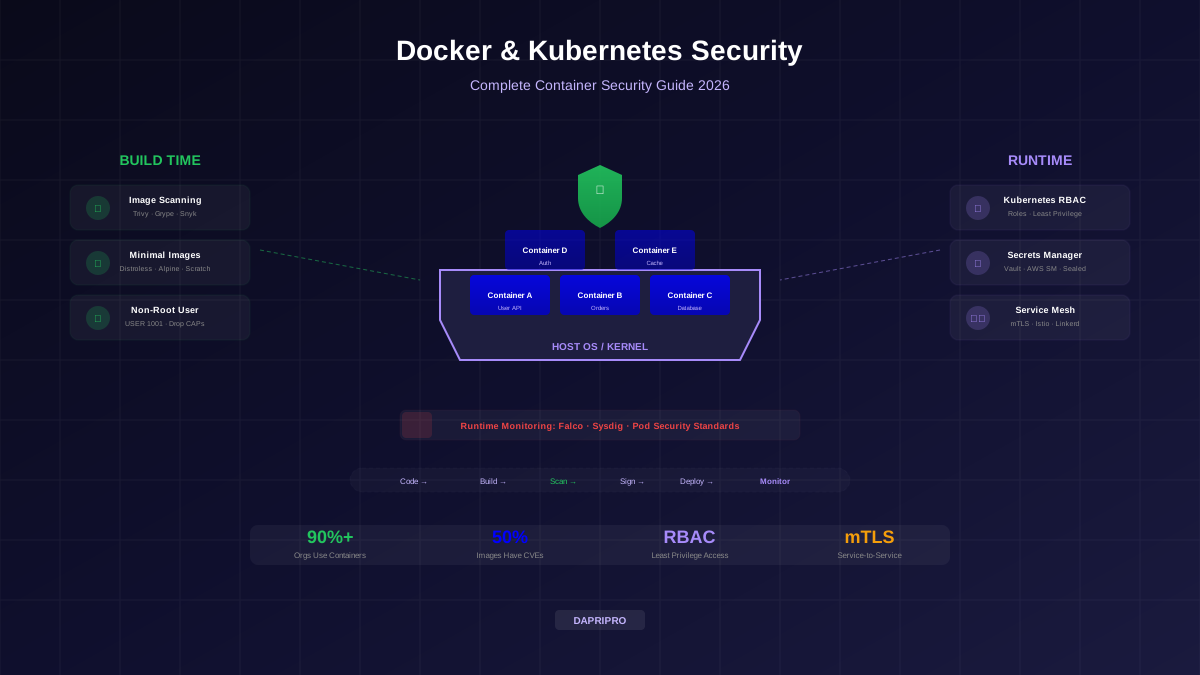

Docker containers are not secure by default. The default Docker configuration prioritizes convenience and compatibility over security — containers run as root, have access to all Linux capabilities, share the host kernel, and can mount any host directory. Every one of these defaults is a security risk in production.
Hardening Docker containers means systematically removing unnecessary privileges, minimizing the attack surface, and implementing controls that limit the blast radius when a container is compromised. This guide covers every layer of Docker security: the image build process, the container runtime configuration, the Docker daemon settings, and the host-level protections that prevent container escapes.
These practices are based on the CIS Docker Benchmark v1.7, real-world incident post-mortems, and the configurations used by organizations running thousands of containers in production.
Base Image Selection: Your First Security Decision
The base image determines your container's attack surface before you write a single line of application code. Every package, utility, and library in the base image is a potential vulnerability. The goal is to ship the smallest possible image that can run your application — nothing more.
| Base Image | Size | Packages | Shell | Package Manager | CVE Surface | Use Case |
|---|---|---|---|---|---|---|
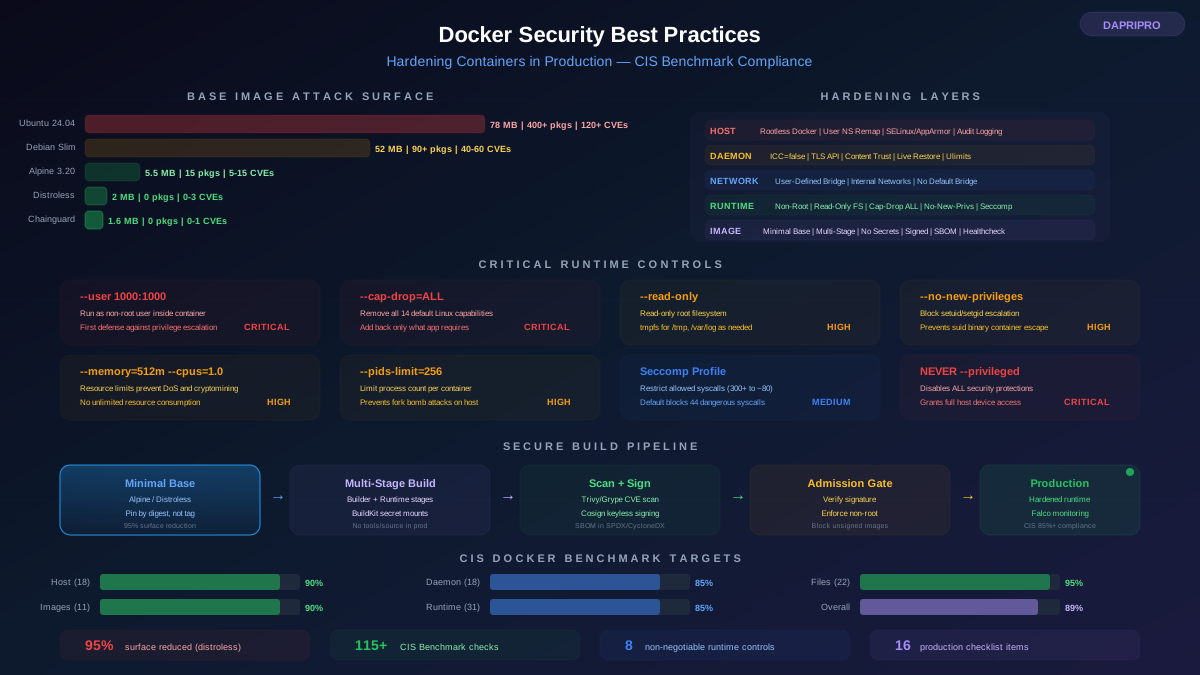
| ubuntu:24.04 | 78 MB | 400+ | Yes | apt | High (120+ CVEs typical) | Development only — never production |
| debian:bookworm-slim | 52 MB | 90+ | Yes | apt | Medium (40-60 CVEs typical) | Legacy apps needing glibc and shell access |
| alpine:3.20 | 5.5 MB | 15 | Yes (ash) | apk | Low (5-15 CVEs typical) | General production — good balance of size and usability |
| gcr.io/distroless/static | 2 MB | 0 | No | No | Minimal (0-3 CVEs typical) | Go binaries, Rust binaries, static compiled apps |
| gcr.io/distroless/base | 20 MB | glibc only | No | No | Very low (2-8 CVEs typical) | C/C++ apps, apps needing glibc |
| gcr.io/distroless/java21 | 190 MB | JRE only | No | No | Low (JRE CVEs only) | Java applications |
| cgr.dev/chainguard/static | 1.6 MB | 0 | No | No | Minimal (0-1 CVEs typical) | Hardened static binaries, FIPS compliance |
The difference between running Ubuntu and distroless is not marginal — it is the difference between 120+ known vulnerabilities and essentially zero. Every unnecessary package is an unnecessary risk. If your application does not need a shell, do not ship a shell. If it does not need a package manager, do not include one.
Multi-Stage Builds: Separating Build from Runtime
Multi-stage builds are the most important Dockerfile technique for production security. They separate the build environment (compilers, build tools, test frameworks, source code) from the runtime environment (just the compiled binary and its dependencies). Without multi-stage builds, your production images contain everything used during compilation — attack surface that serves no runtime purpose.
Multi-Stage Build Architecture
A proper multi-stage build has three or four stages:
| Stage | Base Image | Purpose | What It Contains | Included in Final Image? |
|---|---|---|---|---|
| Builder | Language SDK image (golang, node, rust) | Compile code, run tests | Source code, compilers, build tools, test results | No — discarded |
| Dependencies | Same SDK or minimal image | Install and audit production dependencies | Package manifests, resolved dependency tree | Only final artifacts |
| Security scan | Trivy/Grype image | Scan compiled binary and dependencies for CVEs | Scanner, scan results | No — discarded |
| Runtime | Distroless or Alpine | Run the application | Only compiled binary + runtime deps + non-root user | Yes — this is the production image |
The runtime stage should copy only the exact files needed from the builder stage. Every file you copy is a deliberate decision, not a side effect of the build process.
Secret Handling During Builds
Build-time secrets (API keys for private registries, SSH keys for private git repos, authentication tokens) require special handling. The wrong approaches persist secrets in image layers where they are extractable by anyone who pulls the image.
| Method | Security | Details |
|---|---|---|
| ENV or ARG in Dockerfile | Insecure — visible in docker history and image metadata | Never use for secrets. Even multi-stage builds do not protect these — the build stage layers are cached and can be extracted. |
| COPY then DELETE | Insecure — secret persists in earlier layer | Docker images are layered. Deleting a file in a later layer does not remove it from the layer where it was added. |
| BuildKit --mount=type=secret | Secure — mounted only during specific RUN step, never persisted | Use this for all build-time secrets. Mount the secret, use it, and it disappears when the RUN step completes. Not stored in any layer. |
| BuildKit --mount=type=ssh | Secure — SSH agent forwarded without exposing key | For cloning private git repositories. Forwards the SSH agent from the host without copying the private key into the image. |
Runtime Security Configuration
Even with a perfectly hardened image, a misconfigured runtime can undo all your build-time security work. The docker run command (or the equivalent Kubernetes pod spec) determines what privileges the container actually has at runtime.
The Non-Negotiable Runtime Controls
These controls should be applied to every production container without exception:
| Control | Docker Flag | What It Does | Why It Matters |
|---|---|---|---|
| Non-root user | --user 1000:1000 | Runs the container process as uid 1000 instead of root | Prevents the compromised process from having root privileges inside the container. First defense against privilege escalation. |
| Read-only filesystem | --read-only | Mounts the container filesystem as read-only | Prevents attackers from writing backdoors, downloading exploit tools, or modifying application files. Use tmpfs mounts for directories that need writes (tmp, logs). |
| Drop all capabilities | --cap-drop=ALL | Removes all Linux capabilities from the container | Containers inherit a default set of 14 capabilities. Most applications need zero capabilities. Dropping all and selectively adding back only what is needed follows least privilege. |
| No new privileges | --security-opt=no-new-privileges | Prevents processes from gaining additional privileges via setuid/setgid binaries | Even if a setuid binary exists in the image, it cannot escalate privileges. Blocks a common container escape technique. |
| Memory limit | --memory=512m | Caps memory usage at the specified limit | Prevents resource exhaustion attacks. A compromised container cannot OOM-kill other containers on the host. |
| CPU limit | --cpus=1.0 | Limits CPU usage to the specified number of cores | Prevents cryptomining and resource-based denial of service from consuming all host CPU. |
| No privileged mode | Never use --privileged | Privileged mode gives the container full access to host devices and disables all security protections | A privileged container is essentially root on the host. There is almost never a legitimate reason to run privileged in production. |
| PID limits | --pids-limit=256 | Limits the number of processes the container can create | Prevents fork bomb attacks that exhaust the host process table and crash the node. |
Seccomp Profiles: Filtering System Calls
Seccomp (Secure Computing Mode) restricts which system calls a container can make. Docker ships with a default seccomp profile that blocks approximately 44 of the 300+ Linux system calls — preventing the most dangerous operations (reboot, kernel module loading, clock manipulation) while allowing most normal application behavior.
For production hardening, create a custom seccomp profile that allows only the system calls your application actually uses. The process:
- Run your application with the default profile and strace/sysdig to record all system calls made during normal operation (exercise all code paths, including error handling)
- Generate a custom seccomp profile containing only those observed system calls
- Test the profile thoroughly in staging — missing a required system call causes the application to crash with EPERM errors
- Deploy the custom profile in production with monitoring for EPERM denials
The OCI runtime default profile is a reasonable starting point for most applications. Custom profiles are worth the effort for high-security workloads or containers that handle sensitive data.
AppArmor and SELinux: Mandatory Access Control
AppArmor (Ubuntu/Debian) and SELinux (Red Hat/CentOS) provide mandatory access control (MAC) that restricts what files a container process can access, what network operations it can perform, and what capabilities it can exercise — regardless of the process's user ID or Linux capabilities.
Docker automatically applies the docker-default AppArmor profile on systems with AppArmor enabled. This profile prevents containers from writing to /proc and /sys, mounting filesystems, accessing raw sockets, and other dangerous operations. For additional hardening, create application-specific AppArmor profiles that restrict file access to only the directories your application needs.
Docker Content Trust and Image Verification
Docker Content Trust (DCT) ensures that every image you run has been cryptographically signed by a trusted publisher. Without DCT, anyone who compromises your registry or performs a man-in-the-middle attack can substitute a malicious image for a legitimate one, and Docker will run it without question.
How DCT Works
DCT uses The Update Framework (TUF) through the Notary service. When a publisher pushes a signed image:
- The publisher's signing key creates a digital signature over the image manifest (the cryptographic hash of every layer)
- The signature is stored in a Notary server (separate from the image registry)
- When a consumer pulls the image with DCT enabled, Docker verifies the signature against the publisher's public key before running the image
- If the signature is missing, invalid, or the image has been modified since signing, Docker refuses to run the image
Enable DCT by setting the environment variable DOCKER_CONTENT_TRUST=1. Once enabled, Docker will refuse to pull or run any unsigned image. This is a powerful supply chain security control — but it requires that all images in your registry are signed, which means your CI/CD pipeline must include a signing step.
Cosign: Modern Image Signing
Cosign (from the Sigstore project) is the modern alternative to DCT/Notary for image signing. It is simpler to deploy, supports keyless signing (using OIDC identity providers like GitHub Actions, Google, or Microsoft Entra ID), and stores signatures as OCI artifacts alongside the image in any OCI-compliant registry.
Keyless signing with Cosign is particularly powerful in CI/CD pipelines: the pipeline authenticates via OIDC, Sigstore's Fulcio CA issues a short-lived signing certificate, the image is signed, and the signature can be verified by anyone using the Rekor transparency log. No long-lived signing keys to manage, rotate, or protect.
Docker Daemon Hardening
The Docker daemon (dockerd) runs as root on the host and has complete control over all containers. Securing the daemon itself is as important as securing individual containers.
| Setting | Configuration | Why It Matters |
|---|---|---|
| Enable user namespace remapping | "userns-remap": "default" in daemon.json | Maps root inside the container to a non-privileged user on the host. Even if an attacker breaks out of the container as root, they land as a non-root user on the host. |
| Restrict network traffic between containers | "icc": false in daemon.json | Disables inter-container communication by default. Containers can only communicate if explicitly linked or on the same user-defined network. |
| Enable live restore | "live-restore": true in daemon.json | Containers continue running if the Docker daemon stops. Prevents daemon restarts from causing container downtime and potential security gaps during restart. |
| Use TLS for remote API | "tlsverify": true with client certificates | The Docker API socket grants full control over all containers. Without TLS, anyone with network access to the socket can start, stop, or create containers. |
| Log level and auditing | "log-level": "info" and audit logging enabled | Security events (container creation, privilege changes, image pulls) must be logged for incident response and compliance. |
| Default ulimits | "default-ulimits": with nofile and nproc limits | Sets resource limits for all containers by default, protecting against resource exhaustion when individual container limits are not specified. |
Rootless Docker Mode
Rootless mode runs the entire Docker daemon and all containers as a non-root user on the host. This is the strongest host-level security configuration because even a complete container escape only grants non-privileged host access.
Trade-offs of rootless mode:
- Networking limitations — rootless mode uses slirp4netns or pasta for networking instead of iptables, which means slightly higher network latency (5-10 percent) and no support for host networking mode.
- Storage driver — rootless mode requires the fuse-overlayfs or native overlay2 storage driver (kernel 5.11+).
- Port binding — cannot bind to ports below 1024 without additional configuration (net.ipv4.ip_unprivileged_port_start=0 sysctl).
- No cgroup v1 support on some systems — rootless mode with cgroup resource limits requires cgroup v2, which is the default on modern distros (Ubuntu 22.04+, Fedora 31+).
For most production workloads, these trade-offs are acceptable. The security benefit — eliminating root-level access on the host — outweighs the minor networking overhead.
Docker Network Security
Docker networking defaults are designed for convenience, not security. All containers on the default bridge network can communicate with each other and with external networks. In production, network access should follow least privilege — each container should only be able to reach the services it explicitly needs.
Network Segmentation Strategy
| Network Type | Isolation Level | When to Use |
|---|---|---|
| Default bridge | None — all containers can communicate | Never in production. Development only. |
| User-defined bridge networks | Containers can only communicate within the same network | Standard production isolation. Create separate networks for each application tier (frontend, backend, database). |
| Internal networks | No external access — containers can only reach other containers on the same internal network | Database containers, cache containers, and other services that should never be directly accessible from outside. |
| Encrypted overlay (Swarm) | Same as overlay but with IPsec encryption between nodes | Multi-host deployments where inter-node traffic crosses untrusted networks. |
| None | Complete isolation — no network access at all | Batch processing containers that should never make network connections. |
CIS Docker Benchmark: Production Compliance Scoring
The Center for Internet Security (CIS) publishes the Docker Benchmark — a comprehensive checklist of security configurations across five areas: host configuration, Docker daemon, Docker daemon configuration files, container images, and container runtime. The benchmark contains 115+ individual checks, each classified as scored (pass/fail) or not-scored (informational).
Automated Compliance with Docker Bench for Security
Docker Bench for Security is an open-source script that automates CIS Benchmark checks. It runs approximately 100 checks in under 60 seconds and produces a scored report showing which checks pass and which fail.
Target compliance levels for production:
| Benchmark Section | Checks | Target Score | Common Failures |
|---|---|---|---|
| 1 - Host Configuration | 18 checks | 90%+ | Audit rules not configured, Docker partition not separate |
| 2 - Docker Daemon | 18 checks | 85%+ | User namespace remapping not enabled, ICC not disabled |
| 3 - Docker Daemon Files | 22 checks | 95%+ | File permissions too permissive on docker.sock, daemon.json |
| 4 - Container Images | 11 checks | 90%+ | Images running as root, no HEALTHCHECK, secrets in image layers |
| 5 - Container Runtime | 31 checks | 85%+ | Privileged containers, missing resource limits, no seccomp profile |
Image Lifecycle Security
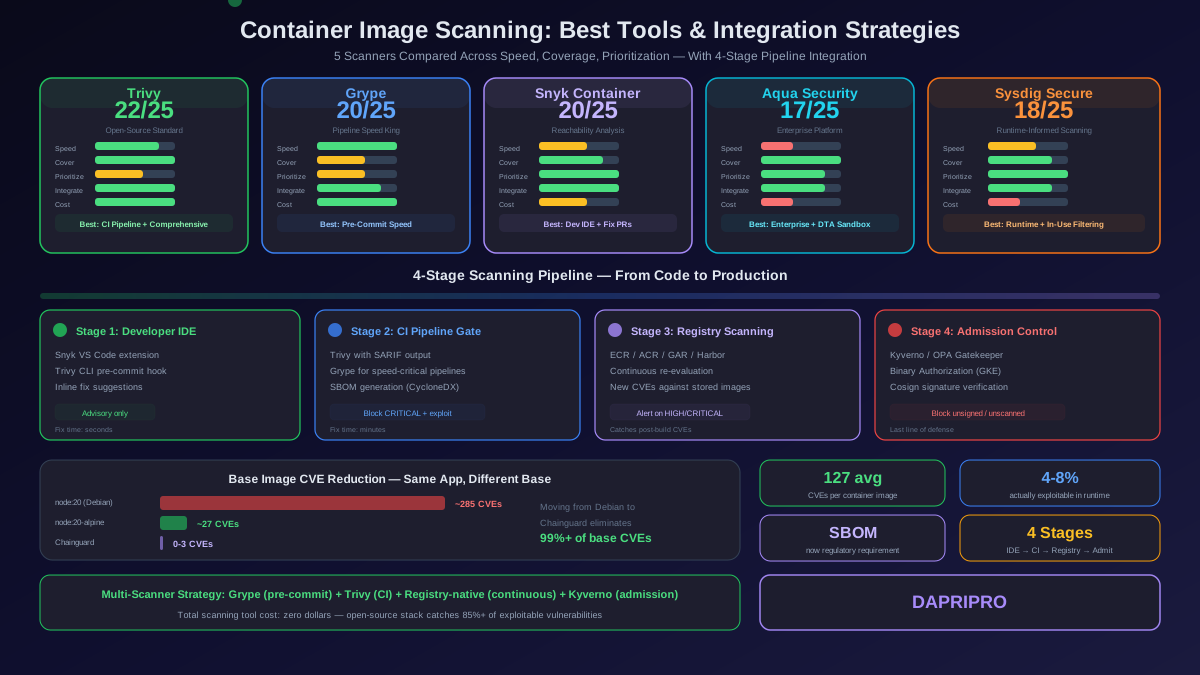
Container security does not end when the image is built. Images accumulate vulnerabilities over time as new CVEs are discovered in their base images and dependencies. A production image that scanned clean on deployment day may have 30+ critical vulnerabilities six months later.
Image Lifecycle Controls
| Control | Frequency | Purpose |
|---|---|---|
| Registry scanning | Continuous — scan all images in registry daily | Detect new CVEs in deployed images before they are exploited. Alert when critical CVEs appear in images currently running in production. |
| Base image updates | Weekly for non-breaking updates, monthly for major versions | Pick up security patches in base images (Alpine, distroless). Automated via Dependabot, Renovate, or custom CI pipelines. |
| Image expiry/rotation | Maximum 90-day age policy | No image should run in production for more than 90 days without being rebuilt. Enforce via admission controller that checks image creation timestamp. |
| Vulnerability SLA | Critical: 7 days. High: 30 days. Medium: 90 days | Set clear timelines for patching CVEs by severity. Track compliance as a team metric. |
| SBOM generation | Every build — attached as image annotation | Generate a Software Bill of Materials for every production image in SPDX or CycloneDX format. Required for FDA, DoD, and increasingly for enterprise procurement. |
The Docker Production Security Checklist
Use this checklist before promoting any container to production. Each item maps to specific CIS Benchmark checks and real-world attack patterns that have caused breaches:
| Category | Check | Priority |
|---|---|---|
| Image | Base image is minimal (Alpine, distroless, or Chainguard). No full OS images. | Critical |
| Image | Multi-stage build. No build tools, compilers, or source code in production image. | Critical |
| Image | No secrets in image layers. Verified via docker history and secret scanning. | Critical |
| Image | Image is signed (DCT or Cosign) and verified before deployment. | High |
| Image | SBOM generated and attached. Vulnerability scan shows zero critical CVEs. | High |
| Runtime | Container runs as non-root user (USER directive or --user flag). | Critical |
| Runtime | Read-only root filesystem with tmpfs for necessary write paths. | High |
| Runtime | All Linux capabilities dropped (--cap-drop=ALL). Only needed caps added back. | Critical |
| Runtime | no-new-privileges security option enabled. | High |
| Runtime | Memory and CPU limits set. PID limit configured. | High |
| Runtime | Seccomp profile applied (default or custom). | Medium |
| Daemon | User namespace remapping enabled on host. | High |
| Network | Container on isolated user-defined network. No default bridge. | High |
| Network | Only necessary ports published. No --publish-all. | High |
| Monitoring | Container health check defined (HEALTHCHECK in Dockerfile) | Medium |
| Monitoring | Runtime security tool deployed (Falco, Sysdig, or equivalent) | High |
No container should reach production unless it passes every Critical and High priority check in this list. The Medium priority items should be implemented for workloads handling sensitive data or exposed to untrusted input. Running Docker Bench for Security and scoring above 85 percent validates that these controls are correctly applied.