
You Are Generating More Data Than You Realize
Every day, you generate an enormous volume of data without thinking about it. Your phone pings your location hundreds of times. Your apps share data with dozens of third-party advertising companies. Your email subscriptions feed your habits to marketing platforms. Your old accounts — the ones you created in 2015 and forgot about — sit on servers with your name, email, password, and sometimes your address and payment information, waiting for the next data breach.
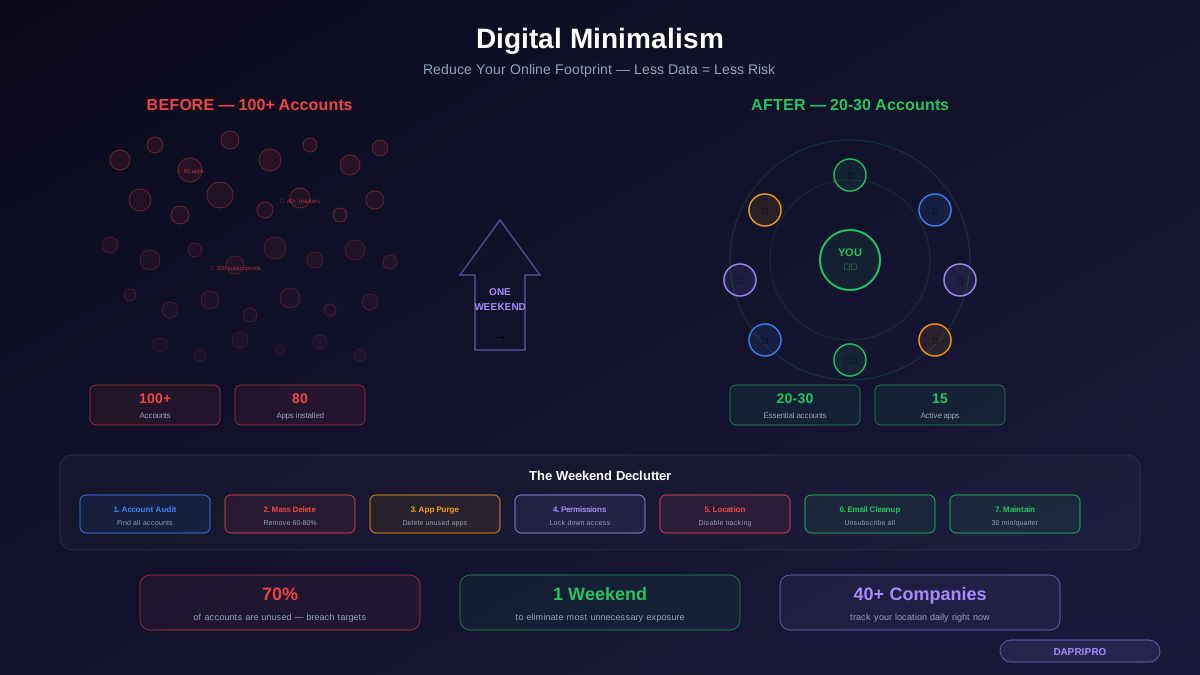
The average person has 100+ online accounts, 80 apps installed on their phone, and shares location data with over 40 companies per day. Most of this data sharing is unnecessary — you do not use 70% of those accounts, you actively use maybe 15 of those 80 apps, and you never consciously agreed to share your location with most of those companies.
Digital minimalism is not about becoming a privacy extremist or living off-grid. It is about eliminating data exhaust — the trail of personal information you leave behind through unused accounts, unnecessary apps, excessive permissions, and default settings that favor data collection over your privacy.
The Three Categories of Your Digital Footprint
Active footprint is what you intentionally put online — social media posts, emails, photos you share, reviews you write, comments you leave. You control this and can delete it.
Forgotten footprint is the accounts you created once, the apps you installed and stopped using, the mailing lists you never unsubscribed from, the loyalty programs with your address, and the saved payment methods on sites you visited once. This data sits on servers you forgot about, waiting to be breached.
Passive footprint is data collected without your active participation — location tracking, cookies, ad trackers, browser fingerprinting, ISP logging, Wi-Fi connection data, and metadata from your device. This is the hardest to control but also the most invasive.
Step 1: The Account Audit (1-2 Hours)
The most impactful thing you can do for your privacy is delete accounts you no longer use. Here is how to find them all:
Search your email inbox for phrases like "Welcome to," "confirm your account," "verify your email," "thanks for signing up," and "your new account." Go back as far as your inbox allows. Make a list of every service you find.
Check your saved passwords. In Chrome, go to chrome://settings/passwords. In Firefox, go to about:logins. In Safari, go to Preferences → Passwords. In your password manager (1Password, Bitwarden, LastPass), review all saved entries. Each saved password represents an account.
Check social sign-in connections. Go to myaccount.google.com → Security → Third-party apps with account access. Go to Facebook → Settings → Apps and Websites. Go to Apple ID → Sign-In and Security → Sign in with Apple. These show every app or service you logged into using these platforms.
Once you have your list, categorize each account:
Keep: Accounts you actively use at least monthly and that provide real value.
Delete: Accounts you have not used in 6+ months or no longer need. This is usually 60-80% of the list.
Reduce: Accounts you keep but where you can minimize data — remove saved payment methods, reduce profile information, tighten privacy settings.
Step 2: Delete the Accounts (2-3 Hours)
Deleting accounts is deliberately difficult — companies do not want to lose users. Here are the strategies:
JustDeleteMe (justdeleteme.xyz) is a directory of direct links to account deletion pages for hundreds of services. It also rates how difficult deletion is — green (easy), yellow (medium), red (hard), black (impossible without contacting support).
Before deleting, download any data you want to keep. Most major services offer data export: Google Takeout (takeout.google.com), Facebook (Settings → Your Information → Download Your Information), Instagram (Settings → Data Download), Twitter/X (Settings → Your Account → Download Archive).
For services that make deletion difficult, send an email requesting deletion under GDPR (if you are in the EU) or CCPA (if you are in California). Even if you are not in those jurisdictions, most companies honor these requests globally because it is easier than maintaining separate policies. A simple email works: "I request the complete deletion of my account and all associated personal data pursuant to applicable data protection regulations."
Step 3: The App Purge
Open your phone and look at every installed app. Be honest about which ones you actually use.
Delete apps you have not opened in 30 days. If you have not used it in a month, you do not need it on your phone. You can always reinstall it later if needed.
Review permissions for apps you keep. On iPhone: Settings → Privacy & Security → review each permission category (Location Services, Contacts, Camera, Microphone, Photos). On Android: Settings → Privacy → Permission Manager.
Apply the principle of least privilege — each app should have only the permissions it absolutely needs to function:
A weather app needs location (set to "While Using") but does not need contacts, camera, or microphone. A food delivery app needs location while using the app but does not need background location, camera, or health data. A game does not need location, contacts, camera, or microphone. A flashlight app needs zero permissions beyond basic phone functionality.
Any app requesting permissions unrelated to its function is collecting data for advertising. Deny those permissions.
Step 4: Location Tracking Lockdown
Location data is the most sensitive information your phone collects. Your location history reveals where you live, where you work, your doctor's office, your place of worship, the homes of people you visit, bars you frequent, and protests you attend. Location data has been sold by data brokers, used by advertisers, obtained by law enforcement without warrants, and exploited by stalkers.
On iPhone: Settings → Privacy & Security → Location Services. Set most apps to "Never" or "While Using the App." Very few apps need "Always" — maybe navigation or a find-my-phone service. Turn off "Precise Location" for apps that only need your general area (weather apps, news apps). Disable "Significant Locations" under System Services → Significant Locations.
On Android: Settings → Location → App location permissions. Set each app to "Allow only while using the app" or "Deny." Turn off Google Location History at myactivity.google.com → Location History. Disable Wi-Fi and Bluetooth scanning under Settings → Location → Scanning.
On your computer: Disable location access for your browser. In Firefox: about:preferences#privacy → Permissions → Location → block. In Chrome: Settings → Privacy & Security → Site Settings → Location → do not allow.
Step 5: Email and Subscription Cleanup
Your email inbox is a data collection funnel. Every marketing email you receive means a company has your email address in their database, is tracking your opens and clicks via invisible tracking pixels, and is building a profile of your interests and behavior.
Unsubscribe from everything you do not read. Spend 30 minutes scrolling through recent emails and clicking "Unsubscribe" on every marketing email. Do not just delete them — actually unsubscribe so they stop coming and remove your data from their lists.
Use email aliases. Services like SimpleLogin (now owned by Proton) or Firefox Relay let you create unique email aliases for each service. If a service gets breached or sells your email, you disable that specific alias without affecting your real email address. You also instantly know who sold your data because each alias is unique.
Disable tracking pixels. In ProtonMail, tracking protection is automatic. In Gmail: Settings → General → Images → "Ask before displaying external images." In Apple Mail, enable "Protect Mail Activity" under Settings → Mail → Privacy Protection. This prevents senders from knowing when you open their emails.
Step 6: Social Media Privacy Settings
You do not need to delete social media to practice digital minimalism. But you should tighten settings significantly:
Instagram: Settings → Privacy → set account to Private if you do not need public reach. Disable Activity Status (shows when you are online). Under Settings → Privacy → Messages, restrict who can message you. Remove any connected third-party apps under Settings → Security → Apps and Websites.
Facebook: Settings → Privacy → set all options to "Friends" or "Only Me." Disable face recognition. Under Settings → Apps and Websites → remove all connected apps you do not use. Under Settings → Off-Facebook Activity → clear history and turn off future tracking. This single setting prevents Facebook from tracking you across the web.
Twitter/X: Settings → Privacy and Safety → disable "Personalize based on your inferred identity." Disable location tagging on tweets. Under Settings → Security → Apps and sessions → revoke access for apps you do not use.
LinkedIn: Settings → Visibility → tighten who can see your connections, email, and profile. Under Settings → Advertising data → turn off all ad personalizations. LinkedIn aggressively tracks your activity for advertising — disable as many of these toggles as possible.
TikTok: Settings → Privacy → set account to Private if appropriate. Under Settings → Privacy → Personalization and Data → turn off "Ads personalization" and "Activity sharing with third parties." Disable "Allow downloads" of your videos by others.
Step 7: Browser and Search Cleanup
Your browser is the biggest window into your digital life. Clean it up:
Clear saved form data. Your browser probably has your name, address, phone number, and credit card information saved for autofill. Remove anything you are not comfortable with a hacker accessing if your browser profile is compromised. Keep only essentials.
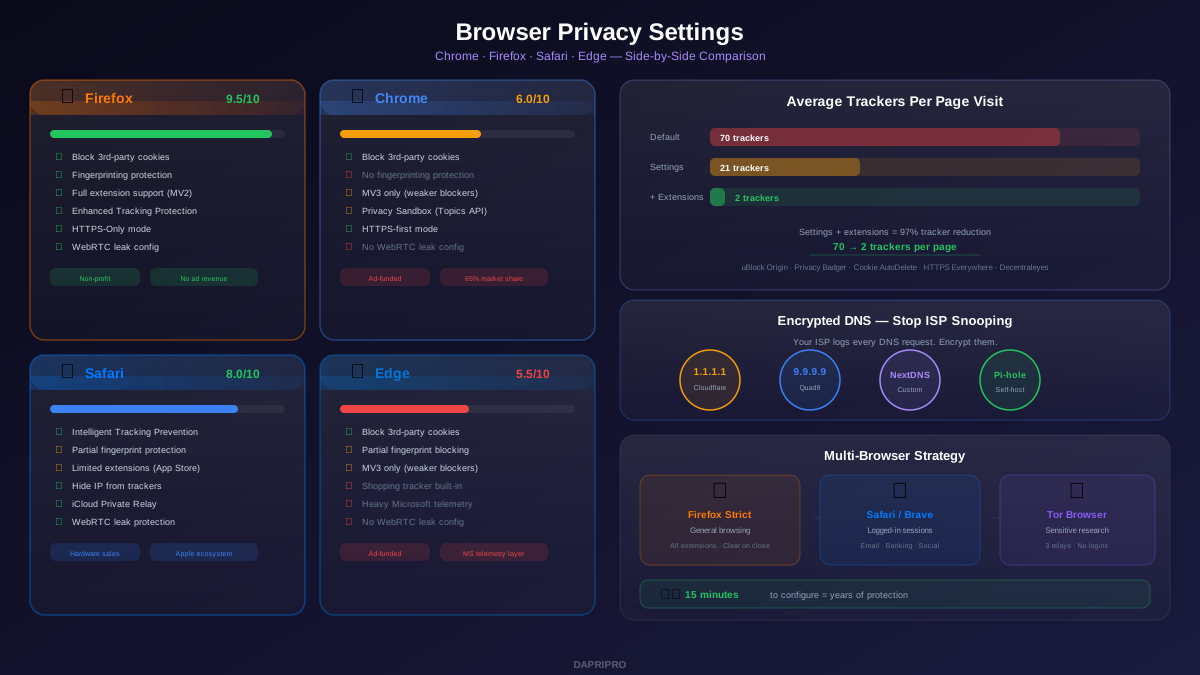
Remove unnecessary browser extensions. Each browser extension can see everything you do in your browser. Audit your extensions — remove any you do not actively use. Keep essentials: uBlock Origin, password manager extension, maybe 1-2 others. Every extension is a potential attack surface.
Switch to a privacy search engine. DuckDuckGo or Brave Search give you good results without building an advertising profile from your search history. Set one as your default search engine.
Set cookies to clear automatically. Configure your browser to block third-party cookies and clear cookies when you close the browser. You will need to log back into sites each session, but this prevents long-term tracking.
The Maintenance Routine: 30 Minutes Per Quarter
After the initial declutter, maintain your minimized footprint with a quarterly check:
Week 1 of each quarter — Review new apps installed in the past 3 months. Delete any you no longer use. Check permissions on remaining apps. Unsubscribe from new marketing emails that accumulated. Review browser extensions and remove unused ones.
Set a calendar reminder. The quarterly review takes about 30 minutes once you have done the initial cleanup.
What You Gain Beyond Privacy
Digital minimalism has benefits beyond data protection. Users consistently report less screen time and more intentional device use, fewer notification interruptions (fewer apps means fewer push notifications), reduced anxiety from news feeds and social media comparison, faster phone performance (fewer background apps), less email clutter, and a sense of control over technology rather than being controlled by it.
The goal is not to live without technology. It is to use technology intentionally — keeping the tools that genuinely enhance your life while eliminating the ones that just harvest your data and attention.