
Your Browser Is the Biggest Privacy Leak You Ignore
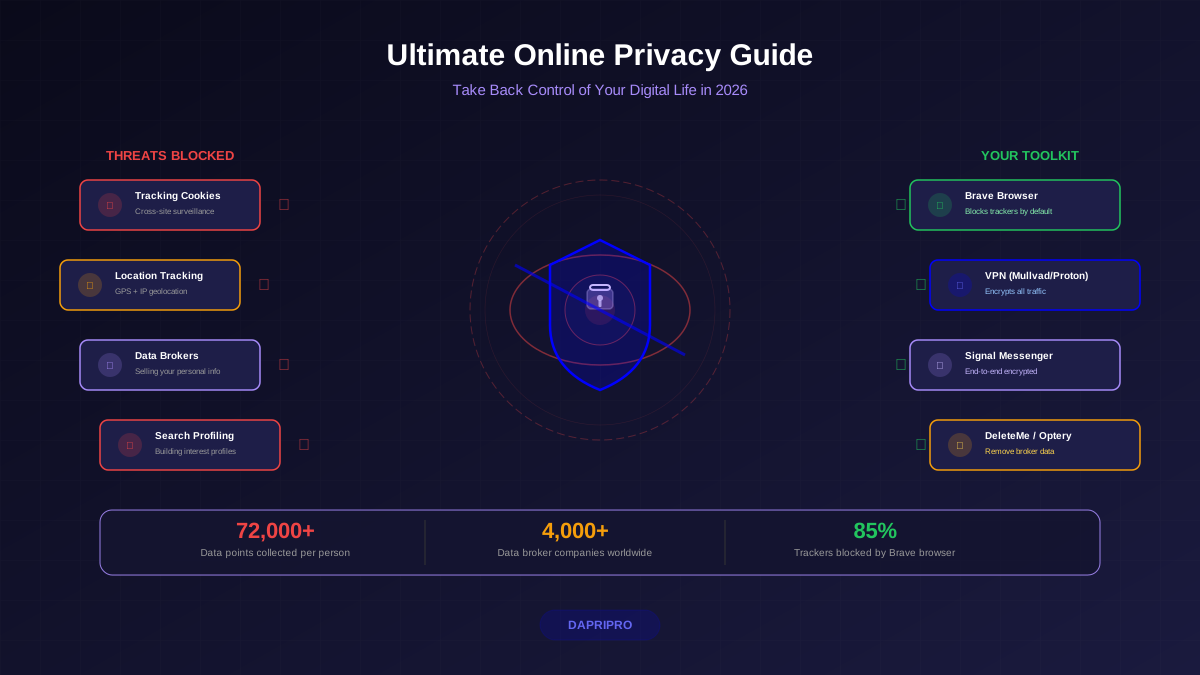
Right now, your browser is broadcasting data about you to an average of 70 third-party trackers on every website you visit. Your search queries, browsing history, location data, device specifications, and even mouse movements are being collected, packaged, and sold — all because of default settings you never changed.
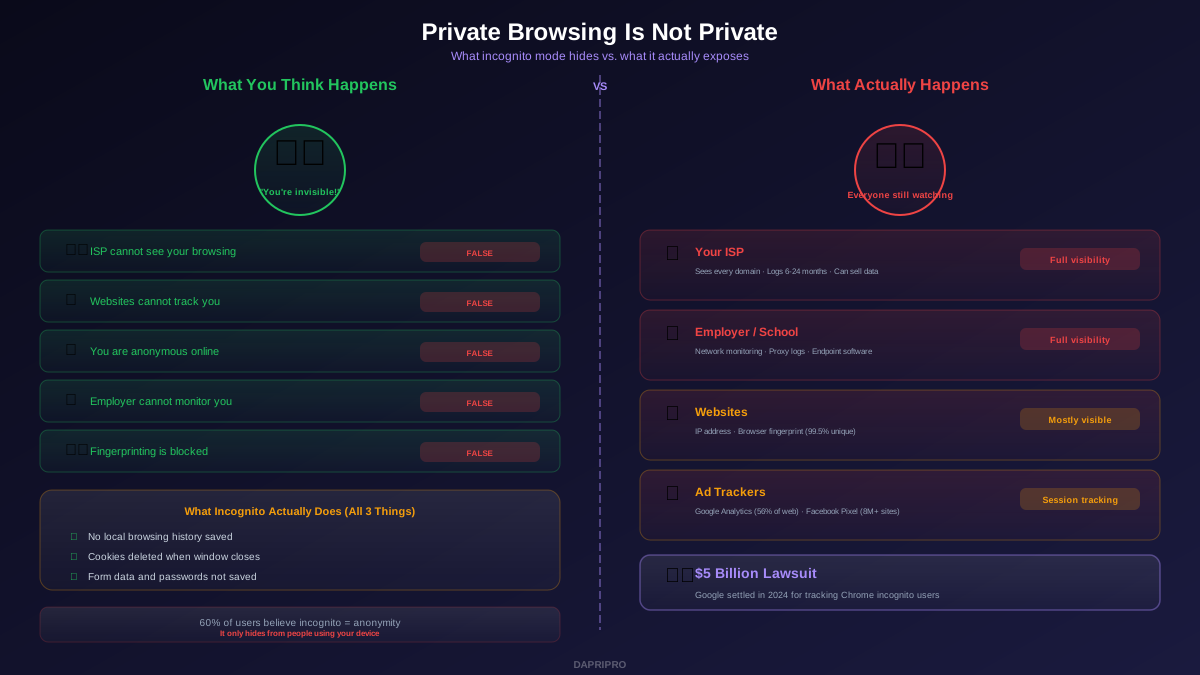
Here is what makes this worse: most people think private browsing or "incognito mode" fixes this. It does not. Private mode only hides your activity from someone using the same computer. Every tracker, every advertiser, and every data broker can still see exactly what you are doing.
This guide gives you the exact settings to change in Chrome, Firefox, Safari, and Edge — toggle by toggle — to shut down the tracking pipeline. Total setup time: about 15 minutes per browser.
How Browser Tracking Actually Works
Before changing settings, you need to understand what you are defending against. Modern tracking uses multiple techniques simultaneously, so blocking one method does not protect you from the others.
Third-Party Cookies
When you visit a shopping site, Facebook, Google, and dozens of ad networks drop cookies from their domains onto your browser. These third-party cookies follow you across every site that uses the same ad networks, building a detailed profile of your interests, income level, health concerns, and political views. Blocking third-party cookies is the single most effective privacy setting you can change.
Browser Fingerprinting
Your browser reveals a unique combination of screen resolution, installed fonts, graphics card, timezone, language settings, and operating system version. Combined, these data points create a fingerprint that identifies you with 99.5% accuracy — no cookies needed. This is why fingerprinting is rapidly replacing cookies as the primary tracking method.
Tracking Pixels and Scripts
Invisible 1x1 pixel images and JavaScript tracking scripts load silently on nearly every webpage. They record when you loaded the page, how long you stayed, what you scrolled past, and what you clicked. Facebook Pixel alone runs on over 8 million websites. Google Analytics tracks over 56% of all websites on the internet.
Firefox: The Privacy-First Browser
Firefox is the strongest mainstream browser for privacy. Mozilla is a nonprofit that does not sell advertising, which means Firefox has no financial incentive to track you. Here are the settings you need to change.
Essential Firefox Privacy Settings
Open Firefox and go to Settings → Privacy & Security. Change these settings in order:
Enhanced Tracking Protection: Set to Strict. The default is Standard, which blocks known trackers and third-party cookies in private windows only. Strict mode blocks third-party cookies everywhere, cryptominers, fingerprinters, and social media trackers across all windows. Some websites may break — if one does, click the shield icon in the address bar and disable protection for that specific site.
Cookies and Site Data: Check "Delete cookies and site data when Firefox is closed." This prevents long-term tracking through first-party cookies. You will need to log in to sites again after restarting Firefox, but this is a worthwhile tradeoff for privacy.
Logins and Passwords: Uncheck "Ask to save logins and passwords." Use a dedicated password manager like Bitwarden or 1Password instead. Browser-stored passwords are less secure and sync through channels you may not control.
History: Set to "Use custom settings for history." Check "Clear history when Firefox closes." Select everything: browsing history, search history, download history, cookies, cache, active logins, form data, and site preferences.
Permissions: Block all for Location, Camera, Microphone, and Notifications unless you explicitly need them. You can always grant temporary permission when a site requires it. Also check "Block pop-up windows" and "Warn when websites try to install add-ons."
Firefox Data Collection: Uncheck everything. There are several checkboxes under "Firefox Data Collection and Use" — disable all of them. Even though Mozilla is trustworthy, minimizing data collection is always the right call.
HTTPS-Only Mode: Enable in all windows. This forces encrypted connections everywhere. If a site does not support HTTPS in 2026, you probably should not visit it anyway.
Firefox about:config Tweaks
For advanced users, type about:config in the address bar and change these values:
privacy.resistFingerprinting = true — lies to websites about your screen size, timezone, and other fingerprintable characteristics. Some sites may display incorrectly.
geo.enabled = false — completely disables geolocation. No website can request your location.
media.peerconnection.enabled = false — disables WebRTC, which can leak your real IP address even when using a VPN. This breaks video calling in the browser.
dom.battery.enabled = false — prevents websites from reading your battery level, which has been used for fingerprinting.
Chrome: Damage Control for Google's Browser
Chrome is the most popular browser in the world with 65% market share, and also the least private by default. Google makes over 80% of its revenue from advertising, so Chrome is designed to collect data. You cannot make Chrome fully private, but you can significantly reduce tracking.
Essential Chrome Privacy Settings
Open Chrome and go to Settings → Privacy and security.
Third-party cookies: Select "Block third-party cookies." Google delayed this for years and introduced Topics API as a replacement, but blocking third-party cookies is still your most important Chrome change. Note: Google may revert this setting in future updates.
Security: Enable "Enhanced protection" for phishing and malware defense but understand this sends your browsing data to Google for analysis. If that trade-off is unacceptable, choose "Standard protection" instead.
Clear browsing data: Set up auto-clear. Go to Privacy and security → Clear browsing data → Advanced tab. Select everything and clear it. Then install the Cookie AutoDelete extension to automate this going forward.
Site Settings: Click into each category and set Location, Camera, Microphone, Notifications, and Motion Sensors to "Don't allow sites to..." for each one. You can grant exceptions when needed.
Privacy Sandbox: Disable Topics, Suggested Ads, and Ad Measurement. These are Google's replacement for third-party cookies — they are less invasive than cookies but still track your interests and share them with advertisers.
Sync: Decide carefully what to sync. Chrome Sync stores your bookmarks, history, passwords, and open tabs on Google's servers. If you use Sync, go to Settings → You and Google → Sync and Google services, and disable "Help improve Chrome's features and performance" and "Make searches and browsing better."
Why Chrome Extensions Matter More
Chrome's built-in privacy settings are weaker than other browsers, which means privacy extensions are more critical. However, Google's Manifest V3 extension architecture limits the effectiveness of content blockers. uBlock Origin Lite is the MV3-compatible version, but it blocks fewer trackers than the full uBlock Origin available on Firefox. This is a fundamental reason to consider switching to Firefox.
Safari: Apple's Quiet Privacy Leader
Safari has strong privacy defaults thanks to Apple's business model, which is selling hardware rather than advertising data. Intelligent Tracking Prevention (ITP) automatically blocks cross-site trackers and limits first-party cookie lifetimes.
Essential Safari Privacy Settings
Open Safari Preferences and go to the Privacy tab.
Website tracking: Check "Prevent cross-site tracking." This is enabled by default and powers ITP. Leave it on. It blocks third-party cookies and limits the duration of first-party cookies set by known trackers to 7 days.
IP address: Check "Hide IP address from trackers." This routes tracking requests through Apple's relay servers so trackers see Apple's IP address instead of yours. With iCloud+ subscribers, you can extend this to "Trackers and Websites" for broader protection.
Privacy Report: Use it. Click the shield icon in Safari's toolbar to see a Privacy Report showing how many trackers Safari blocked on each site. This is useful for understanding which sites track you most aggressively.
Extensions: Install a content blocker. Safari supports content blockers through the App Store. 1Blocker and AdGuard for Safari are the top options. They work within Apple's privacy framework and cannot access your browsing data.
iCloud Private Relay (iCloud+ subscribers): This encrypts your DNS requests and routes your traffic through two separate relays so neither Apple nor the relay operator can see both who you are and what sites you visit. It is not a full VPN replacement, but it provides meaningful DNS privacy.
Safari Limitations
Safari's extension ecosystem is more limited than Firefox or Chrome. Advanced tools like uBlock Origin are not available for Safari. Apple restricts extensions to its content blocker API, which is powerful for performance but limits customization. If you need maximum extension support, use Firefox as your primary browser and Safari as a secure alternative for Apple services.
Microsoft Edge: Tracking You for Microsoft
Edge is built on Chromium (the same engine as Chrome) but adds Microsoft's own tracking layer on top. By default, Edge sends your browsing data to Microsoft for advertising purposes and includes features like Shopping suggestions that monitor your browsing in real-time.
Essential Edge Privacy Settings
Open Edge and go to Settings → Privacy, search, and services.
Tracking prevention: Set to Strict. The default is Balanced, which still allows some trackers. Strict blocks most third-party cookies, trackers, and fingerprinters. Like Firefox Strict mode, some sites may break.
Disable everything under "Optional diagnostic data" and "Personalization & advertising." Edge sends extensive telemetry to Microsoft by default. Turn off: personalized web experiences, personalized ads, usage data collection, and service improvement data.
Disable shopping features: Go to Settings → Privacy, search, and services → Shopping. Turn off "Save time and money with Shopping in Microsoft Edge." This feature literally monitors product pages you visit to suggest deals.
Switch the default search engine to DuckDuckGo or Brave Search. Bing sends search data to Microsoft's advertising platform. Go to Settings → Privacy, search, and services → Address bar and search → "Search engine used in the address bar."
Disable new tab page content: Edge's new tab page loads MSN content with tracking. Set it to a blank page or a simple page with no content feed.
The Five Essential Privacy Extensions
Browser settings alone block about 60-70% of tracking. Extensions close the remaining gap. Install these five extensions for comprehensive protection.
1. uBlock Origin (Must-Have)
uBlock Origin is the most effective content blocker available. It blocks ads, trackers, malware domains, and known fingerprinting scripts using continuously updated filter lists. On Firefox, use the full uBlock Origin. On Chrome, you will need uBlock Origin Lite due to Manifest V3 restrictions, which is less capable. This single extension blocks more tracking than all browser settings combined.
2. Privacy Badger
Developed by the Electronic Frontier Foundation, Privacy Badger learns which domains track you across websites and automatically blocks them. Unlike uBlock Origin, it does not use predefined lists — it observes tracker behavior in real-time and blocks domains that appear on three or more different sites. This catches newer trackers that have not been added to block lists yet.
3. HTTPS Everywhere
This extension forces encrypted HTTPS connections whenever possible. While most browsers now have built-in HTTPS-only modes, HTTPS Everywhere handles edge cases and mixed-content scenarios more aggressively. It is developed by the EFF in collaboration with the Tor Project. Note: Firefox and Chrome's built-in HTTPS-only modes have largely caught up, making this extension less critical than it used to be.
4. Cookie AutoDelete
Cookie AutoDelete automatically destroys cookies from a site the moment you close that tab. You can whitelist sites where you want to stay logged in (like your email or banking) while all other cookies are deleted immediately. This prevents long-term tracking through first-party cookies without breaking your login experience on trusted sites.
5. Decentraleyes / LocalCDN
Most websites load JavaScript libraries like jQuery and Google Fonts from centralized CDN servers. These CDN requests can be tracked because the CDN provider knows which sites you visit. Decentraleyes (or its successor LocalCDN) intercepts these requests and serves the libraries from locally stored files instead, eliminating the tracking vector while keeping websites functional.
Browser Privacy Settings Comparison
Here is how the four major browsers compare on privacy features after you apply the settings in this guide:
| Feature | Firefox (Strict) | Chrome (Configured) | Safari (ITP) | Edge (Strict) |
|---|---|---|---|---|
| Third-party cookie blocking | Full block | Blocks + Topics API | ITP intelligent block | Full block |
| Fingerprinting protection | Built-in (Strict) | None built-in | Partial | Partial |
| Tracker blocking | Disconnect list + more | Limited without extensions | Intelligent Tracking Prevention | Disconnect list |
| Extension support | Full (MV2 + MV3) | Limited (MV3 only) | App Store only | Limited (MV3 only) |
| HTTPS-only mode | Built-in | Built-in | No (uses HSTS) | Built-in |
| WebRTC leak protection | Configurable | Needs extension | Built-in | Needs extension |
| Revenue model | Non-profit donations + search deals | Advertising / data | Hardware sales | Advertising / data |
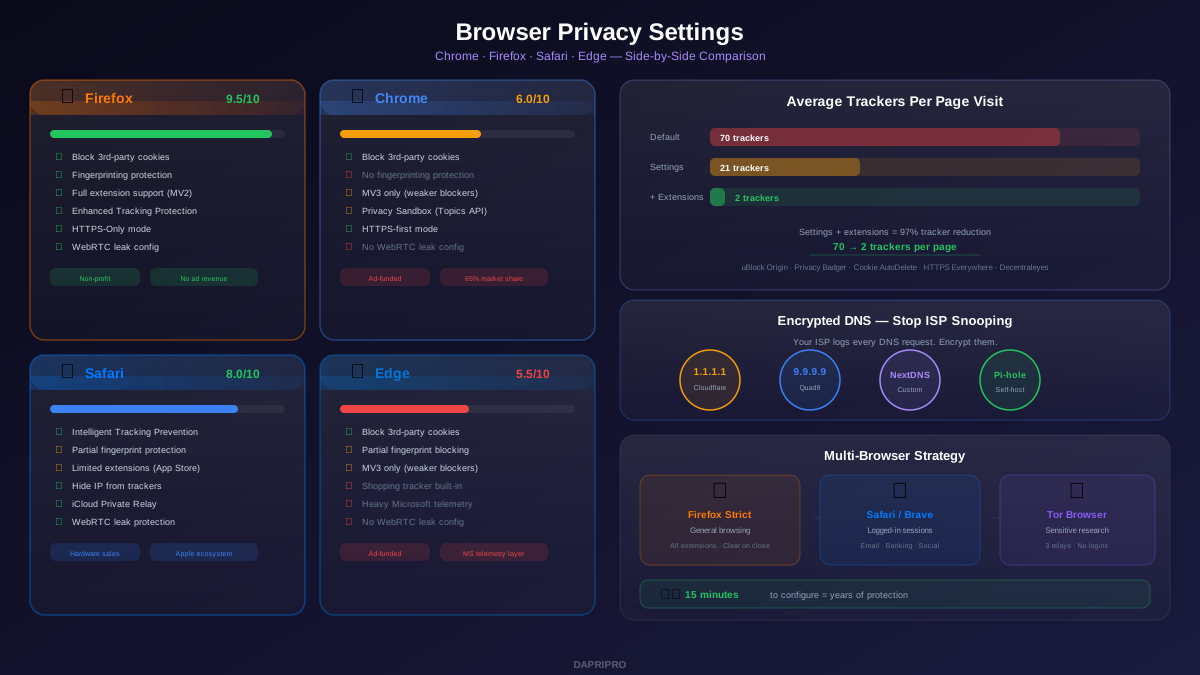
| Overall privacy score (configured) | 9.5/10 | 6/10 | 8/10 | 5.5/10 |
DNS-Level Privacy: The Setting Everyone Misses
Every website you visit starts with a DNS lookup that translates the domain name into an IP address. By default, your DNS requests go to your ISP in plain text — meaning your ISP has a complete log of every website you visit, even if you use HTTPS.
Switching to encrypted DNS (DNS over HTTPS or DNS over TLS) prevents your ISP from seeing your DNS queries. Here are the best options:
Cloudflare (1.1.1.1): Fastest DNS resolver, deletes all logs within 24 hours, audited by a third party. Set up in your browser or at the OS level.
Quad9 (9.9.9.9): Non-profit DNS service run by a Swiss foundation. Blocks known malware domains automatically. Does not log personal data.
NextDNS: Configurable DNS with built-in tracker blocking, ad blocking, and logging controls. Free for up to 300,000 queries per month. Think of it as a Pi-hole in the cloud.
To enable DNS over HTTPS in Firefox: Settings → Privacy & Security → scroll to DNS over HTTPS → select "Max Protection" and choose Cloudflare or NextDNS. In Chrome: Settings → Privacy and security → Security → "Use secure DNS" → choose Cloudflare or Google.
Advanced: Multi-Browser Strategy
The most effective approach uses different browsers for different purposes. This isolates your identities so trackers cannot connect your activities across contexts:
Primary browser (Firefox Strict): General browsing, research, reading articles. Maximum privacy settings with all five extensions. Clear all data on close.
Logged-in browser (Brave or Safari): Sites where you need to stay logged in — email, banking, social media, streaming. Use container tabs or separate profiles to keep these sessions isolated from each other.
Sensitive research (Tor Browser): Anything you do not want connected to your identity at all. Tor routes your traffic through three encrypted relays, making it nearly impossible to trace back to you. Do not log in to any personal accounts through Tor.
This three-browser approach takes five minutes to set up and provides significantly better privacy than any single browser with perfect settings.
Test Your Browser Privacy Right Now
After applying these settings, verify they are working with these free tools:
Cover Your Tracks (coveryourtracks.eff.org): Run by the EFF, this tool tests whether your browser blocks tracking ads and invisible trackers, and shows how unique your browser fingerprint is. Aim for "strong protection" on all three tests.
BrowserLeaks.com: Comprehensive suite of tests for IP address leaks, WebRTC leaks, Canvas fingerprinting, WebGL fingerprinting, font enumeration, and more. Check each test category after configuring your settings.
DNS Leak Test (dnsleaktest.com): Verifies that your DNS requests are going through your chosen encrypted DNS provider and not leaking to your ISP. Run the extended test and confirm all results show your DNS provider, not your ISP.
PrivacyTests.org: Automated test that compares browser privacy features side-by-side across all major browsers. Useful for validating that your settings match the expected behavior.
Common Mistakes That Undo Your Privacy Settings
Logging into Chrome with your Google account re-enables data collection. Even with perfect privacy settings, signing into Chrome reconnects your browsing data to your Google advertising profile. Either stay signed out or use browser sync only — not full Google integration.
Installing random extensions defeats the purpose. Every extension you install can read your browsing data. Only install extensions from trusted developers with open-source code. The five listed above are sufficient for 97% of users.
Forgetting about mobile browsers. Your phone browser probably has factory default settings. Apply the same privacy configurations to Firefox Mobile (Android) or Safari (iOS). Chrome on mobile offers very limited privacy settings — switch to Firefox on Android for dramatically better mobile privacy.
Using a VPN without fixing browser settings first. A VPN encrypts your connection but does nothing about cookie tracking, fingerprinting, or JavaScript trackers. Fix your browser settings first, then add a VPN as an extra layer.
Accepting cookie pop-ups without reading them. Most cookie consent banners default to "Accept all." Always click "Manage preferences" or "Reject all." Use the Consent-O-Matic extension to automatically reject non-essential cookies on sites that comply with GDPR.
Your 15-Minute Browser Privacy Checklist
Here is the minimum setup to do right now, in order of impact:
Minutes 1-3: Block third-party cookies in your browser settings. This single change blocks the most common tracking method.
Minutes 4-6: Install uBlock Origin (Firefox) or uBlock Origin Lite (Chrome/Edge). Enable all default filter lists.
Minutes 7-9: Switch DNS to Cloudflare (1.1.1.1) or Quad9 (9.9.9.9) using encrypted DNS over HTTPS. Set it in your browser and at the OS level.
Minutes 10-12: Disable location, camera, microphone, and notifications permissions by default. Review and revoke site permissions you have already granted.
Minutes 13-15: Install Privacy Badger and Cookie AutoDelete. Whitelist your most important sites in Cookie AutoDelete.
These 15 minutes will eliminate about 90% of the tracking you currently experience. Add the remaining extensions and advanced settings when you have time for the full setup described in this guide.