
The Biggest Privacy Myth on the Internet
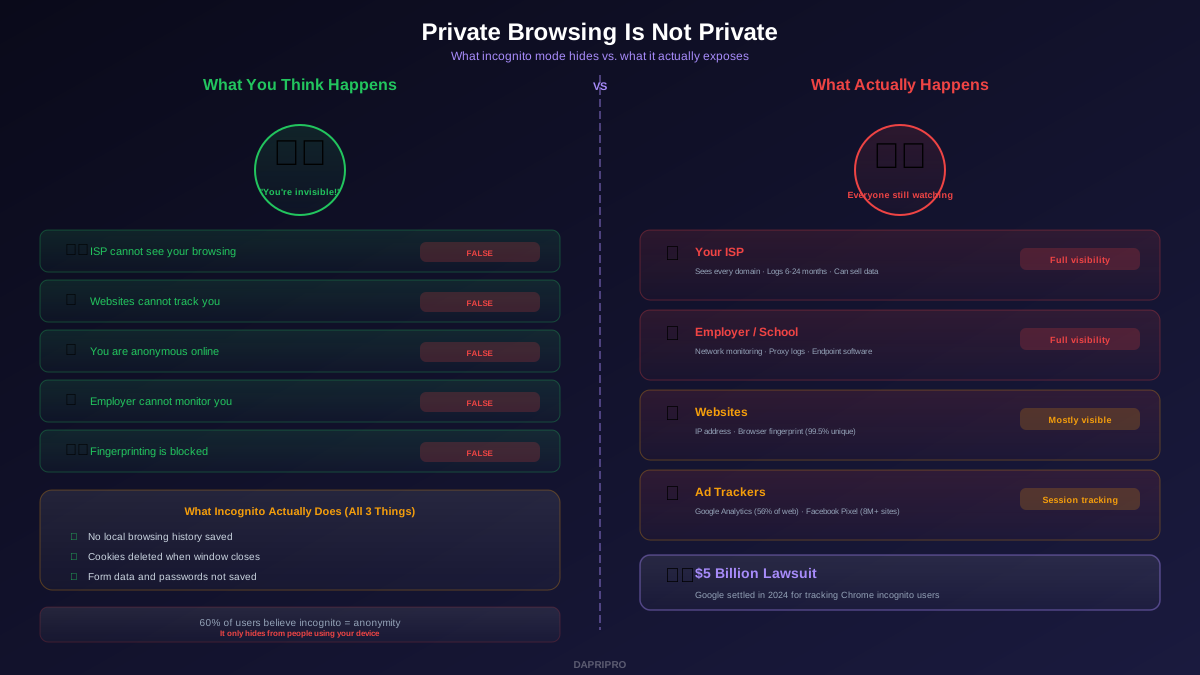
Nearly 60% of internet users believe that incognito mode or private browsing makes them anonymous online. It does not. Not even close. When you open an incognito window, your browser shows a message that basically says "you are now invisible." That messaging is so misleading that Google was sued for $5 billion over it — and settled in 2024.
Here is the truth: incognito mode only hides your activity from other people who use the same device. Your internet service provider (ISP), your employer, the websites you visit, advertising trackers, and government surveillance programs can all see exactly what you are doing. The "private" in private browsing refers to privacy from your roommate, not from the internet.
This article explains exactly what incognito mode does, what it does not do, and what tools you actually need for real privacy.
What Incognito Mode Actually Does
When you open an incognito or private browsing window, your browser activates three specific behaviors. That is it — nothing more:
1. No browsing history saved. Websites you visit in incognito mode are not added to your browser history. When you close the window, there is no record of what you visited in the browser's history section. Someone using your computer after you cannot see what you browsed.
2. Cookies deleted on close. Any cookies set during an incognito session are deleted the moment you close the incognito window. This means you are automatically logged out of every website, and tracking cookies from that session do not persist. However, cookies still function during the session — websites can track you for as long as the window is open.
3. Form data not saved. Anything you type into a form — passwords, addresses, credit card numbers, search queries — is not saved by the browser. Autofill does not remember what you entered in incognito mode.
That is the complete list. Three local behaviors. Everything else about your internet connection works exactly the same as normal browsing.
Who Can Still See Your Activity
Here is everyone who has full visibility into your incognito browsing — and how they see it:
Your Internet Service Provider (ISP)
Your ISP routes all your internet traffic. It can see every domain you connect to, when you connected, and how much data you transferred. In the United States, ISPs can legally sell this data to advertisers since Congress rolled back FCC privacy rules in 2017. Your ISP logs this data for 6 to 24 months depending on your country and local regulations. A VPN is the only way to hide your traffic from your ISP.
Your Employer or School
If you are connected to a work or school network, the network administrator can see all your traffic through firewalls, proxy servers, and DNS logs. If you are using a company device, they may also have endpoint monitoring software installed that can see everything on your screen — including the content of incognito tabs. Even if you use a personal device on a company WiFi, the network can still log every domain you visit.
The Websites You Visit
Every website you visit sees your IP address, which reveals your approximate location and ISP. Websites also see your browser's user agent string (browser type, version, operating system) and can run JavaScript that detects your screen resolution, installed fonts, timezone, language preferences, and GPU. Combined, this creates a browser fingerprint that identifies you with 99.5% accuracy — no cookies needed.
Advertising and Analytics Scripts
Google Analytics runs on 56% of all websites. Facebook Pixel runs on over 8 million sites. These scripts execute in incognito mode just like in normal browsing. While they cannot set persistent cookies across incognito sessions, they can still track you during a session using your IP address and fingerprint. Google's own tracking was the basis of the $5 billion class action lawsuit.
Government Surveillance
Intelligence agencies have the capability to monitor internet traffic at the ISP and backbone level. Programs like the NSA's XKeyscore and similar programs in other countries collect and analyze internet communications. Incognito mode is completely invisible to these programs — they operate at the network level, not the browser level.
The Google Incognito Lawsuit Explained
In 2020, three plaintiffs filed a class action lawsuit claiming Google collected data from Chrome incognito users through Google Analytics, Google Ad Manager, and other Google services embedded on third-party websites. The lawsuit alleged that Google tracked billions of incognito browsing sessions without consent.
Google argued that the incognito mode disclaimer adequately warned users that websites could still track them. The court disagreed, finding that Google's own products were doing the tracking while simultaneously promising "privacy." In December 2023, Google agreed to delete billions of data records collected from incognito sessions and settled the case in 2024.
The settlement forced Google to change Chrome's incognito disclaimer. The new language is more honest: it explicitly states that Google and websites can still collect your data. But most users never read these disclaimers, so the fundamental misunderstanding persists.
When Incognito Mode Is Actually Useful
Despite its privacy limitations, incognito mode has legitimate use cases. The key is understanding it as a local privacy tool, not an anonymity tool:
Searching for gifts on a shared computer. If you share a laptop with family, incognito mode prevents your search history from revealing birthday surprise plans. This is exactly what it was designed for.
Logging into multiple accounts simultaneously. Need to check two Gmail accounts at once? Open the second one in an incognito window. Each incognito window maintains its own separate cookie jar, so you can be logged into different accounts on the same service.
Bypassing cookie-based paywalls. Some news sites track your visit count using cookies and lock you out after a certain number of reads. Incognito mode resets this counter because cookies from previous sessions are not present. Note: many sites have moved to server-side tracking that incognito cannot bypass.
Getting unbiased search results. Google personalizes your search results based on your browsing history and past searches. Incognito mode gives you results without this personalization, which is useful for research or comparing what different users would see.
Checking flight and hotel prices. Some travel sites reportedly raise prices when they detect repeat visits to the same route. While the evidence for this is mixed, using incognito eliminates cookie-based price tracking as a variable. Your IP address can still reveal your location, though.
What You Actually Need for Real Privacy
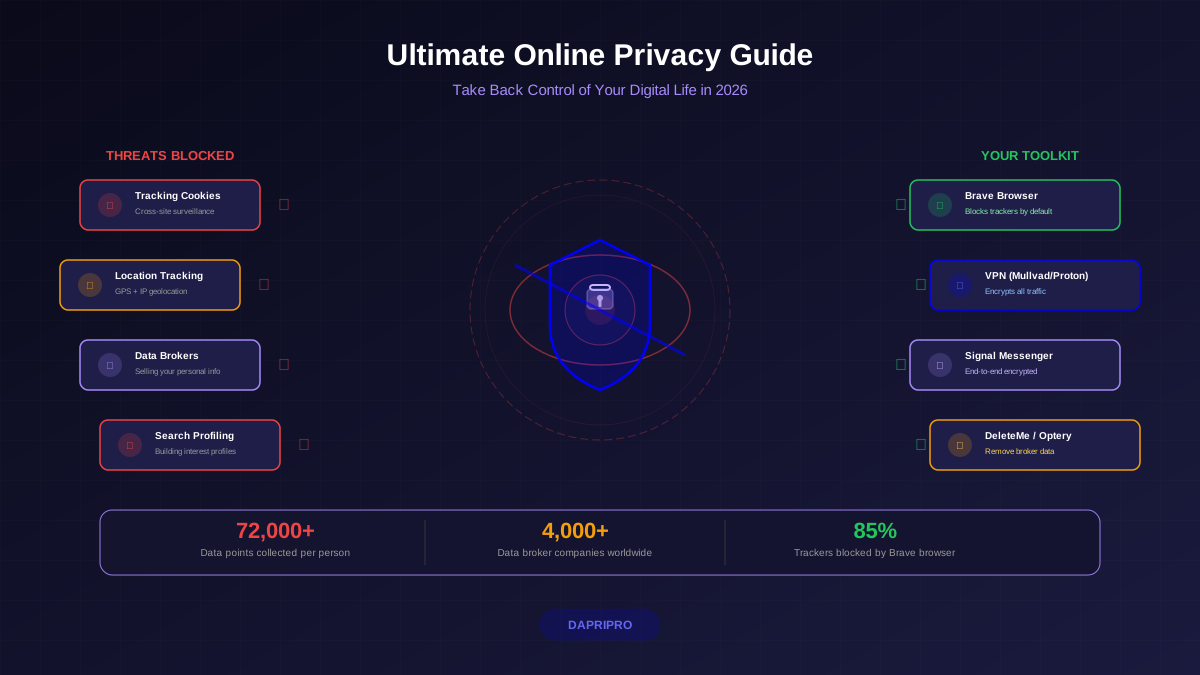
Real online privacy requires addressing every layer of tracking simultaneously. No single tool provides complete privacy — you need a stack:
Layer 1: VPN (Hides from ISP)
A VPN encrypts all your internet traffic and routes it through a server in another location. Your ISP sees encrypted data going to the VPN server but cannot see what websites you are visiting. The VPN server sees your traffic, which is why choosing a trustworthy VPN provider is critical.
Recommended VPNs for privacy: Mullvad accepts cash and Bitcoin, requires no email to sign up, and has been independently audited. ProtonVPN is based in Switzerland with strong privacy laws and offers a free tier. IVPN publishes transparency reports and has audited their no-logs policy. Avoid free VPNs — they typically sell your data to recoup costs.
Layer 2: Encrypted DNS
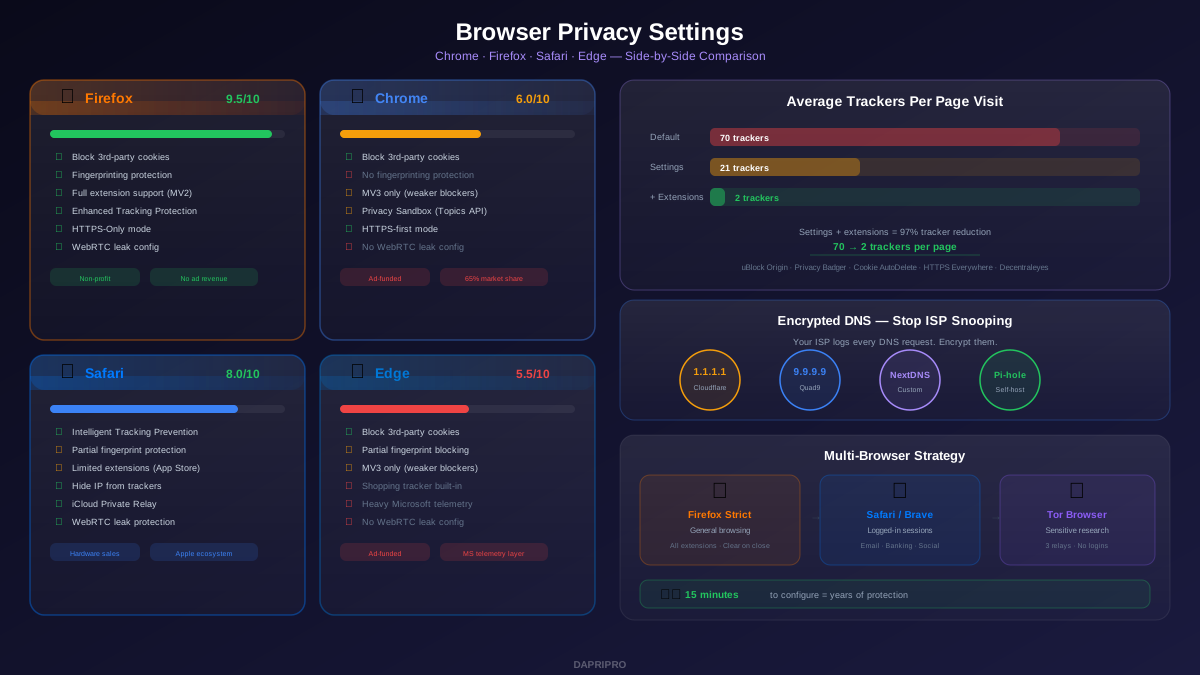
Even with a VPN, your DNS queries might leak to your ISP if not properly configured. DNS over HTTPS (DoH) or DNS over TLS (DoT) encrypts your domain lookups. Use Cloudflare (1.1.1.1), Quad9 (9.9.9.9), or NextDNS. Configure this in your browser settings and at the operating system level for complete coverage.
Layer 3: Privacy Browser Settings
Configure your browser to block third-party cookies, enable tracking protection, disable WebRTC (which leaks your real IP through a VPN), and enable HTTPS-only mode. Firefox with Enhanced Tracking Protection set to Strict is the strongest mainstream option. Brave browser provides excellent defaults without configuration.
Layer 4: Privacy Extensions
Install uBlock Origin (blocks ads, trackers, and malware domains), Privacy Badger (learns and blocks invisible trackers), and Cookie AutoDelete (destroys cookies when you close tabs). These three extensions block approximately 97% of web tracking when combined with proper browser settings.
Maximum Anonymity: Tor Browser
Tor Browser routes your traffic through three encrypted relays operated by volunteers worldwide. Neither the entry relay, the middle relay, nor the exit relay has enough information to identify both who you are and what you are accessing. This is the closest thing to true anonymity available.
Tor trade-offs: significantly slower than normal browsing (your traffic bounces through three servers), some websites block Tor exit nodes, you should never log into personal accounts through Tor (that links your identity to Tor traffic), and downloading files through Tor can expose your real IP when the download client connects directly.
Private Browsing on Mobile: Same Problems
Mobile browsers offer the same private/incognito mode with the same limitations. Chrome on Android, Safari on iPhone, and Firefox on mobile all have private modes that only prevent local history storage.
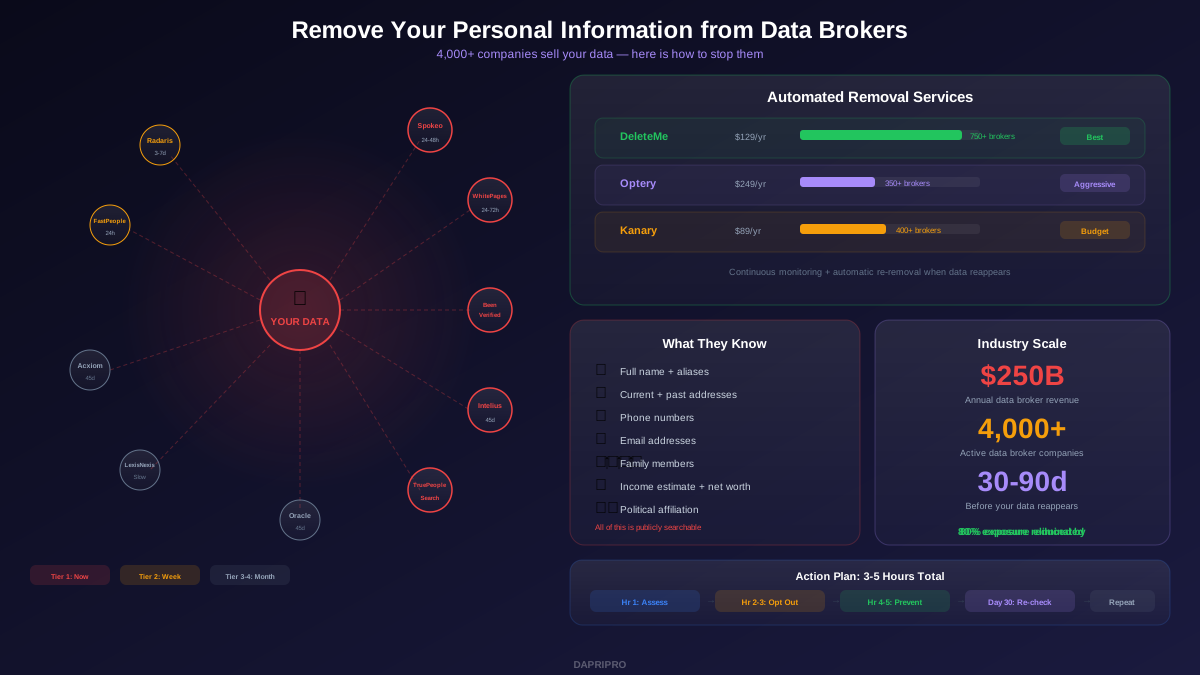
Mobile has additional tracking vectors that incognito mode does not address: your mobile advertising ID (IDFA on iPhone, GAID on Android), app-level tracking, cell tower location data, and WiFi probe requests. To limit mobile tracking:
iPhone: Go to Settings → Privacy → Tracking → disable "Allow Apps to Request to Track." Also set Safari to block all cross-site tracking in Settings → Safari → Privacy & Security.
Android: Go to Settings → Privacy → Ads → delete your advertising ID. Use Firefox as your mobile browser instead of Chrome — it supports uBlock Origin on Android. Disable WiFi scanning in Settings → Location → WiFi Scanning.
Testing Your Privacy Setup
After implementing any privacy tools, verify they are working:
IP address check: Visit whatismyipaddress.com in both normal and incognito mode. With a VPN active, both should show the VPN server's IP, not your real one.
DNS leak test: Go to dnsleaktest.com and run the extended test. All results should show your chosen DNS provider (Cloudflare, Quad9), not your ISP.
WebRTC leak test: Visit browserleaks.com/webrtc. If your real IP address appears under "Public IP Address" even while using a VPN, you have a WebRTC leak. Disable WebRTC in browser settings or install a WebRTC leak prevention extension.
Fingerprint uniqueness: Visit coveryourtracks.eff.org and run the test. Aim for "strong protection" against tracking ads and invisible trackers. Note that a truly unique fingerprint is actually bad for privacy — you want your fingerprint to match many other users.
The Bottom Line: Stop Relying on Incognito
Incognito mode is a useful convenience feature for shared devices. It is not a privacy tool. Using it as your primary privacy measure is like locking your front door while leaving every window in your house wide open.
Real privacy requires layers: a VPN to hide from your ISP, encrypted DNS to protect domain lookups, browser settings and extensions to block trackers and fingerprinting, and disciplined habits around what you share online. Each layer is straightforward to set up — about 15 minutes total — and protects against specific threats that incognito mode completely ignores.
The next time someone tells you they use incognito mode for privacy, share this article. The sooner people understand what private browsing actually does — and does not — do, the sooner they can take steps that actually protect them.