
Your smartphone knows more about you than any other device you own. It stores your bank accounts, private messages, family photos, location history for every place you have been, your fingerprint, your face scan, and access to every online account you have.
If a hacker gets into your phone, they do not just get "a device." They get your entire life.
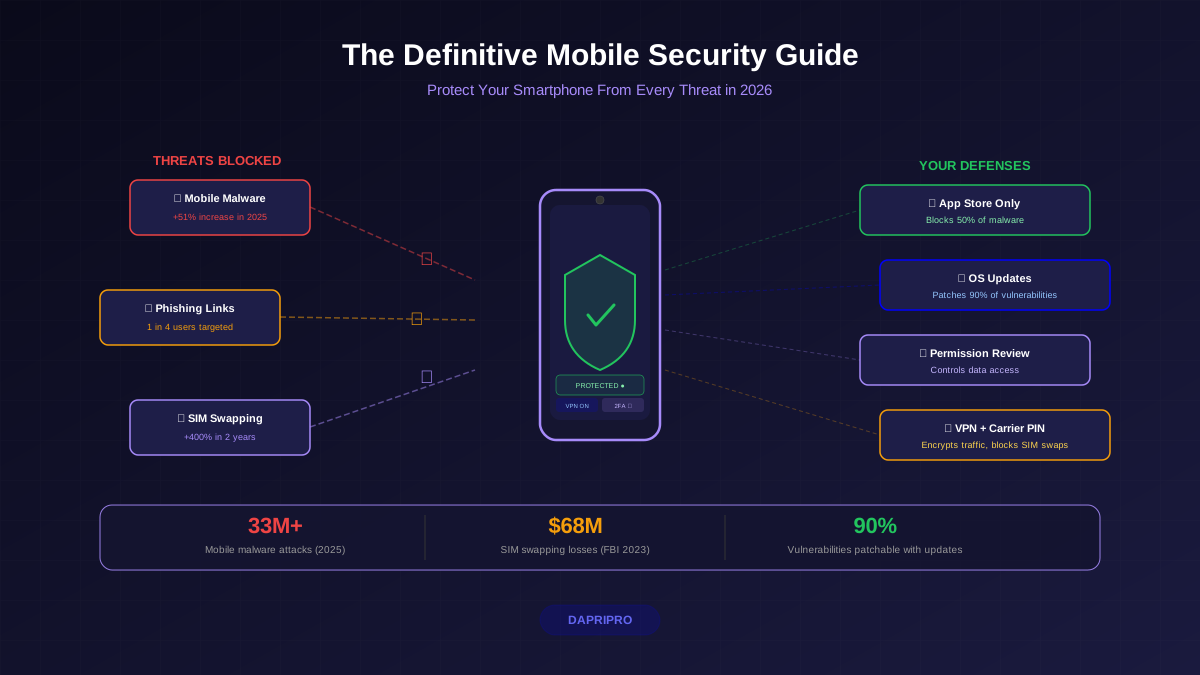
And attacks on phones are exploding. Zimperium's 2025 Global Mobile Threat Report found that mobile phishing attacks increased 60% year-over-year, while mobile malware variants grew by 51%. Lookout's research shows that 1 in 4 mobile users encountered a phishing link in 2024.
This guide covers everything you need to protect your phone — from basic settings to advanced defenses against spyware and SIM swapping.
iPhone vs Android Security: Which Is Really Safer?
This is one of the most debated questions in mobile security. The short answer: both are safe if you use them correctly. Here is how they compare in detail.
For a deep side-by-side comparison, see our iPhone vs Android security analysis.
Key Differences That Actually Matter
| Factor | iPhone | Android |
|---|---|---|
| App sideloading | Blocked by default (more secure) | Allowed (more risk if enabled) |
| Security updates | Same day for all devices for 5+ years | Varies by manufacturer (Samsung: 7 years, Pixel: 7 years, others: 2-3 years) |
| App permissions | Granular control with privacy labels | Granular control with Privacy Dashboard (Android 12+) |
| Encryption | Full device encryption by default | Full device encryption by default (Android 10+) |
| Malware risk | Very low (strict App Store review) | Low in Play Store, high from third-party stores |
Bottom line: If you want security without thinking about it, iPhone is slightly easier. If you want more control and are willing to configure settings, Android (especially Google Pixel or Samsung Galaxy) is equally secure.
10 Mobile Security Settings to Change Right Now
These settings take 15 minutes to configure and immediately improve your phone's security:
- Enable automatic updates. Software updates patch security holes. Turn on auto-update for both your operating system AND apps. 90% of exploited mobile vulnerabilities already have patches available.
- Use a strong screen lock. A 6-digit PIN minimum, or better yet, use biometric authentication (fingerprint or face ID) for convenience with a strong backup passcode.
- Review app permissions. Go to Settings → Privacy and check which apps have access to your camera, microphone, location, contacts, and photos. Our app permission guide walks you through each one.
- Turn off location for apps that do not need it. Most apps request location access but do not need it. Set to "While Using" for maps and weather, "Never" for everything else.
- Disable Bluetooth and Wi-Fi when not in use. Both can be used to track your location and, in rare cases, exploit vulnerabilities.
- Enable Find My Device. Both iPhone (Find My) and Android (Find My Device) let you remotely locate, lock, or wipe your phone if it is lost or stolen.
- Turn on automatic backups. iCloud or Google One backups ensure you can recover your data if your phone is lost, stolen, or infected with malware.
- Disable lock screen notifications. Prevent sensitive messages from showing on your lock screen where anyone can read them.
- Enable SIM lock. Set a SIM PIN so nobody can use your SIM card in another device. This adds a layer of protection against SIM swapping.
- Install a password manager. Stop saving passwords in your browser. Use a dedicated password manager for secure, unique passwords on every account.
Mobile Malware: How Phones Get Infected
Mobile malware is software designed to steal data, spy on you, or take control of your phone. In 2025, Kaspersky detected over 33 million mobile malware attacks — a 50% increase from the year before.
Here is how malware gets onto your phone:
- Fake apps (most common). Apps that look legitimate but contain malware. They often mimic popular apps like WhatsApp, games, or utility tools. Over 75% of mobile malware comes through sideloaded apps and unofficial stores.
- Phishing links. Texts, emails, or social media messages with links that install malware or steal credentials. Mobile phishing is especially dangerous because small screens make it harder to spot fake URLs.
- Drive-by downloads. Visiting a compromised website can trigger automatic downloads. Keep your browser updated to prevent this.
- Malicious public Wi-Fi. Attackers create fake hotspots (like "Free Airport WiFi") to intercept your traffic and inject malware.
To learn how to check your phone for infections, see our guide on detecting and removing phone spyware.
App Permissions: What Your Apps Really Access
Every app on your phone requests permissions to access features like your camera, microphone, contacts, and location. Most people tap "Allow" without thinking. Here is why that is dangerous.
A study by Incogni found that the average free app requests 10 permissions, and 55% of those permissions are not necessary for the app to function. A flashlight app does not need your contacts. A calculator does not need your location.
Permission Audit: The 5-Minute Check
Open your phone's permission settings and review these categories:
| Permission | Risk Level | Who Should Have It | Watch Out For |
|---|---|---|---|
| Camera | High | Camera app, video call apps, QR scanners | Social media apps, games |
| Microphone | High | Phone, voice recorders, video call apps | News apps, shopping apps |
| Location | High | Maps, weather (set to "While Using") | Games, shopping, most social media |
| Contacts | Medium | Phone, messaging apps | Any app that asks — most do not need it |
| Photos/Storage | Medium | Camera, photo editors, cloud backup | Give "limited access" when possible instead of full |
| Background activity | Medium | Navigation, music, fitness trackers | Apps draining battery with hidden processes |
Rule of thumb: Set permissions to "While Using" instead of "Always." If an app stops working without a permission, you can always re-enable it. But permissions you forget about keep collecting data forever.
Public Wi-Fi: The Hidden Danger
Free Wi-Fi at coffee shops, airports, hotels, and malls is convenient — and dangerous. Without protection, anyone on the same network can potentially see your internet traffic.
For complete protection strategies, see our public Wi-Fi safety guide.
The Real Risks
- Evil twin attacks. Attackers create fake Wi-Fi networks with names like "Starbucks Free WiFi" or "Airport_Guest." When you connect, all your traffic goes through their device.
- Man-in-the-middle attacks. On unsecured networks, attackers position themselves between you and the internet, intercepting and potentially modifying your data.
- Packet sniffing. Software like Wireshark can capture unencrypted data from anyone on the same network.
- Session hijacking. Attackers steal your session cookies to log into your accounts without needing your password.
How to Stay Safe on Public Wi-Fi
- Use a VPN. A VPN encrypts ALL your traffic, making it unreadable on any network. Proton VPN (free, no data limit) or Mullvad ($5/month) are the best options.
- Verify the network name. Ask staff for the exact network name. Do not connect to the one with the strongest signal — that could be the fake one.
- Avoid logging into sensitive accounts. No banking, no email, no shopping on public Wi-Fi without a VPN.
- Turn off auto-connect. Disable the setting that automatically connects to known networks. Attackers can spoof networks your phone has previously connected to.
- Use your phone's hotspot instead. If possible, use your cellular data. It is encrypted between your phone and the cell tower, making it far safer than public Wi-Fi.
SIM Swapping: The Attack Most People Don't Know About
SIM swapping is one of the most devastating attacks targeting mobile users today. The FBI reported losses of over $68 million from SIM swapping in 2023 alone, and attacks have increased 400% since then.
Here is how it works:
- The attacker gathers your personal information (name, phone number, last 4 of SSN) from data breaches, social media, or data brokers
- They call your phone carrier pretending to be you
- They convince the representative to transfer your number to a new SIM card
- Your phone loses service. Their phone now receives all your calls and texts
- They use SMS verification codes to reset your email, bank, and crypto passwords
How to Protect Against SIM Swapping
- Add a PIN to your carrier account. Call your carrier (T-Mobile, AT&T, Verizon) and set up a SIM transfer PIN. Without this PIN, nobody can transfer your number.
- Switch from SMS to authenticator apps for 2FA. If you use SMS for two-factor authentication, a SIM swap gives the attacker your codes. Authenticator apps (Google Authenticator, Authy) generate codes on your physical device, not your phone number.
- Freeze your credit. This prevents attackers who steal your identity from opening accounts in your name. It is free and takes 10 minutes.
- Limit personal info online. The less personal information available about you, the harder it is for attackers to impersonate you to your carrier.
Best Mobile Security Apps in 2026
You do not need many apps — just the right ones. Here are the best mobile security apps for 2026:
| App | Purpose | Price | Platform | Why We Recommend It |
|---|---|---|---|---|
| Bitwarden | Password manager | Free | iOS + Android | Open-source, unlimited passwords |
| Signal | Encrypted messaging | Free | iOS + Android | Gold standard for private messaging |
| Proton VPN | VPN | Free (premium: $5/mo) | iOS + Android | No-log policy, Swiss company, no data limits on free |
| Malwarebytes | Malware scanner | Free | Android (primarily) | Lightweight, catches threats others miss |
| Brave Browser | Private browsing | Free | iOS + Android | Blocks trackers and ads by default |
| Lockdown | Firewall | Free | iOS | Blocks trackers at the network level |
Your Mobile Security Action Plan
Do these steps in order of priority:
Right Now (5 Minutes)
- Update your phone's operating system to the latest version
- Set a 6+ digit PIN or enable biometric lock
- Enable Find My Device (iPhone) or Find My Phone (Android)
Today (15 Minutes)
- Review and restrict app permissions — especially camera, microphone, and location
- Delete apps you have not used in 3+ months
- Turn off auto-connect for Wi-Fi networks
This Week (30 Minutes)
- Install a password manager and generate unique passwords for your top accounts
- Call your carrier and set up a SIM transfer PIN
- Install Proton VPN for public Wi-Fi protection
- Switch SMS-based 2FA to an authenticator app on your most important accounts
Your phone is the key to your digital life. Spending 30 minutes now prevents a lifetime of problems later.