
Analyzing malware on a machine connected to the internet is like studying explosives in an apartment building. One mistake and you do not just damage your own work — you take out your neighbors. A proper malware analysis lab is an isolated, controlled environment where you can detonate malicious software, observe its behavior, and extract intelligence without any possibility of the malware reaching production systems, personal data, or the broader internet.
This guide covers how to build that lab from zero. Not a theoretical overview — a step-by-step construction of a functional analysis environment with specific tools, configurations, and safety boundaries. By the end, you will have two analysis VMs (Windows and Linux), a simulated network environment, and the toolchains needed for both static and dynamic analysis of real-world malware samples.
Lab Architecture: The Three Layers of Isolation
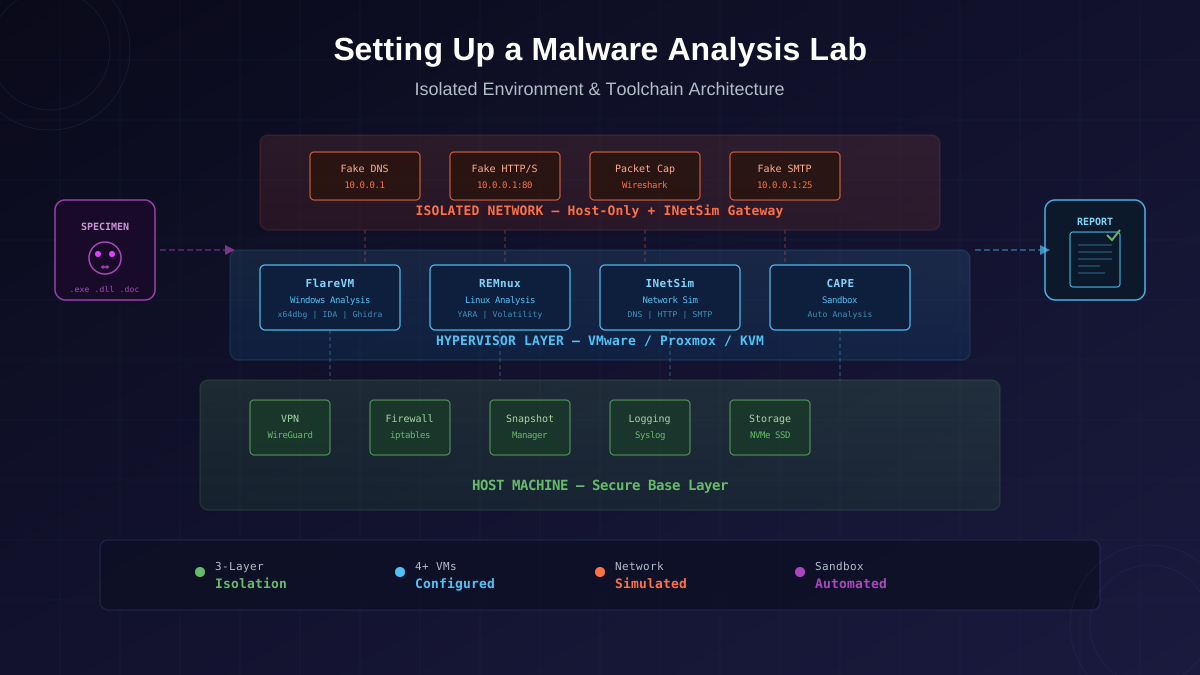
A secure malware analysis lab isolates malware at three levels. Skipping any one of these creates a path for malware to escape.
Layer 1: Physical Isolation
The lab machine should be a dedicated computer that is not connected to your home or work network. Ideally, it has no Wi-Fi card, or the Wi-Fi card is physically disabled in BIOS. The only network connection is an isolated switch or direct cable to another lab machine. This physical air gap ensures that even a complete VM escape followed by host compromise cannot reach your production environment because there is no physical network path.
If a fully dedicated machine is not feasible, the minimum acceptable configuration is a separate VLAN with a firewall that implements a default-deny policy — blocking all traffic from the lab segment to your production segment. The firewall should allow only explicitly defined management traffic (SSH to the host for administration) and nothing else. Log every connection attempt from the lab segment for review.
Layer 2: Hypervisor Isolation
The hypervisor creates the boundary between malware running inside a VM and the host operating system. Your choice of hypervisor directly impacts security.
Type 1 (bare-metal) hypervisors — Xen, VMware ESXi, Proxmox (KVM) — run directly on hardware with no underlying operating system. The attack surface is minimal because there is no host OS for malware to escape into. ESXi and Proxmox are free for lab use. This is the recommended approach for serious analysis work.
Type 2 (hosted) hypervisors — VMware Workstation, VirtualBox, KVM on Linux desktop — run on top of a host OS. The malware could theoretically exploit a VM escape vulnerability and reach the host. KVM on Linux has the smallest attack surface among Type 2 options because the hypervisor is a kernel module with a minimal codebase. VMware Workstation is well-tested and has a strong track record. VirtualBox is the easiest to set up but has the largest attack surface — disable 3D acceleration, drag-and-drop, and shared folders to reduce risk.
Layer 3: Network Isolation
The analysis VMs must exist on an isolated virtual network with no default gateway to the real internet. The typical configuration:
- Host-only network — A virtual network that exists only between VMs and the host. No route to the physical network adapter. Malware that tries to connect to its command-and-control server gets a connection timeout or connect to your simulated services.
- INetSim VM — A Linux VM running INetSim, which simulates common internet services (DNS, HTTP, HTTPS, SMTP, FTP, IRC). When malware on the Windows analysis VM tries to resolve a domain name, INetSim answers. When it tries to download a payload over HTTP, INetSim serves a response. This lets you observe the malware's network behavior without exposing real infrastructure.
- No NAT, no bridged networking — NAT gives the VM a path to the internet through the host. Bridged puts the VM directly on your physical network. Neither is acceptable for malware analysis. Host-only with INetSim provides the necessary balance: the malware thinks it is online, but all traffic stays in the lab.
Hardware Requirements
The analysis machine needs to run multiple VMs simultaneously while recording detailed system behavior. Underpowered hardware creates frustrating delays and may cause analysis tools to drop events.
Minimum Configuration
| Component | Minimum | Recommended |
|---|---|---|
| CPU | 4 cores, VT-x/AMD-V | 8+ cores, VT-x/VT-d or AMD-V/AMD-Vi |
| RAM | 16 GB | 32-64 GB |
| Storage | 500 GB SSD | 1 TB NVMe SSD |
| Network | 1 GbE NIC | 2x GbE NIC (one disabled/isolated) |
| GPU | Integrated (sufficient) | Integrated (no GPU passthrough needed) |
VT-x and VT-d are non-negotiable. VT-x enables hardware-assisted virtualization — without it, VMs run in software emulation mode, which is dramatically slower and less secure. VT-d (Intel) or AMD-Vi (AMD) provides I/O virtualization, preventing VMs from using DMA attacks to access host memory. Verify these are enabled in BIOS/UEFI before starting.
A refurbished Dell OptiPlex 7060 or Lenovo ThinkCentre M920 with 32 GB RAM typically costs 400 to 600 dollars and meets all recommended specifications. Older enterprise workstations (Dell Precision, HP Z-series) with Xeon processors are excellent choices if available at lower cost. The key requirement is reliable hardware virtualization, not raw performance.
Hypervisor Setup
Option 1: Proxmox VE (Recommended for Dedicated Machine)
Proxmox Virtual Environment is a free, open-source Type 1 hypervisor based on Debian with KVM. It installs directly to bare metal and provides a web-based management interface. The installation ISO is approximately 1 GB, and setup takes under 15 minutes. After installation, you access the management interface at https://your-ip:8006 from another machine on the same network segment.
Proxmox advantages: bare-metal performance, minimal attack surface, snapshot management through the web UI, built-in ZFS support for storage, and template-based VM cloning that lets you spin up fresh analysis VMs in seconds.
Option 2: VMware Workstation Pro (Best for Shared Machine)
VMware Workstation Pro (now free for personal use since November 2024) is the most mature Type 2 hypervisor. Its snapshot system is fast and reliable, the networking configuration is flexible, and it has a strong track record for VM isolation. If you must run the lab on a machine that also serves as your daily driver (not recommended but sometimes necessary), Workstation Pro is the safest Type 2 option.
Critical configuration: create a host-only virtual network in the Virtual Network Editor. Uncheck "Connect a host virtual adapter to this network" if you want complete isolation (the host itself cannot reach the lab VMs). Assign this host-only network to all analysis VMs.
Option 3: KVM on Linux (Best Balance of Security and Free)
KVM with virt-manager provides near-Type-1 security on a Linux host because KVM is a kernel module, not a userspace application. The attack surface is significantly smaller than VirtualBox. Setup on Ubuntu or Fedora: install qemu-kvm, libvirt, and virt-manager. Create an isolated virtual network in virt-manager's connection details.
Building the Windows Analysis VM: FlareVM
FlareVM is a Windows-based malware analysis distribution maintained by Mandiant (Google). It transforms a standard Windows installation into a fully equipped analysis workstation with over 140 tools pre-installed and pre-configured. FlareVM is installed on top of a Windows 10 or 11 VM — it is not a standalone OS.
Installation Process
Start with a clean Windows 10 Professional VM. Allocate 4 GB RAM minimum (8 GB recommended), 2 CPU cores, and 80 GB disk. Install Windows, complete the OOBE setup, and disable Windows Update (FlareVM handles this). Open PowerShell as Administrator and run the FlareVM installation script from the GitHub repository. The installer downloads and configures all tools automatically — expect the process to take 30 to 60 minutes depending on internet speed.
The installer sets up the following tool categories:
- Disassemblers and decompilers — Ghidra (NSA's free reverse engineering suite), x64dbg/x32dbg (debuggers), IDA Free (if manually added), Binary Ninja (if licensed).
- PE analysis — PEStudio (detects suspicious indicators in executables without running them), PEiD (packer detection), Detect It Easy (advanced packer and compiler identification), CFF Explorer (PE header analysis).
- Dynamic analysis — Process Monitor (real-time file system, registry, and process activity), Process Explorer (advanced task manager), Regshot (registry comparison before/after), API Monitor (tracks API calls), Autoruns (identifies persistence mechanisms).
- Network analysis — Wireshark (packet capture and analysis), FakeNet-NG (simulates network services similar to INetSim but Windows-native), Fiddler (HTTP/HTTPS proxy).
- Document analysis — olevba (extracts VBA macros from Office documents), pdf-parser (PDF structure analysis), ViperMonkey (VBA macro emulation).
- Utilities — 7-Zip, HxD (hex editor), CyberChef (data transformation), YARA (pattern matching), Floss (string extraction from obfuscated samples).
Critical Post-Install Configuration
After FlareVM installation, before beginning any analysis:
- Disable Windows Defender permanently — it will quarantine or delete your malware samples. Use Group Policy: Computer Configuration → Administrative Templates → Windows Components → Microsoft Defender Antivirus → Turn off Microsoft Defender Antivirus = Enabled.
- Disable Windows Update — updates can change system behavior between analysis sessions, making comparisons unreliable.
- Disable automatic sample submission — Windows sends suspicious files to Microsoft by default. In a lab with no internet this is harmless, but disable it anyway as a good practice.
- Set the network adapter to the host-only network you created earlier.
- Take a clean snapshot labeled "clean-baseline" or similar. This is your restore point between analysis sessions.
Building the Linux Analysis VM: REMnux
REMnux is a Linux distribution designed specifically for reverse-engineering and analyzing malware. It provides tools that complement FlareVM — particularly for network analysis, memory forensics, JavaScript deobfuscation, and scripting-based analysis.
What REMnux Provides
- Network simulation — INetSim (simulates DNS, HTTP, HTTPS, SMTP, FTP, IRC, TFTP), FakeDNS, accept-all-ips (responds to all TCP connections).
- Network capture and analysis — Wireshark, NetworkMiner (extracts files from pcaps), ngrep (network grep), tcpdump.
- Memory forensics — Volatility 3 (analyzes memory dumps to find injected code, hidden processes, network connections, and encryption keys), Rekall.
- Document analysis — pdfid and pdf-parser (PDF analysis), oledump and olevba (Office analysis), XLMMacroDeobfuscator (Excel 4.0 macro analysis).
- Web analysis — Thug (low-interaction honeyclient for analyzing malicious websites), SpiderMonkey (JavaScript engine for deobfuscation), V8 (Chrome's JavaScript engine).
- Static analysis — radare2 and Cutter (reverse engineering framework), YARA, ssdeep (fuzzy hashing), peepdf, Ghidra.
REMnux is available as a VM image (OVA) for direct import into VMware or VirtualBox, or as a Docker image for lightweight usage. For a lab setup, use the VM image. Allocate 4 GB RAM and 2 CPU cores. Connect it to the same host-only network as your FlareVM Windows VM.
Configuring INetSim on REMnux
INetSim is the backbone of your lab's network simulation. Edit the INetSim configuration file (/etc/inetsim/inetsim.conf) to bind to the host-only network interface. Set the DNS default response to point to the REMnux VM's IP address — this way, when malware on the Windows VM resolves any domain, it gets the REMnux IP, and its subsequent HTTP/HTTPS requests land on INetSim's fake web server.
Start INetSim with inetsim from the terminal. It immediately begins answering DNS queries, serving HTTP pages, accepting SMTP connections, and logging everything. When you detonate malware on the Windows VM, INetSim captures every domain it tries to resolve, every URL it tries to reach, every email it tries to send, and every file it tries to download — all contained in your isolated lab.
The Analysis Workflow: Static Before Dynamic
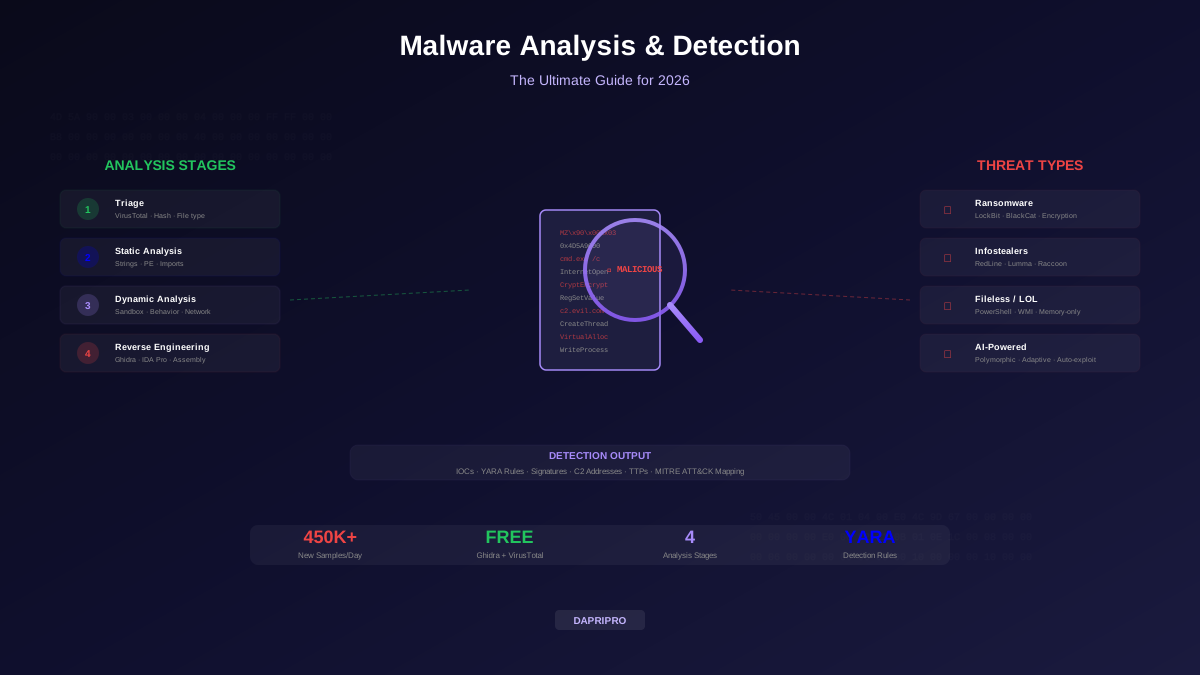
The golden rule of malware analysis: always perform static analysis before dynamic analysis. Running an unknown sample without static triage is like tasting an unknown substance instead of testing it first. Static analysis tells you what the malware is designed to do. Dynamic analysis confirms that it actually does it.
Static Analysis Phase
Static analysis examines the malware without executing it. You are reading its code, structure, and metadata — not its behavior.
Step 1: File identification. Run file command (Linux) or use PEStudio (Windows) to identify the file type. Malware frequently disguises itself — a file named "invoice.pdf" may actually be a PE executable, a batch script, or a PowerShell script with a renamed extension. Check the file magic bytes, not the extension.
Step 2: Hash generation. Generate MD5, SHA-1, and SHA-256 hashes and search them on VirusTotal, Hybrid Analysis, and MalwareBazaar. If the sample is already known, you get instant context: malware family, related IOCs, behavioral reports from automated sandboxes, and community analysis. This step can save hours of work.
Step 3: String extraction. Run FLOSS (FireEye Labs Obfuscated String Solver) instead of the basic strings command. FLOSS decodes obfuscated strings, stack strings, and encoded strings that regular string extraction misses. Look for: URLs, IP addresses, domain names, registry paths, file paths, API function names (CreateRemoteThread, VirtualAllocEx, WriteProcessMemory indicate process injection), cryptographic constants, and command strings.
Step 4: PE header analysis. For Windows executables, use PEStudio or Detect It Easy. Examine: the compilation timestamp (when was it compiled?), the import table (which DLLs and functions does it use?), the section table (unusual section names like UPX0 indicate packing), the entropy of each section (high entropy suggests encryption or compression), and the digital signature (is it signed? by whom? is the signature valid?).
Step 5: Packer detection. If the sample is packed (compressed or encrypted to evade detection), you need to identify and potentially unpack it before deeper analysis. Detect It Easy identifies most common packers. If packed with UPX, unpack with upx -d sample.exe. Custom packers require manual unpacking using a debugger — a more advanced technique.
Dynamic Analysis Phase
After static analysis gives you a roadmap, dynamically execute the sample to observe its actual behavior.
Step 1: Prepare the environment. Restore the Windows VM to your clean snapshot. Start INetSim on the REMnux VM. Start Wireshark or tcpdump on the REMnux VM to capture all network traffic. On the Windows VM, start Process Monitor (filter by the sample's process name), start Regshot (take first snapshot), and start Autoruns (baseline).
Step 2: Detonate. Execute the malware sample on the Windows VM. Wait at least 5 to 10 minutes — many malware families implement delayed execution (sleep timers) to evade sandbox analysis that typically runs for 2 to 3 minutes. Some malware waits for specific conditions (system idle, specific time of day, reboot). Monitor Process Monitor for file system, registry, and process activity in real time.
Step 3: Capture state changes. After the observation period: take a second Regshot snapshot and compare it against the first (every registry change the malware made is displayed). Run Autoruns again and compare to baseline (persistence mechanisms). Check Process Explorer for new processes, services, or injected threads. Export Wireshark captures from the REMnux VM.
Step 4: Analyze network behavior. Review the INetSim logs — which domains did the malware resolve? Which URLs did it request? Did it try to send email? Did it try to download additional payloads? Cross-reference the network IOCs with threat intelligence databases.
Step 5: Memory analysis. For advanced analysis, dump the VM's memory (most hypervisors can export VM memory to a file) and analyze it with Volatility 3. Memory analysis reveals: injected code hidden from disk-based tools, decrypted strings that exist only in memory, network connections the process maintained, and process hollowing or other injection techniques.
Automated Sandbox Integration
Manual analysis is thorough but time-consuming. For high-volume triage, integrate an automated sandbox into your lab.
Cuckoo Sandbox (Open Source)
Cuckoo Sandbox automates the dynamic analysis process. You submit a sample, Cuckoo launches it in a clean VM, monitors all system activity for a configurable period (typically 2 to 5 minutes), and generates a comprehensive report including: API call traces, file system modifications, registry changes, network traffic, screenshots of the desktop during execution, and behavioral signatures.
Cuckoo 3 (the latest version as of 2026) supports analysis on Windows 7/10/11 and Linux guests. It integrates with YARA for detection, VirusTotal for reputation lookups, and MITRE ATT&CK for technique mapping. Setup is non-trivial — plan for a full day of configuration including guest VM preparation, agent installation, and network routing.
CAPE Sandbox (Community Fork)
CAPE (Config And Payload Extraction) extends Cuckoo with enhanced unpacking capabilities, configuration extraction from common malware families (Emotet, Cobalt Strike, Qakbot, IcedID), and YARA-based classification. If you analyze commodity malware frequently, CAPE's built-in config extractors save significant manual effort. CAPE extracts the actual C2 server addresses, encryption keys, and campaign identifiers embedded in the malware's configuration.
Where to Get Malware Samples Safely
You need malware samples to analyze. Here are the legitimate sources used by the security community:
- MalwareBazaar (bazaar.abuse.ch) — Free repository operated by abuse.ch. Samples are tagged by malware family, shared by the community, and downloadable in password-protected ZIPs (password: "infected"). The primary source for current, real-world samples.
- VirusTotal (virustotal.com) — With a paid API subscription, you can download samples from VirusTotal's database. The free tier allows searching by hash but not downloading. Academic accounts get enhanced access.
- Hybrid Analysis (hybrid-analysis.com) — CrowdStrike's free malware analysis service. Allows sample download for registered users. Also provides pre-generated behavioral reports.
- theZoo (GitHub) — A curated live malware repository for research purposes. Contains well-known malware families organized by category. Samples are password-protected.
- Any.Run (any.run) — Interactive sandbox service with a free community tier. You can observe other researchers' analysis sessions and download samples from public submissions.
Safety rule: all samples must be stored in password-protected archives (ZIP with AES-256 encryption) and never extracted outside your analysis VMs. Use a consistent password across your lab (the community standard is "infected") and ensure your host OS antivirus does not scan the archive contents. Transferring samples to analysis VMs should use the hypervisor's built-in file transfer (shared clipboard disabled — use a shared folder that is read-only from the guest, or transfer via the INetSim HTTP server).
Dealing with Anti-Analysis Techniques
Modern malware actively detects analysis environments and changes its behavior or refuses to execute. Common evasion techniques and countermeasures:
- VM detection — Malware checks for VMware Tools, VirtualBox Guest Additions, hypervisor-specific registry keys, or CPUID values that reveal virtualization. Countermeasure: remove guest additions, modify VM hardware identifiers using
VBoxManage modifyvmor VMware VMX edits, use pafish (paranoid fish) tool to test what your VM leaks. - Debug detection — Malware checks
IsDebuggerPresent(), NtQueryInformationProcess, timing checks (RDTSC instruction), or hardware breakpoint detection. Countermeasure: use ScyllaHide plugin for x64dbg which patches all common anti-debug checks. - Sandbox detection — Malware checks for low CPU core count, small RAM (under 4 GB), small disk (under 60 GB), lack of user activity (no recent documents, no browser history, no installed programs), or known sandbox usernames. Countermeasure: allocate adequate resources (4+ cores, 8+ GB RAM, 80+ GB disk), create fake user activity (documents, browser history, installed programs), and use non-obvious VM names and usernames.
- Time-based evasion — Malware sleeps for extended periods before executing its payload, hoping the sandbox timeout expires. Countermeasure: Cuckoo and CAPE can accelerate sleep calls by hooking the API. For manual analysis, use x64dbg to patch sleep timers or set breakpoints after sleep returns.
Lab Safety Rules
These rules are non-negotiable. Violating them can result in malware escaping your lab:
- Never analyze malware on a machine connected to production networks. Not through Wi-Fi. Not through a VPN. Not through a USB tethered phone. Physical isolation or firewall-enforced VLAN isolation only.
- Never extract malware samples on the host OS. Transfer password-protected archives to the analysis VM and extract them inside the VM only.
- Snapshot before every analysis session. If you forget and the analysis corrupts the VM, you lose your analysis environment.
- Restore to clean snapshot after every analysis session. Do not accumulate artifacts from previous sessions — they contaminate future analysis results.
- Disable shared folders, clipboard sharing, and drag-and-drop between host and analysis VMs. These features create a bidirectional channel that malware can exploit.
- Keep hypervisor and host OS updated. VM escape vulnerabilities are patched regularly. An unpatched hypervisor is a direct threat to your host.
- Never share network indicators from your lab with attribution to your organization. If you publish IOCs from lab analysis, use anonymous channels. Malware operators monitor public IOC reports to identify who is analyzing their malware.
Putting It All Together
The complete lab setup takes approximately one full day: 2 hours for hardware preparation and hypervisor installation, 2 hours for FlareVM installation, 1 hour for REMnux setup and INetSim configuration, and 1 hour for network isolation verification and snapshot creation. After the initial build, spinning up a fresh analysis session takes under 60 seconds — restore snapshot, start INetSim, start monitoring tools, detonate.
Start with simple practice samples. MalwareBazaar tags samples by complexity. Pick a known specimen (a well-documented Emotet or Qakbot dropper), analyze it independently, then compare your findings against published analyses. This feedback loop builds analytical skills faster than reading documentation alone.
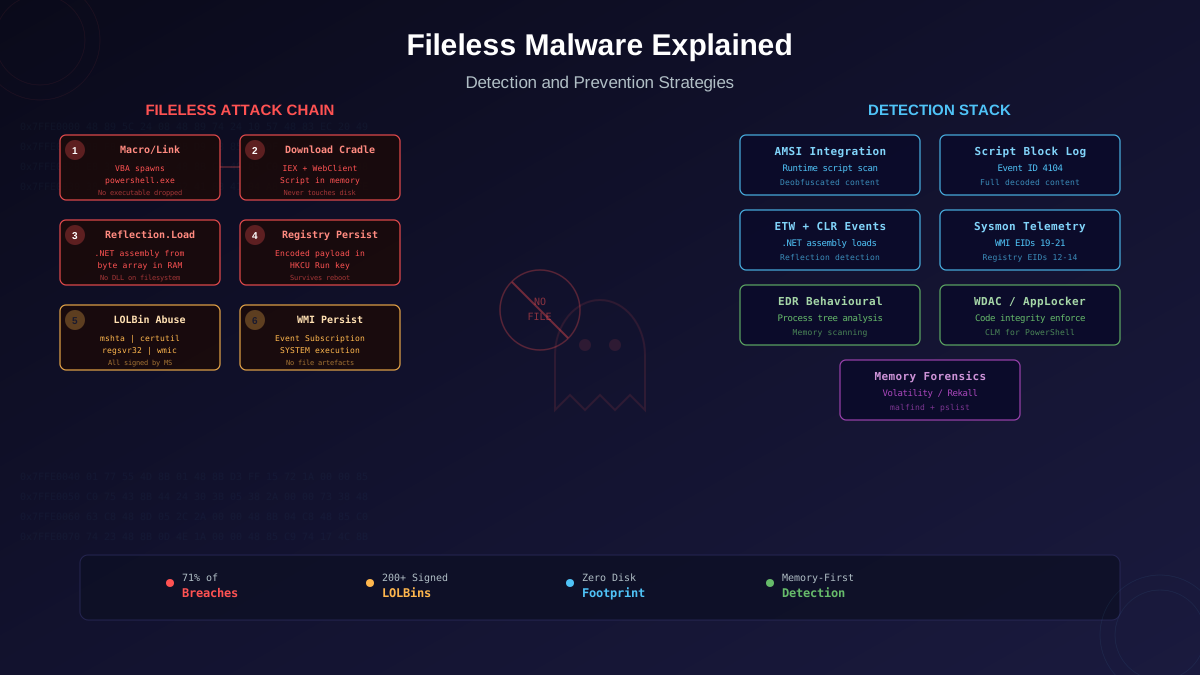
For more on analyzing specific malware types, see our guide on Fileless Malware Detection. For detection techniques beyond the lab, explore our Malware Analysis section.