
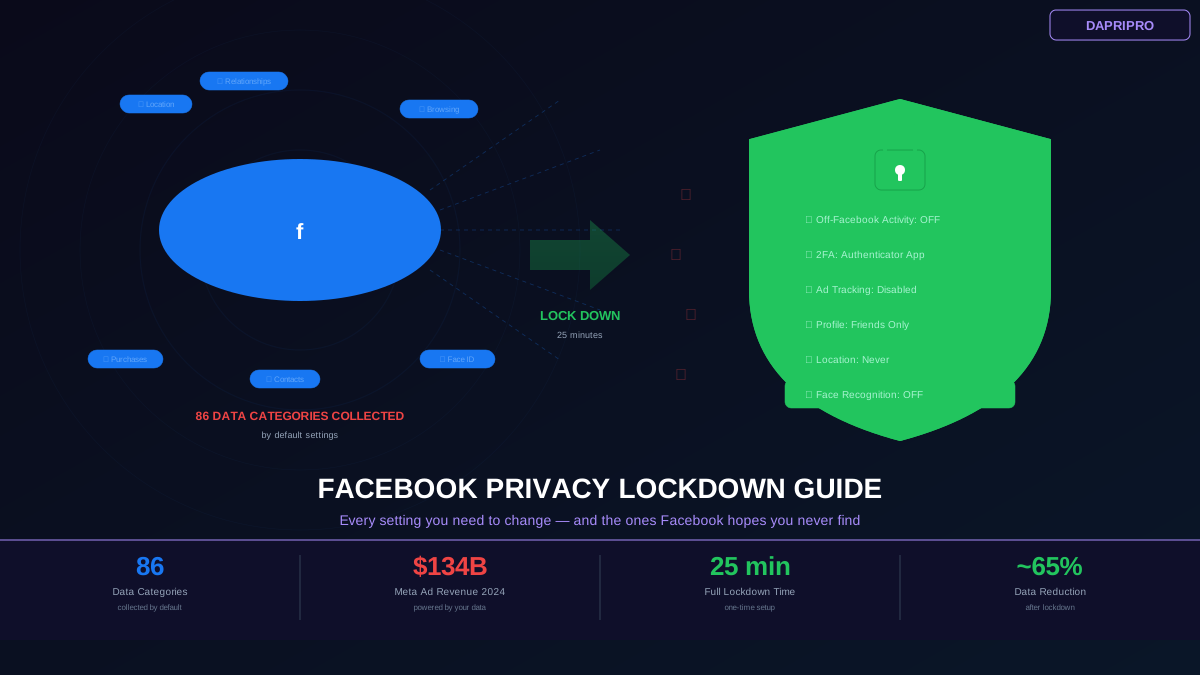
Why Facebook Privacy Settings Matter More Than You Think
Facebook does not make money from connecting you with friends. Facebook makes money from selling access to your attention, and the more it knows about you, the higher the price advertisers pay. Meta (Facebook parent company) generated $134 billion in advertising revenue in 2024 — virtually all of it from targeted ads powered by user data.
The default settings on a Facebook account are configured to maximize data collection. When you create an account or accept an update without reviewing settings, you are opting into: facial recognition across all photos, location tracking through GPS, Wi-Fi, and cell towers, cross-site tracking via the Meta Pixel (installed on millions of websites), contact list uploads that map your real-world relationships, and microphone access that the app technically has permission to use anytime it is open.
This guide walks through every privacy setting worth changing, organized by priority. The whole process takes about 25 minutes, and the impact on your data exposure is immediate.
Priority 1: Off-Facebook Activity (Most Impactful Setting)
This is the single most important privacy setting on Facebook, and most users have never seen it. Off-Facebook Activity shows you a list of websites and apps that share your activity with Facebook — every time you visit a site with the Meta Pixel installed, that visit is logged and linked to your Facebook profile.
How to access it: Settings > Your Facebook Information > Off-Facebook Activity (on mobile: Settings > Settings & Privacy > Settings > Your Facebook Information > Off-Facebook Activity).
What you will see: A list of hundreds (sometimes thousands) of websites, apps, and services that have sent your activity data to Facebook. This includes shopping sites, news outlets, banking apps, health trackers, and dating apps. Each entry shows how many interactions were shared.
What to do:
1. Clear history — Click "Clear Previous Activity" to disconnect all previously shared data from your profile. This does not delete the data from Facebook servers, but it disconnects it from your ad profile. 2. Manage future activity — Click "Manage Future Activity" and toggle OFF the "Future Off-Facebook Activity" switch. This prevents new cross-site tracking going forward. 3. Download your data first — Before clearing, you may want to download the list to see exactly which companies were tracking you. Go to Settings > Your Facebook Information > Download Your Information.
Disabling Off-Facebook Activity is estimated to reduce your ad targeting profile by 40%. Advertisers will still target you based on your on-platform behavior, but the cross-site surveillance stops.
Priority 2: Account Security Settings
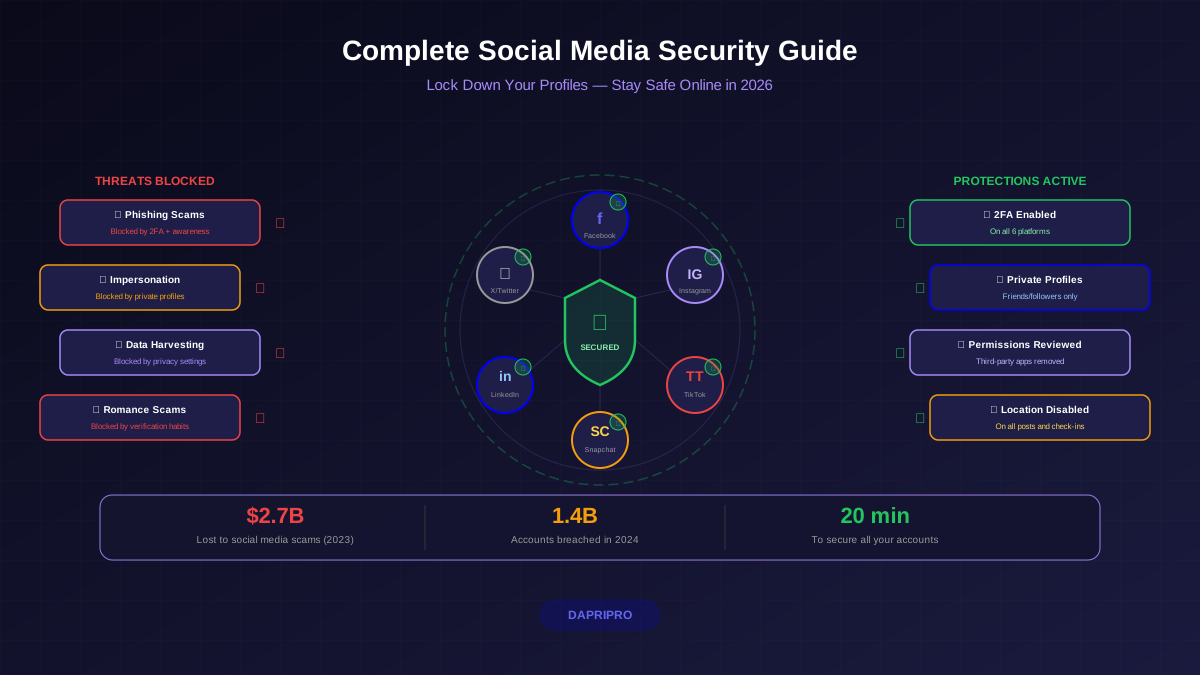
Before locking down privacy, secure the account itself. A hijacked account with perfect privacy settings is worse than a secure account with default settings.
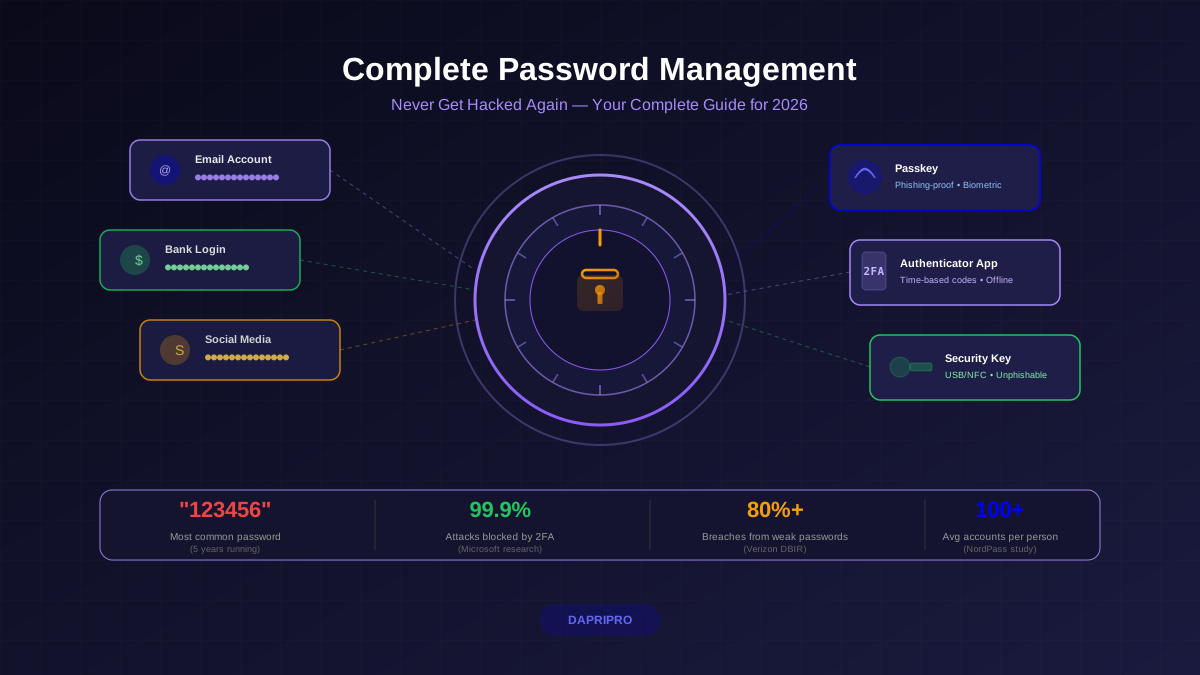
Two-Factor Authentication: Settings > Security and Login > Two-Factor Authentication. Choose an authenticator app (Google Authenticator or Authy), NOT SMS. If you read our SIM swapping article, you know why SMS verification codes are vulnerable to interception.
Login Alerts: Settings > Security and Login > Get alerts about unrecognized logins. Enable notifications for both Facebook and email. This warns you if someone accesses your account from a new device.
Authorized Logins: Settings > Security and Login > Where You Are Logged In. Review and remove any sessions you do not recognize. If you see locations or devices that are not yours, change your password immediately and enable two-factor authentication.
App Passwords and Connected Apps: Settings > Security and Login > Apps and Websites. Remove any apps you no longer use. Each connected app has access to some portion of your Facebook data — old quiz apps, games, and forgotten integrations are common data leak vectors. The principle: if you have not used it in 6 months, remove it.
Priority 3: Profile and Tagging Privacy
Who can see your posts: Settings > Privacy > Your Activity. Change "Who can see your future posts" to "Friends" (not "Public"). Then click "Limit Past Posts" to retroactively change all previous public posts to Friends-only. This is irreversible — once limited, individual posts can only be re-shared to Public one at a time.
Who can find you: Settings > Privacy > How People Find and Contact You. Set "Who can look you up using the email address you provided" to "Friends" or "Only me." Do the same for phone number lookup. Set "Do you want search engines outside of Facebook to link to your profile" to "No." This prevents Google from indexing your profile.
Tagging controls: Settings > Profile and Tagging. Enable "Review tags people add to your posts before the tags appear on Facebook" and "Review posts you are tagged in before the post appears on your timeline." This gives you a veto over any content that appears on your profile. Also set "Who can post on your profile" to "Friends" to prevent spam.
Face recognition (if still available in your region): Settings > Face Recognition. If this option exists, set it to "No." Facebook will stop automatically identifying you in photos. Note that Meta disabled face recognition for most users in 2021 but has been gradually re-introducing it in some markets.
Priority 4: Ad Preferences and Tracking
Facebook builds a detailed advertising profile about you based on your activity, interests, demographics, and behavior patterns. You can see (and partially control) this profile.
Ad Settings: Settings > Ads > Ad Preferences. Here you will find three critical sections:
Advertisers: Shows companies that have uploaded your contact information to target you directly. These are businesses that have your email or phone number in their customer databases. You can hide ads from specific advertisers here, but more importantly, this list reveals which companies have your personal data.
Ad Topics: Facebook assigns interest categories based on your behavior. You will find categories like "Online shopping," "Business and industry," "Technology," and often surprisingly specific ones like "Recently moved" or "Long-distance relationship." Review these and remove any categories you do not want advertisers to target.
Data about your activity from partners: This controls whether Facebook uses data from its partners (other apps and websites) to show you ads. Toggle this OFF. This is different from Off-Facebook Activity — Off-Facebook Activity controls data collection, while this controls how that data is used for ads.
Social interactions in ads: Settings > Ads > Ad Settings > Social Interactions. Set "Who can see your social actions alongside ads" to "Only me." This prevents Facebook from using your name and profile picture in ads shown to your friends (such as "Zainab likes Brand X").
Priority 5: Location and Contact Privacy
Location History: This is controlled at the device level, not within Facebook settings. On iPhone: Settings > Privacy & Security > Location Services > Facebook > set to "Never." On Android: Settings > Apps > Facebook > Permissions > Location > set to "Deny." Facebook does not need your real-time location for any core functionality.
Contact Uploading: Settings > General > Upload Contacts. Turn this off. When enabled, Facebook uploads your entire phone contact list — including people who are not on Facebook — and uses this data to build relationship maps and suggest friend connections. If you previously had this enabled, the contact data is already uploaded. Click "Remove All" to delete previously uploaded contacts.
Nearby Friends (if available): In the mobile app, go to the More menu > Nearby Friends and turn it off. This feature broadcasts your approximate location to Facebook friends in your area.
Priority 6: Messenger Privacy
Facebook Messenger has its own set of privacy concerns. Regular Messenger conversations are NOT end-to-end encrypted by default in group chats (one-on-one chats became encrypted by default in late 2023, but group chats still lag behind).
End-to-end encrypted chats: For sensitive conversations, use the lock icon when starting a new chat to create an encrypted conversation. In these chats, even Meta cannot read your messages. Better yet, use Signal for truly sensitive communications — it is open-source, collects almost no metadata, and is recommended by security professionals worldwide.
Message requests: Messenger Settings > Privacy > Message Delivery. Set "Others on Facebook" and "Others on Messenger" to "Message Requests" instead of directly delivering messages. This prevents strangers from messaging you directly, which is a common vector for scam and phishing attempts.
Active Status: Messenger Settings > Active Status > toggle OFF. This hides the green "Active Now" indicator and prevents others from seeing when you are online.
Read receipts: Unfortunately, Facebook does not allow you to disable read receipts (the "Seen" indicator). If this is a concern, read messages from the notification preview instead of opening the conversation.
The Nuclear Options: Deactivation and Deletion
If changing settings is not enough, Facebook offers two levels of account removal:
Deactivation hides your profile, removes your name from most content, and stops data collection from your activity. However, Facebook retains all your data and you can reactivate anytime. Messenger can continue working even with a deactivated account. This is the right choice if you want a break without losing anything permanently.
Deletion permanently removes your account after a 30-day grace period. Facebook states that deletion may take up to 90 days to complete across all systems, and some data (like messages you sent to others) remains visible to the recipients. Before deleting: download your information (Settings > Your Facebook Information > Download Your Information), save any photos you want to keep, note any accounts where you use "Login with Facebook" (you will need to create separate login credentials), and inform contacts who reach you primarily through Messenger.
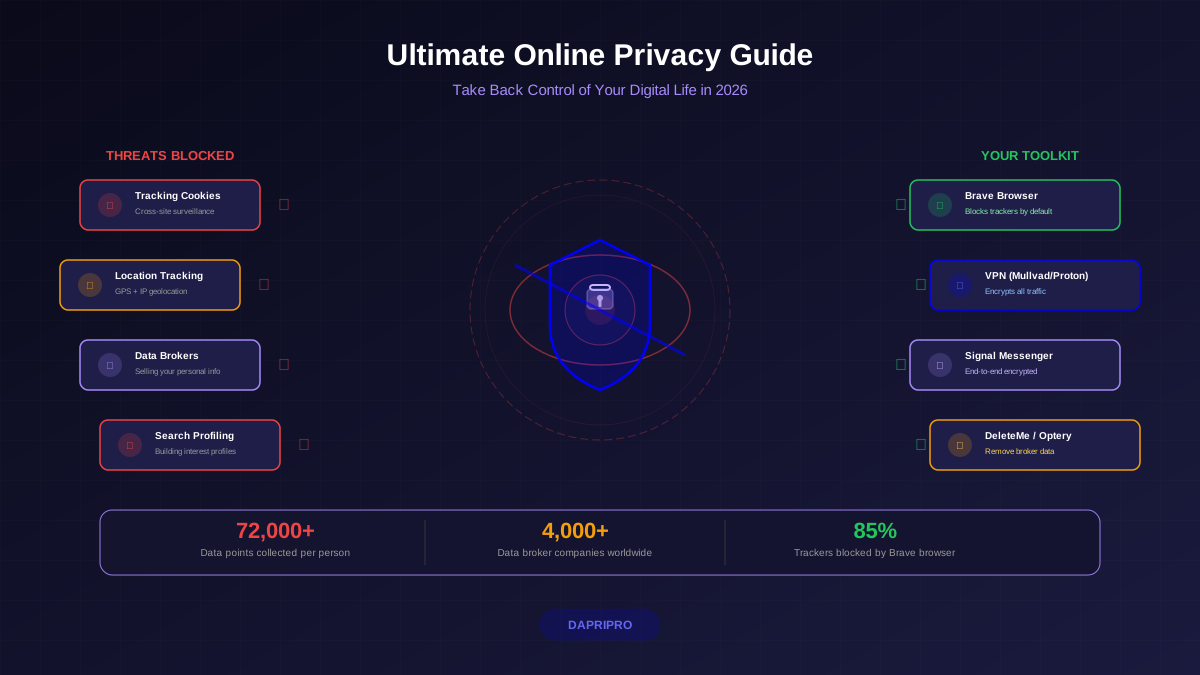
A middle-ground approach that many security-conscious users take: keep the account for Groups and Marketplace access, remove all personal photos and information from the profile, unfollow everyone to create an empty News Feed, use Facebook only through a browser (never the app), and block the Meta Pixel with uBlock Origin or Privacy Badger. This gives you the functional benefits of Facebook with substantially reduced data exposure.