
Most enterprise Wi-Fi deployments use WPA2-Personal with a shared password taped to the conference room wall. Every employee, contractor, and visitor connects with the same key. When someone leaves the company, that password should change — but it almost never does. This is the problem WPA3-Enterprise with 802.1X solves.
802.1X authentication gives every user individual credentials. WPA3-Enterprise adds 192-bit encryption. Together, they create a wireless infrastructure where you can track who connects, enforce access policies per user, automatically segment traffic, and revoke access instantly when someone leaves. This guide walks you through the complete setup — from RADIUS server deployment to certificate enrollment to client configuration.
Why Shared Wi-Fi Passwords Are an Enterprise Liability
A WPA2-Personal network with a shared password has a fundamental problem: everyone who knows the password can decrypt everyone else's traffic. An employee with Wireshark can capture and decrypt packets from the CEO's laptop. A terminated employee who still knows the password retains full network access. A contractor who shared the password with a friend just expanded your attack surface without your knowledge.
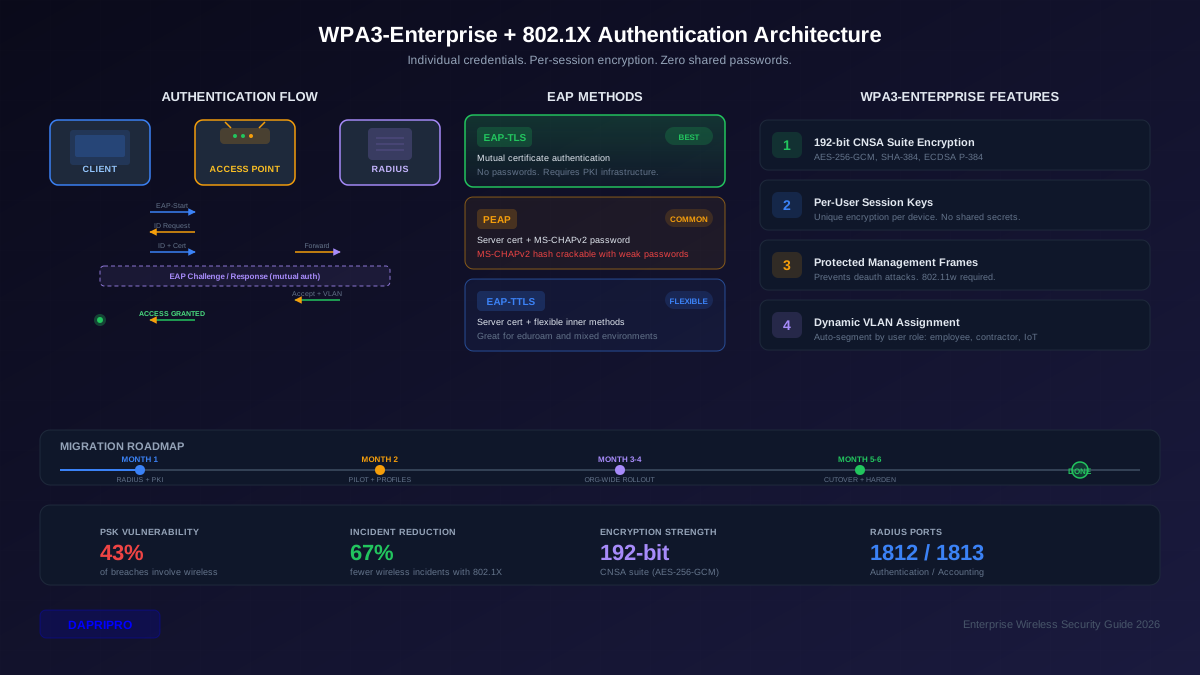
The numbers tell the story. In 2025, 43% of enterprise data breaches involved some form of wireless network compromise. The average cost of a breach reached 4.88 million across industries. Organizations using individual authentication on their wireless networks experienced 67% fewer wireless-related security incidents than those using shared passwords.
WPA3-Enterprise with 802.1X eliminates the shared-password model entirely. Instead of one key for everyone, each user authenticates individually through a RADIUS server. The authentication can use certificates (EAP-TLS), username/password with server certificate validation (PEAP), or other EAP methods. Each session gets unique encryption keys. When someone leaves, you disable their account or revoke their certificate — no need to change the password on every device in the building.
WPA3-Enterprise Architecture: How the Pieces Fit Together
The 802.1X authentication flow involves three components that work together in a specific sequence. Understanding this flow is essential before you start configuring anything.
The supplicant is the client device — a laptop, phone, or IoT device requesting network access. The authenticator is the access point (AP) or wireless controller — it acts as a gatekeeper, forwarding authentication requests but not making decisions. The authentication server is the RADIUS server — it receives the forwarded requests, validates credentials, and tells the authenticator whether to grant or deny access.
Here is the flow: A client associates with an AP and sends an EAP-Start message. The AP requests the client's identity. The client responds with its identity (username or certificate). The AP forwards this to the RADIUS server in an Access-Request packet. The RADIUS server and client exchange EAP messages (tunneled through the AP) to complete mutual authentication. If authentication succeeds, the RADIUS server sends an Access-Accept with optional attributes like VLAN assignment. The AP then opens the port and the client receives network access with unique per-session encryption keys.
Choosing Your EAP Method: EAP-TLS vs. PEAP vs. EAP-TTLS
The EAP (Extensible Authentication Protocol) method you choose determines how your clients prove their identity to the RADIUS server. This decision affects your security posture, operational complexity, and user experience. Here is how the three main options compare.
EAP-TLS: The Gold Standard
EAP-TLS uses mutual certificate authentication. Both the server and the client present X.509 certificates. No passwords are transmitted. No password hashes exist to be cracked. The authentication is cryptographically bound to the certificate — an attacker cannot replay it even if they capture the entire exchange.
The tradeoff is operational complexity. You need a Public Key Infrastructure (PKI) to issue, distribute, and manage client certificates. Every device needs a certificate enrolled. Certificates expire and need renewal. Lost devices need certificate revocation. For organizations with existing PKI (Active Directory Certificate Services, for example), this is manageable. For organizations starting from scratch, the initial setup investment is significant but pays off in security.
PEAP (Protected EAP)
PEAP creates a TLS tunnel using the server's certificate, then authenticates the client inside that tunnel using MS-CHAPv2 (username and password). Only the server needs a certificate. Clients authenticate with their domain credentials.
The vulnerability: MS-CHAPv2 is cryptographically weak. If an attacker sets up a rogue AP and the client connects without validating the server certificate (a common misconfiguration), the attacker captures the MS-CHAPv2 challenge-response and can crack it offline. Even with server certificate validation, the underlying hash can be cracked if the password is weak. Tools like chapcrack can reduce MS-CHAPv2 to a single DES operation.
EAP-TTLS (Tunneled TLS)
EAP-TTLS works similarly to PEAP — server certificate creates a tunnel, client authenticates inside it. The difference is flexibility: EAP-TTLS supports inner authentication methods beyond MS-CHAPv2, including PAP (useful for token-based auth), CHAP, and EAP methods. It is popular in eduroam deployments and environments with diverse authentication backends.
EAP-TTLS has better Linux and Android support than PEAP in some configurations. The security considerations are similar — the inner authentication method determines the actual security level. Using PAP inside the tunnel is fine because the tunnel encryption protects it, and it enables integration with OTP systems and LDAP backends that only support plaintext password verification.
Setting Up Your RADIUS Server
The RADIUS server is where authentication decisions happen. The two most common options are FreeRADIUS (open source, runs on Linux) and Microsoft NPS (built into Windows Server). Both fully support WPA3-Enterprise.
FreeRADIUS Deployment
FreeRADIUS handles the majority of enterprise 802.1X deployments worldwide. Install it on a dedicated Ubuntu Server or RHEL machine. The critical configuration files live in /etc/freeradius/3.0/ on Ubuntu or /etc/raddb/ on RHEL.
Configure the clients file (clients.conf) to define which access points can communicate with the RADIUS server. Each entry needs the AP's IP address (or subnet) and a shared secret — this is the secret between the AP and RADIUS server, not the user's password. Use a strong, unique shared secret for each AP or controller (at least 32 random characters).
For EAP-TLS, configure the eap module in mods-enabled/eap. Set the default_eap_type to tls. Point the tls-config section to your server certificate, private key, and the CA certificate that signed your client certificates. Enable certificate revocation checking by configuring check_crl = yes and pointing to your CRL distribution point or OCSP responder.
For PEAP, set default_eap_type to peap and configure the inner method. FreeRADIUS can authenticate against an LDAP directory, Active Directory (via ntlm_auth and Samba's winbind), a local users file, or a SQL database. LDAP integration is the most common in large deployments — configure the ldap module with your directory server's hostname, base DN, and bind credentials.
Test your RADIUS configuration with radtest before deploying to production. Run FreeRADIUS in debug mode (freeradius -X) during initial setup — the debug output shows exactly what is happening at each step of the authentication process, making troubleshooting straightforward.
Microsoft NPS Deployment
Network Policy Server (NPS) integrates natively with Active Directory. Install the role through Server Manager, register the NPS server in AD, and configure RADIUS clients (your APs and controllers). Create a Connection Request Policy that matches wireless connections, then a Network Policy that specifies which AD groups can access the wireless network and which EAP methods are allowed.
NPS advantages: native AD integration, Group Policy–based certificate enrollment, and familiar Windows management interface. NPS limitation: it runs only on Windows Server and scales less efficiently than FreeRADIUS for very large deployments (10,000+ users). Microsoft has also signaled that NPS will not receive major feature updates, recommending cloud-based alternatives for new deployments.
PKI and Certificate Management for EAP-TLS
If you choose EAP-TLS (and you should for maximum security), you need a certificate infrastructure. The goal is straightforward: issue a unique certificate to every device and user that needs wireless access, and give the RADIUS server a way to validate those certificates.
Building Your Certificate Hierarchy
Use a two-tier PKI: an offline root CA and one or more online issuing CAs. The root CA signs the issuing CA's certificate, then goes offline (literally powered off and stored securely). The issuing CA handles day-to-day certificate operations. This structure means compromising the issuing CA does not compromise the root — you can revoke the issuing CA and build a new one without reissuing the root.
For Windows environments, Active Directory Certificate Services (AD CS) provides this. Install the root CA role on a standalone server (not domain-joined), issue the subordinate CA certificate, then decommission the root. Install the issuing CA role on a domain-joined server. Configure certificate templates for wireless authentication — the key fields are Client Authentication EKU, Subject Alternative Name with the user's UPN, and an appropriate key length (RSA 2048 minimum, recommend 4096 or ECDSA P-256).
Certificate Enrollment and Lifecycle
Manual certificate enrollment does not scale. For Windows domain-joined devices, use Group Policy to enable auto-enrollment — devices automatically request, receive, and renew certificates from AD CS. For non-domain devices (BYOD, mobile), deploy SCEP (Simple Certificate Enrollment Protocol) or EST (Enrollment over Secure Transport). SCEP is widely supported but uses a shared challenge password for enrollment. EST is newer, uses TLS for transport security, and supports certificate-based enrollment authentication.
MDM solutions (Intune, Jamf, Workspace ONE) integrate certificate enrollment into device management profiles. When a user enrolls their phone in MDM, the profile automatically requests a certificate from your CA via SCEP/EST and configures the Wi-Fi profile with the certificate and correct trust settings. This is the most seamless approach for BYOD.
Certificate lifetimes matter. Shorter lifetimes (1 year) reduce the window if a certificate is compromised but increase renewal overhead. Longer lifetimes (3-5 years) reduce operations but increase risk. For wireless client certificates, 1-2 years is the sweet spot, with auto-renewal configured 30-60 days before expiration.
Access Point and Controller Configuration
With your RADIUS server running and certificates deployed, configure your wireless infrastructure to use WPA3-Enterprise.
SSID Configuration
Create a dedicated SSID for WPA3-Enterprise access. Set the security mode to WPA3-Enterprise (or WPA3-Enterprise 192-bit for environments requiring CNSA suite). Configure the RADIUS server IP address, port (1812 for authentication, 1813 for accounting), and the shared secret you defined in the RADIUS clients configuration.
Enable 802.11w (Protected Management Frames) in required mode for WPA3-Enterprise. This prevents deauthentication attacks that force clients to disconnect and reconnect, which attackers use to capture authentication handshakes. WPA3 mandates PMF, but ensure your controller configuration enforces it.
WPA3 Transition Mode
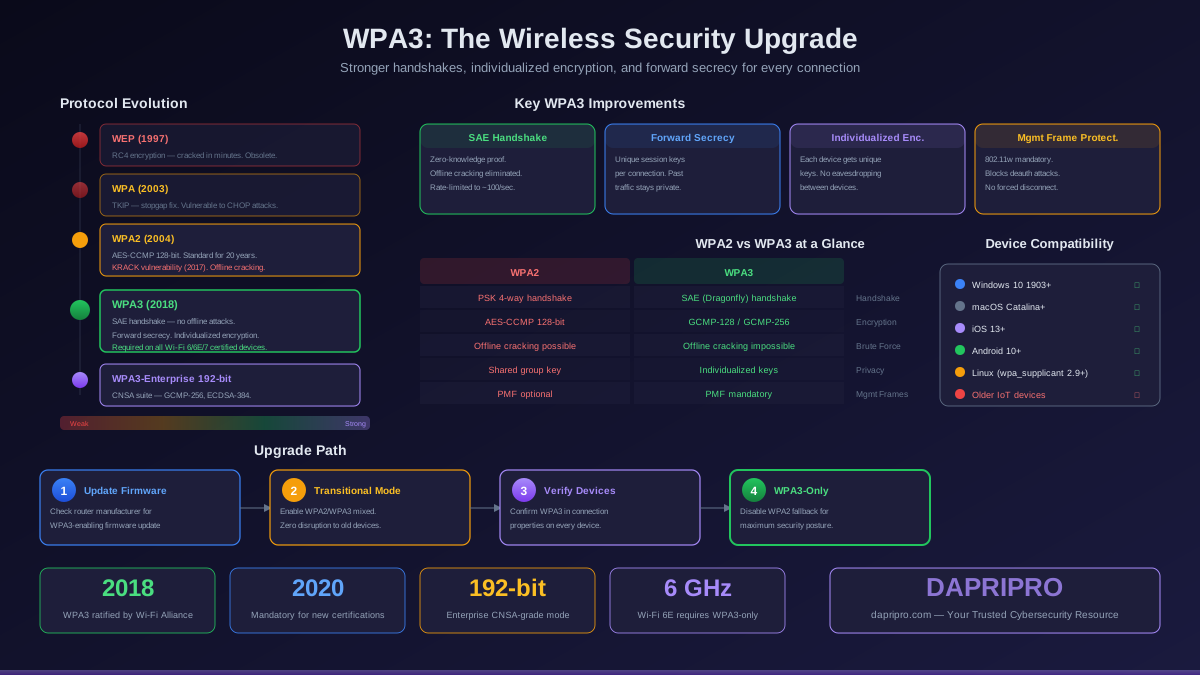
If you have devices that do not support WPA3, use transition mode. This runs WPA2-Enterprise and WPA3-Enterprise simultaneously on the same SSID. WPA3-capable devices connect with WPA3; older devices fall back to WPA2-Enterprise. The AP negotiates the highest security level each device supports.
Transition mode is not permanent — it is a migration tool. Set a timeline to phase out WPA2-Enterprise. Monitor which devices connect with WPA2 versus WPA3 using your wireless controller's client reporting. Work with device owners to upgrade or replace WPA2-only devices. Target full WPA3-Enterprise within 12-18 months.
Dynamic VLAN Assignment
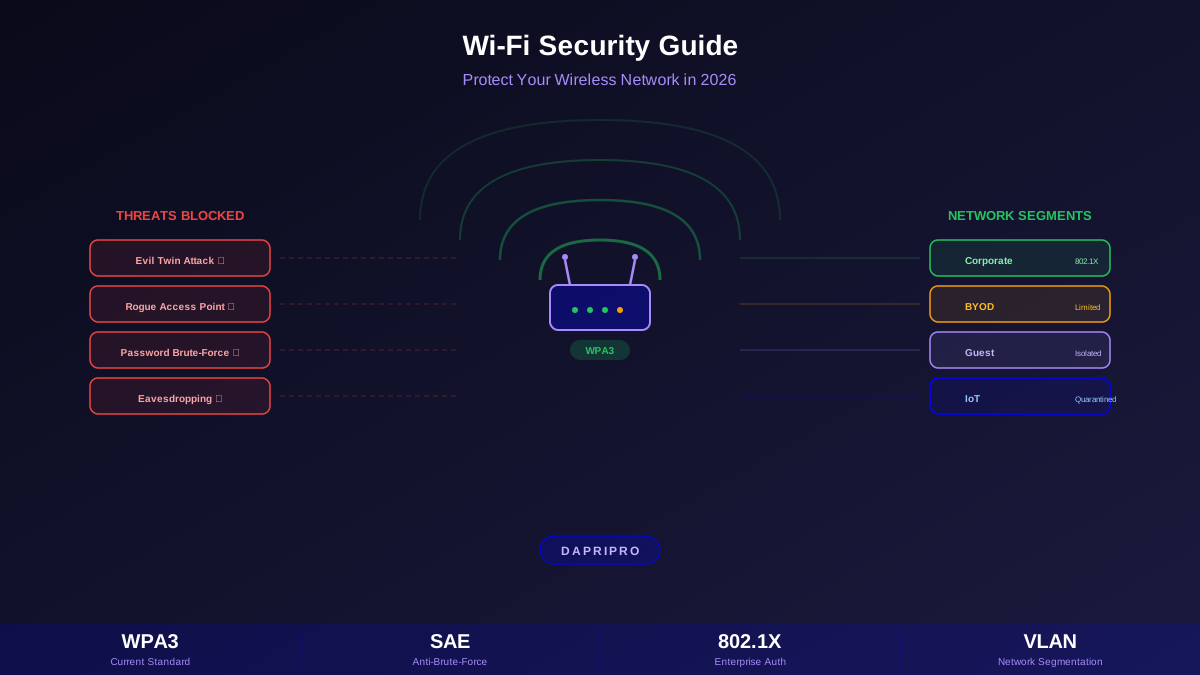
One of the most powerful features of 802.1X is dynamic VLAN assignment. Instead of all wireless users landing on the same network, the RADIUS server tells the AP which VLAN to assign based on the user's identity or group membership. Employees go to the corporate VLAN. Contractors land on a restricted VLAN with internet access but no internal resources. IoT devices get isolated to a management VLAN.
Configure VLAN assignment in your RADIUS server using RADIUS attributes: Tunnel-Type (VLAN), Tunnel-Medium-Type (802), and Tunnel-Private-Group-Id (VLAN ID). In FreeRADIUS, set these in the user's profile or policy. In NPS, configure them in the Network Policy's settings. Ensure your APs have trunk ports configured with the necessary VLANs and that inter-VLAN routing is controlled by your firewall.
Client Configuration and Onboarding
Deploying certificates and Wi-Fi profiles to client devices is where enterprise wireless projects often stumble. The authentication infrastructure can be perfect, but if clients are misconfigured, security breaks down. The most critical client-side setting is server certificate validation — without it, clients will connect to rogue access points without warning.
Windows Devices (Domain-Joined)
Use Group Policy to deploy Wi-Fi profiles. Create a Wireless Network (IEEE 802.11) policy that specifies the SSID, security type (WPA3-Enterprise), authentication method (Smart Card or other certificate for EAP-TLS, or PEAP), and critically — the trusted root CA certificate that the RADIUS server's certificate chains to. Enable "Verify the server's identity by validating the certificate" and specify the exact server names that should appear in the RADIUS server's certificate.
For EAP-TLS, configure certificate auto-enrollment via a separate Group Policy so that every domain-joined machine receives a client certificate automatically. The Wi-Fi profile and the certificate enrollment work together — the machine gets a certificate, then uses that certificate to authenticate to the wireless network.
macOS and iOS Devices
Deploy configuration profiles via MDM (Jamf Pro, Mosyle, or Apple Business Manager with Intune). The profile includes three payloads: the trusted root CA certificate, the SCEP payload for client certificate enrollment (for EAP-TLS), and the Wi-Fi payload specifying SSID, security type, EAP method, and trust settings. Apple devices handle SCEP enrollment natively — the profile triggers automatic certificate request and installation.
Android Devices
Android's Wi-Fi Enterprise support has improved significantly since Android 11. Use your MDM to push a managed Wi-Fi configuration with the CA certificate and EAP settings. For BYOD scenarios without MDM, users need to manually install the CA certificate and configure the Wi-Fi network — provide a detailed guide with screenshots. On Android 11 and later, the OS requires server certificate validation by default, which is a significant security improvement over earlier versions that allowed connections without validation.
Linux and ChromeOS
Linux distributions use wpa_supplicant for 802.1X authentication. The configuration file (/etc/wpa_supplicant/wpa_supplicant.conf) specifies the SSID, EAP method, identity, certificate paths, and server certificate validation parameters. ChromeOS can be configured via Google Workspace admin console with certificate deployment through the Chrome Enterprise connector.
Monitoring, Logging, and Troubleshooting
Once your WPA3-Enterprise deployment is running, ongoing monitoring catches problems before they become outages. Certificate expiration is the most common cause of sudden authentication failures. RADIUS server capacity is the second.
Essential Monitoring Points
Monitor certificate expiration dates for all client certificates and the RADIUS server's certificate. Set alerts for certificates expiring within 30 days. Automate renewal where possible. A RADIUS server with an expired certificate will reject all authentication attempts — every user loses wireless access simultaneously.
Track RADIUS authentication success and failure rates. A sudden spike in failures could indicate a misconfigured AP, an expired certificate, or an attack attempt. Log authentication events with enough detail for forensics: timestamp, username, MAC address, AP name, authentication result, and failure reason code.
Monitor RADIUS server performance. FreeRADIUS can handle thousands of authentications per second on modest hardware, but certificate validation (CRL checks, OCSP queries) adds latency. If your RADIUS server becomes a bottleneck during peak hours (Monday mornings when everyone arrives and connects simultaneously), consider deploying a second RADIUS server with load balancing.
Common Troubleshooting Scenarios
Client fails authentication with "certificate validation failed": The client does not trust the RADIUS server's certificate. Ensure the root CA certificate is installed on the client and the Wi-Fi profile specifies it as the trusted CA. Check that the RADIUS server's certificate has not expired and includes the correct Subject Alternative Names.
Authentication succeeds but client gets wrong VLAN: Verify the RADIUS policy is sending the correct Tunnel-Private-Group-Id attribute. Check that the AP's trunk port configuration includes the target VLAN. Use radtest or eapol_test to verify the RADIUS response attributes.
Intermittent authentication failures: Check for RADIUS server overload during peak times. Verify that CRL Distribution Points and OCSP responders are reachable and responsive. Check for clock skew between the RADIUS server and Active Directory domain controllers — Kerberos authentication (used by NPS) is sensitive to time differences greater than 5 minutes.
Legacy devices cannot connect after WPA3 migration: Enable WPA3 Transition Mode to support both WPA2-Enterprise and WPA3-Enterprise on the same SSID. Inventory the incompatible devices and create a replacement timeline. Some devices (older printers, specialized medical equipment) may never support WPA3 — segment them onto a dedicated WPA2-Enterprise SSID with additional network-level access controls.
Security Hardening Beyond Basic 802.1X
A properly configured 802.1X deployment is a strong foundation, but additional hardening measures raise the bar further against advanced attacks.
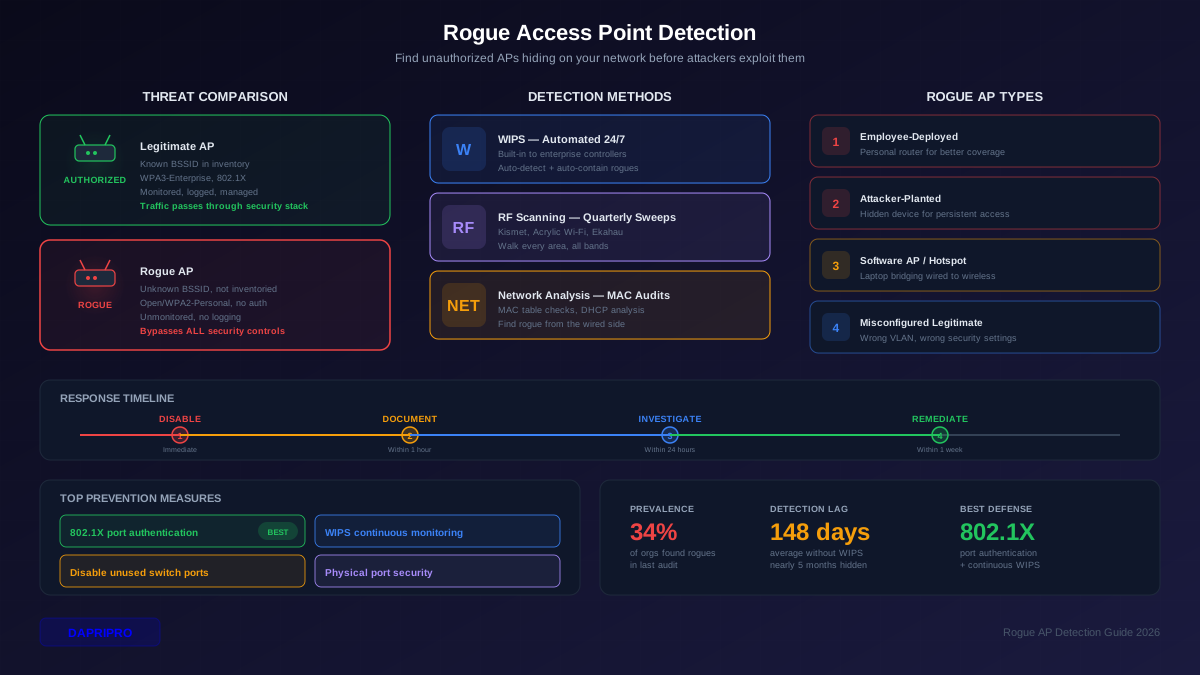
Rogue AP detection: Enable Wireless Intrusion Prevention (WIPS) on your wireless controller. Configure it to detect rogue access points broadcasting your corporate SSID and to alert or automatically contain them. Rogue APs that impersonate your network can harvest credentials from misconfigured clients — this is the evil twin attack scenario.
RADIUS server hardening: Run RADIUS on a hardened, dedicated server. Restrict management access to specific IP addresses. Use IPsec or RadSec (RADIUS over TLS) between APs and the RADIUS server if they traverse untrusted network segments. Standard RADIUS uses UDP with a shared secret for authentication — the RADIUS traffic itself is not always encrypted.
Certificate pinning: Where supported, configure clients to pin (trust) only your specific RADIUS server's certificate rather than any certificate issued by the trusted CA. This prevents attacks where an attacker obtains a legitimate certificate from the same CA and uses it on a rogue AP.
Network Access Control (NAC) integration: Extend 802.1X with posture assessment. Before granting full network access, check that the client device meets security requirements: OS patches current, antivirus running, disk encryption enabled. Devices that fail posture checks land on a remediation VLAN with access only to update servers.
Accounting and audit trail: Enable RADIUS accounting (port 1813) to log session start, stop, and duration for every wireless connection. Feed these logs into your SIEM. This gives you a complete audit trail of who connected, when, from which device, and to which AP — essential for incident investigation and compliance reporting.
Migration Roadmap: From Shared Passwords to 802.1X
Migrating an existing enterprise wireless network from WPA2-Personal to WPA3-Enterprise with 802.1X is a project that typically spans 3-6 months. Here is a practical roadmap.
Month 1 — Infrastructure: Deploy and configure your RADIUS server. Set up PKI if using EAP-TLS. Test authentication with a small group of pilot users on a dedicated test SSID. Resolve any integration issues with your directory service, certificate authority, and wireless controller.
Month 2 — Pilot and profile deployment: Expand the pilot to one department or floor. Deploy Wi-Fi profiles and certificates via MDM or Group Policy. Document common issues and create self-service troubleshooting guides. Train the help desk on 802.1X support procedures.
Month 3-4 — Rollout: Deploy organization-wide. Run the old PSK network and the new 802.1X network simultaneously. Monitor adoption rates and resolve device-specific issues. Identify legacy devices that need special handling.
Month 5-6 — Cutover: Disable the old PSK network. Move remaining devices to 802.1X or to a segregated legacy SSID with compensating controls. Complete documentation. Establish ongoing monitoring and certificate lifecycle management procedures.
The key principle during migration: never force users off a working network without ensuring the new network works for their devices. Parallel operation during the transition period prevents productivity disruptions and gives you time to handle edge cases.