
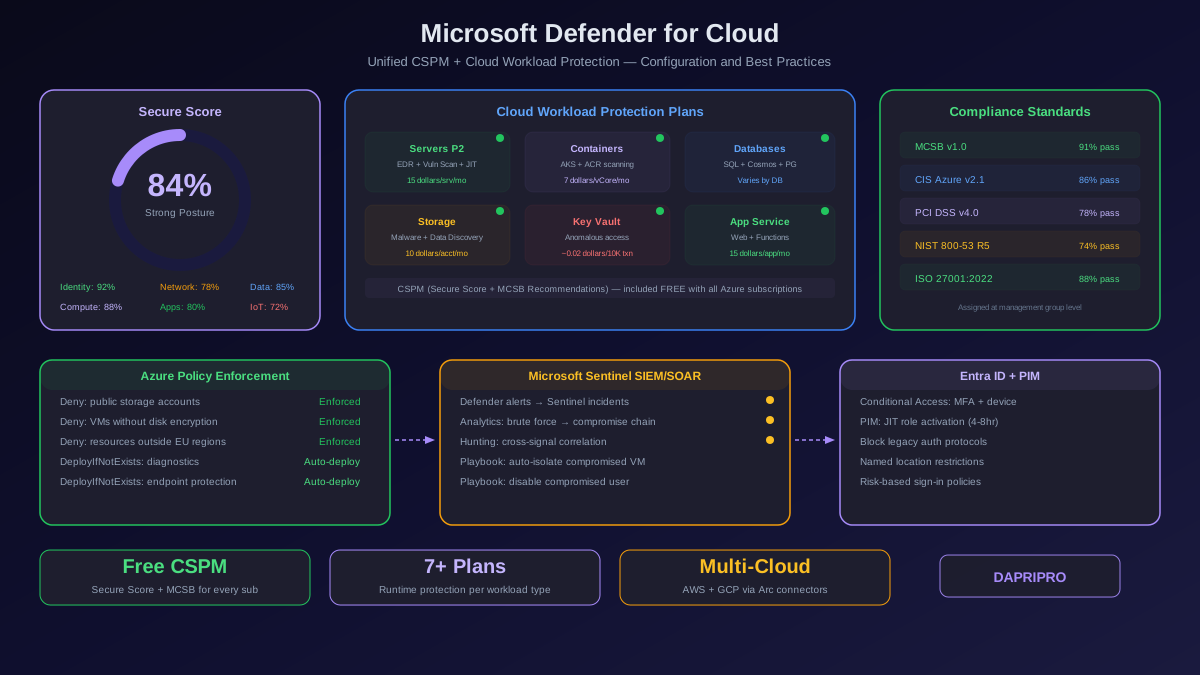
Microsoft renamed Azure Security Center to Microsoft Defender for Cloud in late 2021, and the rebrand was more than cosmetic. What started as a posture management dashboard is now a unified platform that combines free cloud security posture management (CSPM), paid workload protection plans for servers, containers, databases, storage, and PaaS services, regulatory compliance assessment against 30+ frameworks, and multi-cloud coverage extending to AWS and GCP through Azure Arc.
The problem is that Defender for Cloud ships with almost everything turned off. The free tier gives you a secure score and recommendations, but the 15+ individual Defender plans that provide actual runtime protection, vulnerability scanning, and threat detection each require separate enablement and configuration. Most organizations enable Defender for Cloud, see a secure score number, and assume they are protected — while leaving the workload protection plans that detect real attacks completely disabled.
This guide walks through every layer of Defender for Cloud configuration, from initial subscription-level enablement through Defender plan selection, policy initiative assignment, alert routing, and Sentinel SIEM integration — with the specific configuration decisions that determine whether the platform is actually protecting you or just generating a dashboard nobody reads.
Understanding Defender for Cloud Architecture
Defender for Cloud operates at two distinct layers, and understanding the separation is critical for configuration decisions:
Layer 1: CSPM (Free)
The CSPM layer continuously evaluates your Azure resource configurations against the Microsoft Cloud Security Benchmark (MCSB) and generates security recommendations. These recommendations feed into your secure score — a percentage representing how many applicable recommendations you have implemented, weighted by severity and the number of affected resources. CSPM works by reading Azure Resource Manager (ARM) configurations through the Azure policy engine. It requires no agents, no additional infrastructure, and no Defender plans. Every Azure subscription gets this for free.
Layer 2: Cloud Workload Protection (CWP) Plans (Paid)
The CWP layer provides runtime threat detection, vulnerability assessment, and advanced security features for specific workload types. Each plan is priced and enabled independently:
| Defender Plan | What It Protects | Key Capabilities | Approximate Cost |
|---|---|---|---|
| Defender for Servers P1 | Azure VMs, Arc-enrolled servers | Microsoft Defender for Endpoint integration, agentless scanning | ~5 dollars/server/month |
| Defender for Servers P2 | Azure VMs, Arc-enrolled servers | All P1 + vulnerability assessment, file integrity monitoring, JIT VM access, adaptive app controls | ~15 dollars/server/month |
| Defender for Containers | AKS clusters, Azure Container Registry | Runtime threat detection, image vulnerability scanning, admission control, Kubernetes audit log analysis | ~7 dollars/vCore/month |
| Defender for Databases | Azure SQL, PostgreSQL, MySQL, Cosmos DB | SQL threat detection, vulnerability assessment, anomalous query alerts | Varies by DB type |
| Defender for Storage | Blob, Files, Data Lake | Malware scanning, sensitive data discovery, anomalous access patterns | ~10 dollars/storage account/month |
| Defender for Key Vault | Azure Key Vault | Anomalous access detection, unusual key operations, access from suspicious IPs | ~0.02 dollars/10K transactions |
| Defender for App Service | Azure App Service, Functions | Web application threat detection, dangling DNS detection, code injection alerts | ~15 dollars/app/month |
The most common mistake is enabling only Defender for Servers and ignoring the other plans. If you run containers on AKS, Defender for Containers is essential. If you use Azure SQL or Cosmos DB, Defender for Databases catches SQL injection and anomalous query patterns that application-layer WAFs miss. Each plan addresses a different attack surface.
Secure Score: The Metric That Actually Matters
Your secure score is a weighted percentage calculated from the recommendations Defender for Cloud generates. Each recommendation has a severity weight (high, medium, low) and applies to a specific number of resources. Implementing a high-severity recommendation that affects 50 resources moves your score more than fixing a low-severity finding on one resource.
How to Read Your Secure Score
A score of 100 percent means every applicable recommendation is implemented — a target that is theoretically possible but impractical in real-world environments because some recommendations conflict with operational requirements. Here is how to interpret your current score:
- Below 40% — critical exposure. You likely have internet-facing resources with known vulnerabilities, over-privileged identities, unencrypted data stores, and disabled logging. Treat this as an emergency.
- 40-60% — significant gaps. Common issues: management ports open to the internet, missing MFA on admin accounts, diagnostic logging not enabled, no network segmentation between tiers.
- 60-80% — reasonable baseline with improvement areas. You have the basics covered but may be missing endpoint protection on some VMs, network security group rules may be too permissive, and some encryption at rest controls may not be applied consistently.
- 80-95% — strong posture. Remaining recommendations are typically edge cases: deprecated API versions in use, preview features that need evaluation, or low-severity findings on non-production resources.
- Above 95% — excellent posture. Monitor for regression and focus on maintaining the score as new resources are deployed.
Top 10 Recommendations That Move Your Score
These are the recommendations that consistently have the highest score impact because they apply to many resources and carry high severity weight:
- Enable MFA for accounts with owner permissions — every subscription owner and co-administrator must have MFA enforced through Conditional Access policies in Entra ID
- Management ports should be closed on VMs — SSH (22) and RDP (3389) open to 0.0.0.0/0 is the most common finding. Use JIT VM access instead.
- System updates should be installed — OS patches pending on production VMs. Configure Azure Update Manager for automatic patching with maintenance windows.
- Endpoint protection should be installed — deploy Microsoft Defender for Endpoint (included with Defender for Servers P1/P2) on every VM and Arc-enrolled server
- Disk encryption should be applied — enable Azure Disk Encryption (ADE) or encryption at host for all VM disks
- Diagnostic logs should be enabled — configure diagnostic settings on Azure resources to send logs to a Log Analytics workspace or storage account
- Secure transfer to storage accounts should be enabled — enforce HTTPS-only access on all storage accounts
- SQL databases should have vulnerability findings resolved — enable SQL vulnerability assessment and remediate critical findings
- Subnets should be associated with NSGs — every subnet in every VNet should have a network security group attached
- Web applications should use HTTPS — configure App Service apps to redirect HTTP to HTTPS and set minimum TLS to 1.2
Azure Policy: Automated Compliance Enforcement
Azure Policy is the enforcement layer that turns security recommendations into mandatory controls. Instead of remediating findings after Defender for Cloud detects them, policies prevent misconfigurations from being deployed in the first place.
Policy Assignment Strategy
Assign policies at the management group level so they cascade to all subscriptions and resource groups beneath. Do not assign policies at the individual subscription level — you will end up with inconsistent coverage and policy drift across subscriptions.
Start with the Microsoft Cloud Security Benchmark (MCSB) initiative, which is assigned by default. Then layer on additional initiatives based on your compliance requirements:
- CIS Microsoft Azure Foundations Benchmark v2.1 — prescriptive controls for identity, storage, networking, logging, and monitoring. The overlap with MCSB is about 70 percent, but CIS adds stricter controls for storage account network access, key vault diagnostics, and network watcher enablement.
- PCI DSS v4.0 — required if you process payment card data in Azure. Maps PCI requirements like encryption, access control, and logging to specific Azure policy definitions.
- ISO 27001:2022 — for organizations pursuing ISO certification. Maps Annex A controls to Azure resource configurations.
- NIST SP 800-53 Rev 5 — required for US government workloads and FedRAMP. The most comprehensive initiative with 200+ policy definitions.
Custom Policies for Organizational Standards
Built-in policies cover common scenarios, but every organization has specific requirements that need custom policies. Write custom policies in JSON using the Azure Policy language for rules like:
- All storage accounts must use customer-managed keys for encryption (not Microsoft-managed keys)
- All VMs in production resource groups must have a specific tag (CostCenter, DataClassification, Owner)
- Azure SQL servers must use Entra ID-only authentication (disable SQL authentication entirely)
- No resource can be deployed outside approved regions (only West Europe and North Europe for GDPR compliance)
- All public IP addresses must be associated with a DDoS protection plan
Use the DeployIfNotExists policy effect to automatically remediate misconfigurations — for example, automatically enable diagnostic settings on any newly created resource, or automatically deploy the Defender for Endpoint extension when a new VM is created.
Azure Network Security Architecture
Azure networking security builds on network security groups (NSGs), Azure Firewall, application gateways with WAF, and the newer Azure Front Door for global edge protection. The architecture decisions mirror the AWS VPC model but with Azure-specific services and naming.
Network Security Group Best Practices
NSGs are the primary micro-segmentation control in Azure, equivalent to AWS security groups but with key differences: NSGs evaluate rules by priority number (lowest number wins), support both allow and deny rules, and apply at either the subnet or NIC level.
- Apply NSGs at the subnet level — this ensures every resource in the subnet inherits the rules, even if a new VM is deployed without an NIC-level NSG
- Never use the default allow rules for management ports — the default NSG rules allow VNet-to-VNet traffic on all ports. Create explicit deny rules for SSH (22) and RDP (3389) from VNet sources, and use Just-in-Time VM access for administrative connections
- Enable NSG Flow Logs — flow logs capture source, destination, port, protocol, and allow/deny decision for every connection evaluated by an NSG. Send flow logs to a storage account and a Log Analytics workspace for Traffic Analytics visualization
- Use application security groups (ASGs) — ASGs let you group VMs by application role (web servers, app servers, database servers) and reference those groups in NSG rules instead of individual IP addresses. When you scale by adding VMs to an ASG, the NSG rules automatically apply.
Just-in-Time VM Access
JIT VM access is one of the most impactful security features in Defender for Cloud and requires Defender for Servers Plan 2. Instead of leaving management ports (RDP, SSH) permanently open, JIT blocks them by default and opens them temporarily (1-3 hours) for a specific source IP when an authorized user requests access.
Implementation: enable JIT on each VM in Defender for Cloud, configure the allowed ports and maximum request duration, and assign the Microsoft.Security/locations/jitNetworkAccessPolicies/initiate/action RBAC permission to users who need administrative access. When a user requests access, Defender for Cloud creates a temporary NSG rule allowing their source IP, and automatically removes it when the time window expires.
Identity Security with Microsoft Entra ID
Azure identity security is inseparable from Microsoft Entra ID (formerly Azure Active Directory). Defender for Cloud identity recommendations map directly to Entra ID configurations — particularly Conditional Access policies, Privileged Identity Management (PIM), and MFA enforcement.
Conditional Access Policies for Azure Protection
Conditional Access is the primary mechanism for enforcing context-aware authentication in Azure. Deploy these policies as a baseline:
- Require MFA for all users accessing Azure portal, Azure CLI, and Azure PowerShell — target the Azure Management cloud app with a grant control requiring multi-factor authentication
- Require MFA for all administrator roles — Global Administrator, Security Administrator, User Administrator, Privileged Role Administrator, and Billing Administrator roles must have MFA enforced with no exceptions
- Block legacy authentication — create a policy that blocks sign-in attempts using legacy authentication protocols (POP3, IMAP, SMTP AUTH, ActiveSync without modern auth). These protocols do not support MFA and are the primary vector for credential stuffing attacks
- Require compliant or hybrid-joined device — for sensitive Azure management operations, require that the device is either Intune-managed (compliant) or hybrid Azure AD joined, ensuring the device meets your security baseline
- Named location restrictions — block Azure portal access from countries where your organization does not operate. This is a high-value control that stops credential replay attacks from foreign VPN exit nodes
Privileged Identity Management (PIM)
PIM converts permanent role assignments into just-in-time activations. Instead of giving a user permanent Contributor access to a production subscription, PIM requires them to activate the role through a workflow — with optional approval, MFA requirement, and a time limit (typically 4-8 hours). After the time expires, the role assignment automatically reverts.
Critical PIM configurations:
- Convert all permanent Owner and Contributor assignments on production subscriptions to PIM-eligible assignments
- Require MFA at role activation time (not just at sign-in time)
- Require approval for Global Administrator, Security Administrator, and any custom roles with write access to production data
- Set maximum activation duration to 8 hours — roles should not persist across business days
- Enable PIM alerts for roles that are never activated (stale eligible assignments) and roles that are activated too frequently (potential process issue)
Microsoft Sentinel Integration
Defender for Cloud generates alerts. Microsoft Sentinel consumes those alerts, correlates them with signals from other sources, and enables investigation and automated response. The integration turns isolated security findings into actionable incident workflows.
Setting Up the Connector
In the Microsoft Sentinel Data connectors blade, enable the Microsoft Defender for Cloud connector. Select which subscriptions should forward alerts to the Sentinel workspace. Once connected, every Defender for Cloud alert appears as a Sentinel alert and can be grouped into incidents using analytics rules.
Key Sentinel Analytics Rules for Defender Alerts
Create analytics rules that correlate Defender for Cloud alerts with other data sources:
- Brute force → successful sign-in → resource creation — correlate Defender for Servers brute force alerts with Entra ID sign-in success logs and Azure Activity logs showing resource creation. This chain indicates a successful compromise progressing to resource deployment (crypto mining).
- Suspicious IP → VM JIT request → lateral movement — a user signing in from a suspicious IP (Entra ID Identity Protection alert), requesting JIT VM access, and then triggering Defender for Servers reconnaissance findings on the VM.
- Key Vault anomaly → data exfiltration — Defender for Key Vault detecting mass secret retrieval followed by Defender for Storage detecting large outbound data transfers from a storage account that uses those secrets.
- Container image vulnerability → runtime exploit attempt — Defender for Containers flagging a critical CVE in a deployed container image, followed by runtime detection of the exploit being triggered.
SOAR Playbooks for Automated Response
Sentinel Logic Apps (playbooks) automate response actions when specific incidents trigger. Useful automations include:
- Isolate a compromised VM — revoke its network access by modifying its NSG through the Azure Resource Manager connector
- Disable a compromised user account in Entra ID — use the Microsoft Graph connector to revoke sign-in sessions and disable the account
- Create a ServiceNow ticket — automatically open an incident ticket with severity, affected resources, and recommended remediation steps
- Enrich alerts with threat intelligence — query VirusTotal, AbuseIPDB, or Microsoft Threat Intelligence for source IP reputation before routing to the SOC
Extending Coverage to AWS and GCP
Defender for Cloud is not limited to Azure. The multi-cloud connectors bring CSPM and select workload protection capabilities to AWS and GCP resources:
AWS Connector
The native AWS connector creates a CloudFormation stack in your AWS account that deploys the necessary IAM roles for Defender for Cloud to read AWS configurations. Once connected, Defender for Cloud assesses AWS resources against security recommendations and includes them in your secure score. For workload protection, AWS EC2 instances can be enrolled into Azure Arc, which enables Defender for Servers (vulnerability scanning, endpoint protection, and file integrity monitoring) on non-Azure machines.
GCP Connector
Similar to the AWS connector, the GCP connector creates service accounts and workload identity federation in your GCP project. Defender for Cloud reads GCP resource configurations and generates CSPM recommendations for Compute Engine, GKE, Cloud Storage, BigQuery, and IAM. GCE instances can be Arc-enrolled for Defender for Servers coverage.
The multi-cloud connectors do not provide the same depth as native Azure coverage — some Azure-specific recommendations have no equivalent for AWS or GCP, and the workload protection plans for containers and databases only cover Azure-native services. For organizations with significant multi-cloud footprints, pair Defender for Cloud with a dedicated multi-cloud CSPM like Wiz for the deepest cross-cloud visibility.
Regulatory Compliance Dashboard
The regulatory compliance dashboard maps your Azure resource configurations against compliance framework requirements and shows which controls are passing, failing, or not assessed. This is where Defender for Cloud often justifies its cost — auditors accept the compliance dashboard output as evidence for many controls, reducing the manual evidence collection burden.
Configure these settings for maximum compliance value:
- Enable all applicable compliance standards as policy initiatives at the management group level
- Export compliance data to a Log Analytics workspace for historical trending — you need to show auditors improvement over time, not just current state
- Set up weekly compliance summary reports via Logic Apps sent to your compliance team
- Map manual attestation controls (controls that cannot be automatically assessed) and document them in your compliance evidence repository
- Use the compliance dashboard as the agenda for quarterly security review meetings — walk through failing controls, assign remediation owners, and set target dates
Day One Configuration Checklist
If you are setting up Defender for Cloud from scratch, complete these steps in order:
- Enable Defender for Cloud on all subscriptions — navigate to Management Groups in the Azure portal, assign the MCSB policy initiative at the root management group level. This cascades to every subscription and ensures new subscriptions are automatically covered.
- Enable Defender plans for production workloads — at minimum, enable Defender for Servers P2 on production subscriptions, Defender for Containers if you run AKS, and Defender for Key Vault (costs almost nothing, provides high-value alerts).
- Configure auto-provisioning — enable auto-provisioning of the Log Analytics agent (or Azure Monitor Agent), vulnerability assessment solution, and Defender for Endpoint. This ensures every new VM automatically gets endpoint protection and vulnerability scanning without manual intervention.
- Set up email notifications — configure security contact email addresses and enable notifications for high-severity alerts. Include a shared security team alias, not individual email addresses.
- Connect to Microsoft Sentinel — enable the Defender for Cloud connector in Sentinel, create analytics rules for high-priority alert correlations, and deploy at least the VM isolation and user disable playbooks.
- Review initial secure score — prioritize the top 10 recommendations by score impact. Assign remediation owners with target dates. Schedule a weekly review of score trend for the first 90 days.
- Enable continuous export — configure continuous export to a Log Analytics workspace for all recommendations and alerts. This enables historical analysis, custom dashboards, and compliance trending that the portal alone does not provide.
- Assign additional compliance standards — add CIS Azure Benchmark, PCI DSS, or NIST 800-53 initiatives based on your regulatory requirements. Review the compliance dashboard for initial assessment gaps.
![CSPM Tools Compared: Best Cloud Security Posture Management Solutions [2026]](/images/sections/network-cloud-security/cloud-security-posture/cspm-tools-compared-best-cloud-security-posture-management-solutions.svg)