
Your Apps Are Spying on You — With Your Permission
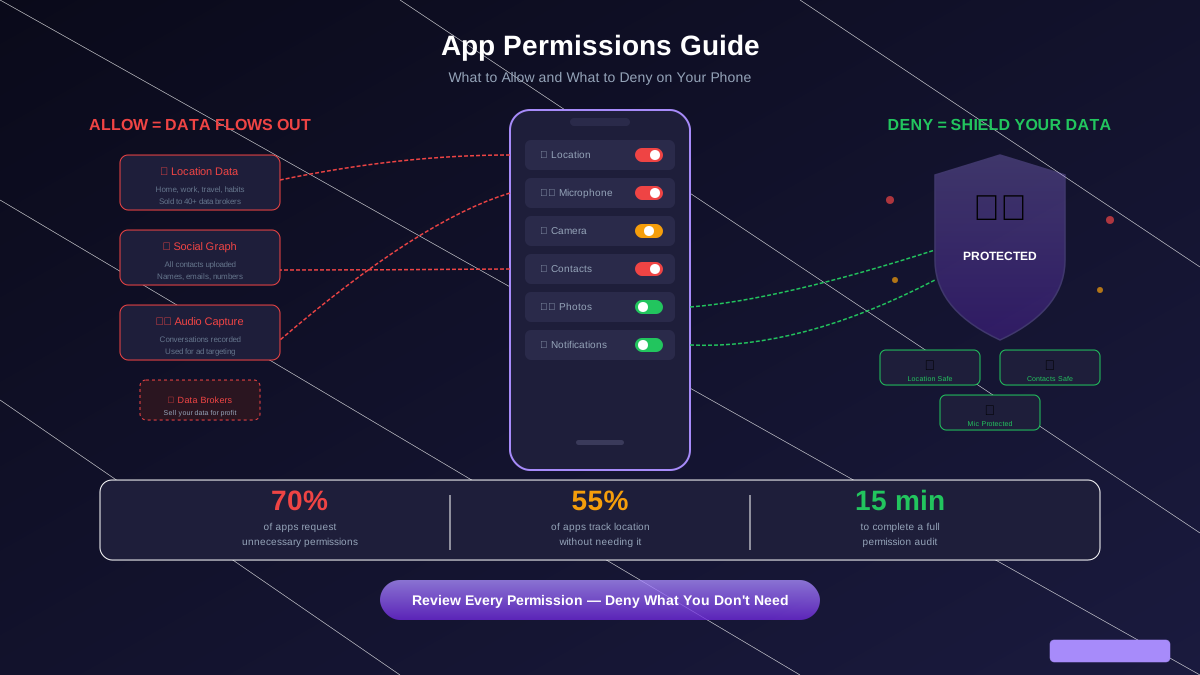
Every time you tap "Allow" on a permission request without thinking, you are handing over access to some of the most sensitive data on your device. Your location history reveals where you live, work, and travel. Your contacts list maps your social network. Your camera and microphone can capture what is happening around you. Your photo library contains years of personal memories, screenshots of sensitive documents, and photos of IDs.
Over 70% of apps request permissions beyond what they need to function. A weather app does not need your contacts. A flashlight app does not need your microphone. A game does not need background location access. These extra permissions exist for one reason: collecting your data to sell to advertisers and data brokers.
In 2023, the FTC fined multiple app developers for collecting and selling location data from apps that had no legitimate reason to track users. One weather app was found selling precise location data from 40 million devices to hedge funds, political campaigns, and government agencies. The permission to access location data had been buried in a 4,000-word privacy policy that virtually no user read.
Permission-by-Permission Guide
Location — The Most Abused Permission
Location is the most valuable and most abused permission. Your location data reveals where you live (where your phone spends nights), where you work (where it spends business hours), your doctor's office, your place of worship, the homes of people you visit, stores you shop at, and protests or political events you attend.
Who legitimately needs it: Navigation apps (Google Maps, Waze, Apple Maps), ride-sharing apps (Uber, Lyft), weather apps (only "While Using"), food delivery apps (only "While Using"), and find-my-phone services (only service that needs "Always").
Who does NOT need it: Games, social media (unless actively posting a location tag), news apps, music apps, shopping apps (you can type your zip code), fitness apps (unless actively tracking a run), and most utility apps.
Best setting: Set the default to "While Using the App" for apps that legitimately need location. Deny for everything else. On iPhone, also turn off "Precise Location" for apps that only need your general area — a weather app only needs to know your city, not your exact address.
Camera and Microphone — The Surveillance Permissions
Camera and microphone access lets an app see and hear your environment. While the iOS green dot and Android indicator light show when these sensors are active, a malicious app could potentially capture data in brief bursts designed to avoid detection.
Who needs camera: Camera apps (obviously), QR code scanners, video calling apps (Zoom, FaceTime, Google Meet), social media apps (only when actively posting), banking apps (for check deposit).
Who needs microphone: Voice calling apps, voice assistants (Siri, Google Assistant), voice memo apps, music identification apps (Shazam), video recording apps.
Best setting: Set to "Ask Every Time" on iPhone for camera and microphone. On Android, use "Allow only while using the app." This way the app can use the sensor when you actively need it but cannot access it silently in the background.
Contacts — Your Entire Social Graph
When you grant contacts access, the app typically uploads your entire contact list to its servers. This is not just names and numbers — it includes email addresses, physical addresses, birthdays, notes, and relationship labels. The app now has a map of your social network.
Who needs it: Messaging apps (to find friends on the platform), email apps, phone/dialer apps, video calling apps.
Who does NOT need it: Games, social media (you can find friends manually), shopping apps, news apps, music apps, fitness apps. If an app asks for contacts and its core function does not involve communication, deny it immediately.
Photos and Media — Years of Your Life
Photo library access is particularly sensitive because your photo library likely contains screenshots of sensitive information, photos of IDs or documents, personal and intimate images, photos with location metadata embedded (EXIF data showing exactly where each photo was taken), and years of personal history.
Best setting: Both iOS 17+ and Android 14+ support "Limited Access" or "Selected Photos" — this lets you choose specific images to share with an app instead of granting access to your entire library. Always use this option. Only grant full photo access to your primary photo editing app and your cloud backup service.
Storage and Files — Everything on Your Device
On Android, the storage permission (now scoped in newer versions) historically gave apps access to every file on your device, including downloads, documents, and other apps' data. Newer Android versions use scoped storage that limits what apps can access, but older apps may still request broad storage permissions.
Best setting: Deny full storage access unless the app specifically needs to read or write files (file managers, document editors, backup apps). Most apps that claim to need storage access can function with scoped access to their own directory.
App-Specific Permission Recommendations
| App Type | Allow | Deny |
|---|---|---|
| Social Media | Camera and mic (while using), notifications | Location, contacts, full photos (use selected) |
| Games | Notifications (optional) | Location, contacts, camera, mic, photos, storage |
| Banking | Camera (check deposit), biometrics, notifications | Location, contacts, photos, mic |
| Shopping | Notifications (optional), camera (barcode scan) | Location, contacts, mic, photos |
| Navigation | Location (while using), notifications | Contacts, camera, mic, photos, storage |
| Weather | Location (while using, not precise), notifications | Contacts, camera, mic, photos, storage |
| Music/Streaming | Notifications, storage (for downloads) | Location, contacts, camera, mic |
| Food Delivery | Location (while using), notifications, camera (optional) | Contacts, mic, full photos |
How to Do a Full Permission Audit (15 Minutes)
On iPhone:
1. Go to Settings → Privacy & Security. 2. Tap "Location Services" — review every app, set most to "While Using" or "Never," turn off Precise Location for non-navigation apps. 3. Go back and check Camera, Microphone, Contacts, and Photos — deny access for any app that does not need it for its core function. 4. Check "Tracking" — make sure "Allow Apps to Request to Track" is OFF (this blocks cross-app advertising tracking). 5. Check App Privacy Report (Settings → Privacy & Security → App Privacy Report) to see which apps accessed which sensors recently.
On Android:
1. Go to Settings → Privacy → Permission Manager. 2. Start with Location — tap it to see all apps with location access. Move apps to "Deny" or "Allow only while using." Remove all "Allow all the time" except find-my-phone services. 3. Repeat for Camera, Microphone, Contacts, Files, and Phone. 4. Check the Privacy Dashboard (Settings → Privacy → Privacy Dashboard) to see a timeline of which apps accessed which permissions in the last 24 hours. 5. Revoke access for any app that used a permission at unexpected times (a shopping app accessing your microphone at 2 AM is suspicious).
Red Flags: When to Delete an App Immediately
Delete an app without hesitation if you encounter any of these behaviors:
App refuses to work without unnecessary permissions. A flashlight app that will not turn on unless you grant contacts and location access is a data harvesting tool disguised as a utility. Legitimate apps degrade gracefully — they work with fewer features when you deny non-essential permissions.
Permission use at unusual times. Check your phone's privacy dashboard. If a shopping app accessed your microphone at 3 AM, or a game was using your location while your phone sat on your nightstand, the app is collecting data behind your back.
App requests new permissions after an update. When a familiar app suddenly requests permissions it never needed before (especially after being acquired by a new company), it is likely adding data collection to its business model. Review any new permission requests critically.
Vague privacy policy or no privacy policy. Apps without a clear privacy policy explaining how your data is used are not worth the risk. Apps whose policies include phrases like "share data with partners" or "use data to improve our services and those of our partners" are typically selling your data.
Special Permissions Most People Miss
Tracking (iPhone): Under Settings → Privacy & Security → Tracking, turn off "Allow Apps to Request to Track." This prevents apps from using Apple's IDFA (Identifier for Advertisers) to track you across different apps and websites. When Apple introduced this feature, only 25% of users opted into tracking — Facebook estimated it cost them $10 billion in advertising revenue, which tells you how valuable this data was.
Background App Refresh: This allows apps to fetch data in the background, which can include sending your location and usage data to servers even when you are not using the app. Disable background refresh for any app that does not need real-time updates. Keep it for messaging apps and email. Disable it for social media, news, shopping, and games.
Nearby Devices (Android): This permission lets apps scan for nearby Bluetooth devices, which can be used for location tracking via Bluetooth beacons. Most apps do not need this. Deny by default.
Health Data: Health apps have access to extremely sensitive data — heart rate, sleep patterns, reproductive health tracking, medications, and medical conditions. Only grant health data access to your primary health and fitness app. Deny for everything else.
The 5-Minute Monthly Maintenance
After your initial audit, spend five minutes once a month checking:
1. New apps installed this month — did you blindly accept permissions? Review and tighten them. 2. Privacy dashboard — any unexpected sensor access by apps? 3. New permission requests from existing apps — did an update ask for something new? 4. Apps you stopped using — delete them entirely rather than leaving them installed with active permissions.
This five minutes prevents your permissions from gradually creeping back to their pre-audit state as you install new apps and accept prompts without thinking.