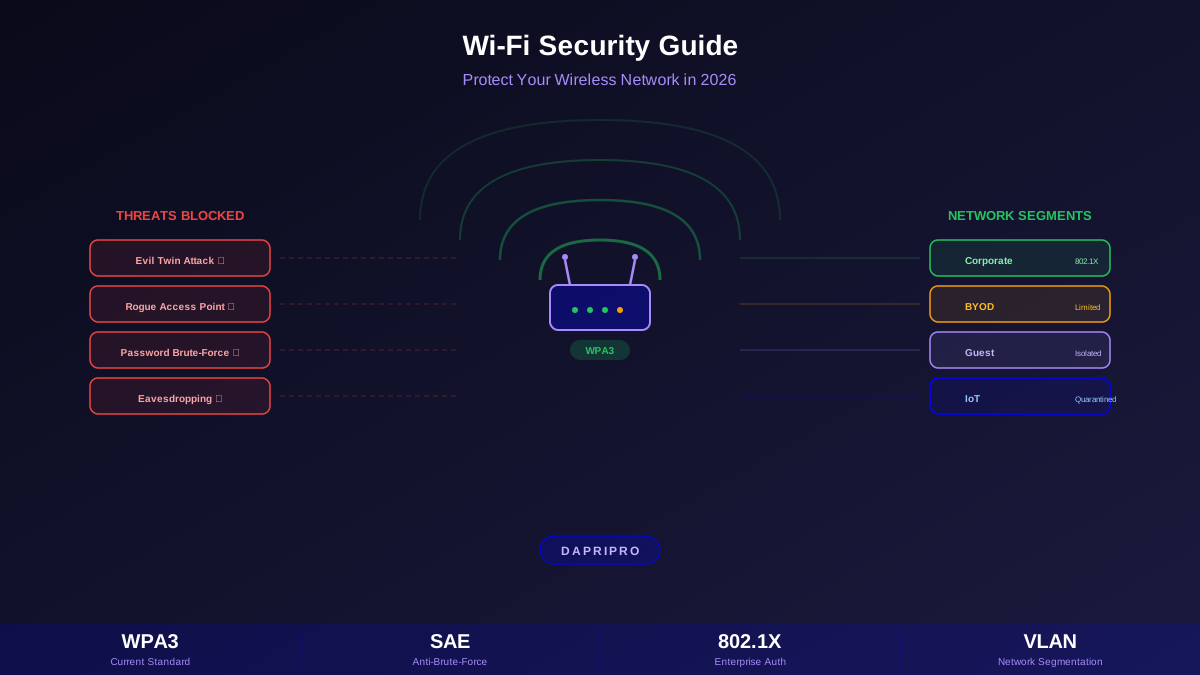

WPA2 has protected Wi-Fi networks since 2004, and for most of that time it was considered strong enough. That changed in 2017 when the KRACK (Key Reinstallation Attack) vulnerability demonstrated fundamental weaknesses in the WPA2 handshake protocol. But even before KRACK, WPA2 had a well-known practical vulnerability: anyone who captured the four-way handshake could take it offline and run billions of password guesses per second using GPU-powered cracking tools. A weak WPA2 password could be cracked in minutes.
WPA3, ratified by the Wi-Fi Alliance in 2018 and required on all new certified devices since July 2020, addresses these weaknesses fundamentally. Here is what changes, why it matters, and how to upgrade your network.
What WPA3 Fixes
SAE: The New Handshake
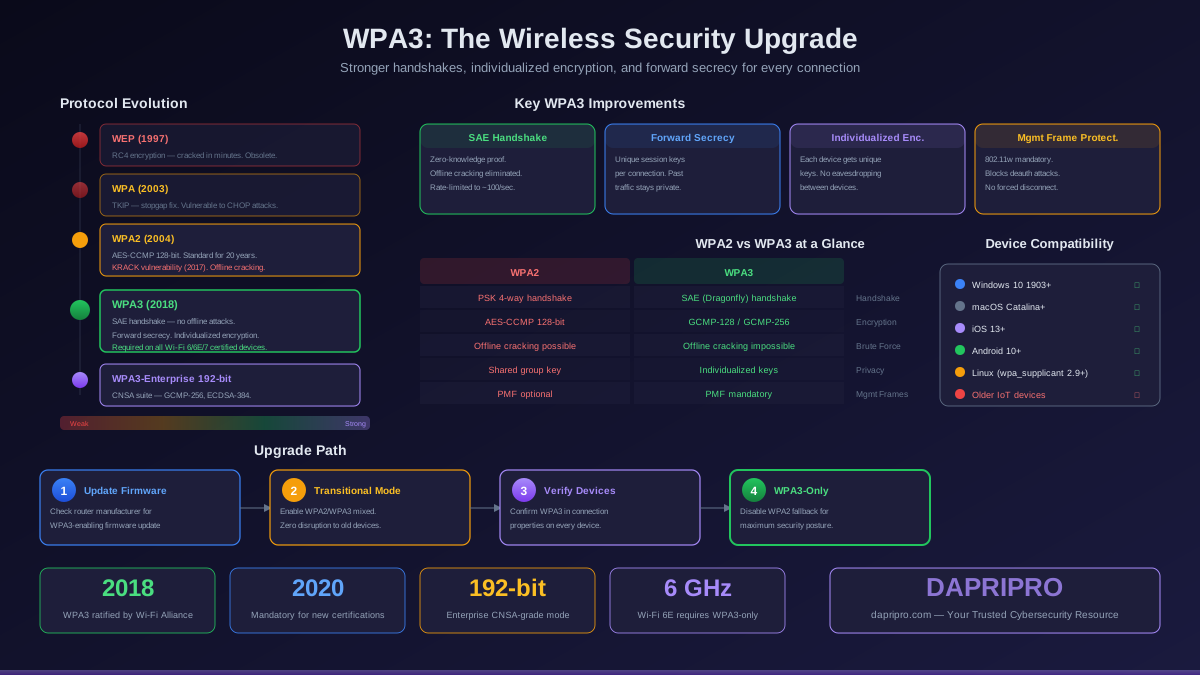
The most important improvement in WPA3-Personal is the replacement of the Pre-Shared Key (PSK) four-way handshake with SAE (Simultaneous Authentication of Equals), also known as the Dragonfly handshake. Here is why this matters:
- No offline attacks: In WPA2, an attacker who captures the four-way handshake can take it to a powerful machine and run password guesses at billions per second using tools like hashcat. WPA3 SAE requires each password guess to be verified interactively with the access point — you cannot take the handshake offline. This reduces attack speed from billions of guesses per second to perhaps a few hundred, and the AP can rate-limit attempts
- Forward secrecy: Even if an attacker eventually learns the Wi-Fi password, they cannot decrypt previously captured traffic. Each session generates unique encryption keys through a Diffie-Hellman key exchange. With WPA2, capturing traffic today and learning the password tomorrow lets you decrypt everything you recorded
- Equal resistance: SAE is a "zero-knowledge proof" protocol — neither side reveals the password during the handshake. Both the client and the AP prove they know the password without transmitting it or any derivative that could be used to guess it
Individualized Data Encryption
On a WPA2 network, all devices share the same encryption key derived from the password. If you know the password and capture the handshake of another device, you can decrypt their traffic. This means anyone on your home network — a guest, a compromised IoT device — can theoretically sniff the traffic of every other device.
WPA3 provides individualized data encryption through unique session keys for each device. Even if two devices are on the same network with the same password, they cannot decrypt each other's traffic. This is particularly important with the growing number of IoT devices on home networks — a compromised smart bulb cannot be used to eavesdrop on your laptop.
Protected Management Frames (PMF)
WPA3 mandates 802.11w Protected Management Frames, which were optional in WPA2. This prevents deauthentication attacks — the technique where an attacker sends spoofed disconnect frames to kick devices off the network, commonly used in evil twin attacks and handshake captures. With PMF, management frames are authenticated and cannot be forged by an attacker.
WPA3-Enterprise: 192-Bit Security
WPA3-Enterprise introduces an optional 192-bit security mode using the CNSA (Commercial National Security Algorithm) suite:
- GCMP-256: Replaces AES-CCMP-128 for data encryption, providing 256-bit encryption strength
- HMAC-SHA384: Stronger integrity verification for management frames
- ECDHE with 384-bit curves: Stronger key exchange resistant to future computational advances
- ECDSA-384: Stronger authentication signatures
This mode is designed for environments processing classified government data, sensitive financial information, or healthcare records where regulatory compliance requires stronger-than-standard encryption.
Checking Your Hardware Compatibility
Router / Access Point Support
To determine if your router supports WPA3:
- Log into your router's admin interface (typically 192.168.1.1 or 192.168.0.1)
- Navigate to Wireless Settings or Wi-Fi Security
- Check the available security modes. If you see "WPA3-Personal," "WPA3-SAE," or "WPA2/WPA3 Transitional," your router supports it
- If WPA3 is not listed, check your manufacturer's support page for firmware updates. Many routers gained WPA3 through updates in 2020-2022
- If no WPA3 firmware is available, you need a new router. Any Wi-Fi 6 (802.11ax) or Wi-Fi 6E router will support WPA3
Client Device Support
WPA3 requires support on both the router and the connecting device. Check your devices:
- Windows: Supported since Windows 10 version 1903 (May 2019). Open Command Prompt and run
netsh wlan show drivers— look for "WPA3-Personal" in the "Infrastructure mode security" line. If not listed, check for updated Wi-Fi drivers from your adapter manufacturer - macOS: Supported since macOS Catalina (10.15) on Macs with the T2 security chip or later. All Apple Silicon Macs support WPA3
- iOS: Supported since iOS 13 (2019). All iPhones from iPhone 6s and later support WPA3 with the right iOS version
- Android: Supported since Android 10 (2019), but implementation depends on the Wi-Fi chipset and manufacturer. Samsung, Google Pixel, and OnePlus devices generally have reliable WPA3 support
- Linux: Supported with wpa_supplicant version 2.9 or later (2019) and a compatible kernel. Most modern distributions include WPA3 support by default
Upgrading a Home Network to WPA3
Step 1: Update Router Firmware
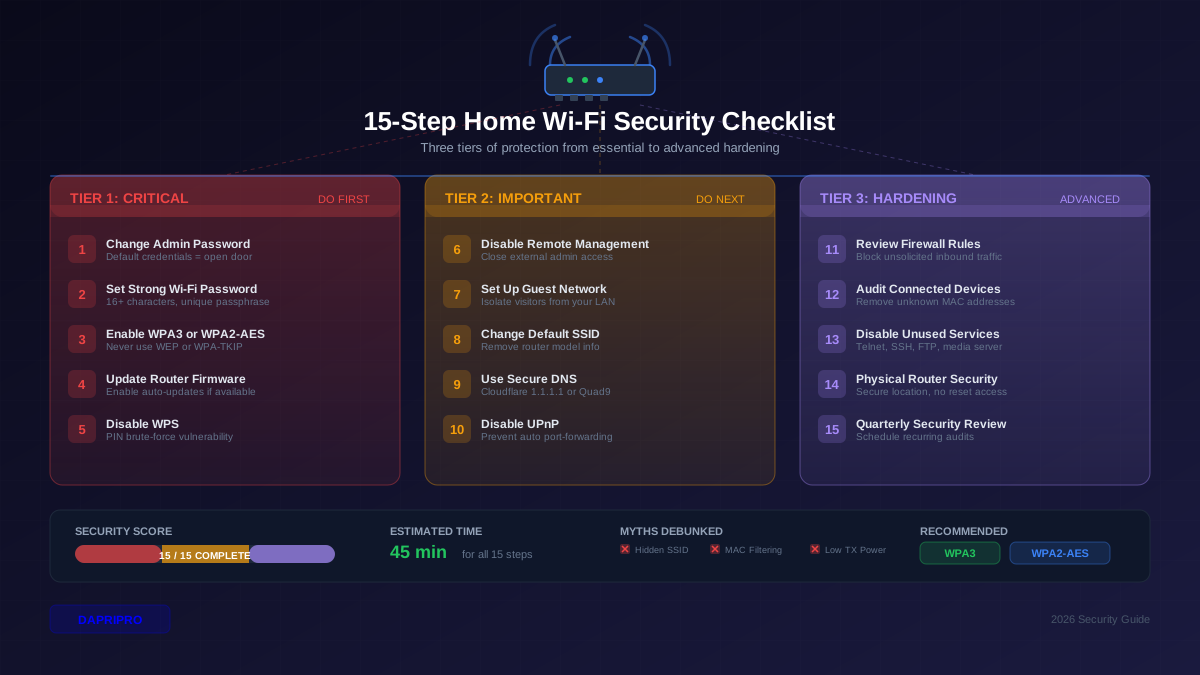
Before changing any settings, update your router to the latest firmware. Many manufacturers added or improved WPA3 support in firmware updates through 2023-2025. This step alone may unlock WPA3 on hardware that did not originally support it.
Step 2: Enable WPA2/WPA3 Transitional Mode
Do not jump straight to WPA3-only mode. Start with transitional mode (WPA2/WPA3 or "WPA3 Transition"):
- Log into your router admin panel
- Navigate to Wireless Security settings
- Select "WPA2/WPA3-Personal" or "WPA3 Transition" as the security mode
- Keep your existing password — WPA3 uses the same type of passphrase, just handles it differently in the handshake
- Save and apply. The router will restart
In transitional mode, WPA3-capable devices will negotiate WPA3 automatically, while older devices continue connecting via WPA2. You get immediate security improvement for newer devices with zero disruption to older ones.
Step 3: Verify Device Connections
After enabling transitional mode, verify each device:
- Windows: Click the Wi-Fi icon in the taskbar, click Properties on your connection, and look for "Security type: WPA3-Personal"
- macOS: Hold Option and click the Wi-Fi icon. Look for "Security: WPA3 Personal"
- iOS: Settings > Wi-Fi > tap the (i) next to your network. Security should show "WPA3"
- Android: Settings > Network > Wi-Fi > tap your connected network. Check the Security field
Step 4: Move to WPA3-Only (When Ready)
Once you have confirmed that all your devices support WPA3 — or you have replaced the ones that do not — switch to WPA3-only mode for maximum security. This eliminates WPA2 fallback, preventing downgrade attacks where an attacker forces a device to connect via the weaker WPA2 protocol. However, any remaining WPA2-only devices will lose connectivity.
Upgrading an Enterprise Network to WPA3
Prerequisites
Enterprise WPA3 deployment requires more planning than home upgrades:
- RADIUS server upgrade: Your RADIUS server (FreeRADIUS, Microsoft NPS, Cisco ISE) must support EAP-TLS with TLS 1.3 and the CNSA cipher suites if deploying 192-bit mode. FreeRADIUS 3.0.21+ and Cisco ISE 3.1+ support this
- Certificate infrastructure: WPA3-Enterprise with 802.1X requires a PKI for issuing server and optionally client certificates. If you are currently using PEAP with username/password, the migration to EAP-TLS with certificates provides the strongest security but requires MDM or manual certificate deployment to all devices
- Access point firmware: Update all APs to firmware versions that support WPA3-Enterprise. Enterprise vendors (Cisco, Aruba, Meraki, Juniper Mist) have released WPA3 support across their product lines
- Supplicant support: Verify that your managed devices (laptops, phones) have WPA3-Enterprise-capable supplicants. Windows 10 1903+, macOS 10.15+, iOS 13+, and Android 10+ all support WPA3-Enterprise
Phased Deployment
- Phase 1 — Parallel SSID: Create a new SSID with WPA3-Enterprise alongside the existing WPA2-Enterprise SSID. Migrate IT staff and pilot users first. Monitor connection logs and address compatibility issues
- Phase 2 — Department rollout: Expand the WPA3 SSID to departments with newer hardware. Maintain the WPA2 SSID for legacy devices. Set a deadline for device upgrades
- Phase 3 — WPA2 sunset: After confirming all devices connect successfully to WPA3, disable the WPA2 SSID. Enable 802.11w (PMF) in required mode to prevent deauthentication attacks. Deploy certificate-pinned profiles to prevent evil twin attacks
- Phase 4 — 192-bit mode (optional): For organizations requiring CNSA-grade security, enable 192-bit mode on the WPA3-Enterprise SSID. This requires all components (RADIUS, APs, clients) to support the CNSA cipher suites
Common WPA3 Issues and Fixes
Device Will Not Connect to WPA3
- Check driver version: Wi-Fi drivers are the most common issue. Update your Wi-Fi adapter driver to the latest version from the manufacturer (not Windows Update — go to the chipset maker: Intel, Qualcomm, Realtek, MediaTek)
- Forget and re-add: If a device connected via WPA2 before the upgrade, it may have cached WPA2 handshake parameters. Forget the network and reconnect fresh
- Disable fast roaming temporarily: Some older 802.11r (fast BSS transition) implementations conflict with WPA3. Disable fast roaming on the AP if devices have intermittent connection issues
IoT Devices That Do Not Support WPA3
Many IoT devices — smart cameras, thermostats, older smart speakers — have Wi-Fi chipsets that will never support WPA3. Solutions:
- Separate VLAN: Create a dedicated IoT VLAN/SSID running WPA2 with client isolation enabled. Isolate IoT devices from your main network so they cannot communicate with computers and phones
- WPA2/WPA3 transition on IoT SSID: Use transitional mode on the IoT SSID. WPA3-capable IoT devices (some newer ones support it) will use WPA3 while legacy devices use WPA2
- Replace when possible: As IoT devices reach end-of-life, replace them with WPA3-compatible models. Wi-Fi 6E IoT devices entering the market all support WPA3
Transitional Mode Security Considerations
WPA2/WPA3 transitional mode has a known limitation: a downgrade attack where an attacker forces a WPA3-capable device to connect via WPA2 instead. They accomplish this by cloning the SSID without WPA3 support and using a stronger signal — the device falls back to WPA2, which is then vulnerable to handshake capture. Mitigations:
- Move to WPA3-only as quickly as possible to eliminate WPA2 fallback
- On managed devices, configure Wi-Fi profiles to require WPA3 and reject WPA2 connections to known SSIDs
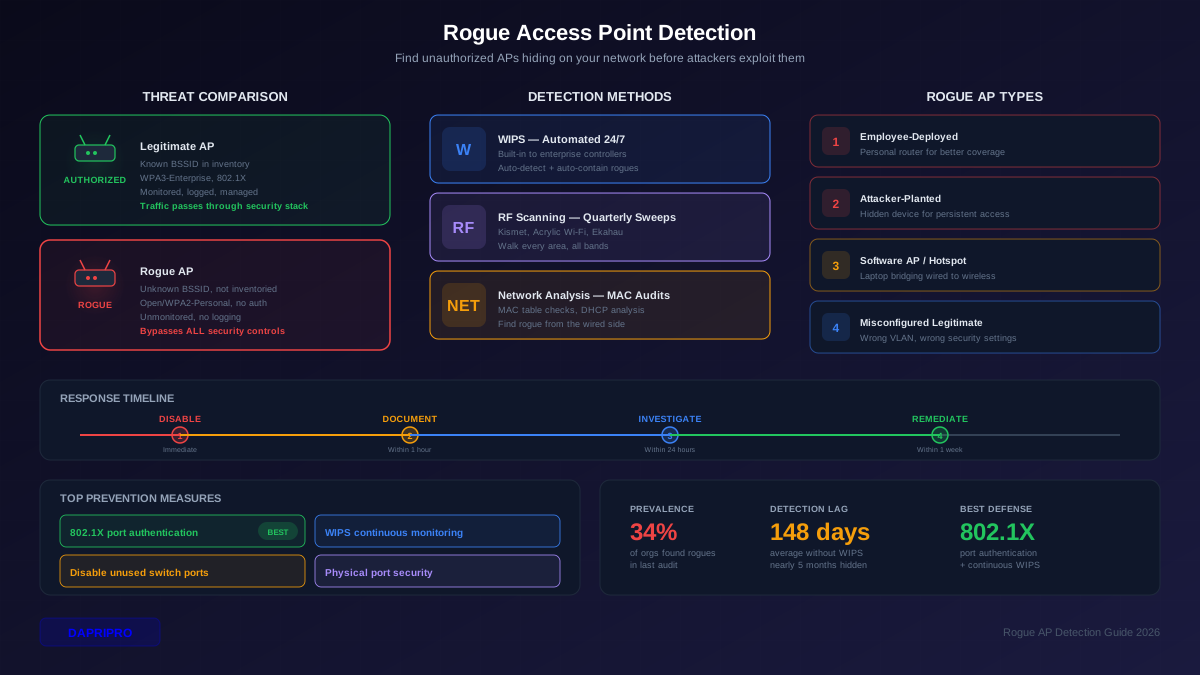
- Deploy WIDS to detect rogue APs broadcasting your SSID without WPA3
WPA3 and Wi-Fi 6/6E/7
WPA3 is tightly coupled with the newest Wi-Fi generations:
- Wi-Fi 6 (802.11ax): WPA3 support mandatory for Wi-Fi Alliance certification since July 2020. All certified Wi-Fi 6 routers and clients support WPA3
- Wi-Fi 6E (6 GHz band): WPA3 is required for all connections on the 6 GHz band — WPA2 is not allowed. If your router has a 6 GHz radio, all devices on that band automatically use WPA3. The 6 GHz band also benefits from reduced congestion and interference since only newer devices can access it
- Wi-Fi 7 (802.11be): Continues the WPA3 requirement and adds further protocol improvements. Wi-Fi 7 devices in 2026 all ship with WPA3 and many support the 192-bit enterprise mode
The Bottom Line
WPA3 is not just an incremental improvement — it fundamentally eliminates the offline dictionary attack that was WPA2's most exploited weakness. For most home users, the upgrade path is straightforward: update router firmware, enable transitional mode, verify devices, and eventually switch to WPA3-only. Enterprise environments require more planning around RADIUS, certificates, and phased migration, but the endpoint is a network that resists the wireless attacks that have plagued WPA2 networks for two decades. If you are buying a new router, choose Wi-Fi 6E or Wi-Fi 7 — you get WPA3 by default with no additional configuration needed.