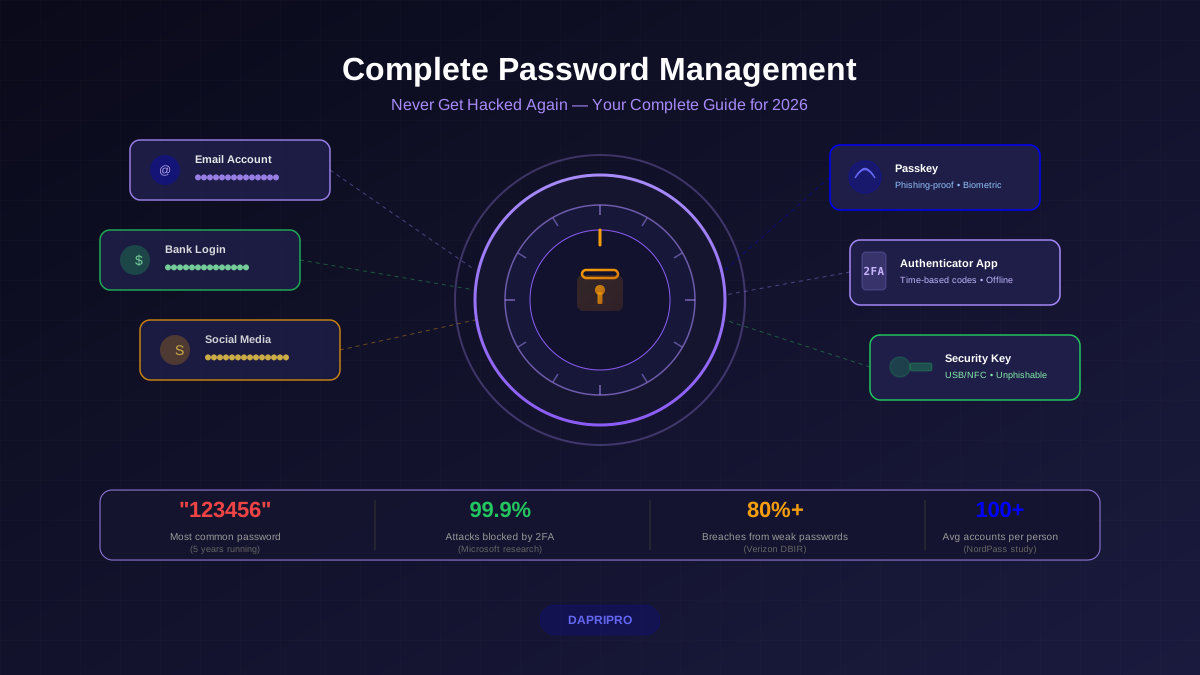

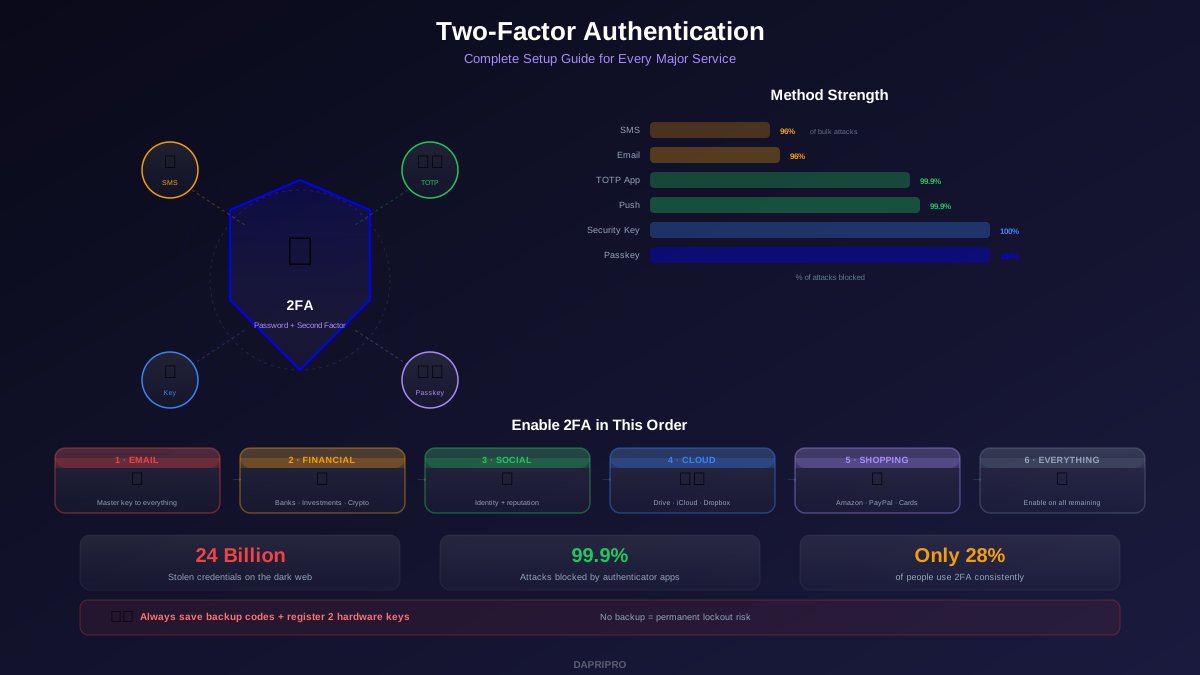
Your password is not enough anymore. It never really was, but in 2026 the numbers make it undeniable — over 24 billion username-password pairs are circulating on the dark web, and credential stuffing bots test millions of stolen combinations against live services every day. Two-factor authentication is the single most effective thing you can do to protect your accounts, and yet only 28% of people use it consistently.
This guide covers everything: what 2FA actually is, which methods are strongest, step-by-step setup for every major service, and how to avoid the common mistakes that lock people out of their own accounts.
How Two-Factor Authentication Actually Works
Authentication factors fall into three categories. 2FA requires you to prove your identity using two different categories — not just two pieces of information from the same category:
- Something you know — passwords, PINs, security questions
- Something you have — your phone, a hardware security key, a smart card
- Something you are — fingerprint, face scan, iris pattern, voice
Using a password plus a security question is not true 2FA — both are "something you know." A password (knowledge) plus a code from your authenticator app (possession) is proper 2FA because it spans two categories.
2FA Methods Ranked from Weakest to Strongest
Not all 2FA is created equal. Here is how the methods compare on security, convenience, and reliability:
| Method | Security Level | Blocks Phishing? | Convenience | Vulnerabilities |
|---|---|---|---|---|
| SMS codes | Medium | No | High — nothing to install | SIM swapping, SS7 exploits, real-time phishing |
| Email codes | Medium | No | Medium — slow delivery | Email compromise, delayed delivery |
| Authenticator app (TOTP) | High | Partial | Medium — open app, copy code | Real-time phishing proxies (rare) |
| Push notifications | High | Partial | High — just tap approve | MFA fatigue attacks (prompt bombing) |
| Hardware security key | Very High | Yes — 100% | Medium — carry a physical key | Physical theft only (requires PIN) |
| Passkeys (FIDO2) | Very High | Yes — 100% | Very High — biometric + auto | Device loss (mitigated by cloud sync) |
Authenticator Apps Compared
| App | Cloud Backup | Multi-Device | Encryption | Cost | Best For |
|---|---|---|---|---|---|
| Authy | Yes — encrypted | Yes | AES-256 with user password | Free | Best free standalone option |
| Google Authenticator | Yes (since 2023) | Limited | Google account encryption | Free | Simple and widely recognized |
| Microsoft Authenticator | Yes | iOS to iOS only | Microsoft account encryption | Free | Microsoft/Azure ecosystem |
| 1Password | Yes — E2E | Yes | E2E AES-256 + SRP | $3/mo | All-in-one with password manager |
| Bitwarden Authenticator | Yes — E2E | Yes | E2E AES-256 | $10/yr | Budget-friendly + password manager |
| YubiKey Authenticator | No — hardware bound | No | Hardware secure element | $55+ (key) | Maximum security |
Setup Guides for Your Most Critical Accounts
Enable 2FA in this exact order. Your email is the master key — if someone gets into your email, they can reset every other password. After email, secure financial accounts, then everything else.
Priority 1: Google / Gmail
- Go to myaccount.google.com and select Security
- Under "How you sign in to Google," select 2-Step Verification
- Click Get Started and sign in again to confirm your identity
- Choose your method: Google prompts (push notification) is the default. For stronger security, click "Show more options" and select Security key or set up an authenticator app
- For authenticator app: select "Authenticator app," scan the QR code with your chosen app, enter the 6-digit code to verify
- Critical step: scroll down and click Backup codes. Generate 10 codes and save them somewhere offline — printed and locked away, or in a password manager vault
- Consider enrolling in Google's Advanced Protection Program if you are a high-risk user (journalist, activist, executive). It requires two hardware security keys and blocks most third-party app access
Priority 2: Apple ID / iCloud
- On iPhone: Settings → [Your Name] → Sign-In & Security → Two-Factor Authentication
- Apple requires a trusted phone number for SMS fallback. Add at least one, preferably two
- On newer devices, Apple uses device-based push verification by default — a 6-digit code appears on your trusted Apple devices
- For hardware key support (available since iOS 16.3): Settings → [Your Name] → Sign-In & Security → Security Keys → Add Security Keys. Requires two FIDO2-certified keys
- Generate a Recovery Key from Settings → [Your Name] → Sign-In & Security → Account Recovery. Store it offline. Without this key and your trusted devices, Apple cannot help you regain access
Priority 3: Microsoft / Outlook
- Go to account.microsoft.com/security
- Select Advanced security options
- Under "Additional security," click Turn on for two-step verification
- Microsoft Authenticator app is the recommended option — it supports passwordless sign-in and number matching to prevent MFA fatigue attacks
- For hardware keys: select "Use a security key" and follow the FIDO2 registration process
- Download a recovery code from the same security settings page
Priority 4: Banking and Finance
Bank 2FA varies wildly. Most banks still default to SMS. Here is how to maximize security:
- If your bank offers an authenticator app option, switch from SMS immediately
- Set up transaction alerts for every withdrawal, transfer, or purchase over $1
- For investment accounts (Fidelity, Schwab, Vanguard), enable the strongest 2FA available and add extra verification for withdrawals
- For crypto exchanges, hardware security keys are non-negotiable. A single SIM swap can drain a crypto account in minutes
Priority 5: Social Media
| Platform | Path to 2FA Settings | Methods Available | Recommendation |
|---|---|---|---|
| X (Twitter) | Settings → Security → Two-factor auth | App, Security key (SMS removed from free) | Authenticator app |
| Settings → Accounts Center → Password and Security | App, SMS | Authenticator app | |
| Settings → Accounts Center → Password and Security | App, SMS, Security key | Security key or app | |
| Settings → Sign in & Security → Two-step verification | App, SMS | Authenticator app | |
| TikTok | Profile → Menu → Settings → Security → 2-step verification | SMS, Email, App | Authenticator app |
| Discord | User Settings → My Account → Enable 2FA | App, SMS (backup), Security key | App + security key |
Hardware Security Keys: The Gold Standard
If you are serious about account security, a hardware security key is the strongest option available. Google's internal data showed that since deploying YubiKeys to all 85,000+ employees, they experienced zero successful phishing attacks.
Which Key to Buy
| Key | Price | Connections | Protocols | Best For |
|---|---|---|---|---|
| YubiKey 5 NFC | $55 | USB-A + NFC | FIDO2, U2F, OTP, PIV, OpenPGP | Best all-around |
| YubiKey 5Ci | $75 | USB-C + Lightning | FIDO2, U2F, OTP, PIV, OpenPGP | Apple + USB-C users |
| Google Titan | $30 | USB-C/NFC or USB-A/NFC | FIDO2, U2F | Budget option |
| Nitrokey 3 | $50 | USB-A or USB-C | FIDO2, U2F, OpenPGP | Open-source hardware + firmware |
Always buy two keys. Register both with every service. Keep one on your keychain and one in a safe or safety deposit box. If you lose your primary key, the backup key prevents account lockout.
Backup and Recovery: Preventing Account Lockout
The biggest fear people have about 2FA is losing access to their own accounts. Here is how to prevent that:
Backup Codes
Every service that offers 2FA provides backup codes — usually 8-10 single-use codes that bypass 2FA. When you set up 2FA on any account:
- Generate the backup codes immediately
- Print them on paper and store them in a fire-safe or safety deposit box
- Also save them in your password manager (encrypted, cross-device)
- Never store them in a plain text file on your computer or in your email
- If you use a backup code, generate new codes immediately after regaining access
Recovery Number and Email
Add a recovery phone number and recovery email that are different from your primary ones. This gives you an alternate path back into your account. Use a family member's number as your recovery number if possible — SIM swappers are less likely to target them.
The 8 Most Common 2FA Mistakes
- Using SMS when better options exist — SMS is the weakest form of 2FA. Switch to an authenticator app on any account that supports it
- Not saving backup codes — the number one reason people get locked out of accounts. Save them the moment you set up 2FA
- Using the same phone for 2FA and password resets — if your phone is compromised, all your eggs are in one basket
- Approving push notifications without checking — MFA fatigue attacks work by sending dozens of prompts until you tap "Approve" out of frustration. Always check the location and app name before approving
- Sharing TOTP secrets or QR codes — the QR code you scan during setup contains the secret that generates all future codes. Screenshot it only if you store the screenshot encrypted
- Not enabling 2FA on your email — your email can reset every other password. It should be the first account you protect, not the last
- Buying only one hardware key — hardware keys can be lost, damaged, or stolen. Always register two
- Ignoring 2FA on "unimportant" accounts — attackers use compromised low-value accounts to gather information for social engineering attacks on your high-value accounts. Enable 2FA everywhere it is offered
Passkeys: The Future of 2FA Is Already Here
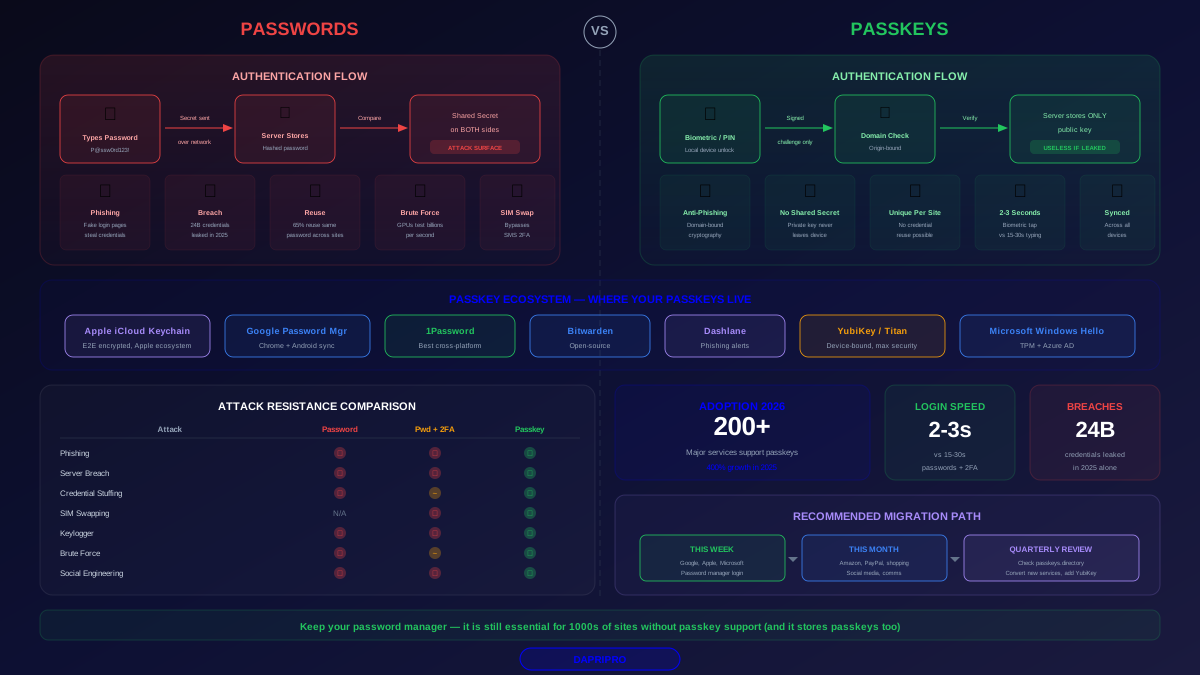
Passkeys are gradually replacing traditional 2FA for good reason — they combine the security of hardware keys with the convenience of biometrics. Instead of typing a password and then a 6-digit code, you just authenticate with your fingerprint or face.
Key facts about passkeys in 2026:
- Phishing-proof by design — passkeys are cryptographically bound to the website domain. A fake login page cannot intercept them
- No codes to type — just biometric confirmation (fingerprint or face) on your device
- Synced across devices — Apple syncs via iCloud Keychain, Google via Google Password Manager, and password managers like 1Password store them cross-platform
- Supported by most major services — Google, Apple, Microsoft, Amazon, GitHub, PayPal, eBay, Uber, WhatsApp, and hundreds more
- Can replace passwords entirely — some services now allow passkey-only login with no password at all
If a service supports passkeys, set one up. It is the strongest and most convenient authentication method available in 2026. For services that do not support passkeys yet, an authenticator app with a hardware key backup remains the best approach.
Your 2FA Priority Checklist
If you do nothing else after reading this guide, do these things in this order:
- Enable 2FA on your primary email — use an authenticator app or hardware key, save backup codes
- Enable 2FA on your secondary email — this is often a recovery path for your primary
- Enable 2FA on your password manager — if you use one (and you should), this protects everything inside it
- Enable 2FA on banking and financial accounts — use the strongest method available (usually app or hardware key)
- Enable 2FA on social media — prevents account takeover and identity impersonation
- Enable 2FA on cloud storage — Google Drive, iCloud, Dropbox, OneDrive contain massive amounts of personal data
- Switch any SMS-based 2FA to authenticator apps — review each account and upgrade from SMS where possible
- Set up passkeys on every service that supports them — the easiest and strongest option available
Two-factor authentication is not a burden — it is an investment of 30 seconds per login that makes your accounts essentially unbreakable through the most common attack methods. The only accounts that get compromised in 2026 are the ones that do not use it.