
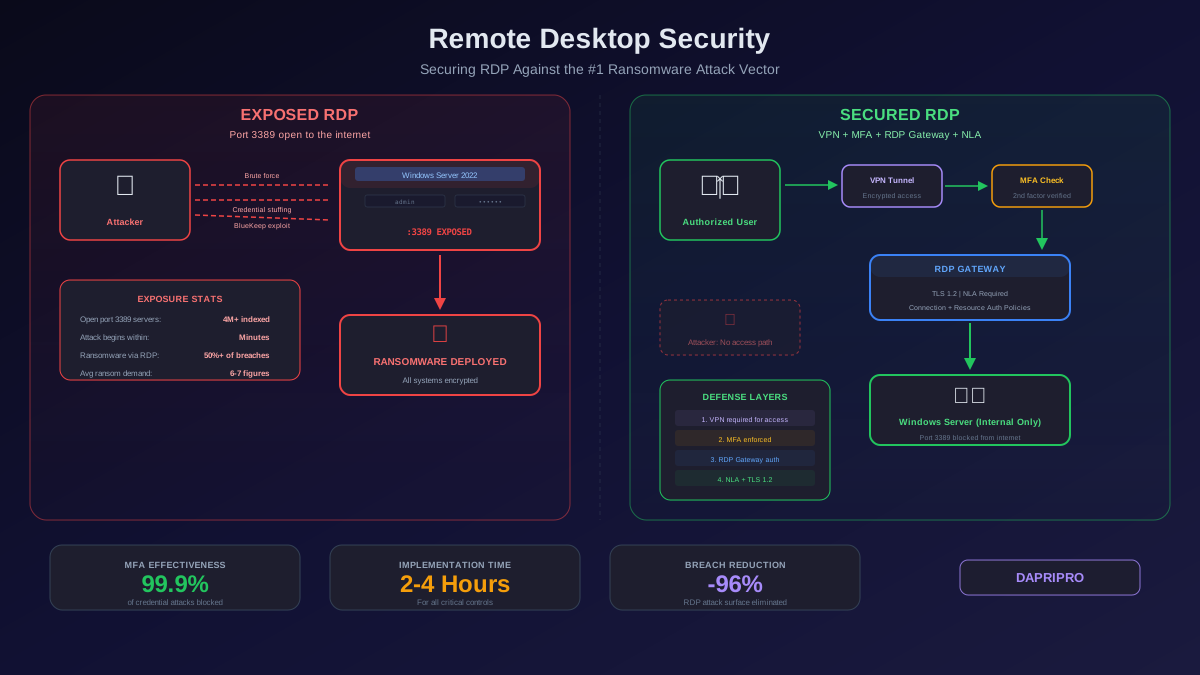
Ransomware gangs do not need sophisticated zero-day exploits to breach your network. In over half of all ransomware incidents in 2025 and 2026, the initial access was through an exposed Remote Desktop Protocol server — an RDP port open to the internet with a weak or reused password. The attacker brute-forced or credential-stuffed their way in, gained full graphical access to a Windows server, disabled antivirus, moved laterally across the network, and deployed ransomware. The entire attack chain started with an RDP port that should never have been internet-facing.
RDP is not inherently insecure. It is a powerful, legitimate remote administration tool built into every Windows edition. The problem is how organizations deploy it — directly exposed to the internet without adequate access controls, monitoring, or multi-factor authentication. This guide covers the specific steps to lock down RDP so it remains useful for remote work without becoming your biggest security liability.
Why RDP Is the Top Attack Vector
The Perfect Storm
Several factors make RDP uniquely attractive to attackers:
- Full system access: Unlike a web application vulnerability that gives limited access, RDP provides complete graphical control of the target system. The attacker sits at the virtual desktop with the same capabilities as the legitimate user
- Massive exposure: Shodan indexes over 4 million RDP servers directly accessible from the internet. Many belong to small and mid-size businesses that lack dedicated security teams
- Credential availability: Billions of username-password pairs from data breaches are available on dark web markets. Automated tools test these credentials against exposed RDP servers around the clock
- Protocol vulnerabilities: Critical RDP vulnerabilities like BlueKeep (CVE-2019-0708) and DejaBlue (CVE-2019-1181/1182) enabled wormable remote code execution without authentication. While patched, many servers remain unpatched
- Stealth: RDP access looks like legitimate administrator activity. Unlike malware, an attacker operating through an RDP session generates normal Windows events that blend with everyday administrative work
Securing RDP: The Essential Controls
Rule One: Never Expose RDP to the Internet
This is non-negotiable. Port 3389 should never be reachable from any public IP address. Every firewall should have an explicit deny rule blocking inbound RDP from the internet. To verify:
- Run an external port scan against all your public IPs (nmap -p 3389 your-public-ip-range)
- Search Shodan for your organization's IP ranges filtering for port 3389
- Check your firewall rules for any NAT or port-forwarding rules directing external traffic to port 3389 on any internal host
- Also scan for RDP on non-standard ports — changing the port from 3389 to something else provides zero security benefit since attackers scan all ports
Enable Network Level Authentication (NLA)
NLA requires users to authenticate (username + password + optional MFA) before the RDP session is fully established. Without NLA, the server presents its login screen to any connection attempt, consuming resources and exposing the server to pre-authentication exploits.
To enable NLA:
- Open System Properties → Remote tab
- Select "Allow connections only from computers running Remote Desktop with Network Level Authentication"
- Alternatively, enforce via Group Policy: Computer Configuration → Administrative Templates → Windows Components → Remote Desktop Services → Remote Desktop Session Host → Security → "Require user authentication for remote connections by using Network Level Authentication" → Enabled
Enforce Multi-Factor Authentication
MFA on RDP connections eliminates credential-based attacks entirely. Implementation options:
- RDP Gateway + Azure MFA / Duo: The RDP Gateway can integrate with Azure AD Multi-Factor Authentication or Duo Security to require a second factor before the connection is forwarded to the target server
- Windows Hello for Business: Certificate-based authentication tied to biometrics or hardware security keys. Eliminates passwords entirely for RDP access
- Third-party NLA providers: Solutions like Duo Authentication for Windows Logon inject MFA into the Windows logon process, which applies to both local and RDP logins
Deploy RDP Gateway
Remote Desktop Gateway (RD Gateway) acts as a TLS-encrypted reverse proxy for RDP connections. Instead of exposing RDP servers directly, users connect to the RD Gateway over HTTPS (port 443), authenticate, and the gateway forwards the RDP session to the authorized internal server.
Benefits of RDP Gateway:
- Only port 443 (HTTPS) is exposed to the internet, not port 3389
- The gateway authenticates and authorizes users before forwarding connections — unauthorized users never reach the RDP server
- Connection Authorization Policies (CAPs) control who can connect, and Resource Authorization Policies (RAPs) control which servers they can access
- All RDP traffic is encrypted inside the TLS tunnel, providing defense-in-depth even if the RDP encryption itself has vulnerabilities
- Centralizes logging — all RDP connections are logged at the gateway, giving you a single audit point
RDP Hardening Configuration
Account Lockout Policies
Configure account lockout to slow brute-force attacks:
- Account lockout threshold: 5 failed attempts
- Account lockout duration: 30 minutes
- Reset account lockout counter after: 30 minutes
Set these via Group Policy: Computer Configuration → Windows Settings → Security Settings → Account Policies → Account Lockout Policy.
Critical note: Account lockout can be weaponized for denial of service — an attacker can intentionally lock out legitimate accounts. Implement intelligent rate limiting at the network level (fail2ban equivalent for Windows, or firewall-based rate limiting) rather than relying solely on account lockout.
Encryption and TLS Settings
- Set the encryption level to "High" (128-bit) in Group Policy: Computer Configuration → Administrative Templates → Windows Components → Remote Desktop Services → Security → "Set client connection encryption level" → High
- Require TLS 1.2 as the security layer (not the weaker RDP Security Layer or "Negotiate" setting)
- Deploy a proper TLS certificate from your internal CA or a trusted CA — do not use the self-signed certificate that RDP generates by default, as it provides no protection against man-in-the-middle attacks
Session Time Limits and Controls
- Set idle session timeout to 15-30 minutes — disconnected sessions left running provide a persistent foothold if an attacker gains access
- End disconnected sessions after 1-2 hours maximum
- Disable clipboard redirection if file transfer is not required (prevents data exfiltration through RDP clipboard)
- Disable drive redirection unless specifically needed (prevents an attacker from mounting their local drives on the remote server)
- Disable printer redirection for servers that do not need printing capability
Monitoring RDP for Attacks
Essential Windows Event IDs to Monitor
Windows logs specific events for RDP connections. Configure your SIEM or log management tool to alert on these:
- Event ID 4625 (failed logon): Multiple 4625 events from the same source IP indicate brute-force or credential stuffing. Alert on 5+ failures per minute from a single source
- Event ID 4624 (successful logon, logon type 10): Logon type 10 is specifically Remote Desktop. Alert on successful RDP logins from unexpected IPs, during non-business hours, or from geographic locations where your organization has no employees
- Event ID 4778 / 4779 (session reconnected / disconnected): Track session reconnections — an attacker who disconnects and reconnects repeatedly may be testing persistence or avoiding session timeouts
- Event ID 1149 (RDP successful authentication): Logged in the RemoteDesktopServices-RdpCoreTS/Operational log. This fires before the full logon (4624), so it catches authentication successes even if the session setup fails afterward
RDP Honeypots
Deploy a honeypot RDP server on a monitored network segment with no legitimate purpose. Any connection attempt to this server is definitively malicious (since no one should be connecting to it). This provides early warning of attackers who have already penetrated your network perimeter and are scanning for lateral movement targets. Open-source options include YOURLS with RDP listener emulation or purpose-built tools like rdppot.
Modern Alternatives to RDP
While RDP remains widely used, consider whether modern alternatives better fit your use case:
- SSH with port forwarding: For Linux/macOS servers, SSH provides encrypted remote access with public key authentication and is significantly more resistant to brute-force attacks than RDP. SSH can also tunnel RDP for Windows access
- Remote desktop as a service (Azure Virtual Desktop, Windows 365): Cloud-hosted desktops that never expose RDP to your network. Microsoft manages the infrastructure, patching, and connectivity. Users connect through a web browser or client app with Azure AD authentication and conditional access policies
- Zero-trust network access (ZTNA): Products like Zscaler Private Access, Cloudflare Access, and Tailscale replace VPN + RDP with identity-verified, device-checked, application-specific access. No open ports, no network-level access, every connection is individually authenticated and authorized
The Bottom Line
RDP is not going away — it is too useful for IT administration and remote work. But exposed, unprotected RDP is the single most exploited entry point for ransomware and network intrusions. Block port 3389 from the internet immediately. Deploy RDP Gateway or require VPN access. Enable NLA and enforce MFA on every connection. Monitor login events for brute-force patterns and anomalous access. These steps take hours to implement and eliminate the attack vector responsible for the majority of ransomware breaches.