
The Real Risks of Public Wi-Fi in 2026
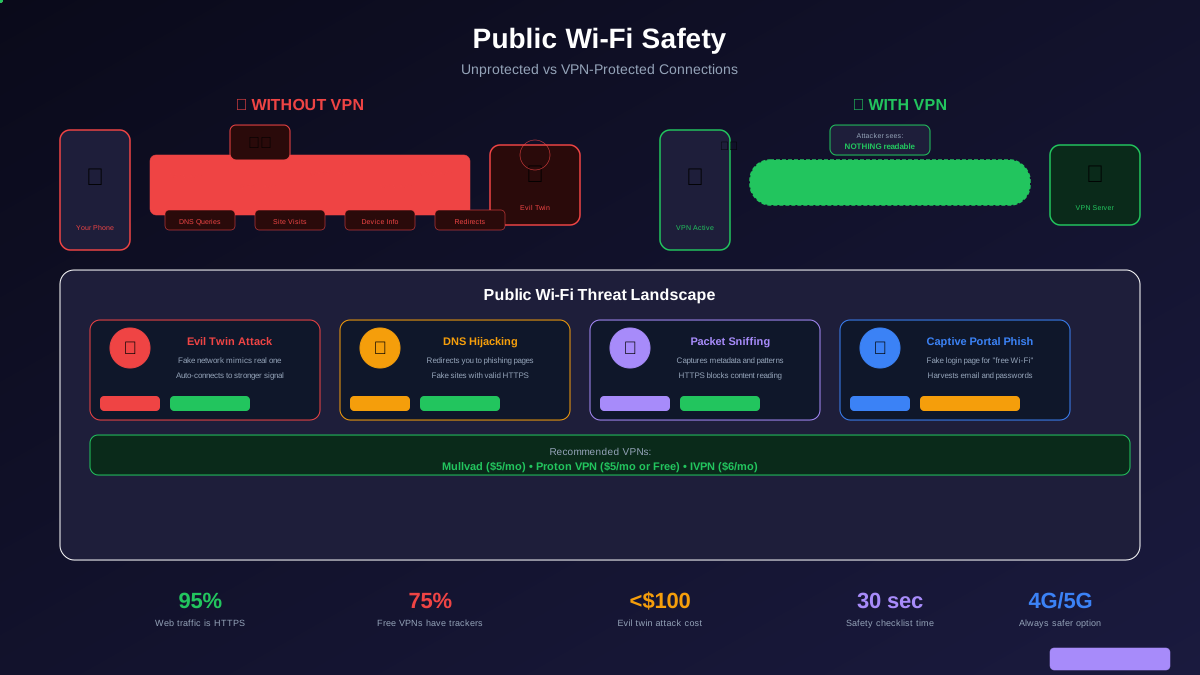
Public Wi-Fi security advice has not kept up with reality. Most articles still warn about attackers intercepting your banking passwords over open networks, but widespread HTTPS adoption has made that specific attack largely obsolete. Over 95% of web traffic is now encrypted with HTTPS, which means the content of most connections is protected even on open networks.
But that does not mean public Wi-Fi is safe. The threats have evolved. Modern attackers do not need to read your password in transit — they redirect you to a convincing phishing page, create fake networks your phone auto-connects to, or hijack your DNS to serve malicious content. Understanding which threats are real in 2026 and which are overblown helps you take proportionate precautions without unnecessary paranoia.
How Public Wi-Fi Attacks Actually Work
Evil Twin Attacks — The Biggest Real Threat
An evil twin attack is straightforward: an attacker creates a Wi-Fi network with the same name as a legitimate one. You sit down at a coffee shop and see "Starbucks_WiFi" in your network list. But there are actually two networks with that name — the real one from the router behind the counter, and a fake one from the laptop of the person sitting by the window.
Your phone connects to whichever has the stronger signal, which is often the attacker sitting closer to you. Once connected to the evil twin, all your traffic flows through the attacker device. They can see which websites you visit, intercept DNS queries to redirect you to phishing pages, inject malicious content into unencrypted pages, and present fake login portals (captive portals) for the "free Wi-Fi" that actually steal credentials.
Evil twin attacks are trivially easy to execute. Tools like a Wi-Fi Pineapple cost under $100, and software-only setups using a laptop with airbase-ng are free. The attack requires no special skills — just proximity to the target.
DNS Hijacking
DNS (Domain Name System) translates the website names you type (like google.com) into IP addresses your device connects to. On public Wi-Fi, the network controls your DNS servers by default. A malicious network operator can return fake IP addresses for domains you request, sending you to phishing sites that look identical to the real ones.
Modern phishing pages even use valid HTTPS certificates for lookalike domains (like g00gle.com or bankofamerlca.com), so the padlock icon alone does not guarantee you are on the legitimate site. Always verify the full URL before entering credentials.
Packet Sniffing (Mostly Mitigated)
Traditional packet sniffing — capturing and reading network traffic — is largely neutralized by HTTPS. An attacker can see that you connected to bankofamerica.com, but they cannot see your username, password, account balance, or transaction details because that data is encrypted. However, they can still see unencrypted traffic (HTTP sites, some app traffic, DNS queries), metadata (which domains you visit, when, and how often), and the volume and timing of your traffic.
How to Stay Safe on Public Wi-Fi
Use a VPN — The Single Best Protection
A VPN (Virtual Private Network) encrypts ALL traffic between your device and the VPN server before it reaches the public network. This means the network operator, evil twin attacker, or packet sniffer sees only encrypted garbage — they cannot see which websites you visit, your DNS queries, or any traffic content.
Best VPN choices for public Wi-Fi:
Mullvad VPN ($5/month) — No email required to sign up, accepts cash payment, independently audited, no-logs policy verified. Based in Sweden with strong privacy laws. Perfect for privacy-focused users.
Proton VPN ($5/month, free tier available) — Swiss-based, open-source apps, independently audited, free tier with unlimited data. The only trustworthy free VPN option. Excellent for users who want a free-to-start option.
IVPN ($6/month) — Independent company, transparent ownership, no-logs policy audited, WireGuard support. Strong choice for security-conscious users.
VPNs to avoid: Any VPN that claims to be "military-grade," offers lifetime subscriptions (unsustainable business model), has unclear ownership, or is based in countries with mandatory data retention laws. Also avoid all free VPNs except Proton VPN Free — research shows 75% of free VPN apps contain tracking libraries.
Verify HTTPS Before Entering Credentials
Before typing any password or sensitive information, verify three things: the padlock icon is present in the address bar, the domain name is exactly correct (not g00gle.com or paypa1.com), and the connection is not showing any certificate warnings. If your browser shows a certificate error on public Wi-Fi, do not proceed — the network may be intercepting traffic.
Disable Auto-Connect
Your phone remembers every Wi-Fi network you have ever connected to and automatically connects when it sees one again. This is convenient at home but dangerous in public. Your phone broadcasts the names of known networks seeking connections, and an attacker can create networks matching those names.
On iPhone: Settings → Wi-Fi → Ask to Join Networks → set to "Ask." Also tap the (i) next to any public network after you are done and toggle off Auto-Join.
On Android: Settings → Network → Wi-Fi → Wi-Fi Preferences → turn off "Connect to open networks." Also forget saved public networks after you are done using them.
Use Your Own Mobile Hotspot
The safest option when you need Wi-Fi away from home is creating your own mobile hotspot using your phone cellular connection. This creates a password-protected network that only your devices can join. Your phone uses 4G/5G (which is encrypted and far harder to intercept than Wi-Fi), and your laptop or tablet connects to your phone via a secure, personal network.
Most phone plans include hotspot data. Even if your plan charges extra or has limited hotspot data, using it for sensitive tasks (banking, email, work) while using public Wi-Fi only for non-sensitive browsing (reading news, watching videos) is a smart compromise.
Use DNS Over HTTPS (DoH)
Even with HTTPS protecting your web traffic, your DNS queries (the lookups that translate domain names to IP addresses) are typically sent in plain text, revealing which sites you visit. DNS over HTTPS encrypts these queries.
On iPhone: Install a DNS profile from a trusted provider like Cloudflare (1.1.1.1 app), NextDNS, or Quad9. This forces all DNS queries through encrypted channels.
On Android: Settings → Network → Private DNS → set to "Private DNS provider hostname" and enter dns.google, one.one.one.one, or dns.quad9.net.
Location-Specific Risk Assessment
What About Cellular Data?
Your phone cellular connection (4G LTE, 5G) is significantly more secure than public Wi-Fi. Cellular data is encrypted between your phone and the cell tower, requires active interception equipment (IMSI catchers or Stingrays costing $10,000+) to compromise, is much harder to spoof than a Wi-Fi network, and does not broadcast your connection history or auto-connect to fake networks.
For any sensitive activity — banking, logging into accounts, accessing work email, sending private messages — use cellular data instead of public Wi-Fi when possible. The small amount of data used is worth the security benefit.
Quick Checklist: Before Connecting to Public Wi-Fi
1. Activate your VPN before connecting to the Wi-Fi network — not after. This ensures the VPN tunnel is established before any traffic is sent over the public network. 2. Verify the network name with staff. Ask a coffee shop employee what their exact Wi-Fi name is. Do not guess or connect to the strongest signal. 3. Disable auto-connect for this network after connecting. 4. Verify HTTPS on every site before entering credentials. Check the full URL, not just the padlock. 5. Forget the network when you leave. Go to Wi-Fi settings, tap the network, and select "Forget This Network." 6. Turn off Wi-Fi when not actively using it. This prevents your phone from broadcasting saved network names.
These six steps take less than 30 seconds and dramatically reduce your risk on any public network.