
Someone sends an email pretending to be your CEO. It tells your accountant to wire $47,000 to a new vendor. The email looks perfect — same name, same signature, even the same writing style. Your accountant sends the money because the email came from your company domain.
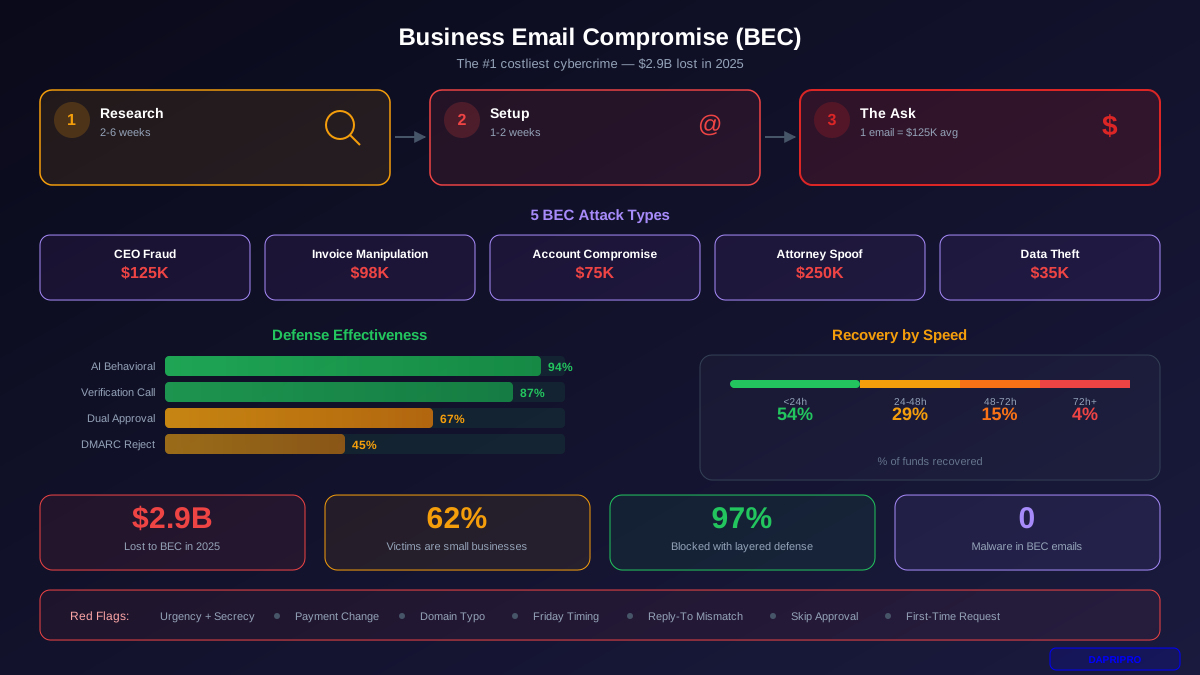
This exact attack costs businesses $2.7 billion every year. And the worst part? Three free DNS records could have stopped it completely.
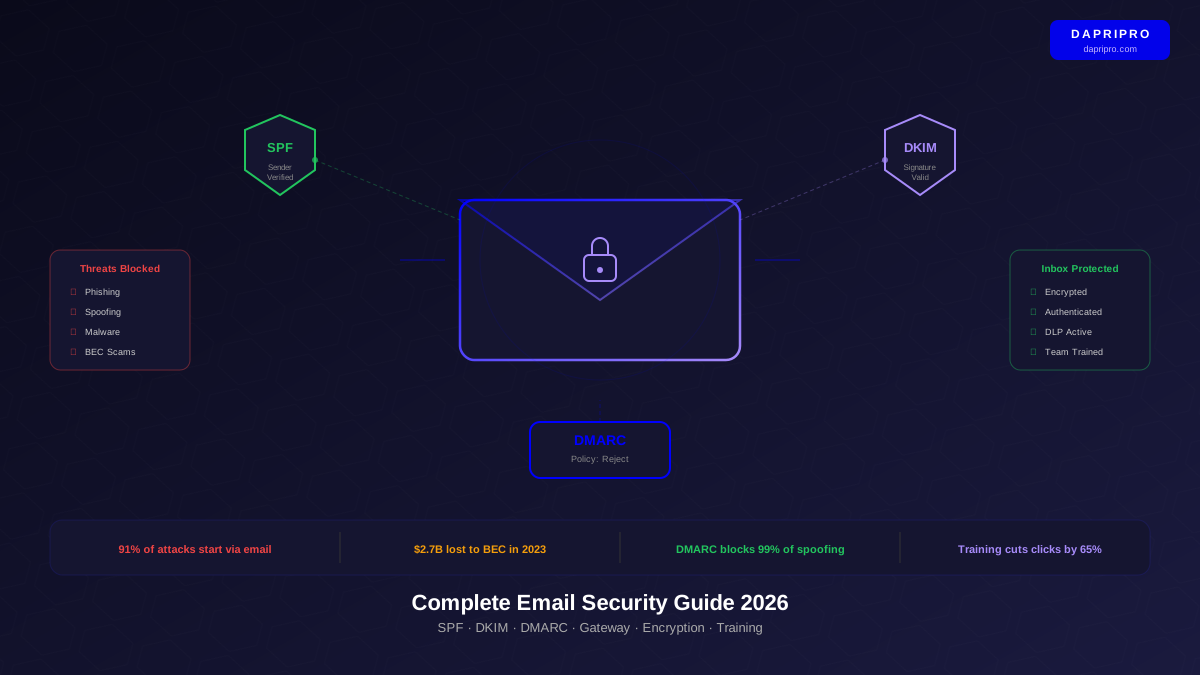
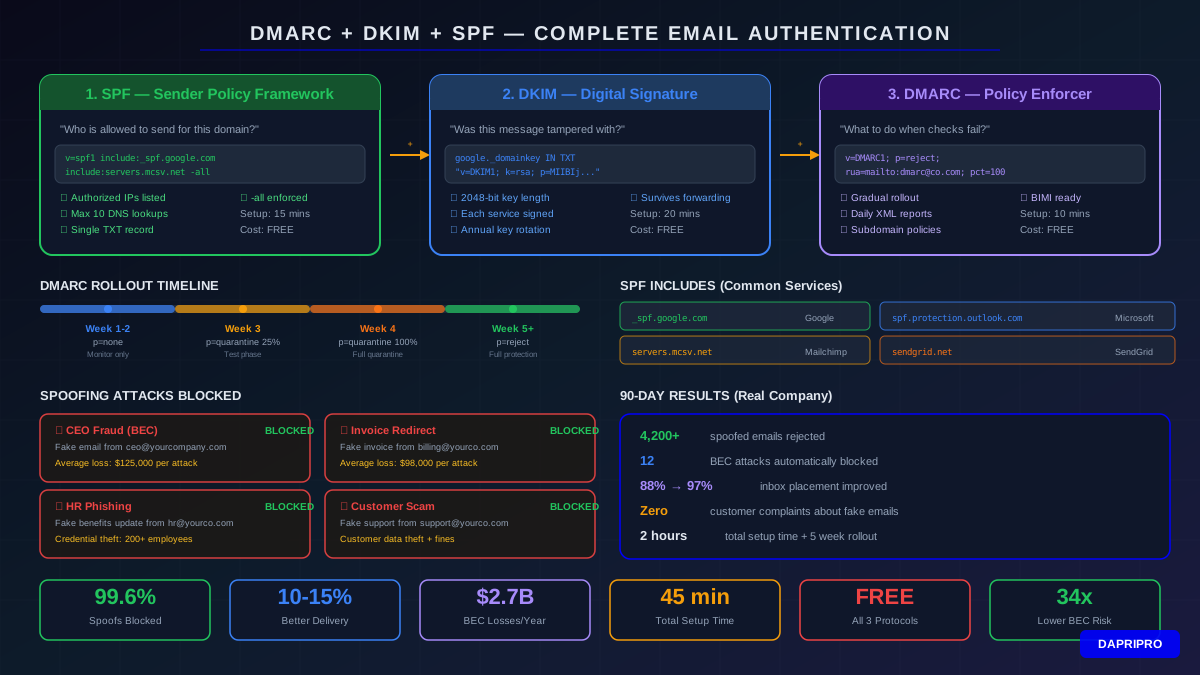
SPF, DKIM, and DMARC are like a triple-lock system for your email. Think of it this way: SPF checks who is allowed to send email from your domain. DKIM checks that the message was not tampered with during delivery. DMARC tells email servers what to do when an email fails these checks.
This guide walks you through setting up all three, step by step, with real DNS records you can copy and customize. No email security experience needed.
What Email Spoofing Actually Looks Like
Before we fix the problem, you need to understand what you are fighting. Email spoofing is shockingly easy without authentication. Anyone with basic technical knowledge can send an email that appears to come from your domain.
Here is what happens without email authentication:
| What the Attacker Does | What the Victim Sees | Impact |
|---|---|---|
| Sets "From" to ceo@yourcompany.com | Email from their boss | Wire fraud — average loss $125,000 |
| Sets "From" to billing@yourcompany.com | Invoice from trusted company | Payment redirect — average $98,000 |
| Sets "From" to hr@yourcompany.com | Benefits update from HR | Credential theft — affects 200+ employees |
| Sets "From" to support@yourcompany.com | Customer service message | Customer data theft — regulatory fines |
Without SPF, DKIM, and DMARC, receiving email servers have no way to verify that an email actually came from your organization. They just accept whatever the sender claims.
How the Three Protocols Work Together
Think of email authentication like airport security with three checkpoints:
- SPF (Sender Policy Framework) = Checking the passenger list. "Is this person authorized to board this flight?" SPF checks whether the sending server's IP address is on your approved list.
- DKIM (DomainKeys Identified Mail) = Checking the passport stamp. "Is this passport genuine and unaltered?" DKIM verifies that message content was not changed after the sender hit "Send."
- DMARC (Domain-based Message Authentication) = The security officer's rulebook. "What do we do with people who fail the first two checks?" DMARC tells receiving servers to accept, quarantine, or reject failed messages.
Step 1: Set Up SPF (15 Minutes)
SPF is the foundation. It creates a list of IP addresses and servers that are allowed to send email using your domain name. When someone receives an email "from" your domain, their server checks your SPF record to verify the sender is on the approved list.
How to Create Your SPF Record
1. List every service that sends email for you. This is the most important step. Miss one service and their emails will fail authentication.
| Email Service | SPF Include Value | What It Sends |
|---|---|---|
| Google Workspace | include:_spf.google.com |
Employee email |
| Microsoft 365 | include:spf.protection.outlook.com |
Employee email |
| Mailchimp | include:servers.mcsv.net |
Marketing newsletters |
| SendGrid | include:sendgrid.net |
Transactional emails |
| HubSpot | include:hubspot.com |
Sales & marketing emails |
| Amazon SES | include:amazonses.com |
App notifications |
| Salesforce | include:_spf.salesforce.com |
CRM emails |
| Zendesk | include:mail.zendesk.com |
Support tickets |
2. Build your SPF record. Here is the format:
v=spf1 include:_spf.google.com include:servers.mcsv.net include:sendgrid.net -allThe parts explained:
v=spf1— Tells servers this is an SPF record (always required)include:— Each service allowed to send for you-all— Reject everything not on the list (use~allfor soft fail during testing)
3. Add it to your DNS. Log into your domain registrar (GoDaddy, Cloudflare, Namecheap, etc.) and create a new TXT record:
- Host/Name: @ (or leave blank)
- Type: TXT
- Value: Your SPF record string
- TTL: 3600 (1 hour)
SPF Common Mistakes to Avoid
- Too many DNS lookups. SPF allows a maximum of 10 DNS lookups. Each
include:counts as one. If you exceed 10, SPF breaks completely. Use an SPF flattening tool if you hit this limit. - Multiple SPF records. Your domain must have exactly ONE SPF record. Having two causes both to fail. Combine everything into a single record.
- Forgetting a service. Marketing teams often add new email tools without telling IT. Emails from those tools will fail SPF. Audit your sending services quarterly.
- Using +all. Never use
+all— it allows anyone to send as your domain, defeating the purpose entirely.
Step 2: Set Up DKIM (20 Minutes)
DKIM works like a wax seal on a letter. Your email server adds an invisible digital signature to every outgoing message. The receiving server checks this signature against a public key stored in your DNS. If the signatures match, the email is authentic and unchanged.
How DKIM Works (Simple Version)
- Your email server creates a private key (kept secret on your server) and a public key (published in your DNS).
- When you send an email, your server uses the private key to create a unique signature based on the email content.
- The signature gets added to the email header (invisible to recipients).
- The receiving server looks up your public key in DNS and checks if the signature matches.
- If it matches, the email passes DKIM. If someone changed even one character, it fails.
Setting Up DKIM for Google Workspace
- Open Google Admin Console > Apps > Google Workspace > Gmail
- Click "Authenticate email" and select your domain
- Choose 2048-bit key length (stronger than 1024-bit)
- Google generates a DKIM record — copy the entire value
- Add a TXT record in your DNS:
- Host: google._domainkey
- Value: The long string Google provided
- Wait 48 hours for DNS to propagate, then click "Start Authentication" in Google Admin
Setting Up DKIM for Microsoft 365
- Go to Microsoft 365 Defender > Email & Collaboration > Policies > DKIM
- Select your domain and click "Create DKIM keys"
- Microsoft shows you two CNAME records to add to your DNS
- Add both CNAME records at your domain registrar:
- Record 1: selector1._domainkey → selector1-yourdomain-com._domainkey.yourdomain.onmicrosoft.com
- Record 2: selector2._domainkey → selector2-yourdomain-com._domainkey.yourdomain.onmicrosoft.com
- Wait for DNS propagation, then toggle DKIM to "Enabled" in the Defender portal
DKIM Best Practices
- Use 2048-bit keys. They are nearly impossible to crack. 1024-bit keys can theoretically be broken with enough computing power.
- Rotate keys annually. Even though 2048-bit keys are strong, key rotation is good security hygiene. Most email platforms make this easy.
- Sign with each service. Every email-sending service needs its own DKIM setup. Your marketing platform, CRM, and support tool each need DKIM configured separately.
Step 3: Set Up DMARC (10 Minutes)
DMARC is the boss that makes decisions. It checks the results from SPF and DKIM, then tells the receiving server what to do. Without DMARC, servers might accept emails that fail SPF or DKIM anyway. DMARC makes the rules enforceable.
Your First DMARC Record
Add this TXT record to your DNS:
v=DMARC1; p=none; rua=mailto:dmarc-reports@yourcompany.com; ruf=mailto:dmarc-forensic@yourcompany.com; pct=100Here is what each part means:
| Tag | Value | What It Does |
|---|---|---|
v=DMARC1 |
Required | Identifies this as a DMARC record |
p=none |
none / quarantine / reject | Policy for failed emails — start with "none" |
rua= |
Email address | Where to send aggregate reports (daily summaries) |
ruf= |
Email address | Where to send forensic reports (individual failures) |
pct=100 |
1-100 | Percentage of emails the policy applies to |
sp= |
none / quarantine / reject | Policy for subdomains (optional, inherits from p=) |
adkim= |
r (relaxed) / s (strict) | DKIM alignment mode — relaxed allows subdomains |
aspf= |
r (relaxed) / s (strict) | SPF alignment mode — relaxed allows subdomains |
The 4-Week DMARC Rollout Plan
Jumping straight to p=reject will block legitimate emails. Follow this gradual plan instead:
Week 1-2: Monitor Mode (p=none)
- Set
p=none— this monitors without blocking anything - DMARC reports start arriving daily showing all email sources
- Review reports to discover every service sending email as your domain
- Add any missing services to your SPF record
Week 3: Quarantine Mode (p=quarantine, pct=25)
- Switch to
p=quarantine; pct=25 - 25% of failing emails go to spam instead of inbox
- Monitor for any legitimate emails being quarantined
- Fix any remaining SPF or DKIM issues
Week 4: Increase Quarantine (p=quarantine, pct=100)
- Increase to
pct=100— all failing emails quarantined - Confirm no legitimate emails are affected
- Prepare for reject mode
Week 5+: Reject Mode (p=reject)
- Switch to
p=reject— failing emails are completely blocked - Spoofed emails never reach anyone is inbox
- Your domain is now fully protected
- Continue monitoring reports for new issues
Reading DMARC Reports (Without Going Crazy)
DMARC sends daily XML reports to the email address in your rua= tag. These reports show every email sent using your domain, whether it passed or failed authentication, and which servers sent it.
Raw XML reports look terrifying. Here is how to make sense of them:
Free DMARC Report Tools
| Tool | Free Tier | Best For | Key Feature |
|---|---|---|---|
| Google Postmaster Tools | Unlimited | Gmail delivery | Shows spam rate and authentication for Gmail |
| DMARC Analyzer (free) | 1 domain | Small businesses | Visual dashboard for DMARC reports |
| Postmark DMARC | Unlimited | Weekly digests | Simple weekly email summaries |
| MXToolbox | Basic checks | Quick verification | Instant DNS record validation |
| URIports | 2 domains | Detailed analysis | Geographic sending data |
What to Look For in Reports
When reviewing DMARC reports, focus on three things:
- Unauthorized senders. IPs or servers you do not recognize sending email as your domain. These are either attackers spoofing you or legitimate services you forgot to add to SPF.
- SPF and DKIM failures. Legitimate emails failing authentication need immediate attention. Check if a service was not added to SPF or DKIM was not configured.
- Volume patterns. Sudden spikes in email volume from unknown sources usually mean someone is actively spoofing your domain.
Real-World Example: Full Setup for a Mid-Size Company
Let us walk through a complete setup for a fictional company called TechVentures Inc. They use Google Workspace for email, Mailchimp for newsletters, SendGrid for app notifications, and HubSpot for sales outreach.
Their SPF Record
v=spf1 include:_spf.google.com include:servers.mcsv.net include:sendgrid.net include:hubspot.com -allThat is 4 includes, well under the 10-lookup limit.
Their DKIM Setup
- Google Workspace: DKIM enabled in Admin Console with 2048-bit key
- Mailchimp: DKIM configured in account settings with custom domain verification
- SendGrid: DKIM set up through domain authentication wizard
- HubSpot: DKIM configured in email sending domains settings
Their DMARC Record
v=DMARC1; p=reject; rua=mailto:dmarc@techventures.com; ruf=mailto:dmarc-fail@techventures.com; pct=100; adkim=r; aspf=rAfter 5 weeks of gradual rollout, they reached p=reject with 100% enforcement.
Results After 90 Days
- Spoofed emails blocked: 4,200+ fake emails rejected
- Phishing attacks stopped: 12 BEC attempts automatically blocked
- Email deliverability: Improved from 88% to 97% inbox placement
- Customer complaints: Zero complaints about fake emails from their domain
- Time to implement: 2 hours initial setup + 5 weeks gradual rollout
Advanced DMARC Configurations
Subdomain Policies
If your company uses subdomains (like marketing.yourcompany.com or app.yourcompany.com), you need to think about subdomain policies. By default, subdomains inherit the parent domain DMARC policy. But you can set specific policies:
v=DMARC1; p=reject; sp=quarantine; rua=mailto:dmarc@yourco.comThe sp=quarantine tag means subdomains use a less strict policy than the main domain. This is useful when subdomains have different email setups that are not fully authenticated yet.
BIMI: Adding Your Logo to Authenticated Emails
Brand Indicators for Message Identification (BIMI) is a bonus feature that works with DMARC. When your domain has p=quarantine or p=reject, you can set up BIMI to display your company logo next to your emails in supported email clients (Gmail, Yahoo, Apple Mail).
Requirements for BIMI:
- DMARC policy of quarantine or reject (not none)
- Your logo in SVG Tiny PS format
- A Verified Mark Certificate (VMC) from DigiCert or Entrust — costs about $1,500/year
- A BIMI DNS record pointing to your logo
BIMI increases email open rates by 10-40% because recipients see your brand logo and trust the email more. It is worth the investment for companies that send large volumes of customer-facing email.
Troubleshooting Common Issues
| Problem | Cause | Fix |
|---|---|---|
| Legitimate emails going to spam | SPF missing a sending service | Check DMARC reports for the source IP, add the service to SPF |
| SPF PermError | More than 10 DNS lookups | Use SPF flattening to replace includes with direct IPs |
| DKIM signature mismatch | Email modified by forwarding or mailing list | Use ARC (Authenticated Received Chain) headers |
| No DMARC reports arriving | rua email address cannot receive | Use a dedicated mailbox and check spam folder |
| Forwarded emails failing | Forwarding server not in SPF | Rely on DKIM (survives forwarding) and use relaxed alignment |
| DMARC shows 50%+ failures | Shadow IT or forgotten services | Audit all departments for email tools, add to SPF and DKIM |
| Third-party emails not aligning | DKIM domain does not match From domain | Configure custom DKIM with your domain in the third-party tool |
Verification Checklist: Confirm Everything Works
After setting up all three protocols, run through this checklist:
- SPF Check: Go to MXToolbox SPF Lookup, enter your domain, confirm it shows "Pass" with all your services listed
- DKIM Check: Send a test email to a Gmail account, click Show Original, look for "DKIM: PASS"
- DMARC Check: Use MXToolbox DMARC Lookup to verify your record is published correctly
- Send Test Emails: Send emails from every service (main email, marketing tool, CRM, etc.) and verify each one passes
- Monitor Reports: After 48 hours, check your DMARC reports for any unexpected failures
- External Test: Use mail-tester.com to send a test email and get a full authentication score
Email Authentication by the Numbers
| Metric | Without Authentication | With SPF+DKIM+DMARC |
|---|---|---|
| Spoofed emails reaching inbox | 100% get through | 0.4% get through |
| Email inbox placement rate | 75-85% | 92-98% |
| BEC attack success rate | 3.4% of attempts succeed | 0.1% of attempts succeed |
| Customer trust in your emails | No verification visible | BIMI logo displayed |
| Domain reputation score | Neutral to negative | Positive and improving |
| Time to implement | N/A | 2 hours + 4-week rollout |
What to Do After Full Implementation
Once all three protocols are active with p=reject, your email authentication is solid. Here are ongoing tasks to maintain it:
- Monthly: Review DMARC reports for new unauthorized senders or failed legitimate emails
- Quarterly: Audit all email-sending services across departments — marketing, sales, support, and engineering teams all add new tools
- Annually: Rotate DKIM keys and verify SPF record is still under the 10-lookup limit
- As needed: Update SPF when adding or removing email-sending services
- Consider: Setting up BIMI for brand visibility in email clients
Email authentication is not a one-time setup. Treat it like any other security control — monitor, maintain, and update regularly. The good news is that once the foundation is in place, ongoing maintenance takes less than 30 minutes per month.