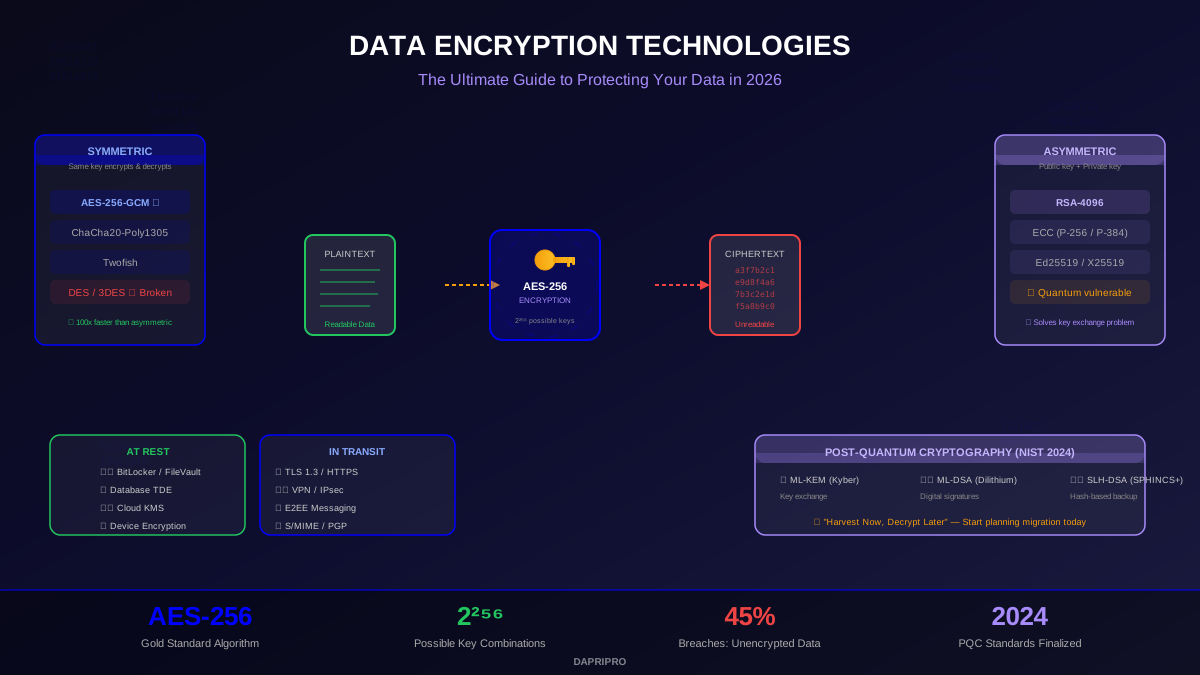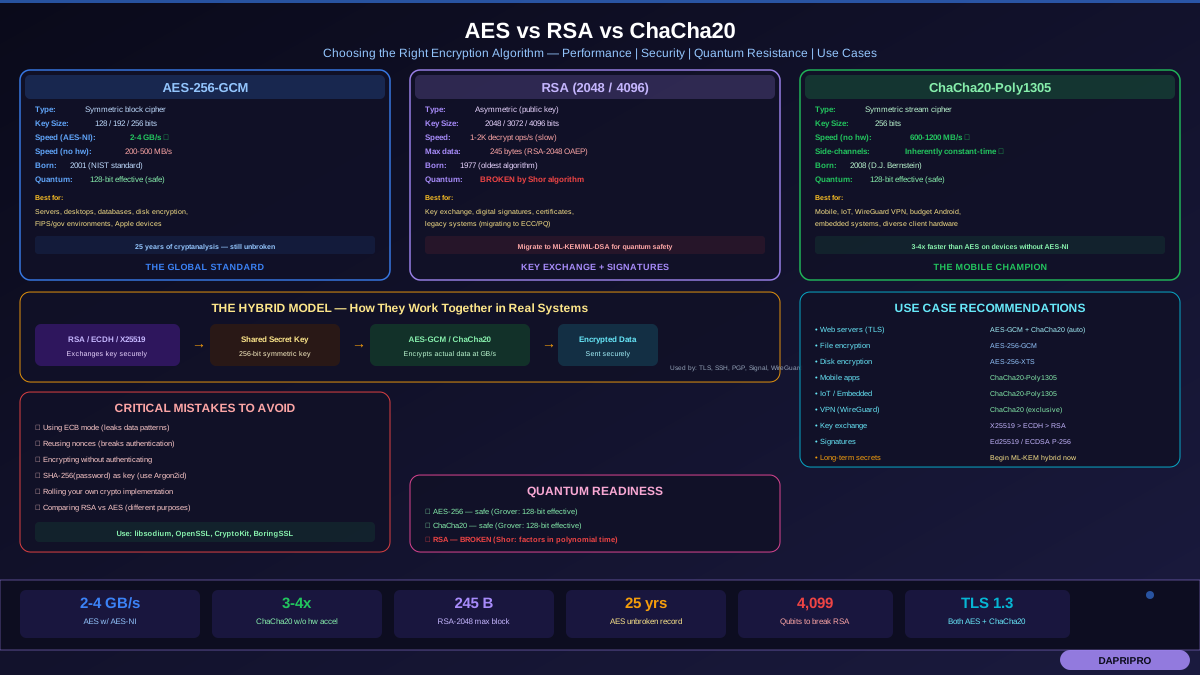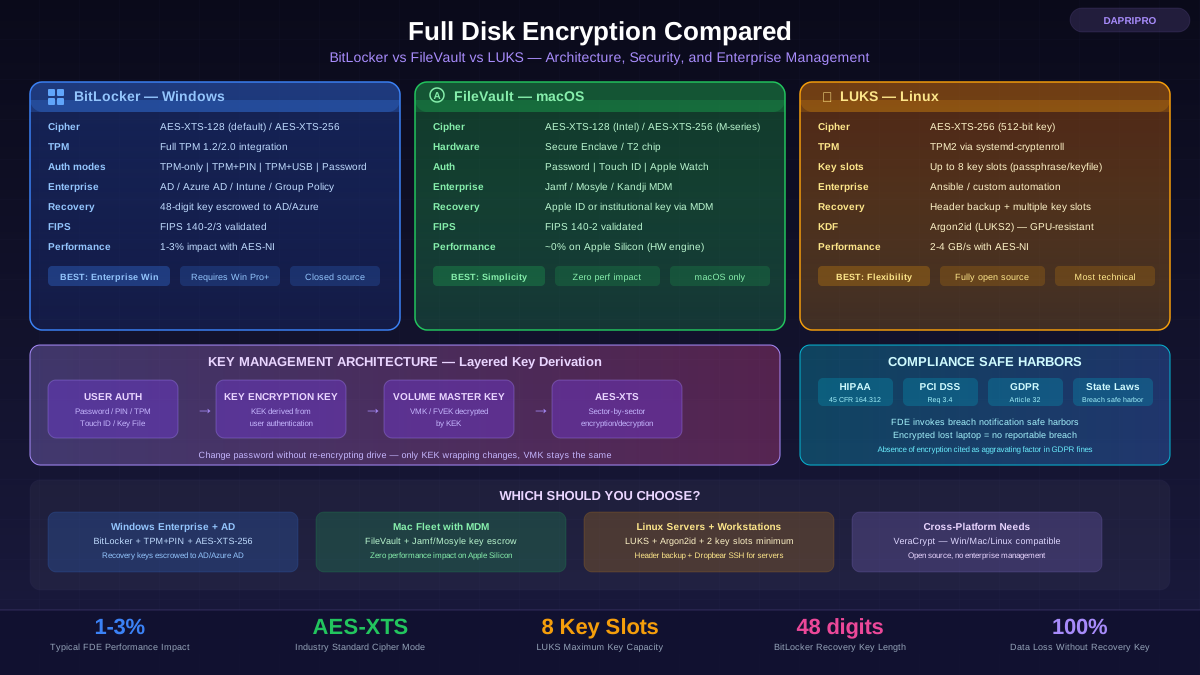

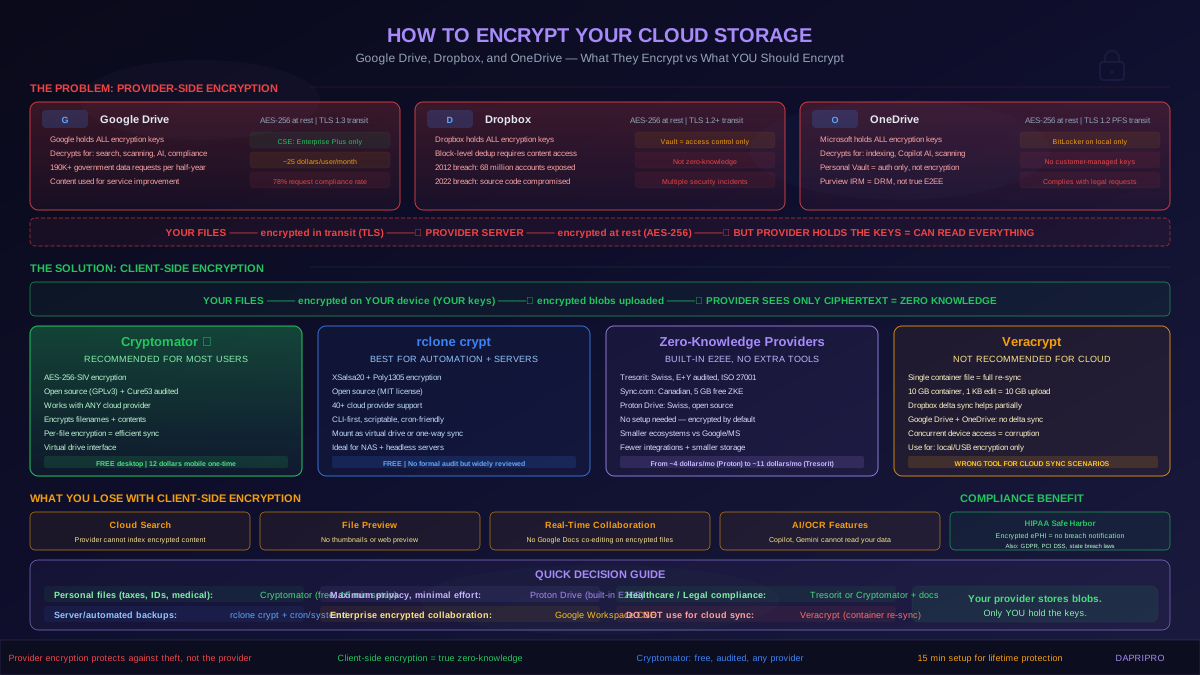
You trust Google Drive, Dropbox, or OneDrive with your files because they promise encryption. And they deliver — your files are encrypted at rest with AES-256 and encrypted in transit with TLS. What they do not advertise prominently is who holds the encryption keys. In every case, the cloud provider holds the keys. They can decrypt your files whenever they choose, hand them to law enforcement on demand, scan them for policy violations, and use them for AI training or service improvement. Your files are encrypted against external attackers stealing hard drives from data centers. They are not encrypted against the provider itself.
This distinction matters more than most people realize. A Google engineer with the right internal access can read your files. A Dropbox breach that compromises internal systems exposes plaintext data. A government subpoena returns your actual documents, not encrypted blobs. If you store medical records, legal documents, financial statements, trade secrets, or anything genuinely sensitive in cloud storage, provider-side encryption is security theater for the threats that actually matter.
This guide explains exactly how each major cloud provider handles encryption, why it is insufficient for true confidentiality, and how to add client-side encryption that gives you — and only you — control of the keys.
How Major Cloud Providers Actually Handle Encryption
Google Drive encryption architecture
Google Drive encrypts files at rest using AES-256 in a multi-layer key system. Each file is split into chunks, each chunk encrypted with its own data encryption key (DEK), and each DEK is encrypted with a key encryption key (KEK) managed by Google's internal Key Management Service. The KEKs are further protected by the KMS master key. This is solid cryptographic engineering against physical theft or unauthorized storage access.
However, Google's systems routinely decrypt your files for: content indexing and search (Google reads your documents to make them searchable), malware scanning (every uploaded file is decrypted and scanned), policy enforcement (detecting ToS violations, CSAM, copyright infringement), and optional AI features (Smart Compose suggestions, Gemini integration). Google states it does not use personal Google Drive content for advertising targeting, and Workspace customers get additional data processing agreements. But the technical capability to read your files exists and is actively used for the listed purposes.
Google also complies with law enforcement requests. Google's Transparency Report shows it received over 190,000 government requests for user data in the first half of 2024 and complied with approximately 78 percent of them. When Google receives a valid subpoena or court order for your Drive data, it decrypts and provides the requested files.
Google Workspace Client-Side Encryption (CSE): Google offers a genuine client-side encryption option, but only for Workspace Enterprise Plus, Education Plus, and Education Standard plans. CSE integrates with an external Identity Provider and Key Management Service (Thales CipherTrust, Futurex, Flowcrypt, Virtru, or Stormshield). Files are encrypted in the browser before uploading to Google servers, and Google never receives the plaintext data or keys. CSE supports Google Docs, Sheets, Slides, Drive file uploads, Gmail, Calendar, and Meet. The limitation is the Enterprise Plus pricing — roughly 25 dollars per user per month — making it impractical for personal use or small teams.
Dropbox encryption architecture
Dropbox uses AES-256 for files at rest, stored across block servers in Amazon S3 and Dropbox's own infrastructure. Files are split into 4 MB blocks, each block hashed (SHA-256) and encrypted separately. Metadata (filenames, timestamps, sharing information) is stored in a separate MySQL database, also encrypted but accessible to Dropbox systems.
Dropbox uses block-level deduplication — before uploading a file, the client sends the SHA-256 hash to check if Dropbox already has that block. This is efficient for storage but means identical file blocks across different users share the same encrypted storage. This deduplication is incompatible with client-side encryption (since encrypted files produce unique hashes regardless of content), which is one reason Dropbox does not offer built-in zero-knowledge encryption for regular storage.
Dropbox has had notable security incidents: the 2012 breach exposed 68 million user credentials (disclosed in 2016), a 2022 phishing attack compromised Dropbox source code repositories, and in 2023 Dropbox Sign (formerly HelloSign) suffered a breach exposing customer email addresses and hashed passwords. Dropbox complies with law enforcement requests and publishes a transparency report showing several hundred government data requests per year.
Dropbox Vault: Dropbox offers a PIN-protected folder called Vault for sensitive files, adding an extra authentication layer. However, Vault does not add encryption beyond the standard AES-256 — it is an access control feature, not a cryptographic one. Dropbox still holds the encryption keys for files in Vault.
OneDrive encryption architecture
Microsoft OneDrive uses AES-256 encryption at rest, with each file encrypted using a unique per-file key, and per-file keys encrypted by a per-container key stored in Azure Key Vault. In transit, OneDrive uses TLS 1.2 with perfect forward secrecy. Microsoft's architecture uses BitLocker for volume-level encryption on the underlying storage disks as an additional layer.
Microsoft's approach to data access is similar to Google's: files are decrypted for content indexing, malware scanning, policy compliance checks, and optional AI features (Microsoft 365 Copilot). Microsoft 365 E5 plans include Microsoft Purview Information Protection, which offers encryption with customer-managed keys — but this is a labeling and rights management system (IRM/DRM), not true client-side encryption. Microsoft (and administrators) can still access content under certain conditions.
OneDrive Personal Vault: Similar to Dropbox Vault, OneDrive offers a Personal Vault folder that requires additional identity verification (fingerprint, face, PIN, or two-factor authentication) to access. Files in Personal Vault are encrypted with BitLocker on Windows devices. However, Microsoft still holds the server-side encryption keys — Personal Vault is primarily an access control enhancement, not a zero-knowledge encryption solution.
Client-Side Encryption: Taking Back Control of Your Keys
Client-side encryption (also called zero-knowledge encryption or end-to-end encryption for files) solves the fundamental problem with cloud provider encryption by encrypting files on your device before they leave your computer. The cloud provider receives only encrypted blobs — it cannot read filenames, file contents, or file metadata. If the provider is breached, subpoenaed, or compromised by an insider, attackers get encrypted data that is computationally useless without your key.
Cryptomator: the recommended open-source solution
Cryptomator is a free, open-source encryption tool specifically designed for cloud storage. It works by creating an encrypted vault inside your existing cloud sync folder (Google Drive, Dropbox, OneDrive, iCloud, or any folder). When you unlock the vault with your password, Cryptomator presents a virtual drive containing your decrypted files. When you lock the vault, only encrypted files exist in the sync folder.
How Cryptomator encrypts: File contents are encrypted with AES-256-SIV (a misuse-resistant authenticated encryption mode). Filenames are encrypted and Base64-encoded, so the cloud provider cannot see what your files are called. Directory structures are flattened and obfuscated — the actual folder hierarchy inside your vault is not visible in the encrypted directory structure. Each file is stored as a separate encrypted file in the sync folder, meaning only changed files need to sync (unlike Veracrypt containers where the entire container re-syncs on any change).
Setting up Cryptomator with Google Drive:
1. Download Cryptomator from cryptomator.org (available for Windows, macOS, Linux). 2. Open Cryptomator and click "Add Vault" then "Create New Vault." 3. Choose a vault name and select your Google Drive sync folder as the storage location (e.g., G:My DriveCryptomatorVault or ~/Google Drive/CryptomatorVault). 4. Create a strong password (use your password manager to generate one). 5. Optionally save the recovery key (a base64 string that can decrypt the vault if the password is lost — store this securely, not in the vault). 6. Click "Unlock" to mount the virtual drive. 7. Move or save sensitive files to the virtual drive. Files are encrypted automatically as they are written. 8. Lock the vault when done. The encrypted files sync to Google Drive as normal encrypted blobs.
Setting up Cryptomator with Dropbox: The process is identical — choose your Dropbox sync folder as the vault location. Dropbox's block-level sync works well with Cryptomator because each encrypted file is a separate file. Changed files sync individually rather than re-uploading the entire vault.
Setting up Cryptomator with OneDrive: Same process. Select the OneDrive sync folder. Note that OneDrive's Files On-Demand feature requires files to be downloaded (pinned) before Cryptomator can decrypt them. You may need to disable Files On-Demand for the vault folder or ensure files are set to "Always keep on this device."
Cryptomator limitations: No cloud-based file search (the provider cannot index encrypted content). No file preview in the web/mobile interface (you see encrypted blobs, not thumbnails). No real-time collaboration (Google Docs collaborative editing does not work on encrypted files). Mobile apps are paid (approximately 12 dollars one-time per platform). Performance overhead for very large vaults (10,000+ files) due to filename encryption and virtual filesystem overhead.
Cryptomator has been independently audited by Cure53 (2017 and subsequent updates), with findings publicly disclosed and remediated. The source code is available on GitHub under GPLv3 license.
rclone crypt: command-line encryption for power users
rclone is an open-source command-line tool often described as "rsync for cloud storage." Its crypt backend provides transparent encryption for any rclone-supported cloud provider (over 40 providers including Google Drive, Dropbox, OneDrive, S3, Backblaze B2, and SFTP). rclone crypt encrypts file contents (XSalsa20 with Poly1305 authentication) and optionally encrypts filenames (AES-EME).
Setting up rclone crypt with Google Drive:
Run the rclone configuration wizard: first, configure your Google Drive remote as usual. Then, create a crypt remote that wraps the Google Drive remote. When configuring the crypt remote, rclone prompts for two passwords: the main password (encrypts file contents and names) and a salt password (adds additional entropy to filename encryption). Both should be strong passwords stored in your password manager.
Once configured, you use the crypt remote exactly like any other rclone remote. Running the sync command with your crypt remote encrypts files before uploading to Google Drive, and the mount command creates a virtual drive that decrypts transparently.
rclone crypt advantages: Works with 40+ cloud providers. Scriptable and automatable for backup workflows. Supports mounting as a virtual drive (like Cryptomator) or one-way sync. No GUI overhead — ideal for servers, NAS devices, and headless systems. Free and open-source (MIT license). Excellent for automated encrypted backups (run with cron or systemd timer).
rclone crypt limitations: Command-line only by default (GUIs like rclone-browser exist but are community-maintained). Configuration requires understanding rclone's remote concept. The two-password model means losing both passwords renders data unrecoverable. No formal third-party security audit (though the codebase is widely reviewed by the open-source community).
Veracrypt: why it is not ideal for cloud storage
Veracrypt is an excellent full-disk and container encryption tool, but it is poorly suited for cloud storage. Veracrypt creates a single encrypted container file (a virtual disk image). Any change to any file inside the container modifies the container file. Cloud sync clients detect the container as a changed file and upload the entire container. For a 10 GB Veracrypt container, editing a 1 KB text file inside it could trigger a 10 GB upload.
Some cloud providers handle this better than others. Dropbox uses block-level delta sync and only uploads changed blocks of the container file (typically a few MB instead of the full container). Google Drive and OneDrive do not support block-level delta sync for arbitrary files — they upload the entire changed file. Even with Dropbox's delta sync, the container must be unmounted before syncing (otherwise the file is locked), and concurrent access from multiple devices is not supported (container corruption risk).
Veracrypt is the right tool for: encrypting USB drives, encrypting local partitions, creating encrypted containers for local storage, and full-disk encryption on systems where BitLocker/FileVault/LUKS is not available. For cloud storage, use Cryptomator or rclone crypt instead.
Zero-Knowledge Cloud Providers: Built-In Client-Side Encryption
An alternative to encrypting files yourself is choosing a cloud provider that offers zero-knowledge encryption by default. These providers encrypt on your device, never hold your keys, and cannot access your data even if subpoenaed.
Tresorit: End-to-end encrypted cloud storage based in Switzerland (favorable privacy jurisdiction). AES-256 client-side encryption, zero-knowledge architecture, independently audited by Ernst and Young. Supports real-time collaboration on encrypted documents (a significant advantage over Cryptomator). Compliance certifications include ISO 27001, SOC 2, HIPAA, and GDPR. Plans start at approximately 11 dollars per month for 1 TB. Tresorit was acquired by Swiss Post in 2021.
Sync.com: Canadian zero-knowledge encrypted storage. AES-256 client-side encryption, never accesses your data. Free plan includes 5 GB encrypted storage. Paid plans from approximately 8 dollars per month for 2 TB. Has been independently audited and complies with Canadian privacy laws (PIPEDA) and GDPR. Note: web access requires downloading and decrypting in the browser, which is slower than native desktop client access.
Proton Drive: From the makers of ProtonMail, based in Switzerland. End-to-end encrypted with elliptic curve cryptography (curve25519 + AES-256). Integrates with the Proton ecosystem (Mail, Calendar, VPN, Pass). Free plan includes 5 GB shared across all Proton services. Paid plans from approximately 4 dollars per month for 200 GB. Open-source client apps.
The tradeoff with zero-knowledge providers is ecosystem integration. Google Drive integrates deeply with Google Workspace (Docs, Sheets, Slides, Gmail). OneDrive integrates with Microsoft 365. Dropbox integrates with Dropbox Paper and extensive third-party apps. Zero-knowledge providers have smaller ecosystems and fewer integrations. For most people, the practical choice is using a mainstream provider with Cryptomator for sensitive files rather than migrating entirely to a zero-knowledge provider.
Compliance and Legal Implications
HIPAA and protected health information
HIPAA requires encryption of electronic protected health information (ePHI) at rest and in transit as an addressable safeguard under the Security Rule. Storing ePHI in Google Drive, Dropbox, or OneDrive with only provider-side encryption is insufficient unless you have a Business Associate Agreement (BAA) with the provider (Google Workspace, Microsoft 365, and Dropbox Business all offer BAAs). However, even with a BAA, the provider has access to the plaintext data, making them a business associate subject to HIPAA breach notification requirements.
Adding client-side encryption with customer-managed keys strengthens your HIPAA posture: the cloud provider becomes a storage vendor handling encrypted data, not a business associate processing ePHI. If the provider is breached, the exposed data is encrypted and unusable without your keys. The HHS has stated that encrypted data rendered "unusable, unreadable, or indecipherable" is excluded from breach notification requirements under the HIPAA Safe Harbor provision.
GDPR and data residency
For EU organizations or those processing EU personal data, cloud provider encryption with provider-held keys means the provider is a data processor with access to personal data. This triggers data processing agreement requirements, potential cross-border data transfer concerns (especially for US-based providers under the EU-US Data Privacy Framework), and data subject access request obligations.
Client-side encryption complicates GDPR compliance in an interesting way: if the provider cannot access personal data (because it is encrypted with your keys), some practitioners argue the provider is not technically processing personal data. This position is debated among data protection authorities, but client-side encryption unquestionably reduces GDPR risk by limiting the exposure surface and reducing the number of parties with access to personal data.
Breach notification safe harbors
Most US state breach notification laws and the HIPAA Breach Notification Rule include safe harbors for encrypted data. If stolen data was encrypted with keys that were not compromised in the same breach, notification may not be required. For cloud storage, this safe harbor only applies if you use client-side encryption — if the cloud provider is breached and they held the encryption keys, the safe harbor does not apply because the keys were compromised along with the data.
Practical Recommendations by Use Case
Personal sensitive files (taxes, IDs, medical records): Install Cryptomator on your desktop, create a vault in your Google Drive or OneDrive sync folder, move sensitive files into the vault. Total cost: free. Total setup time: 15 minutes. Store your vault password in your password manager.
Small business confidential documents: Cryptomator for individual machines, or Google Workspace Enterprise Plus with Client-Side Encryption if your team needs encrypted collaboration. For automated server backups, rclone crypt to any S3-compatible storage (Backblaze B2 at 6 dollars per TB per month is cost-effective).
Healthcare and legal organizations: Client-side encryption is essential. Use Google Workspace CSE, Tresorit Business, or Cryptomator with documented key management procedures. Ensure your encryption solution is included in your HIPAA risk assessment and security policies. Document that the cloud provider never has access to plaintext ePHI.
Maximum privacy with minimal effort: Use Proton Drive as your primary cloud storage. End-to-end encrypted by default, no additional tools needed, Swiss jurisdiction, open-source clients. Accept the smaller ecosystem and fewer integrations as the cost of built-in privacy.
Technical users and developers: rclone crypt for cloud backups (automate with cron or systemd). Use rclone with Google Drive, S3, or Backblaze B2 as the backend. Encrypt everything with rclone crypt overlay. Script automated backups of code repositories, databases, and configuration files with encrypted cloud storage as the destination.
The cloud storage encryption problem has a clear solution: add client-side encryption so that your cloud provider is a blind storage service, not a business partner with a master key to your data. The tools are free, the setup takes minutes, and the protection is genuine. The only thing you lose is the convenience of cloud-based search and preview for your encrypted files — and for sensitive data, that is a tradeoff worth making every time.