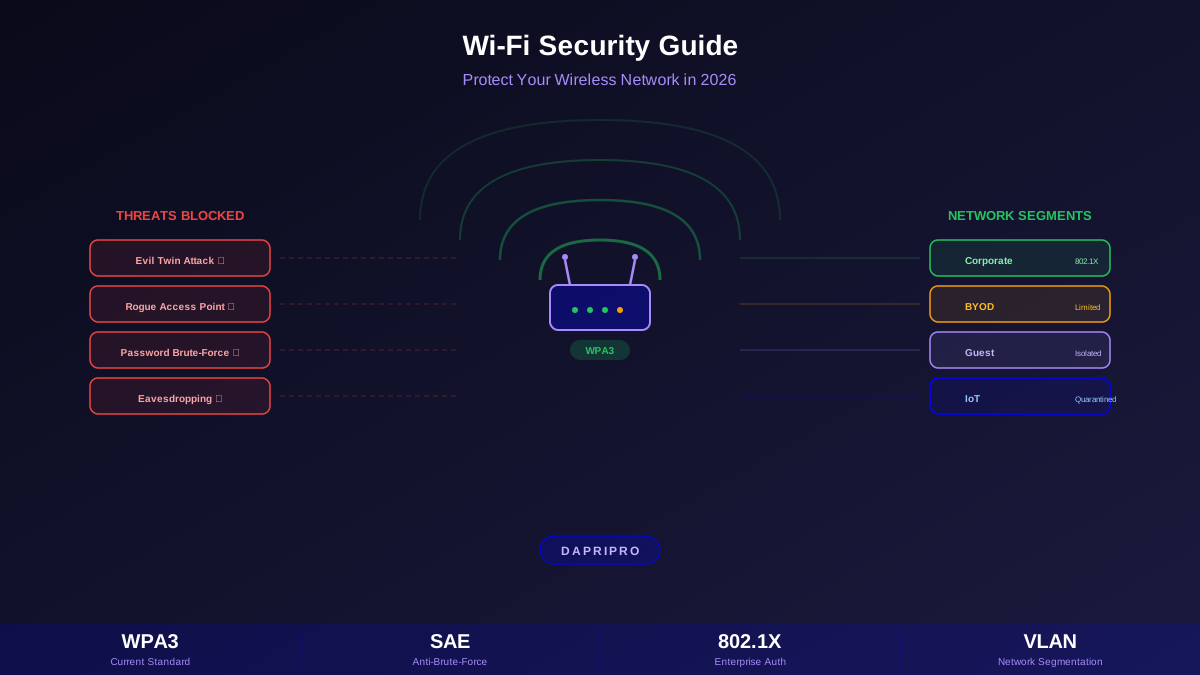

A rogue access point is the simplest and most effective way to bypass every security control your organization has deployed. Your firewall, intrusion detection system, web proxy, DLP solution, and network segmentation — all of it becomes irrelevant when someone plugs an unauthorized wireless access point into an Ethernet port behind your perimeter. The rogue AP creates a direct wireless bridge into your network, accessible to anyone within radio range. No VPN required. No credentials needed (or weak ones at best). No logs generated in your security stack.
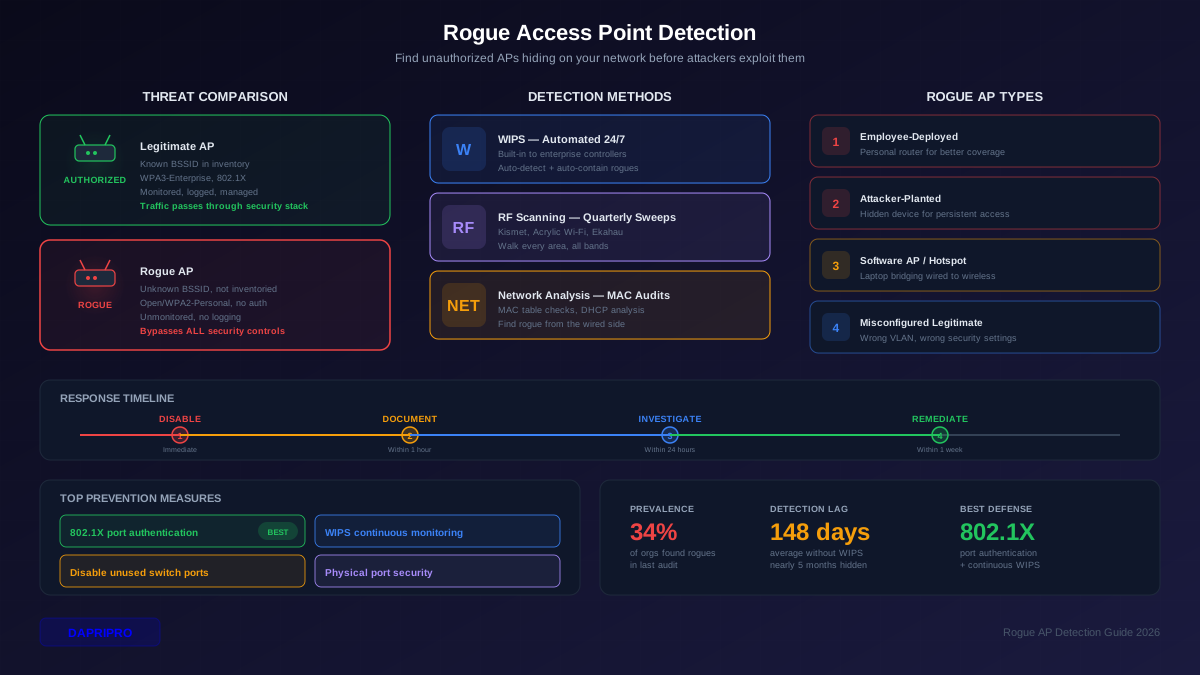
The scariest part: rogue APs are common, often undetected for months, and frequently placed by employees rather than attackers. A 2025 wireless security survey found that 34% of organizations discovered at least one unauthorized access point on their network during routine audits. The average time to detection without a Wireless Intrusion Prevention System (WIPS) was 148 days. This guide covers how to find them before someone exploits them.
What Makes Rogue APs So Dangerous
Your security architecture assumes that all network access passes through controlled entry points — the firewall for internet traffic, the VPN gateway for remote users, 802.1X for authenticated wireless. A rogue AP violates this fundamental assumption. It creates an uncontrolled entry point that your security stack does not monitor and cannot protect.
Consider what happens when an employee plugs a consumer Wi-Fi router into the Ethernet port in their cubicle. The router broadcasts an open network (or one with a simple password like "guest123"). Anyone in the parking lot can connect. That connection drops them directly onto your internal network, on the same VLAN as the employee's workstation. They can reach file shares, printers, internal web applications, and potentially domain controllers — all without triggering a single alert in your SIEM.
Attackers know this. Dropping a small, preconfigured rogue AP during a physical penetration test (or a real attack) is a classic technique. A tiny device like a Raspberry Pi with a wireless adapter and battery can be hidden behind a desk, in a ceiling tile, or inside a conference room and provide persistent wireless access to an attacker for days or weeks. These devices cost less than 50 dollars and can be configured in minutes.
Types of Rogue Access Points
Employee-deployed APs: Workers who bring personal routers, travel routers, or wireless range extenders to improve coverage. Well-intentioned but dangerous because these devices typically have weak security, no logging, and bridge directly to your internal network.
Attacker-planted APs: Devices deliberately placed to provide backdoor access. These may be tiny, battery-powered, and hidden in hard-to-find locations. They often use directional antennas to provide connectivity from a parking lot or nearby building.
Software APs: A laptop or phone creating a hotspot that bridges to the wired network. Windows "Mobile Hotspot" and macOS "Internet Sharing" can turn any wired connection into a wireless access point with a few clicks. These are harder to detect through RF scanning because they use standard client wireless adapters.
Misconfigured legitimate APs: Your own access points with incorrect VLAN mapping, security settings, or an error that places them on the wrong network segment. These are authorized devices being unintentionally rogue.
Detection Method 1: Wireless Intrusion Prevention System (WIPS)
WIPS is the most effective automated method for detecting rogue access points. Enterprise wireless controllers from Cisco, Aruba, Meraki, and others include WIPS functionality that runs continuously on your existing access points.
How WIPS Detects Rogues
Your legitimate access points periodically scan all wireless channels (not just the ones they serve clients on) and report every AP they detect to the wireless controller. The controller maintains a list of your authorized APs. Any detected AP whose BSSID (MAC address) does not appear in the authorized list is flagged as a potential rogue.
The controller then classifies the detected AP based on several criteria:
- Is it on your network? The WIPS checks if the rogue AP's wired-side MAC address appears in your switch MAC address tables. If the AP is plugged into one of your switch ports, it is a confirmed rogue (versus a neighbor's AP that happens to be within range).
- Is it using your SSID? An unknown AP broadcasting your corporate SSID is classified as a potential evil twin — requires immediate investigation.
- What security does it use? An AP broadcasting an open network or WPA-Personal near your premises with your SSID is suspicious.
- How strong is the signal? A very strong signal suggests the AP is inside your building. A weak signal likely means a neighbor's AP bleeding through the walls.
Automatic Containment
Most enterprise WIPS systems can automatically contain detected rogue APs. Containment works by sending 802.11 deauthentication frames to any client that attempts to connect to the rogue AP. The legitimate AP impersonates the rogue AP and tells the client to disconnect. This prevents any client from successfully using the rogue AP.
Automatic containment should be configured carefully. You do not want your system containing a neighbor's legitimate AP — that could constitute a denial-of-service attack and is illegal in many jurisdictions. Configure automatic containment only for APs that meet specific criteria: broadcasting your SSID without authorization, or confirmed as plugged into your network infrastructure. For all other suspicious APs, set the WIPS to alert only and investigate manually.
Detection Method 2: Manual RF Scanning
Automated WIPS catches most rogue APs, but manual RF scanning provides deeper visibility and catches scenarios that WIPS might miss — like software APs, Bluetooth bridges, or APs on channels your legitimate APs do not scan.
Tools for RF Scanning
Kismet: Open-source wireless network detector and sniffer. Runs on Linux and supports a wide range of wireless adapters. Kismet passively monitors all wireless traffic on specified channels, identifying every AP and client device it sees. It can detect hidden SSIDs, decrypt WEP traffic, and log detailed packet data for analysis. Best for thorough security audits.
Acrylic Wi-Fi Professional: Windows-based wireless analyzer that provides a visual map of all detected APs with signal strength, channel, security type, and manufacturer information. The professional version includes rogue AP detection with custom rules. More user-friendly than Kismet, ideal for IT teams without deep wireless expertise.
WiFi Analyzer (Android): Free app that shows all APs visible from a mobile device. Walk through your facility and look for unknown SSIDs with strong signals. Not as capable as dedicated tools, but good for quick checks between formal audits.
Fluke AirCheck G3 / Ekahau Sidekick: Dedicated wireless analysis hardware. These purpose-built devices provide professional-grade RF analysis with spectrum analysis capability — they can detect non-Wi-Fi interference and signals that software tools miss. Best for large enterprise environments that conduct regular wireless audits.
Conducting an RF Sweep
Walk through every area of your facility with your scanning tool. Pay special attention to areas with accessible Ethernet ports: conference rooms, lobbies, meeting spaces, and areas near public-accessible network drops. Check both 2.4 GHz and 5 GHz bands (and 6 GHz for Wi-Fi 6E environments).
Compare the list of detected APs against your authorized AP inventory. Document every AP that you cannot identify. For each unknown AP, note the SSID, BSSID, channel, signal strength, security type, and approximate location (based on signal strength as you walk). Strong signals indicate the AP is nearby — triangulate between multiple scanning locations to narrow down its physical position.
Check your switch MAC address tables for the BSSID or the AP's wired MAC address. If you find it on one of your switch ports, you have located the rogue. Shut down the switch port and physically locate the device.
Detection Method 3: Wired Network Analysis
RF scanning finds rogue APs from the wireless side. You can also detect them from the wired side by looking for signs of unauthorized wireless devices on your network.
MAC Address Table Analysis
Wireless access points have distinctive MAC address patterns. Most AP manufacturers use specific OUI (Organizationally Unique Identifier) prefixes. Run a report on your switch MAC address tables and look for MAC addresses from known AP manufacturers that are not in your authorized inventory. Tools like nmap can also identify device types through OS fingerprinting.
DHCP Lease Analysis
Check your DHCP server for unusual hostname patterns. Consumer APs often have hostnames like "NETGEAR-AP," "Linksys," "TP-Link," or "Archer." Unknown hostnames requesting IP addresses on your corporate VLANs warrant investigation.
802.1X Port Authentication
The most effective wired-side prevention is 802.1X port authentication on your switch ports. With 802.1X configured, a switch port remains in an unauthorized state until the connected device successfully authenticates. An employee plugging in a personal router will not get network access because the router cannot perform 802.1X authentication.
Deploy 802.1X port authentication on all access-layer switch ports. Use MAB (MAC Authentication Bypass) for devices that cannot perform 802.1X (printers, cameras) with a whitelist of authorized MAC addresses. Ports that fail authentication can be placed on a quarantine VLAN or shut down entirely. This does not detect rogue APs already in place, but it prevents new ones from being deployed.
Responding to a Detected Rogue AP
When you find an unauthorized access point, the response depends on whether it was placed maliciously or accidentally.
Immediate Response
First, disable the switch port the rogue AP is connected to. This immediately cuts off network access through the unauthorized device. If you cannot identify the switch port, use WIPS containment to prevent client connections while you locate the physical device.
Document everything: BSSID, SSID, security configuration, switch port, physical location, and who discovered it. Preserve any logs from the rogue AP if possible. Check your SIEM and network logs for any suspicious activity that may have occurred through the rogue AP during the time it was active.
Investigation
Determine whether the rogue AP was employee-placed or attacker-placed. Employee-placed APs are usually consumer-grade devices in obvious locations (on desks, plugged into visible Ethernet ports) with default or simple configurations. Attacker-placed APs are more likely to be hidden, may use modified firmware, and may have out-of-band (cellular) communication channels.
For employee-placed APs, this is a policy and training issue. The employee likely wanted better Wi-Fi coverage. Address the underlying need (better legitimate coverage) while reinforcing the policy against unauthorized network devices. For attacker-placed APs, treat this as a security incident. Engage your incident response team. Assume that any data accessible from the network was potentially compromised during the time the rogue AP was active.
Prevention: Stopping Rogue APs Before They Appear
Detection catches rogue APs after deployment. Prevention stops them from being viable in the first place.
802.1X Switch Port Authentication
This is the single most effective prevention measure. When every switch port requires 802.1X authentication before granting network access, an unauthorized device plugged into any port gets nothing — no IP address, no network connectivity, no bridge to exploit. Deploy 802.1X on all access-layer switch ports. The effort is significant but eliminates the entire category of wired-side rogue AP attacks.
Port Security and MAC Limiting
If full 802.1X port authentication is not feasible, configure port security as a partial mitigation. Limit each switch port to one MAC address (or a small number for ports with known multi-device scenarios). When a switch port sees more MAC addresses than configured (as it would when a rogue AP bridges multiple wireless clients), it shuts down the port or enters a restricted mode. This does not prevent a rogue AP from connecting, but it limits the damage by blocking multiple clients from passing through.
Physical Port Security
Disable unused switch ports in your switch configuration. If a port is not assigned to a device, shut it down administratively. Physically secure Ethernet ports in public or visitor-accessible areas — use port locks, place switches in locked cabinets, and remove Ethernet drops from areas where visitors should not need wired access. Simple physical controls prevent the most common rogue AP deployment scenario: an employee or visitor plugging a device into a convenient but unsecured Ethernet port.
Policy and Training
Your acceptable use policy should explicitly prohibit connecting unauthorized wireless devices to the network. Include personal routers, travel routers, wireless range extenders, and software access points (hotspot features). Make sure employees understand why this matters — not just "it is against policy" but "it creates an unmonitored backdoor that bypasses every security control we have."
Address the underlying need that drives employees to deploy rogue APs. If people are bringing personal routers because the Wi-Fi coverage is bad in their area, fix the coverage problem. Adding a legitimate AP with proper security is always better than waiting for an employee to create their own insecure solution.
Building a Continuous Detection Program
Rogue AP detection is not a one-time activity. New devices get plugged in regularly. Employees change roles and locations. Attackers wait for gaps in monitoring. Your detection program needs to be continuous.
Deploy WIPS on all production APs. This provides 24/7 automated scanning. Configure alerts for new unknown APs, APs using your SSID, and any AP detected on your wired network. Route alerts to your security operations center or the responsible IT team. Review and classify alerts within 24 hours.
Run quarterly manual RF sweeps. Walk the entire facility with a wireless scanner. Focus on areas that WIPS coverage might miss and areas with high visitor traffic. Document every detected AP and compare against your authorized inventory. Update your authorized AP list as part of each sweep.
Monthly MAC table audits. Export your switch MAC address tables and cross-reference against your asset inventory. Look for unknown devices, AP-manufacturer OUIs, and ports with unexpectedly many MAC addresses. Automate this with a script that flags anomalies and emails a report.
Maintain a current AP inventory. You cannot detect unauthorized APs if you do not know which APs are authorized. Maintain a list of every legitimate AP with BSSID, location, switch port, and purpose. Update this list immediately when APs are added, moved, or decommissioned. The WIPS uses this list to distinguish legitimate APs from rogues — an incomplete list generates false positives (and worse, false negatives if the rogue AP happens to be classified as legitimate because someone forgot to remove a decommissioned AP from the list).