
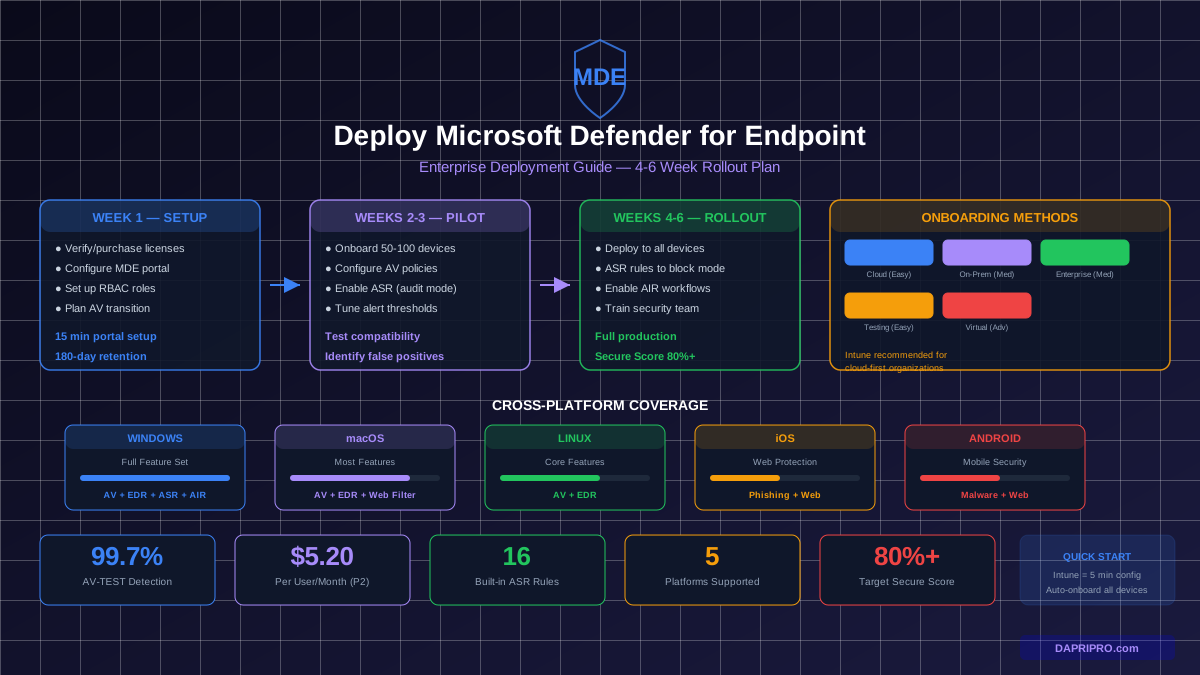
Think of Microsoft Defender for Endpoint (MDE) as a security camera system for every device in your company. It watches everything happening on each laptop, desktop, and server — and alerts you the moment something suspicious happens. But a security camera only works if you actually install it. That is what this guide is about.
MDE is not just antivirus. It includes Endpoint Detection and Response (EDR), threat hunting, automated investigation, and attack surface reduction. And because Microsoft makes both the operating system and the security product, they integrate more deeply than any third-party tool can.
Why Choose Microsoft Defender for Endpoint in 2026?
MDE has evolved from a basic Windows antivirus into a serious enterprise security platform. Here is how it stacks up:
| Feature | MDE Plan 2 | CrowdStrike Falcon | SentinelOne |
|---|---|---|---|
| AV-TEST Detection Rate | 99.7% | 99.8% | 99.6% |
| Cost per user/month | $5.20 (standalone) | $8.99+ | $6-18 |
| Included in M365 E5 | Yes | No | No |
| Windows Integration | Native (OS-level) | Agent-based | Agent-based |
| macOS/Linux Support | Yes | Yes | Yes |
| Mobile Support | iOS + Android | iOS + Android | iOS + Android |
| Automated Investigation | Yes (AI-powered) | Yes | Yes |
| Attack Surface Reduction | 16 built-in rules | Custom rules | Custom rules |
Best value scenario: If your organization already uses Microsoft 365 E3, upgrading to E5 adds MDE Plan 2 plus Defender for Identity, Defender for Cloud Apps, and more — often cheaper than buying a standalone EDR product separately.
Step 1: Licensing and Prerequisites
Before you touch a single device, sort out licensing and access. Here is what you need:
License Options
| License | MDE Plan | Key Features | Price/User/Month |
|---|---|---|---|
| Microsoft 365 E3 | Plan 1 | AV, ASR, device control | $36 |
| Microsoft 365 E5 | Plan 2 | Plan 1 + EDR + threat hunting | $57 |
| MDE P1 Standalone | Plan 1 | AV, ASR, device control | $3 |
| MDE P2 Standalone | Plan 2 | Full EDR + all features | $5.20 |
| M365 E5 Security Add-on | Plan 2 | Full EDR (add to E3) | $12 |
Prerequisites Checklist
- Azure AD tenant — Every M365 subscription has one
- Global Admin or Security Admin role — needed for initial portal setup
- Supported OS versions — Windows 10 1709+, Windows 11, Server 2012 R2+, macOS 12+, supported Linux distros
- Network connectivity — Devices must reach Microsoft cloud endpoints (list available in Microsoft docs)
- Uninstall third-party AV — or plan for passive mode during transition
Step 2: Portal Setup and Configuration
The Microsoft Defender portal at security.microsoft.com is your command center. Here is how to set it up.
Initial Portal Configuration (15 minutes)
- Navigate to security.microsoft.com — Sign in with Global Admin credentials
- Go to Settings, then Endpoints, then General, then Advanced Features — turn on these critical settings:
- Automated Investigation — let MDE auto-investigate alerts
- Live Response — enables remote investigation on devices
- Auto-resolve alerts — reduces alert fatigue by closing confirmed false positives
- Custom network indicators — block specific IPs and URLs across all devices
- Set up role-based access control (RBAC) — create roles for:
- Security Admins (full access)
- Security Operators (can respond to alerts)
- Security Readers (view-only for management dashboards)
- Configure data retention — set to 180 days (maximum) for EDR data. You cannot get this data back once it expires.
Step 3: Choose Your Onboarding Method
Onboarding is how devices connect to the MDE service. Microsoft gives you several options based on how your devices are managed.
| Method | Best For | Difficulty | Scale |
|---|---|---|---|
| Microsoft Intune | Cloud-managed devices (Azure AD joined) | Easy | Thousands of devices |
| Group Policy (GPO) | On-premises AD domain-joined devices | Moderate | Hundreds to thousands |
| SCCM/MECM | Enterprise with existing SCCM setup | Moderate | Tens of thousands |
| Local Script | Individual devices, labs, testing | Easy | 1-50 devices |
| VDI script | Virtual desktop infrastructure | Advanced | VDI pools |
Method 1: Intune Onboarding (Recommended for Cloud-First Orgs)
This is the simplest method if your devices are already enrolled in Intune. It takes about 5 minutes to configure and then automatically onboards every enrolled device.
- Go to Microsoft Intune admin center then Endpoint security then Microsoft Defender for Endpoint
- Set "Connect Windows devices to Microsoft Defender for Endpoint" to On
- A configuration profile is automatically created and assigned to all Windows devices
- Devices onboard within 15-30 minutes of their next Intune check-in
Method 2: Group Policy Onboarding
- Download the onboarding package from security.microsoft.com, then Settings, then Endpoints, then Onboarding
- Select "Group Policy" as the deployment method
- Extract the package — it contains a .xml file with your organization's unique onboarding settings
- Create a new GPO: Computer Configuration then Policies then Administrative Templates then Windows Components then Microsoft Defender ATP then Onboarding
- Import the configuration file and link the GPO to target OUs
Method 3: Local Script (for Testing)
- Download the local onboarding script from the MDE portal
- Run the .cmd file as Administrator on the target device
- Wait 5-10 minutes for the device to appear in the portal
- Verify status: Run
sc query sense— the service should show as RUNNING
Step 4: Configure Security Policies
Onboarding devices is only half the battle. Now you need to configure what MDE actually does on those devices.
Antivirus Settings
In Intune, go to Endpoint security then Antivirus then Create profile. Set these settings:
- Cloud-delivered protection — Enabled (sends suspicious files to Microsoft cloud for analysis)
- Cloud-delivered protection level — High (provides stronger detection)
- Real-time protection — Enabled
- Behavior monitoring — Enabled
- Scan all downloads — Enabled
- Scan scripts loaded in browsers — Enabled
- PUA protection — Block (blocks potentially unwanted applications)
- Tamper protection — Enabled (prevents malware from disabling Defender)
Attack Surface Reduction (ASR) Rules
ASR rules are the hidden superpower of MDE that most organizations skip. They block specific attack techniques at the OS level — like preventing Office from creating child processes (which blocks most macro-based malware).
Start with these 5 ASR rules in Audit Mode:
- Block executable content from email client and webmail — stops email malware
- Block all Office applications from creating child processes — stops macro attacks
- Block JavaScript or VBScript from launching downloaded content — stops web-based attacks
- Block credential stealing from lsass.exe — stops Mimikatz-style attacks
- Block process creations from PSExec and WMI — stops lateral movement
Run in Audit Mode for 2-4 weeks. Check the audit logs for false positives. Then switch rules to Block Mode one at a time for rules that did not trigger false positives.
Endpoint Detection and Response (EDR)
EDR is what makes Plan 2 worth the extra cost. Configure these EDR settings:
- Sample collection — Enable (sends suspicious files for cloud analysis)
- Telemetry reporting frequency — Normal (every 15 minutes)
- Advanced features — Enable Live Response for remote investigation capabilities
Step 5: Onboard Non-Windows Devices
macOS Devices
MDE for macOS uses a combination of a kernel extension (or system extension on newer macOS) and a network extension. Deploy via Intune or JAMF:
- Create a configuration profile for system extensions and network extensions
- Deploy the MDE app through Intune or JAMF
- Approve the kernel/system extension via MDM
- Verify: Open Terminal and run
mdatp health— check that "healthy" shows true
Linux Servers
MDE supports Ubuntu 18.04+, RHEL 7+, CentOS 7+, Debian 9+, SLES 12+, and Oracle Linux 7+. Install via package manager:
- Add the Microsoft repository to your package manager
- Install the mdatp package
- Run the onboarding script provided by the MDE portal
- Verify: Run
mdatp health --field org_id— should return your organization ID
Mobile Devices (iOS and Android)
Deploy the Microsoft Defender app through Intune app deployment. On iOS, it provides web protection and phishing detection. On Android, it adds malware scanning and app security checks. Both require the Intune Company Portal app.
Step 6: Alert Tuning and Day-to-Day Operations
A freshly deployed MDE instance generates a lot of noise. You will see alerts for legitimate IT tools, admin scripts, and normal business activities. Tuning reduces noise so real threats stand out.
Common False Positives to Suppress
- IT admin tools — Software like PSExec, Remote Desktop Manager, and PowerShell scripts trigger alerts. Create suppression rules for known IT tools used by your team.
- Developer tools — Compiler and IDE processes may flag as suspicious. Add developer applications to your allow lists.
- Security scanning tools — Vulnerability scanners like Nessus or Qualys look like attacks to MDE. Exclude their IP addresses from network detection.
- Backup software — Backup agents read many files rapidly, which looks like ransomware to behavior monitoring. Exclude backup processes.
Alert Priority Framework
| Severity | Response Time | Example Alerts | Action |
|---|---|---|---|
| High | Within 1 hour | Ransomware detected, credential theft, active exploitation | Isolate device, investigate immediately |
| Medium | Within 4 hours | Suspicious PowerShell, unusual network activity, PUA detected | Review alert details, check timeline |
| Low | Within 24 hours | Informational alerts, policy violations, audit events | Review in daily triage |
| Informational | Weekly review | Auto-resolved alerts, blocked threats | Check trends, no immediate action |
Step 7: Enable Advanced Features
Automated Investigation and Remediation (AIR)
AIR is like having a junior security analyst working 24/7. When an alert fires, AIR automatically:
- Analyzes the alert and gathers evidence
- Checks related processes, files, and network connections
- Determines if the threat is real or a false positive
- Recommends or automatically takes remediation actions
Set the automation level in Settings then Endpoints then General then Auto-remediation. Start with "Semi — require approval" and increase to "Full" once you trust the system judgment (typically after 2-3 months).
Threat Analytics
Threat Analytics in the Defender portal shows you which current real-world threats your organization is vulnerable to and which you are protected against. Check it weekly to stay ahead of emerging campaigns.
Microsoft Secure Score
Secure Score gives you a percentage rating of your security posture based on MDE configurations. A typical new deployment starts around 40-50%. Target 80%+ by following the recommended improvement actions in the Secure Score dashboard.
8 Common MDE Deployment Mistakes to Avoid
- Skipping the pilot phase — Deploying directly to 5,000 devices means 5,000 users calling IT when something goes wrong
- Not removing third-party AV first — Two AV products fighting over file access causes crashes and slowdowns
- Ignoring ASR rules — They are the most effective prevention feature and most organizations never enable them
- Setting automation to "Full" on day one — Let the system learn your environment before trusting auto-remediation
- Not configuring exclusions — Legitimate IT tools (PSExec, PowerShell remoting) generate constant false positive alerts
- Forgetting non-Windows devices — macOS and Linux servers need MDE too
- Not training the security team — MDE is powerful but complex. Budget time for team training
- Setting data retention too low — Investigations often look back months. Set retention to 180 days (the maximum)
Microsoft Defender for Endpoint is one of the most capable endpoint security platforms available, especially for organizations already invested in the Microsoft ecosystem. The key to a successful deployment is planning your rollout carefully, starting with a pilot, and tuning alerts before scaling. Skip the pilot, and you will spend weeks cleaning up the mess instead.