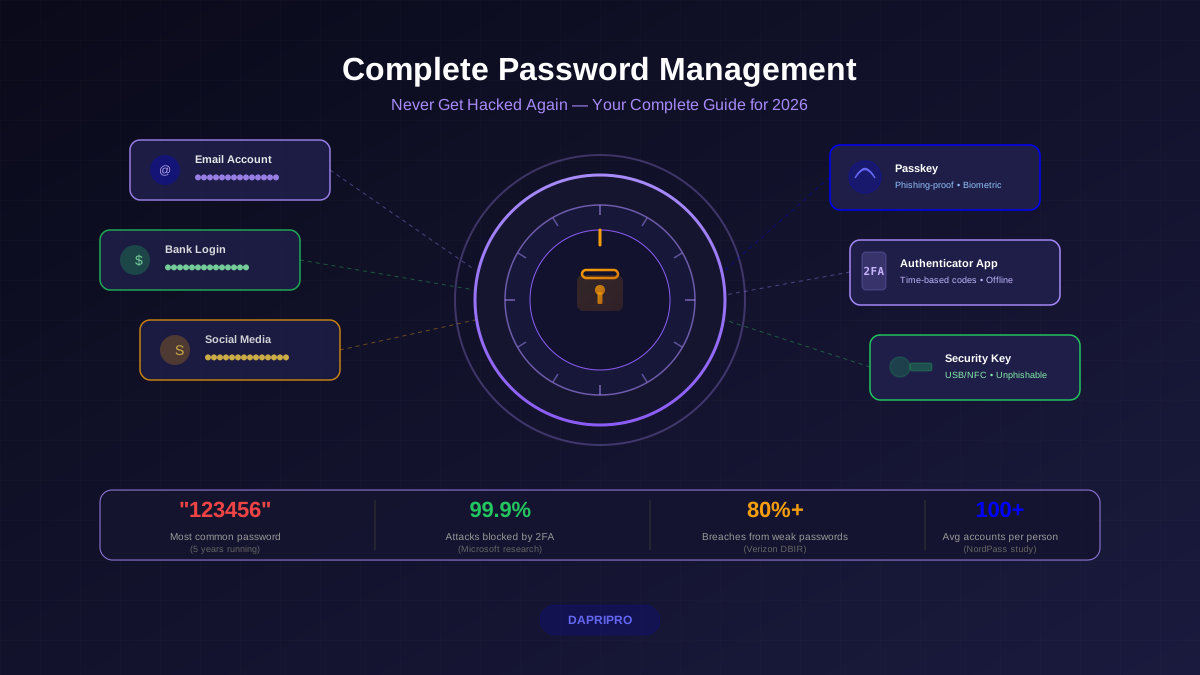

Right now, as you read this, there is a good chance that at least one of your passwords is sitting in a breach database. The 2025 Mother of All Breaches compilation alone contained 26 billion records from LinkedIn, Twitter/X, Adobe, Dropbox, and hundreds of other services. And most people have no idea which of their accounts are exposed.
The good news: you can audit every single password you own in about 30 minutes. Not "someday" — today. This guide walks you through a systematic password audit using tools you already have (or can get for free), a triage system to fix the most dangerous problems first, and a repeatable process you can run quarterly to stay clean.
No security expertise required. Just your password manager, a browser, and 30 minutes of focused time.
Why You Need to Audit Your Passwords Right Now
The numbers make the urgency clear:
- 26 billion records in the 2025 MOAB (Mother of All Breaches) compilation — the largest breach dataset ever assembled
- 65% of people reuse passwords across multiple sites, meaning one breach cascades to dozens of accounts
- Average person has 100+ accounts but uses only 5-7 unique passwords
- Credential stuffing attacks attempt billions of leaked username/password pairs against major services daily
- Time to exploitation after a breach: stolen credentials appear on dark web marketplaces within 24-48 hours
The gap between "my password was leaked" and "someone logged into my bank account" is getting shorter. Automated credential-stuffing bots test leaked passwords against 50+ popular services simultaneously. If you reuse your Netflix password on your email, and Netflix gets breached, an attacker could be in your inbox within hours — and from there, resetting passwords on everything else.
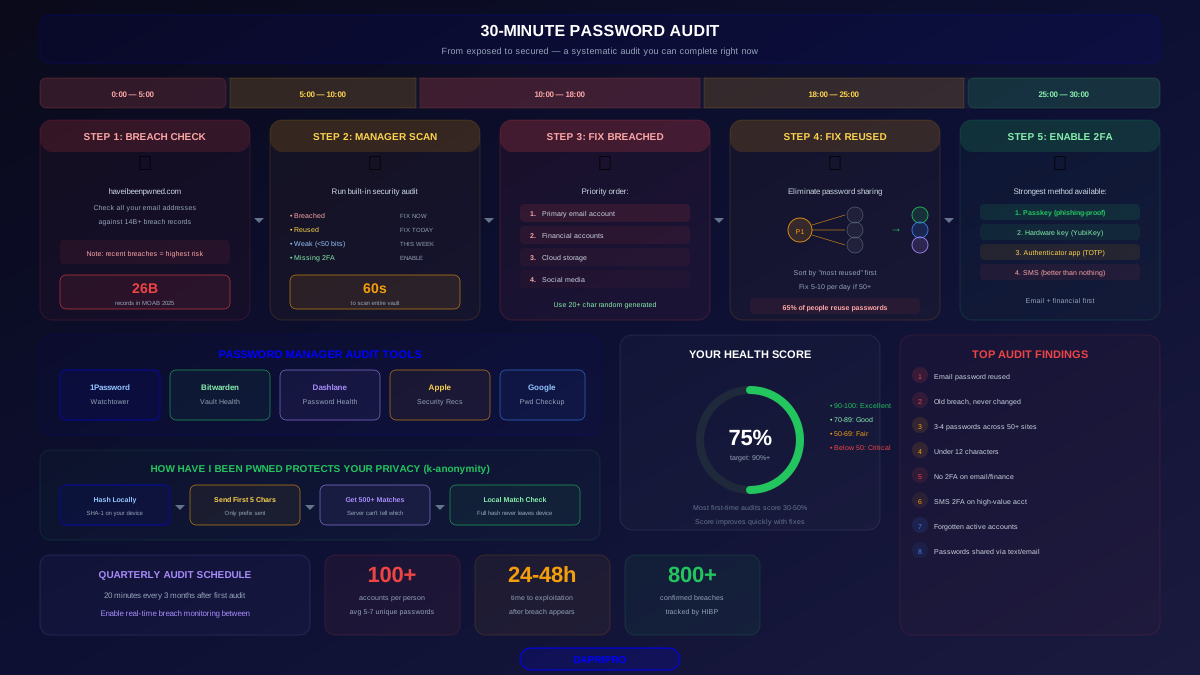
The 30-Minute Password Audit: Complete Timeline
Here is exactly how to spend each segment. Set a timer and follow the steps:
Minutes 0-5: Check Your Breach Exposure
- Go to haveibeenpwned.com
- Enter every email address you use for online accounts (personal, work, old addresses you might have forgotten about)
- For each email, note which breaches appear and when they occurred
- Take a screenshot or note the breach names — you will need this for prioritization
What you are looking for:
- Recent breaches (2024-2026) — highest priority. These credentials are actively being exploited.
- Breaches that included passwords (not just email addresses) — check the "Compromised data" section for each breach.
- Multiple breaches on the same email — suggests this email is widely circulated in breach databases.
Minutes 5-10: Run Your Password Manager's Security Audit
Every major password manager has a built-in security scanner. Open yours now:
| Password Manager | Audit Feature | Where to Find It |
|---|---|---|
| 1Password | Watchtower | Sidebar → Watchtower |
| Bitwarden | Vault Health Reports | Tools → Reports (web vault) |
| Dashlane | Password Health | Home → Password Health score |
| NordPass | Password Health | Menu → Password Health |
| Apple Keychain | Security Recommendations | Settings → Passwords → Security Recommendations |
| Google Password Manager | Password Checkup | passwords.google.com → Password Checkup |
The audit report will categorize your passwords into buckets. Record the counts:
- Compromised / Breached — appeared in known data breaches (FIX IMMEDIATELY)
- Reused — same password on multiple sites (FIX TODAY)
- Weak — passwords that are too short, too simple, or use common patterns (FIX THIS WEEK)
- No 2FA — accounts that support 2FA but you have not enabled it (ENABLE THIS WEEK)
Minutes 10-18: Fix Breached Passwords (Highest Priority)
Sort your breached passwords by account importance. Fix in this order:
- Primary email account — this is your skeleton key. If an attacker controls your email, they can reset passwords on everything else. Change this password first, enable the strongest 2FA available (passkey or authenticator app), and verify there are no unauthorized recovery options or forwarding rules set up.
- Financial accounts — banks, investment accounts, PayPal, Venmo, cryptocurrency exchanges. Change passwords, enable 2FA, check recent transaction history for unauthorized activity.
- Cloud storage — Google Drive, iCloud, Dropbox, OneDrive. These contain sensitive documents and may have shared links that expose data.
- Social media — compromised accounts can be used for impersonation, phishing your contacts, or authentication to other services (Login with Google/Facebook).
For each password you change:
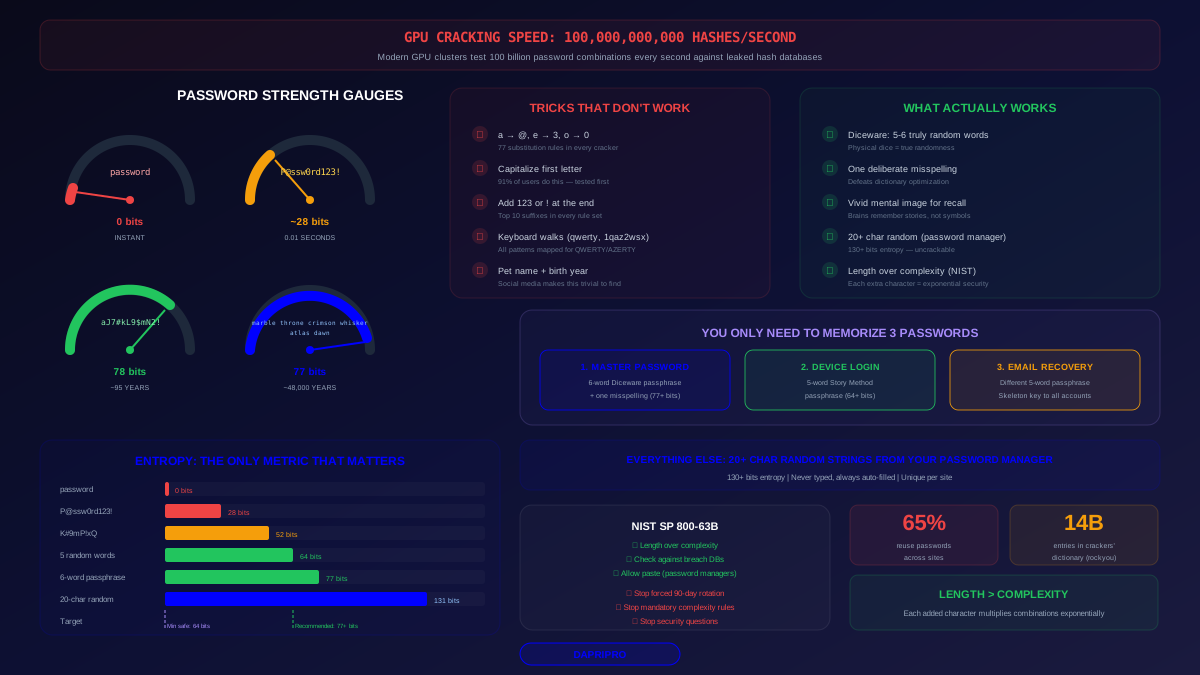
- Use your password manager to generate a random 20+ character password
- Never create the new password yourself — let the generator handle it
- Verify the new password saved correctly in your manager before closing the change-password page
- If the service supports passkeys, create one now
Minutes 18-25: Fix Reused Passwords
Your audit report shows which password is used on multiple sites. For each reused group:
- Identify which account in the group matters most (usually the one with financial or personal data)
- Change that account's password first
- Work through the remaining accounts in the reuse group
- Each new password should be a unique, random 20+ character string from your manager
If you have 50+ reused passwords (common for people new to password managers), do not try to fix all of them now. Fix the top-value accounts in order, then set a daily goal of changing 5-10 passwords until all reuses are eliminated. Most password managers let you sort by "most reused" to find the worst offenders first.
Minutes 25-30: Enable 2FA on Critical Accounts
With your worst passwords fixed, spend the remaining time enabling two-factor authentication on accounts that support it but do not have it activated. Priority order:
- Email accounts (all of them)
- Financial accounts
- Password manager itself (if not already enabled)
- Cloud storage
- Social media
For 2FA method, prefer in this order: passkey > hardware security key > authenticator app > SMS. SMS is better than nothing but vulnerable to SIM-swapping. Never use email-based 2FA if an authenticator app is available.
Beyond 30 Minutes: The Deep-Dive Audit
Once the urgent fixes are done, schedule time for these deeper checks:
Find Forgotten Accounts
Search your email for phrases like "welcome to", "verify your email", "account created", "reset your password." You will find accounts you forgot existed — some may still have active credentials. Either delete these accounts entirely or update their passwords.
Check for Unauthorized Access
On critical accounts, review:
- Active sessions — sign out all other sessions and re-authenticate
- Connected apps — revoke OAuth access for apps you no longer use
- Recovery options — remove any phone numbers or email addresses you do not recognize
- Forwarding rules — attackers often set email forwarding to maintain access even after password changes
Audit Shared Passwords
Search your password manager for credentials shared via text message, email, or sticky notes. Any password that has ever been shared in plaintext should be considered compromised and changed.
Understanding Your Password Health Score
Most password managers give you an overall health score. Here is what the numbers mean and what to target:
| Score Range | Rating | What It Means | Action Required |
|---|---|---|---|
| 90-100% | Excellent | Nearly all passwords are unique, strong, and unbreached | Maintain with quarterly audits |
| 70-89% | Good | Some reused or weak passwords remain | Fix reused passwords, change 5/day until clean |
| 50-69% | Fair | Significant reuse, several weak passwords | Prioritize this week, fix 10/day |
| Below 50% | Critical | Most credentials are reused, weak, or breached | Dedicate 1-2 hours to emergency fixes |
Do not get discouraged by a low initial score. Most people who have never done a password audit start in the 30-50% range. The score improves quickly once you start replacing reused passwords with unique generated ones.
How Have I Been Pwned Actually Works
Many people hesitate to type their email into a breach-checking site. Understanding how HIBP works should ease that concern:
Email Checking
Troy Hunt, the security researcher behind HIBP, collects breach data from publicly available dumps. When you search your email, it checks against 14+ billion records from 800+ confirmed breaches. Your email is used as a search key — it is not stored or shared.
Password Checking (Pwned Passwords)
The Pwned Passwords feature uses a k-anonymity model:
- Your password is SHA-1 hashed entirely on your device (never sent in plaintext)
- Only the first 5 characters of the hash are sent to the HIBP API
- The API returns all hash suffixes that match those 5 characters (typically 500-600 results)
- Your browser locally checks if the full hash of your password matches any returned suffix
Your full password hash never leaves your device. The server cannot determine which of the 500+ returned hashes you were searching for. This is the same model used by 1Password, Firefox Monitor, and Google Password Checkup.
Setting Up Continuous Monitoring
A one-time audit is good. Continuous monitoring is better. Set up these automated protections:
Breach Notifications
- HIBP email notifications — register at haveibeenpwned.com/NotifyMe to get emailed when your address appears in new breaches
- 1Password Watchtower — automatically monitors your vault against new breach data, alerts in-app
- Firefox Monitor — integrates HIBP data into browser notifications
- Google Dark Web Report — free monitoring for Google account holders, checks email, name, phone, and address on dark web
Password Manager Best Practices for Ongoing Security
- Enable breach alerts in your password manager settings (most have this off by default)
- Set a quarterly calendar reminder to run the full audit again
- Create a new-account rule: every time you create an account, use the password generator immediately — never type a password manually
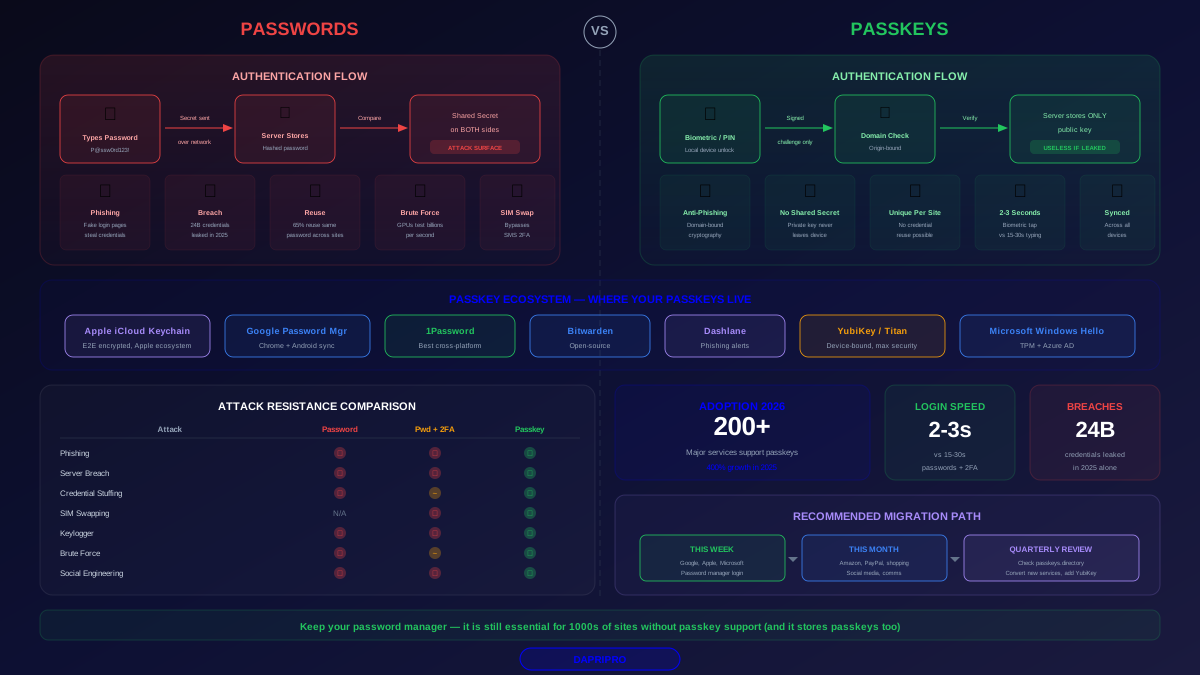
- Enable passkeys on every service that supports them — they cannot be phished or breached
The 8 Most Common Audit Findings (and How to Fix Each)
1. Your Email Password Is Reused Somewhere Else
Risk: Critical. Your email is the recovery method for every other account. Fix: generate a unique 20+ character password, enable a passkey if available, set up authenticator-based 2FA.
2. Old Breached Credentials You Never Changed
Risk: High. That LinkedIn breach from 2012? If you never changed the password, it is still being tested against services today. Fix: change the password or, better, delete the account if unused.
3. The Same 3-4 Passwords Across 50+ Sites
Risk: High. Classic credential-stuffing vulnerability. Fix: generate a unique password for each site. Start with financial, email, and cloud accounts. Do 5-10 per day for the rest.
4. Passwords Under 12 Characters
Risk: Medium-High. Any password under 12 characters with standard complexity can be brute-forced in under a day with modern GPUs. Fix: replace with 20+ character generated passwords.
5. No 2FA on Email or Financial Accounts
Risk: High. Even a strong password without 2FA is one phishing email away from compromise. Fix: enable authenticator app or passkey immediately.
6. SMS-Based 2FA on High-Value Accounts
Risk: Medium. SIM-swapping attacks can intercept SMS codes. Fix: upgrade to authenticator app (Google Authenticator, Authy, Microsoft Authenticator) or passkey.
7. Forgotten Accounts With Active Credentials
Risk: Low-Medium. Old accounts may contain personal data and can be hijacked. Fix: either delete the account completely or update the password and enable 2FA.
8. Passwords Shared via Text or Email
Risk: Medium. Any password that was ever transmitted in plaintext should be considered potentially compromised. Fix: change the password, use your manager's secure sharing feature for future sharing.
Your Quarterly Audit Schedule
Set a recurring calendar event with this checklist:
- Check HIBP for new breaches on all your email addresses (2 minutes)
- Run password manager audit and note your health score trend (1 minute)
- Fix any new breached or reused passwords that appeared since last audit (5-10 minutes)
- Review connected apps/OAuth on Google, Apple, Microsoft, and Facebook (5 minutes)
- Check for new passkey support on services you use frequently (3 minutes)
- Verify 2FA is still active on all critical accounts (2 minutes)
- Review recovery options — make sure backup codes are current and stored securely (3 minutes)
The quarterly audit takes about 20 minutes if you have been maintaining good hygiene. The first audit takes 30 minutes because you are clearing a backlog.
The Bottom Line
A password audit is the single highest-impact cybersecurity action most people can take in 30 minutes. It closes the gap between "I should fix my passwords" and "my passwords are actually fixed." The tools are free, the process is systematic, and the result is measurable: your password health score goes up, your breach exposure goes down, and the next time a major data leak makes the news, you check your monitoring alerts and move on with your day instead of panic-changing 50 passwords.
Do the 30-minute audit today. Set the quarterly reminder. Let your password manager handle the ongoing monitoring. And never type a password you created yourself ever again — that is what the generator is for.