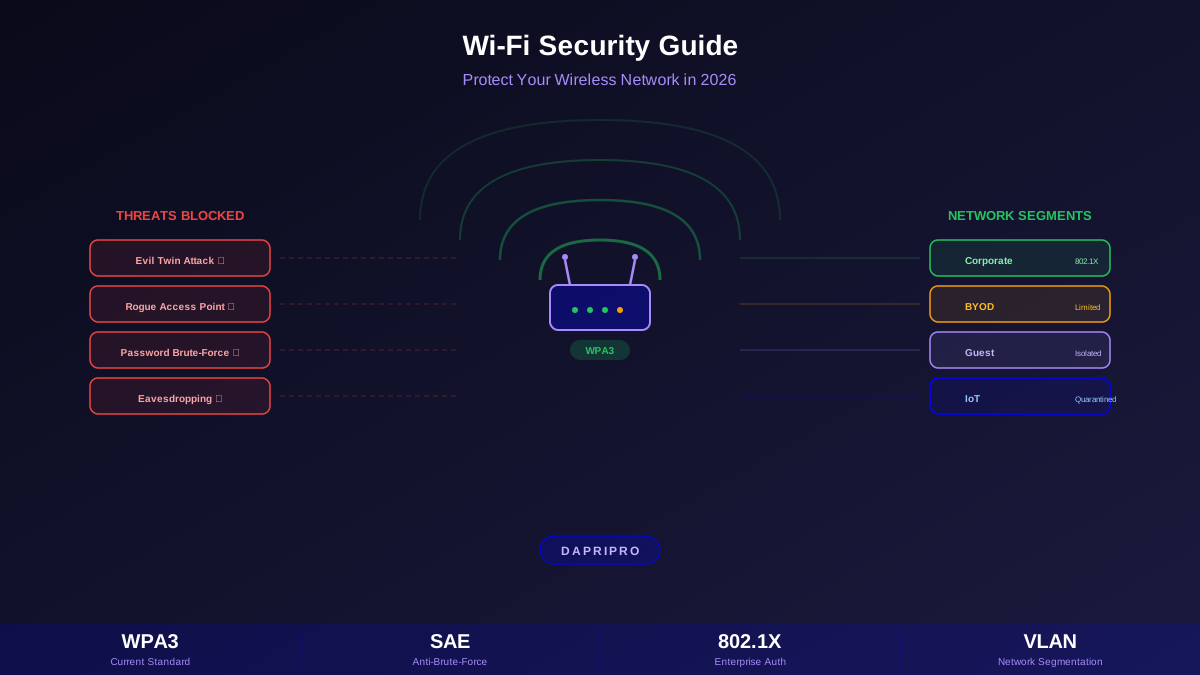

The average home network now has over 20 connected devices — laptops, phones, smart TVs, thermostats, cameras, gaming consoles, and dozens of IoT gadgets. Every single one of them trusts your Wi-Fi router as its gateway to the internet. If that router is misconfigured, every device behind it is exposed.
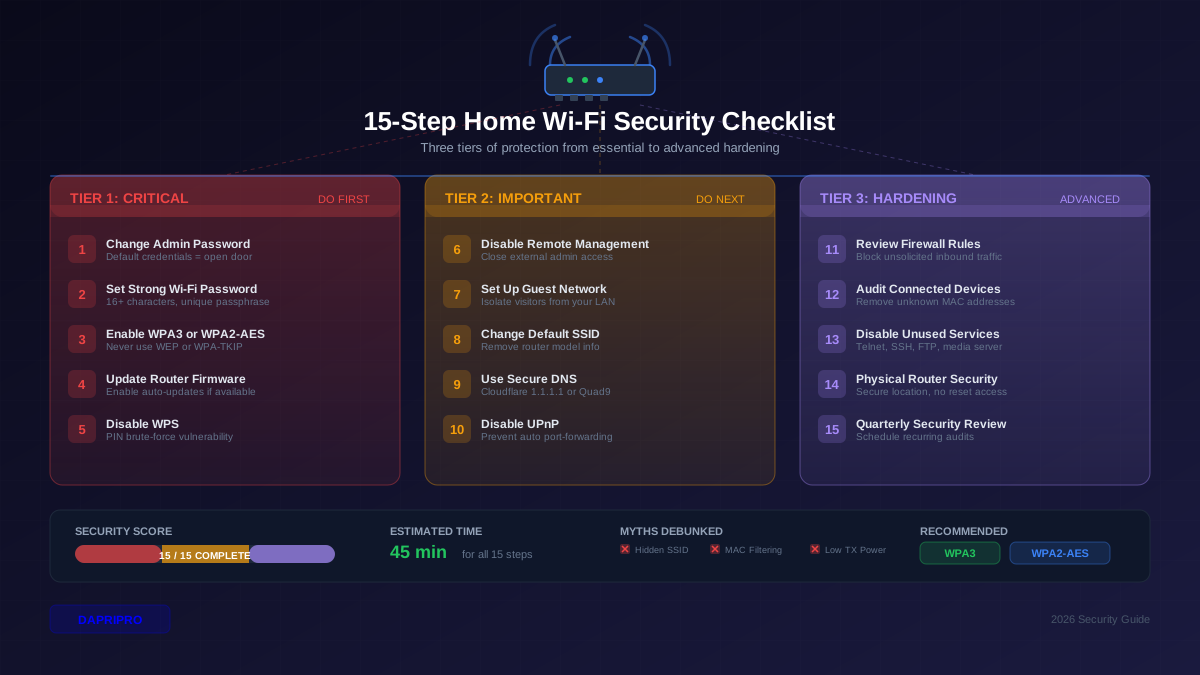
Most home routers ship with insecure defaults: predictable admin credentials, outdated encryption, unnecessary services enabled, and firmware that may already be months behind on security patches. This checklist walks through 15 specific configuration changes that close the most commonly exploited gaps, ordered by impact.
Tier 1: Critical (Do These Today)
Step 1: Change the Router Admin Password
This is not your Wi-Fi password — it is the password for the router's management interface (the page you access at 192.168.1.1 or 192.168.0.1). Every router ships with a default like admin/admin, admin/password, or a credential printed on a sticker that follows a predictable pattern for that manufacturer.
Databases of default router credentials for every manufacturer and model are freely available online. Anyone on your network (or anyone who gains Wi-Fi access through other means) can use these defaults to log into your router and change any setting — including redirecting all your traffic through a malicious DNS server.
- Set a unique password of at least 16 characters using your password manager
- Do not reuse this password anywhere else
- If your router supports it, change the admin username from "admin" as well
Step 2: Set a Strong Wi-Fi Password
Your Wi-Fi password (the pre-shared key or PSK) should be at least 16 characters and randomly generated. Avoid dictionary words, addresses, pet names, or any information that could be guessed or found on social media.
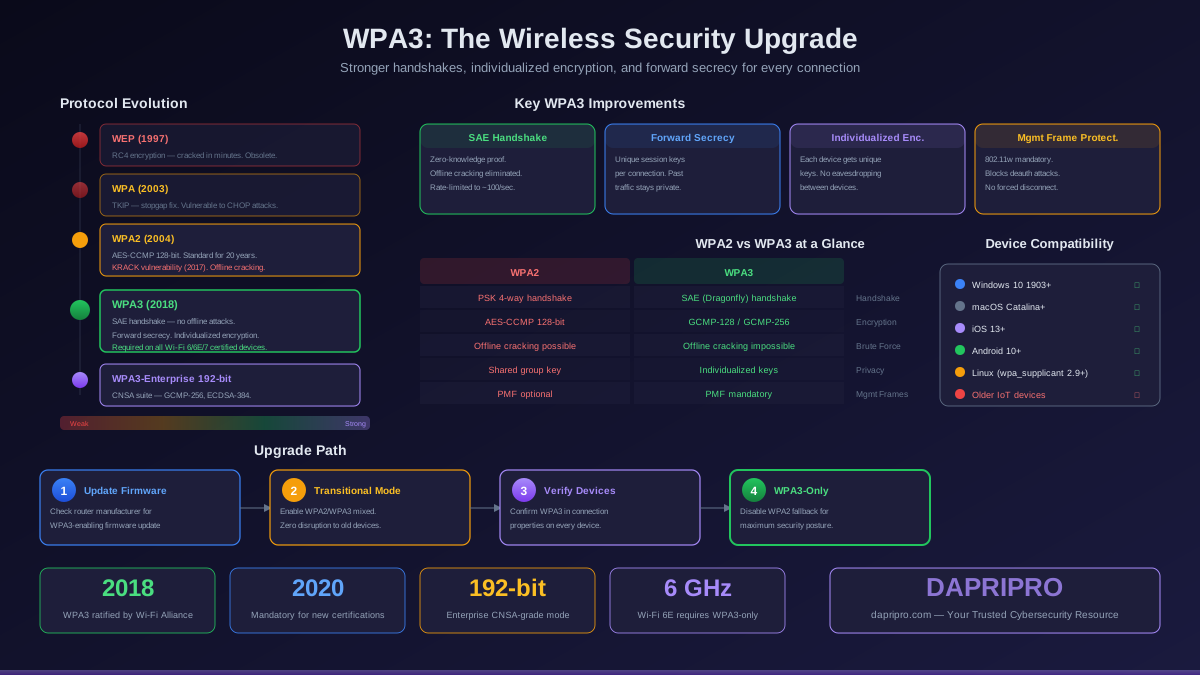
With WPA2, a weak password can be cracked offline using captured handshake frames and a dictionary attack. A 16+ character random password makes this attack computationally infeasible. With WPA3, the SAE (Simultaneous Authentication of Equals) protocol eliminates offline dictionary attacks entirely, but a strong password is still important as a defense-in-depth measure.
Step 3: Enable WPA3 or WPA2-AES Encryption
Navigate to your router's wireless security settings and set the encryption mode:
- Best: WPA3-Personal (SAE). Provides forward secrecy, eliminates offline dictionary attacks, and protects individual sessions even on open networks
- Acceptable: WPA2-AES (CCMP). Still secure with a strong password, but lacks the forward secrecy and anti-brute-force protections of WPA3
- Transitional: WPA3/WPA2 mixed mode. Allows WPA3-capable devices to use SAE while older devices fall back to WPA2. Better than pure WPA2, but the WPA2 fallback is still vulnerable to offline attacks
- Never use: WEP (crackable in under a minute), WPA-TKIP (deprecated, vulnerable to multiple attacks), or "Open" (no encryption at all)
Step 4: Update Router Firmware
Router firmware vulnerabilities are discovered constantly. In 2025 alone, over 200 CVEs were published for consumer router firmware from major manufacturers. Many of these vulnerabilities allow remote code execution — meaning an attacker can take full control of your router from the internet without ever touching your Wi-Fi.
- Log into your router's admin panel and check the firmware version
- Visit your router manufacturer's support page and compare with the latest available version
- If an update is available, install it immediately
- Enable automatic firmware updates if your router supports this feature
- If your router has not received a firmware update in over 12 months, consider replacing it — end-of-life routers stop getting security patches
Tier 2: Important (Do These This Week)
Step 5: Disable WPS (Wi-Fi Protected Setup)
WPS was designed to make connecting devices easier — press a button or enter an eight-digit PIN. The problem: the PIN-based method is fundamentally broken. The eight-digit PIN is checked in two halves (four digits each), and the last digit is a checksum. This reduces the effective search space from 100 million combinations to about 11,000, which can be brute-forced in 4 to 11 hours with tools like Reaver or Bully.
Even if you only use the push-button method, many routers keep the PIN method active in the background. Disable WPS entirely in your router settings. It is not worth the convenience risk.
Step 6: Disable Remote Management
Remote management allows the router's admin interface to be accessed from the internet (the WAN side). This should never be enabled on a home router. If remote management is on, your router's login page is exposed to every scanner and bot on the internet, and many router exploits specifically target the remote management interface.
- Disable "Remote Management," "Remote Administration," or "Web Access from WAN" in your router settings
- If you need to manage your router remotely, use a VPN to connect to your home network first, then access the admin interface locally
- Check for and disable any cloud-based management features you do not actively use
Step 7: Set Up a Separate Guest Network
Most modern routers support a guest network — a separate wireless network with its own SSID and password that is isolated from your primary network. Devices on the guest network can access the internet but cannot see or communicate with devices on your main network.
Use the guest network for:
- Visitors: Give guests the guest password instead of your primary password. Change it periodically without disrupting your own devices
- IoT devices: Smart speakers, cameras, thermostats, robot vacuums, and other IoT devices are notorious for poor security, infrequent updates, and excessive data collection. Isolate them on the guest network so a compromised IoT device cannot reach your computers and phones
- Children's devices: If your router supports per-network parental controls, the guest network provides convenient content filtering boundaries
Step 8: Change the Default SSID
The default SSID (network name) reveals your router's manufacturer and sometimes the model. This gives an attacker immediate knowledge of which exploits to try. Change it to something that does not identify:
- Your name, address, or apartment number
- The router manufacturer or model
- Your ISP
Pick something generic or creative. "FBI_Surveillance_Van" is funny but overused. The point is simply to avoid broadcasting identifying information.
Step 9: Use a Secure DNS Provider
By default, your router uses your ISP's DNS servers. ISP DNS is typically unencrypted, potentially logged, and sometimes manipulated to inject ads or redirect failed lookups. Switch to a privacy-respecting, security-focused DNS provider:
- Cloudflare (1.1.1.1): Fast, privacy-focused, supports DNS-over-HTTPS and DNS-over-TLS. Offers 1.1.1.2 variant with malware blocking and 1.1.1.3 with malware + adult content blocking
- Quad9 (9.9.9.9): Blocks known malicious domains automatically using threat intelligence feeds. Good choice if you want built-in protection
- Google (8.8.8.8): Fast and reliable, but Google logs queries for 24-48 hours
If your router supports DNS-over-HTTPS (DoH) or DNS-over-TLS (DoT), enable it. This encrypts your DNS queries so your ISP cannot see which domains you are resolving.
Step 10: Disable UPnP
Universal Plug and Play (UPnP) allows devices on your network to automatically open ports on your router without your knowledge. While convenient for gaming consoles and media streaming, UPnP has been exploited repeatedly to expose internal services to the internet, redirect traffic, and create botnets.
- Disable UPnP in your router settings
- If specific applications need port forwarding, configure it manually for only the ports required
- Scan your router from the outside using a tool like ShieldsUP (grc.com) to verify no ports are unexpectedly open
Tier 3: Hardening (Next Steps)
Step 11: Review the Built-In Firewall
Most routers include a basic firewall that blocks unsolicited inbound connections by default (SPI or stateful packet inspection). Verify it is enabled and review any rules:
- Ensure "SPI Firewall" or "Stateful Packet Inspection" is enabled
- Check for any port forwarding rules you do not recognize and remove them
- Disable DMZ (demilitarized zone) unless you specifically need it and understand the risk — DMZ exposes a device to the internet with no firewall protection
Step 12: Audit Connected Devices
Log into your router and review the list of connected devices (usually under "Client List," "Connected Devices," or "DHCP Client Table"). Look for:
- Devices you do not recognize
- Devices that should no longer have access (old phones, former roommates' devices)
- Unusually high bandwidth usage from any single device
If you find unknown devices, change your Wi-Fi password immediately. All legitimate devices will need to reconnect with the new password, and unauthorized devices will be locked out.
Step 13: Disable Unnecessary Services
Check your router settings for services that should be disabled unless actively needed:
- Telnet and SSH remote access: Rarely needed on home routers, but provides shell access if compromised
- USB file sharing (SMB/FTP): If you have a USB drive connected to your router, ensure the sharing service is secured or disabled
- SNMP: Network management protocol with known vulnerabilities in older versions. Disable unless you are running network monitoring software
- Community hotspot features: Some ISP routers (notably Xfinity) share your bandwidth as a public hotspot by default. Opt out through your ISP account
Step 14: Consider Router Placement and Physical Security
Physical access to a router means game over for security. A reset button, console port, or even an Ethernet cable provides full access bypassing all wireless protections:
- Place your router in a location that is not easily accessible to visitors or visible through windows
- If you are in a shared housing situation, consider a router with a lockable enclosure
- Reduce signal leakage outside your home by positioning the router centrally rather than near exterior walls (this also improves internal coverage)
Step 15: Set a Quarterly Security Review Schedule
Router security is not a one-time task. Set a recurring calendar reminder every three months to:
- Check for firmware updates
- Review connected devices and remove unknown ones
- Verify WPS, UPnP, and remote management are still disabled
- Confirm no unexpected port forwarding rules have appeared
- Check for end-of-life announcements for your router model
Common Home Wi-Fi Security Myths
Myth: Hiding Your SSID Makes You Invisible
Your router still broadcasts the SSID in management frames that any wireless analyzer can capture. Hiding the SSID actually makes your devices less secure because they actively broadcast the network name in probe requests wherever you go, allowing anyone listening to see all the hidden networks your device remembers.
Myth: MAC Address Filtering Keeps Intruders Out
MAC addresses are transmitted in plaintext in every single wireless frame. An attacker can see all authorized MAC addresses simply by capturing traffic passively, then spoof any of them with a one-line command. MAC filtering adds management burden without meaningful security benefit.
Myth: Reducing Wi-Fi Signal Strength Improves Security
A directional antenna or software-defined radio can capture Wi-Fi signals from hundreds of meters away, far beyond any practical signal reduction you might configure. Reducing signal strength primarily degrades your own experience without creating a meaningful security barrier.
The Bottom Line
Home Wi-Fi security comes down to a small set of configuration changes that most routers support but few ship with enabled by default. The first four steps — changing both passwords, enabling proper encryption, and updating firmware — address the vast majority of real-world home network attacks. The remaining 11 steps build additional layers of protection. All 15 can be completed in under two hours, and once done, require only a brief quarterly checkup to maintain. Do not let your router be the weakest link in your home security.