
Your laptop contains your entire digital life — or if it is a work machine, your organization's confidential data, customer records, and intellectual property. If someone steals that laptop, the only thing standing between them and all of that data is full disk encryption. Without FDE, a thief can pull the drive, connect it to another computer, and read everything in minutes. With FDE, they get unusable random data that would take billions of years to crack.
BitLocker, FileVault, and LUKS are the three dominant FDE solutions, and each is built for a specific ecosystem. This guide compares them head-to-head with real setup procedures, performance data, recovery options, enterprise management capabilities, and security analysis — so you can pick the right one and configure it correctly.
How Full Disk Encryption Actually Works
Full disk encryption operates below the filesystem level. When you write data, the FDE layer intercepts the write, encrypts each block using AES-XTS, and stores the encrypted blocks on the physical drive. When you read data, the FDE layer decrypts each block before passing it to the filesystem. This happens transparently — your applications, operating system, and files behave exactly as they would on an unencrypted drive.
AES-XTS: the disk encryption mode
All three solutions use AES in XTS mode (XEX-based Tweaked CodeBook mode with CipherText Stealing), which was designed specifically for storage encryption. XTS differs from modes like GCM or CBC in an important way: it uses a "tweak" value derived from the sector number, meaning each disk sector is encrypted differently even if the plaintext data is identical. This prevents an attacker from detecting patterns across sectors. XTS does not provide authentication (unlike GCM), but authentication is less critical for disk encryption where the threat model is an attacker reading data, not modifying it in place without detection.
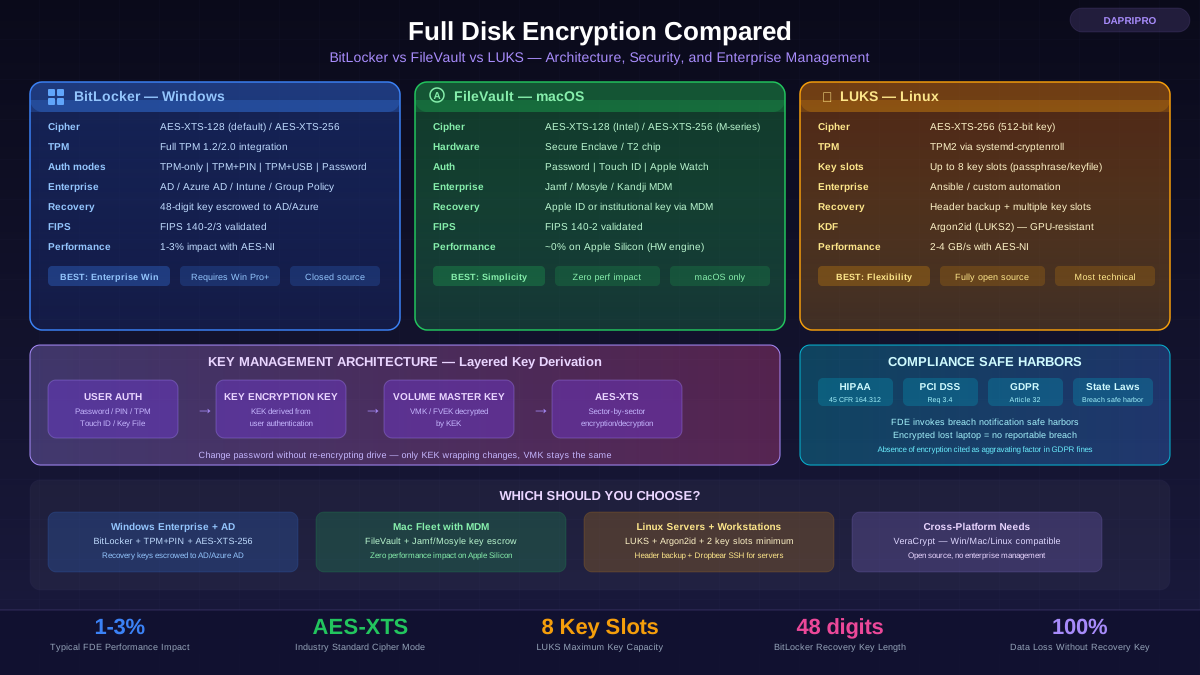
BitLocker uses AES-XTS-128 by default (128-bit AES key) but can be configured for AES-XTS-256. FileVault uses AES-XTS-128 on Intel Macs and AES-XTS-256 on Apple Silicon. LUKS defaults to AES-XTS-Plain64 with a 512-bit key (which is AES-XTS-256 — the 512-bit key is split into two 256-bit keys, one for the tweak and one for encryption).
Key management architecture
None of these tools encrypt your drive directly with your password. Instead, they use a layered key architecture: your password (or TPM state, or biometric) unlocks a key encryption key (KEK), which in turn decrypts the volume master key (VMK) or full-volume encryption key (FVEK), which is the actual key used for sector-level encryption. This architecture means you can change your password without re-encrypting the entire drive — only the KEK wrapping changes, while the underlying data encryption key stays the same.
BitLocker: Windows Full Disk Encryption
BitLocker has been available since Windows Vista (2006) and has matured into the enterprise default for Windows device encryption. It is deeply integrated with the Windows ecosystem — Active Directory, Azure AD, Group Policy, Microsoft Endpoint Manager — making it the natural choice for organizations running Windows infrastructure.
BitLocker unlock methods
BitLocker supports several authentication configurations, each with different security and convenience tradeoffs:
TPM-only — the drive unlocks automatically at boot if the TPM chip validates that the boot environment has not been tampered with (Secure Boot, boot loader, boot configuration). The user sees no encryption prompt and simply logs into Windows normally. This is the most convenient option and the default for Windows 11 Device Encryption, but it is the least secure against a physically sophisticated attacker who could perform TPM bus sniffing (intercepting the key as it passes from the TPM to the CPU over the LPC or SPI bus).
TPM+PIN — the strongest practical configuration. The user enters a PIN before Windows loads, and decryption requires both the TPM attestation and the correct PIN. This defeats TPM bus sniffing because the PIN is mixed into the key derivation. Microsoft recommends this for high-security environments. The PIN can be 4-20 digits (numeric) or, with the enhanced PIN policy enabled, a full alphanumeric passphrase.
TPM+USB startup key — requires a USB drive containing a startup key file to be present at boot, in addition to TPM validation. Useful for servers or shared machines where a PIN is impractical.
Password only (no TPM) — for hardware without a TPM chip (older machines, some virtual machines). The user enters a password at each boot. Security depends entirely on password strength.
BitLocker setup and configuration
On Windows 11 Pro/Enterprise with a TPM 2.0 chip, enabling BitLocker takes approximately 2 minutes through the GUI (Settings, Privacy and Security, Device encryption or BitLocker Drive Encryption through Control Panel). The initial encryption happens in the background while you continue working. For a 500 GB SSD, initial encryption typically completes in 30-60 minutes. For new installations on Windows 10 1803+ and Windows 11, BitLocker uses "Used Space Only" encryption by default, which encrypts only the portions of the drive that contain data — this is faster but slightly less secure than encrypting the entire drive (which ensures deleted data is also encrypted).
For enterprise deployment via Group Policy, the critical settings are: require AES-XTS-256 (instead of the default AES-XTS-128), require TPM+PIN for operating system drives, enable BitLocker recovery key escrow to Active Directory or Azure AD, and enable pre-boot authentication. These settings are under Computer Configuration, Administrative Templates, Windows Components, BitLocker Drive Encryption.
BitLocker recovery
BitLocker generates a 48-digit numerical recovery key during setup. This key is your lifeline if the TPM state changes (firmware updates, hardware changes), if you forget your PIN, or if you need to access the drive from another machine. Recovery key storage options include: active Directory (automatically escrowed with proper Group Policy), Azure AD / Microsoft Entra ID (for cloud-joined devices), Microsoft account (for personal devices), printed on paper, or saved to a USB drive. In enterprise environments, storing recovery keys in Active Directory is the standard — IT administrators can look up recovery keys by computer name or key ID.
BitLocker limitations
BitLocker requires Windows Pro, Enterprise, or Education for full functionality (Home edition only gets simplified Device Encryption). It does not support encrypting individual files or folders — it is all-or-nothing at the volume level. Cross-platform access is limited: you cannot natively read a BitLocker-encrypted drive on macOS or Linux without third-party tools like Dislocker (open-source, read-write support) or M3 BitLocker Loader (commercial). For removable drives, BitLocker To Go provides password-based encryption that works on any Windows edition for reading but requires Pro+ for writing.
FileVault: macOS Full Disk Encryption
FileVault 2 (introduced in OS X Lion, 2011) encrypts the entire macOS startup volume using AES-XTS. On Apple Silicon Macs (M1 and later), the hardware-level encryption is always active — FileVault essentially adds a layer of key protection on top of the hardware encryption, ensuring the drive cannot be decrypted without user authentication. The simplicity of FileVault is its defining characteristic: enable it, create a recovery key, and forget about it.
FileVault setup
Enable FileVault through System Settings, Privacy and Security, FileVault. Click Turn On. macOS offers two recovery options: allow your Apple ID to unlock the disk, or create an institutional recovery key. For personal use, the Apple ID option is convenient — you can reset encryption through iCloud if you forget your password. For enterprise deployments, use an MDM solution (Jamf, Mosyle, Kandji, or Apple Business Manager) to deploy FileVault profiles and escrow recovery keys centrally.
On Intel Macs with a T2 security chip, initial encryption is fast because the T2 chip already encrypts data at the hardware level — FileVault activation simply adds a password requirement to unlock the hardware encryption key. On Apple Silicon Macs, the same applies: the Secure Enclave handles encryption, and FileVault ensures the encryption key is released only after successful authentication (password, Touch ID, or Apple Watch).
FileVault performance
On Apple Silicon Macs, FileVault has zero measurable performance impact. The encryption and decryption happen in dedicated hardware (the Secure Enclave's AES engine) at the full speed of the storage controller. Apple's internal SSD controllers handle encryption natively, so there is no additional computational overhead. On older Intel Macs with T2 chips, the story is similar — the T2 chip's hardware AES engine handles encryption without CPU involvement. On Intel Macs without T2 (pre-2018 models), FileVault uses AES-NI instructions on the CPU, resulting in a small but measurable overhead of approximately 3-5 percent for heavy sequential I/O workloads.
FileVault recovery and management
If you forget your login password and configured Apple ID recovery during setup, you can reset your password and unlock the disk through the macOS Recovery partition (Command+R at boot). If your organization uses MDM, the MDM server holds an institutional recovery key or a personal recovery key escrowed during enrollment. The critical risk: if you did not configure either recovery method and you forget your password, the data is permanently inaccessible — Apple cannot decrypt FileVault-encrypted drives.
For enterprise management, MDM solutions can: automatically enable FileVault during device enrollment, escrow personal and institutional recovery keys, enforce FileVault as a compliance policy (device reports non-compliance if FileVault is disabled), and trigger FileVault password rotation. Jamf Pro, the most common macOS MDM, handles FileVault management as a built-in feature with key escrow to the Jamf server.
FileVault limitations
FileVault only encrypts the macOS startup volume — external drives require separate encryption through APFS encryption (Finder, right-click, Encrypt). FileVault does not support custom encryption algorithms or key sizes — it is AES-XTS with Apple-chosen parameters. There is no equivalent of BitLocker's TPM+PIN pre-boot authentication — FileVault relies on the macOS login window for authentication, which means the Mac must boot to the login screen before encryption is unlocked (on Apple Silicon, this is handled differently through the Secure Enclave, which provides similar protection). FileVault recovery key rotation requires MDM or manual user intervention.
LUKS: Linux Unified Key Setup
LUKS is the standard disk encryption specification for Linux, built on top of the dm-crypt kernel subsystem. Unlike BitLocker and FileVault, LUKS is an open standard (maintained as part of the cryptsetup project) — anyone can audit the code, verify the implementation, and understand exactly how their data is protected. Most Linux distributions (Ubuntu, Fedora, RHEL, Debian, Arch) offer LUKS encryption as an option during installation.
LUKS architecture and key slots
LUKS uses a header structure that supports up to 8 key slots. Each key slot can hold a different passphrase or key file, all of which decrypt the same master key. This is extremely useful: you can have your daily-use passphrase in slot 0, a long recovery passphrase in slot 1, a key file on a USB drive in slot 2, and so on. Adding a key slot does not require re-encrypting the drive — you are just adding another wrapper around the same master key.
The LUKS2 format (default since cryptsetup 2.0, 2017) adds several improvements over LUKS1: support for Argon2id as the key derivation function (resistant to GPU-based brute force and memory-hard), larger metadata area, authenticated encryption option (using AEAD), integrity verification (dm-integrity), and support for encryption via kernel keyring (improving security by keeping keys out of user-space memory).
LUKS setup during installation
Most Linux distributions offer a "full disk encryption" checkbox during installation that configures LUKS automatically. Ubuntu, for example, creates a LUKS-encrypted partition containing an LVM volume group, with logical volumes for root and swap. The installer prompts for an encryption passphrase and handles the rest. For Fedora, the process is similar with the Anaconda installer. For Arch Linux, LUKS setup is manual (which gives you full control over partition layout, cipher selection, and key management).
For manual setup or post-installation encryption, the process involves: creating a LUKS container with cryptsetup luksFormat, opening the container with cryptsetup open, creating a filesystem inside the container, configuring /etc/crypttab for automatic mounting, and updating the initramfs to include LUKS support for boot. The cipher, key size, and hash can all be specified during luksFormat — the default (aes-xts-plain64 with a 512-bit key and SHA-256 for key derivation) is the recommended configuration for most use cases.
LUKS performance
LUKS performance with AES-XTS-256 on modern hardware with AES-NI is excellent — approximately 2-4 GB/s throughput depending on the processor. This means the encryption layer is rarely the bottleneck; the SSD's read/write speed is typically the limiting factor. For devices without AES-NI, LUKS supports Adiantum cipher (based on ChaCha20), which provides good performance on ARM devices without hardware AES acceleration — Android uses Adiantum for full-disk encryption on budget devices.
LUKS critical operations
Header backup: The LUKS header contains all key slot metadata and the encrypted master key. If the header is corrupted (bad disk sector, accidental overwrite), the entire drive becomes permanently inaccessible. Always back up the LUKS header immediately after setup: run cryptsetup luksHeaderBackup and store the backup file securely (in a different physical location, encrypted). This is arguably the single most important step after initial LUKS setup — losing the header without a backup is unrecoverable.
Key slot management: Adding a key is done with cryptsetup luksAddKey, removing a key with cryptsetup luksRemoveKey, and changing a passphrase with cryptsetup luksChangeKey. You can check which key slots are active with cryptsetup luksDump. Best practice: keep at least two active key slots — your primary passphrase and a recovery passphrase stored separately.
Remote unlock: For headless servers, LUKS can be configured for remote unlock via Dropbear SSH in the initramfs — the server starts a minimal SSH server during boot, an administrator connects remotely and enters the LUKS passphrase, and boot continues. This is essential for encrypted servers in data centers where physical console access is impractical. Alternatively, Clevis and Tang provide network-bound disk encryption (NBDE) — the server automatically decrypts when it is on the trusted network and requires manual intervention when booted elsewhere.
LUKS limitations
LUKS has no built-in centralized management — there is no equivalent of Active Directory key escrow or MDM recovery key management. Enterprise LUKS management requires third-party solutions (like Thales CipherTrust or custom Ansible automation). LUKS requires user interaction at boot to enter the passphrase (unless configured with TPM2 via systemd-cryptenroll, Clevis+Tang for NBDE, or a key file). Cross-platform access is limited — Windows cannot natively read LUKS volumes (use LibreCrypt or WSL2 as workarounds). There is no official GUI management tool (though GNOME Disks and KDE Partition Manager provide basic LUKS support).
Head-to-Head Comparison
FDE and Compliance Requirements
Full disk encryption is not just a security best practice — it is a regulatory requirement in many contexts and a critical safe harbor provision in breach notification laws.
HIPAA: The Security Rule requires encryption of ePHI at rest (45 CFR 164.312(a)(2)(iv)) as an addressable specification. If a device with encrypted ePHI is lost or stolen, the breach notification is not required because the PHI is considered "unsecured" only when unencrypted. This safe harbor makes FDE one of the most cost-effective compliance controls — the cost of a BitLocker or FileVault deployment is trivial compared to the cost of a breach notification affecting thousands of patients.
PCI DSS: Requirement 3.4 requires rendering stored cardholder data unreadable using strong cryptography. FDE on endpoints that process payment card data satisfies this requirement. PCI DSS 4.0 (effective March 2025) strengthens encryption requirements and explicitly recognizes full-disk encryption as an acceptable method for removable media.
GDPR: Article 32 requires "appropriate technical and organisational measures" including encryption. While GDPR does not mandate specific encryption methods, supervisory authorities consistently cite the absence of encryption as an aggravating factor in penalty calculations. The 2018 Fine Guide from the European Data Protection Board lists encryption as a key measure that can reduce administrative fines.
State breach notification laws: Most US state breach notification laws include encryption safe harbors — if personal data was encrypted at the time of the breach, notification is not required. California, New York, Texas, and most other states follow this pattern. FDE is the simplest way to invoke these safe harbors for laptop theft.
Which FDE Solution Should You Choose?
Windows enterprise with Active Directory: BitLocker with TPM+PIN, AES-XTS-256, and recovery key escrow to AD DS. Deploy configuration via Group Policy or Microsoft Endpoint Manager. This is the industry-standard approach with the best enterprise management, compliance reporting, and recovery workflow.
Mac-only or mixed environment with MDM: FileVault with recovery key escrow to Jamf, Mosyle, or another MDM. The setup is simple, performance impact on Apple Silicon is zero, and MDM handles recovery key management. For Windows machines in the same environment, add BitLocker managed through the same MDM (most modern MDMs manage both platforms).
Linux workstations or servers: LUKS configured during OS installation with AES-XTS-256, Argon2id key derivation, and at least two key slots (daily passphrase plus recovery passphrase). Back up the LUKS header immediately. For servers, configure remote unlock via Dropbear SSH or Clevis+Tang NBDE. For enterprise fleet management, use Ansible playbooks to standardize LUKS configuration and manage key slots.
Cross-platform needs: If you need a single encrypted volume readable on Windows, macOS, and Linux, none of the built-in solutions work cross-platform natively. Use VeraCrypt — it is open-source, supports all three operating systems, and can create encrypted volumes or encrypt entire partitions. The tradeoff is that VeraCrypt lacks enterprise management features and requires separate installation on each platform.
Personal use / simplest option: If you are on a Mac, enable FileVault (one toggle). If you are on Windows 11 Pro, enable BitLocker (two clicks). If you are on Windows 11 Home, Device Encryption is likely already enabled if you have a Microsoft account and TPM 2.0. If you are on Linux, check the "Encrypt" box during installation. The most important thing is that FDE is turned on — the specific solution matters far less than having encryption active.
Regardless of which solution you choose, the cardinal rule of FDE is this: back up your recovery key before you need it. A BitLocker recovery key stored in Active Directory, a FileVault key escrowed to MDM, or a LUKS header backup stored in a secure location — these recovery mechanisms are not optional safety nets. They are essential components of any encryption deployment. Without them, FDE protection works perfectly — including protecting the data from you when something goes wrong.